Voice Agent – Introduction
Create a Voice Agent that answers and makes phone calls, test it in your browser, and find where each setting lives.
A Voice Agent is an AI that holds a phone conversation. It listens to the caller, works out what they want, and answers out loud. Callers just talk. There's no "press 1" menu.
You can use one to answer support calls, call a list of contacts through a Voice Campaign, qualify leads, or book appointments with Cal.com or Google Calendar. You can also put it on your website as a call button.
How it works
Each time the caller speaks, three things happen in a row:
- Listening: the agent turns what the caller says into text.
- Thinking: the AI reads that text, follows your instructions, checks your Knowledge Base if you've added one, and writes a reply.
- Speaking: the reply is turned into a voice.
You choose the option for each step from dropdowns in your dashboard. The list there is always the most up to date.
Some options do all three steps in one. They're called Realtime. See AI Settings.
Create your first agent
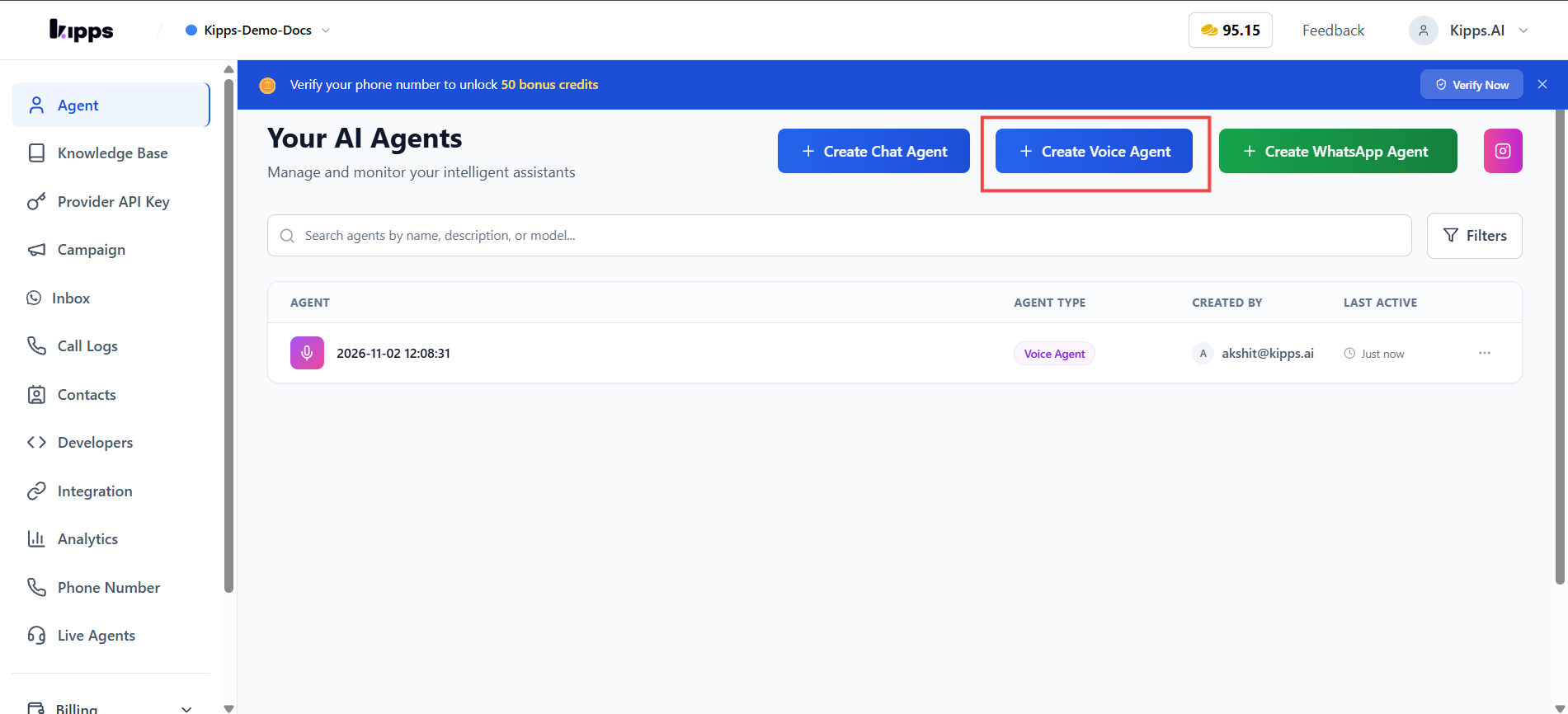
You need a Kipps.AI account and a role that can create agents. If you don't see the button in step 2, ask your organization admin.
-
Sign in at app.kipps.ai. Check the organization shown at the top, because agents belong to one organization.
-
Click Create Voice Agent.
-
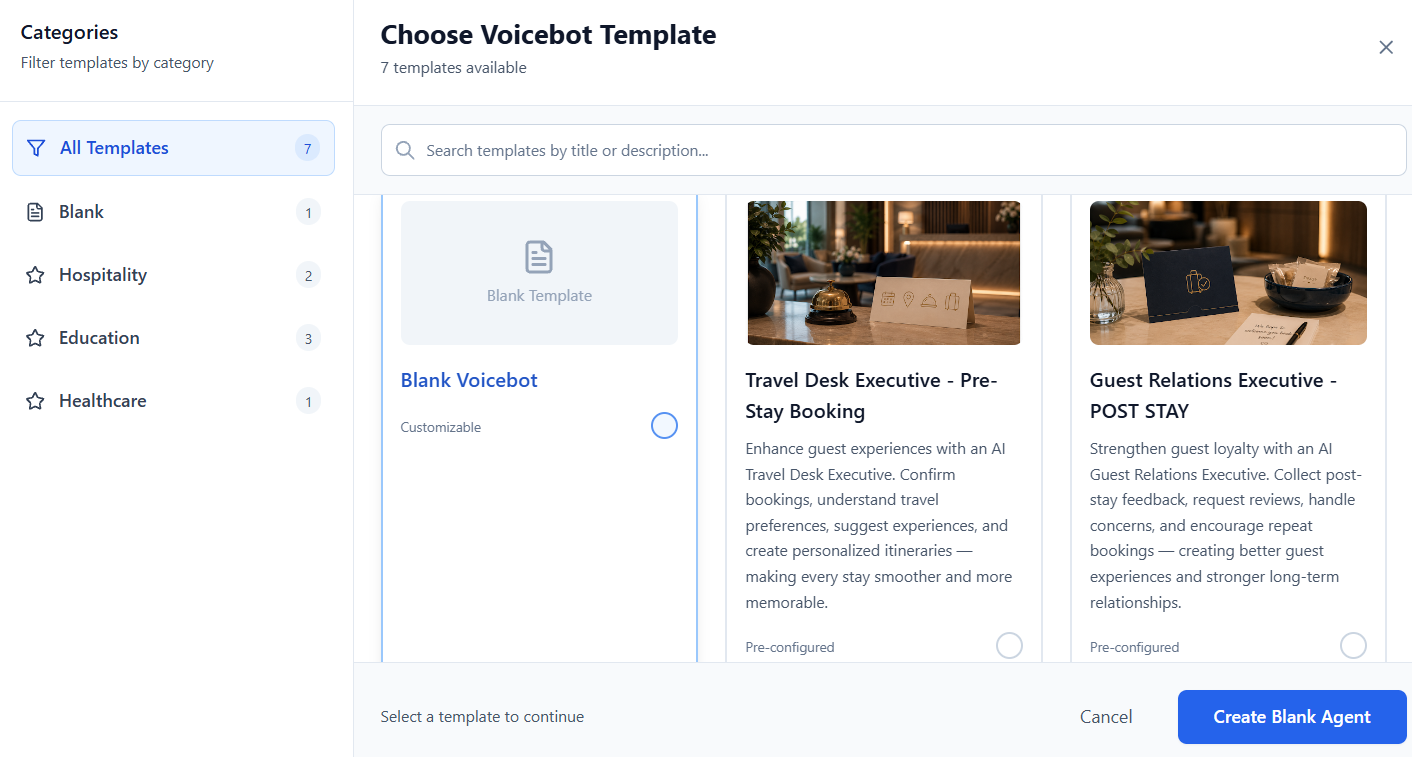
In the Choose Voicebot Template window, select a template and click Create from Template. To start from nothing, click Create Blank Agent instead. You can change everything later.
-
You land on the agent's AI tab. Write the Agent Instructions (the agent's job and how it should sound) and the Welcome Message (the first thing callers hear). A blank agent starts with "You are a helpful assistant." in both. Or click Generate with AI for a first draft. Every option on this tab is explained in AI Settings.
To personalize a call, put variables such as
{{full_name}}in the instructions or welcome message. See Dynamic Parameters.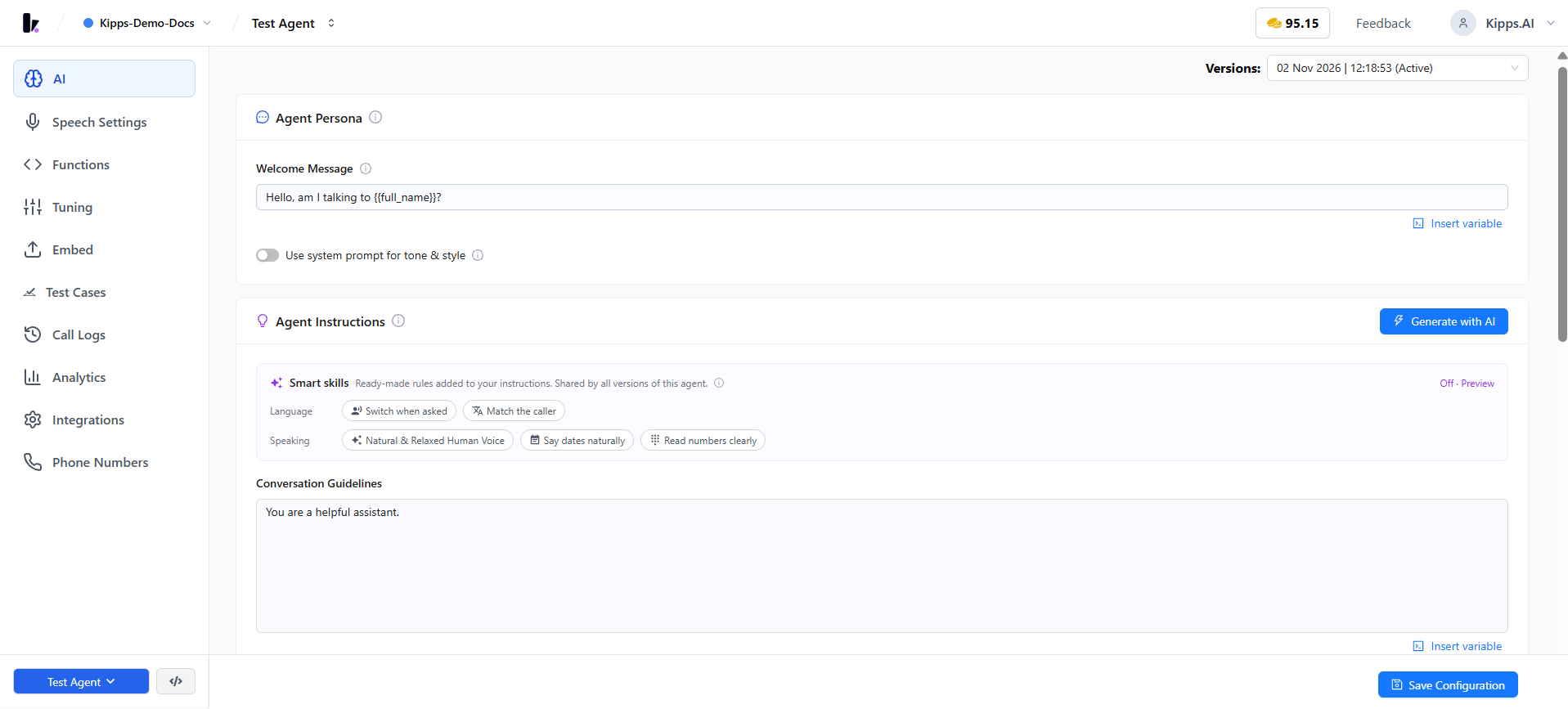
-
Click Save Configuration.
Test it
In the left menu, open Test Agent:
- Web Call starts a conversation in your browser. Allow microphone access when asked.
- Get a call from agent makes the agent phone you. See Call my phone.
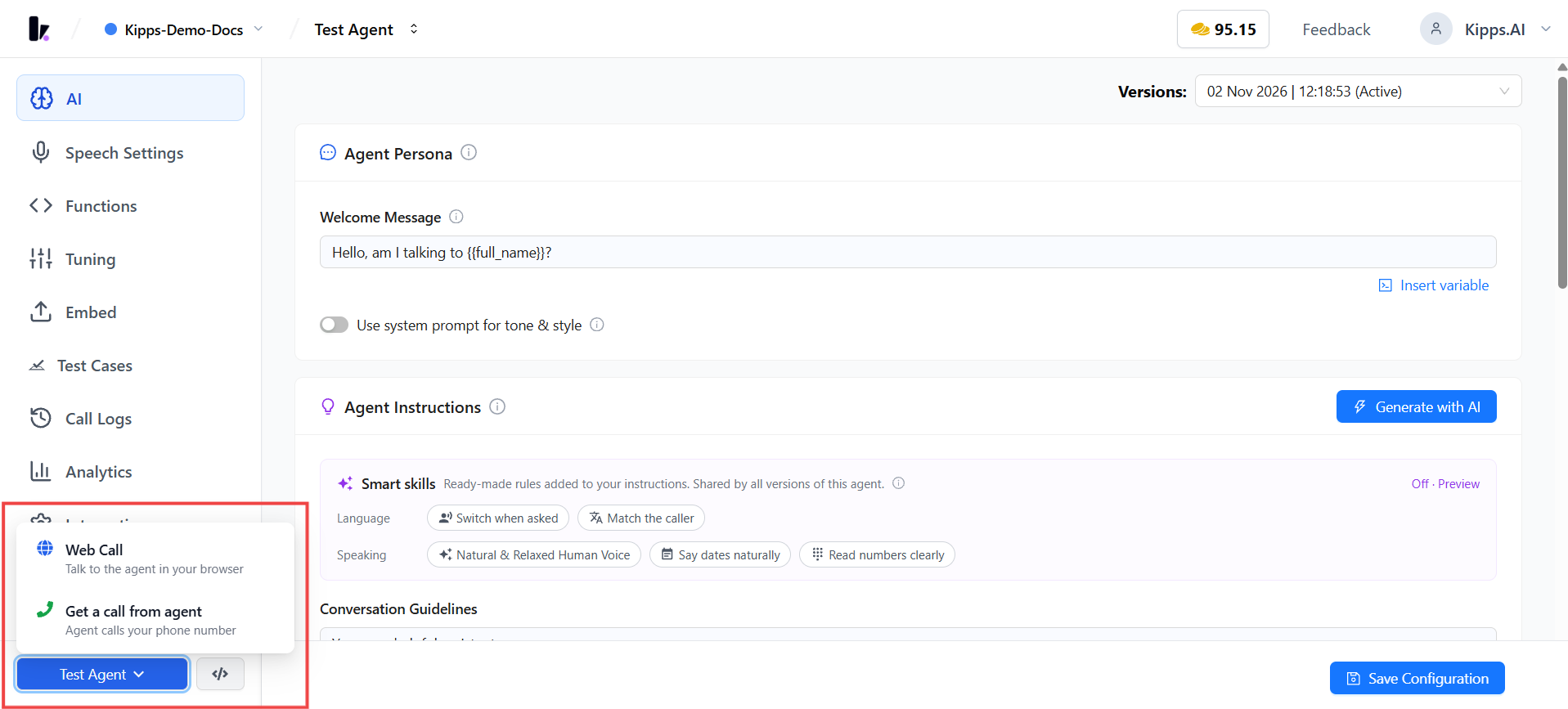
Save before you test. Calls use the saved settings, so unsaved edits won't be heard. If your instructions use {{variables}}, the code icon next to Test Agent lets you enter sample values for the test.
Each time you save changed instructions or a changed welcome message, the agent gets a new version. The Versions dropdown at the top of the AI tab lets you look back at earlier ones.
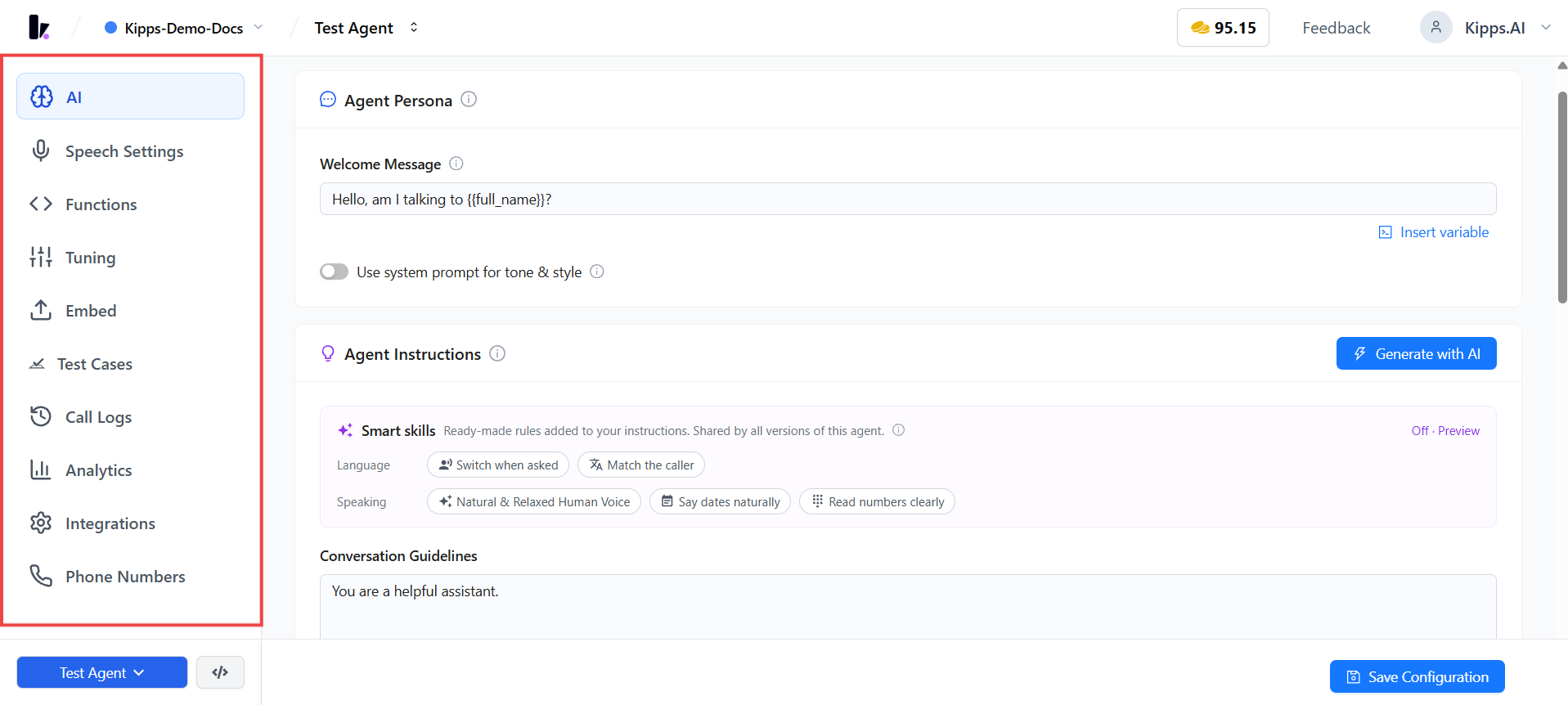
What's in the left menu
| Tab | What you do there |
|---|---|
| AI | The agent's name, instructions, welcome message, Knowledge Base, and language model, plus version history and Smart Skills. |
| Speech Settings | Pick the voice and the language the agent listens for. Also holds background noise and an option to send call details to another system. |
| Functions | Let the agent end calls, transfer them, look things up in your own systems, and more. |
| Tuning | Control interruptions, pauses, and maximum call length. |
| Embed | Add a call button to your website or app. |
| Test Cases | Check the agent's instructions with simulated caller conversations. |
| Call Logs | Listen to recordings, read transcripts and insights, and watch calls in progress. |
| Analytics | See call volume and results. |
| Integrations | Connect a calendar for bookings. |
| Phone Numbers | Connect a number for inbound and outbound calls. Opens the account-wide numbers page. |
Duplicate or delete an agent
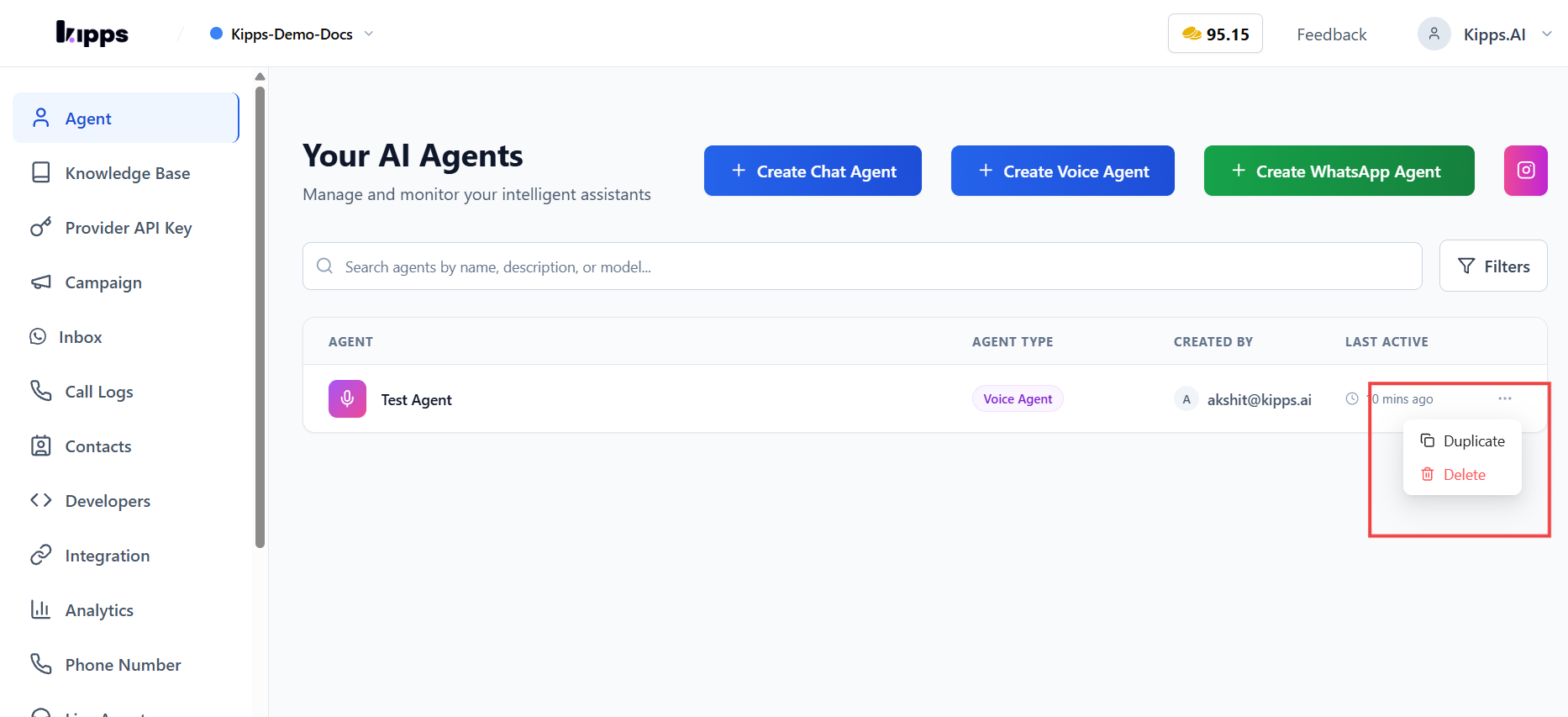
On the dashboard home page, open the menu on an agent's card and choose Duplicate or Delete. Both ask you to confirm first, and deleting can't be undone. Duplicating is a quick way to try a change without touching a live agent.
Next steps
Set the voice in Speech Settings, add a Knowledge Base so the agent answers from your own content, then connect a phone number. After real calls start, Call Logs show what to improve.
Troubleshooting
There's no Create Voice Agent button. Your role doesn't allow creating agents. Ask your organization admin.
Creating an agent fails with a "limit reached" error. Your plan caps how many Voice Agents you can have. See Plans.
The new agent isn't in my list. Refresh, then check the organization switcher at the top. Agents only show up in the organization that owns them.
The page shows "Voice Agent Not Working Due to…" in red. This is the last error the agent hit on a call, most often an invalid or expired API key for one of its providers. Fix the cause, click Save Configuration, and make a test call. The message clears once a call starts without errors. To add your own provider keys, see Provider API Keys.
The voice sounds wrong, or I can't hear the agent. Check the voice and language in Speech Settings, and play the voice preview there.
The agent gives wrong answers. Tighten the instructions and add the missing facts to a Knowledge Base.
Can one agent take inbound calls and run in campaigns? Yes. Assign it to a number for inbound calls and pick it in a campaign for outbound. It uses the same saved settings either way. How many calls can run at once depends on your plan.
Related Articles