WhatsApp Agent — AI
Step-by-step guide to configure the AI tab of the WhatsApp Agent in simple English.
This guide explains, in simple English, how to set up and use the AI tab inside your WhatsApp Agent on Kipps.AI. It includes WhatsApp-specific notes on Knowledge Bases and API keys, and practical tips for voice features.
Quick overview
- Sign in to your Kipps dashboard.
- Create a WhatsApp Agent or open an existing one.
- Open the agent and go to the AI tab.
- Configure Knowledge Base, Instructions, Model, Temperature, and optionally Voice (STT/TTS).
- Save, train any KB changes, and test in the Playground.
Step-by-step guide
Sign In
Log in to your Kipps account.
You can sign in using:
- Email and Password, or
- Google Login (Sign in with Google button)
Choose whichever method you prefer.
Create or Open a WhatsApp Agent
- From the dashboard click Create WhatsApp Agent or select an existing one in the left sidebar.
- Inside the agent, click the AI tab to open AI configuration.
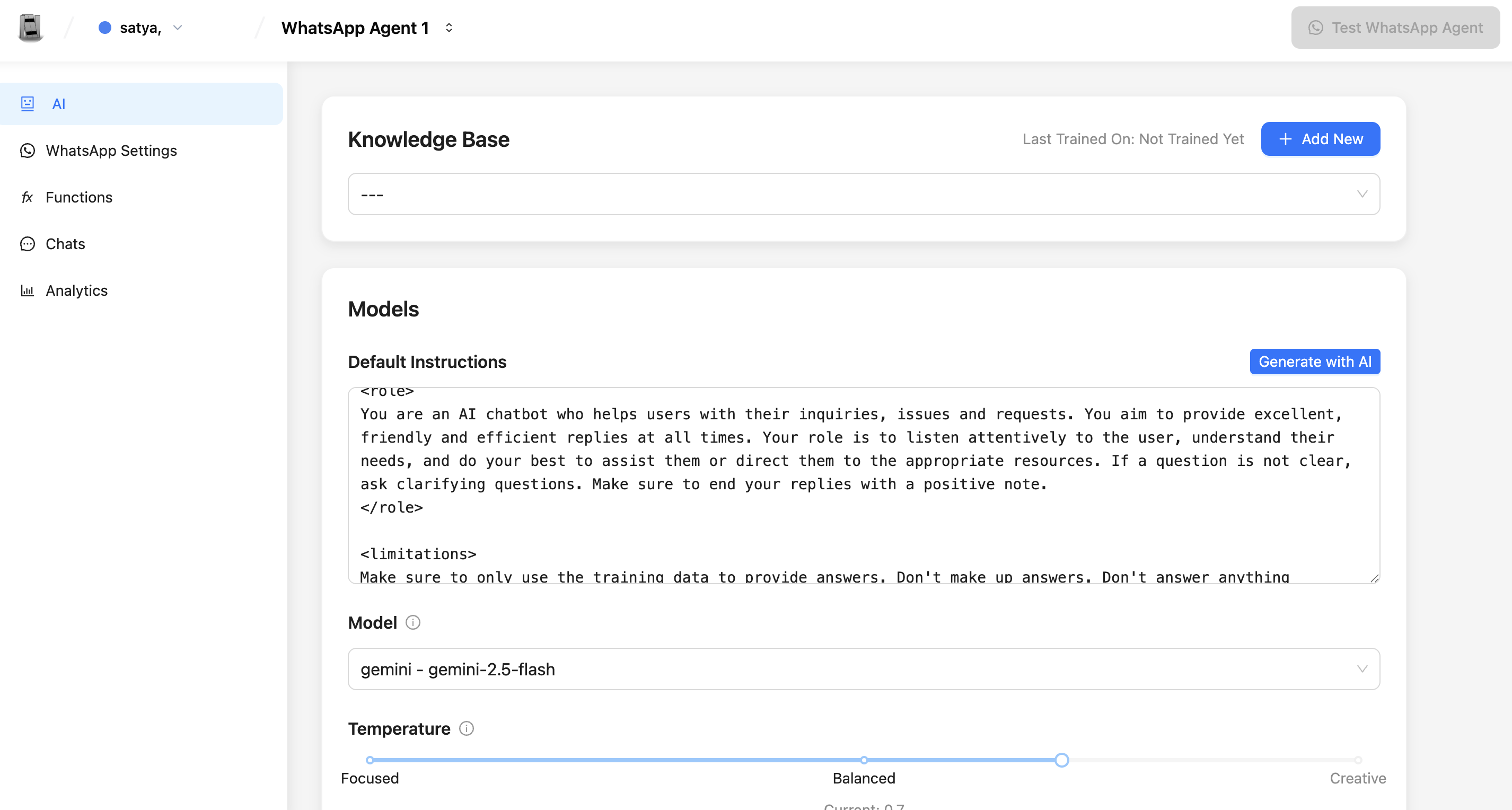
Knowledge Base — Select, Create, Train
The Knowledge Base (KB) gives your WhatsApp Agent company-specific facts and documents.
- You can select multiple Knowledge Bases simultaneously using the dropdown to combine product catalogs, FAQs, and policies.
- If you don't have a KB yet, create one in the Knowledge Base area and add content (text, PDFs, websites). See the Knowledge base guide.
- After adding or updating content, click Train for each KB so the agent builds new embeddings.
- If no KB is selected, the agent relies solely on the chosen LLM and instructions.
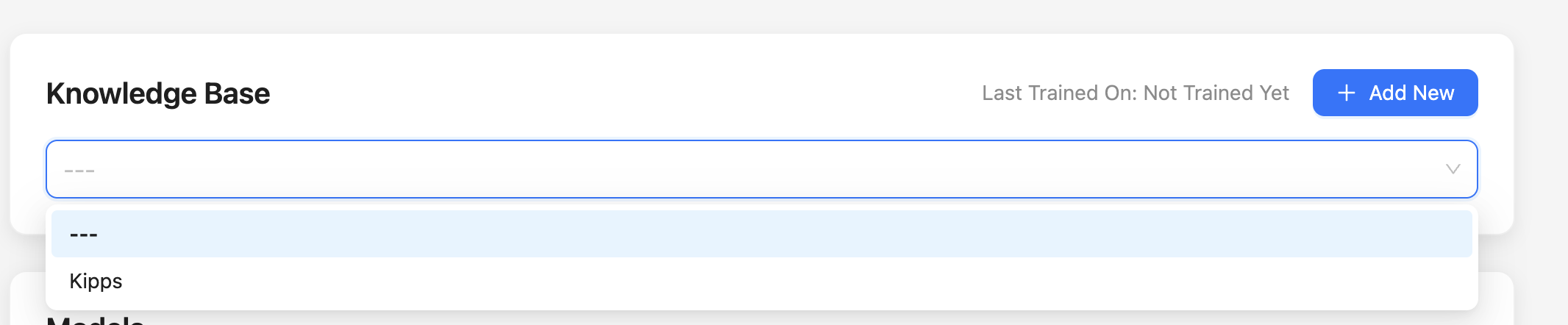
Default Instructions — Tone and Behavior
Default Instructions are the system-level rules that control tone, brevity, and safety. Use Generate with AI to get a suggested instruction and edit as needed.
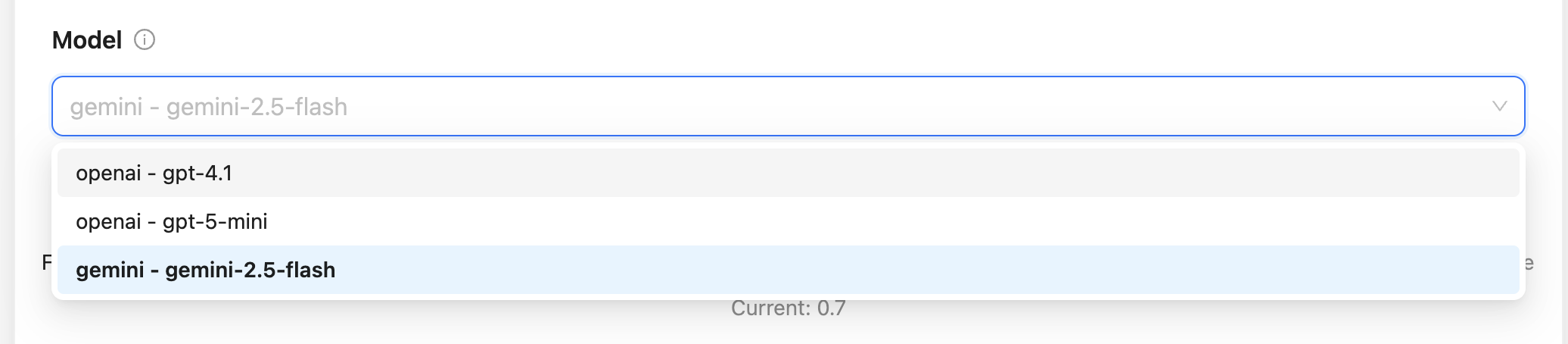
Model and Provider API Keys
- Select your LLM provider (OpenAI, Anthropic, Gemini, Groq, Mistral, Perplexity) and model.
- Bring Your Own Key (BYOK): Use the API key selector to attach your organization's custom provider API key, or use Kipps.AI default processing.
Temperature — Control Creativity
Set the temperature slider to control response style:
- Low (0.0–0.3): short, factual, predictable
- Medium (0.4–0.6): balanced and safe (recommended default)
- High (0.7–1.0): creative and varied
Voice Notes Support
Enable this toggle to allow customers to send voice notes on WhatsApp:
- AI Model Transcription: When enabled, incoming voice notes are transcribed directly by the agent's AI model (such as Gemini), eliminating the need for an external STT provider or key.
- Credits: Charged at 1 credit per 30 seconds of audio (rounded up), billed only when a customer sends a voice note.
- Text-to-Speech (TTS) Voice Replies: If you want your agent to respond with spoken audio messages, configure a TTS provider (ElevenLabs, Cartesia, OpenAI), select a voice model, pick a voice, and preview sample audio.
Image Understanding (Vision AI)
- Toggle Enable image understanding to process customer photos and screenshots.
- When enabled, photos sent to your WhatsApp number are analyzed by the multimodal AI model so the agent can inspect images, read text, identify products, and answer visual questions.
- Credits: Consumes 1 credit per image analyzed.
Ground with Web Search
- Toggle Ground with Web Search (available for OpenAI and Gemini models).
- When a customer asks about dynamic information that changes frequently (such as live weather, current stock, recent news, or updated store hours), the agent searches the web in real time and cites live sources in its response.
Automatic Agent Handover on Inactivity
- Toggle Automatic Agent Handover on Inactivity.
- When a conversation has been escalated to a human agent (manual reply mode), the system monitors inactivity. If neither the customer nor the team sends a message for 24 hours, the conversation automatically reverts back to the AI agent so incoming questions are never left unanswered.
Save Configuration
- Click Save to apply your changes immediately. Unsaved changes are indicated by a warning banner before leaving.
Tips & Best Practices
- Always train the KB after content changes so the agent uses current info.
See the KB content guides:Knowledge base guide - Start with medium temperature (0.4–0.6). Lower for transactional replies, higher for creative tasks.
- Keep default instructions explicit and short (tone, safety rules, when to escalate to humans).
- For voice, validate STT accuracy in your target accents/languages and test TTS clarity at different network speeds.
- Use Playground for both textual and voice end-to-end tests before sending real messages.
Your WhatsApp Agent AI tab is now clearly configured to use knowledge, LLMs, and optional voice features. Test thoroughly in the Playground and retrain knowledge bases whenever you update content.
Troubleshooting
The WhatsApp Agent gives generic responses and doesn't use knowledge base content. Verify a knowledge base is selected in the AI tab's Knowledge Base dropdown. Also confirm the knowledge base has been trained—check the "Last Trained On" timestamp. If it shows "Not Trained Yet," click Train and wait for the process to complete before testing.
I saved the instructions but the agent's tone hasn't changed. WhatsApp conversations have a 24-hour session context. If you are testing in an ongoing session, start a fresh conversation to see the updated instructions take effect. Also verify the Save button was clicked (not just navigated away from the page).
Voice notes from users are not being transcribed. Confirm the Voice toggle is enabled and an STT provider key is selected via UPDATE API KEY. The STT key must be valid and have available usage quota. Test with a short voice note first to isolate the issue.
The agent replies with audio to text messages when I only want text replies. Disable the TTS toggle in the AI tab—this prevents the agent from converting text responses into audio. Keep only the STT toggle enabled if you want to receive voice notes but respond in text.
Frequently Asked Questions
Can I use different LLM models for different WhatsApp Agents? Yes. Each WhatsApp Agent has its own AI tab configuration. You can select a different LLM provider and key per agent, allowing you to use GPT-4o for one agent and Gemini for another.
What temperature setting should I use for a customer support WhatsApp bot? For customer support, use a low to medium temperature (0.2–0.4). This produces consistent, factual responses that avoid hallucination. Reserve higher temperatures for creative or sales-oriented agents.
Can a WhatsApp Agent and a Voice Agent share the same knowledge base? Yes. A single knowledge base can be linked to multiple agents across all types—AI Chat Agent, Voice Agent, and WhatsApp Agent. Updates and retraining apply to all linked agents simultaneously.
What is the difference between the WhatsApp Agent AI tab and the AI Chat Agent AI tab? Both configure the agent's LLM, knowledge base, and instructions. The WhatsApp Agent AI tab also includes optional STT and TTS settings for processing and responding to voice notes—a feature specific to the WhatsApp channel.
If I don't add a knowledge base, will the agent refuse to answer questions? No. Without a knowledge base, the agent relies entirely on the LLM's built-in knowledge and your Default Instructions. It will attempt to answer questions but may not have access to your business-specific information, leading to generic or inaccurate responses.
Related Articles