WhatsApp Settings
How to configure WhatsApp number, name, test, and save settings for a WhatsApp Agent in Kipps.AI.
Overview
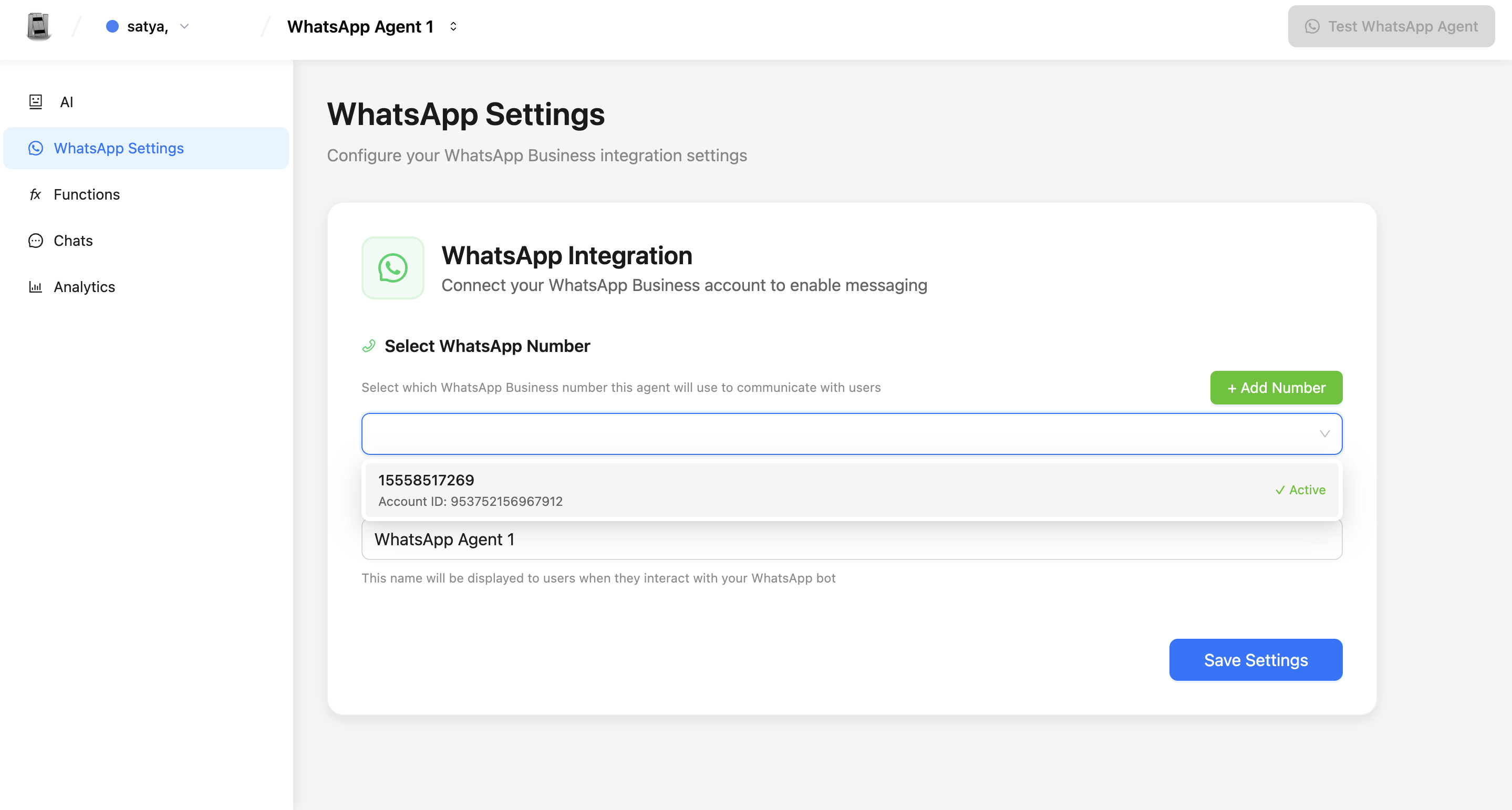
The WhatsApp Settings tab lets you pick which WhatsApp number the agent uses, name the agent, test the agent, and save your changes.
How to Get There
- Log in to Kipps with your email and password.
- Create a WhatsApp Agent or open an existing one from the left sidebar.
- Inside the agent, click the “WhatsApp Settings” tab.
What You Will See and Do
WhatsApp Integration (Top)
- This section shows whether WhatsApp is connected to Kipps.
- If no number is connected, click Add Number to go to the Integrations area and connect one.
Select WhatsApp Number
- Use the multi-select dropdown to link one or more WhatsApp Business numbers to this agent.
- If the number you want isn’t listed, click + Add Number to connect it first in the Integrations area.
- If a chosen number is currently assigned to another agent, you will be prompted to confirm reassigning it to this agent.
Name Your WhatsApp Agent
- Enter a friendly name for the agent (for example, Healthcare Assistant).
- This internal name identifies the agent across dashboards, analytics, and inbox routing.
End Conversation After Inactivity
- Set the timeout in minutes (e.g.,
1440for 24 hours). - If a contact's last message is older than this threshold, the current conversation thread is automatically closed, and a fresh conversation is created upon their next message.
- Leave this field blank to keep conversation sessions active indefinitely without expiring.
Test WhatsApp Agent
- Use the Test button in the sidebar to open WhatsApp with a prefilled message and try your agent live.
- If no number is selected, the test button will prompt you to link one first.
Save Settings
- Click Save to apply the configuration. A confirmation message confirms when the settings have been persisted.
Common Situations and What to Do
- No WhatsApp numbers connected: Click Add Number and follow the integration steps.
- Number already linked to another agent: Read the warning and confirm if you want to move the number.
- Want to test the agent: Click the Test button to open WhatsApp and send a pre-filled test message.
Tips
- Pick the WhatsApp number you actually plan to use for customer messages.
- Give the agent a clear, helpful name so users easily recognize it.
- Test every change before going live.
Troubleshooting
The WhatsApp number dropdown is empty. This means no WhatsApp Business number has been connected to Kipps.AI yet. Click Add Number to navigate to the Integrations page and complete the WhatsApp Business API connection first.
I selected a number but got a warning that it's already linked to another agent. Each number can only be active on one agent at a time. If you confirm the switch, the number will be removed from the previous agent. Make sure the previous agent has an alternative number or is no longer in active use before confirming.
The Test button opens WhatsApp but the agent doesn't respond. Verify that the agent's AI settings are configured and that the knowledge base is trained. A WhatsApp agent that has no knowledge base or system prompt will not produce meaningful responses.
I saved the settings but changes are not reflected when customers message. After saving, allow up to 60 seconds for the settings to propagate. If changes still aren't reflected, log out and log back in to clear any cached session state.
Frequently Asked Questions
Can I connect multiple WhatsApp numbers to a single agent? No. Each WhatsApp Agent can only use one WhatsApp number at a time. To serve multiple numbers, create separate agents for each.
What is the difference between the agent name set here and the WhatsApp display name? The name you enter in the Name Your WhatsApp Agent field is used internally within the Kipps.AI dashboard. Your WhatsApp display name (what contacts see in chat) is set in your WhatsApp Business account profile, not here.
Does changing the WhatsApp number affect ongoing conversations? Switching the number disconnects the agent from the old number immediately. Any in-progress conversations on the old number will no longer route to the agent. Notify users before making this change during active hours.
Can I test the agent without sending a message to a real WhatsApp number? The Test button initiates an actual WhatsApp chat to your connected test number. For risk-free testing without user impact, use the Kipps.AI built-in simulator in the agent's preview panel if available.
What happens if I don't save after making changes? Changes are not applied until you click Save. Navigating away without saving will discard all modifications made in that session.
Related Articles