Voice Agent – Tuning
Adjust how your Voice Agent takes turns, handles interruptions and silence, and limits call length on the Tuning tab.
The Tuning tab controls the rhythm of a call: how long the agent waits before replying, what happens when a caller interrupts, and what the agent does when the line goes quiet or the call runs long. The page itself is titled Performance Setting.
The defaults suit most agents. Change a value only when a test call shows a specific problem. The common fixes are listed below.
Change a setting
-
Open your Voice Agent and click Tuning in the left menu.
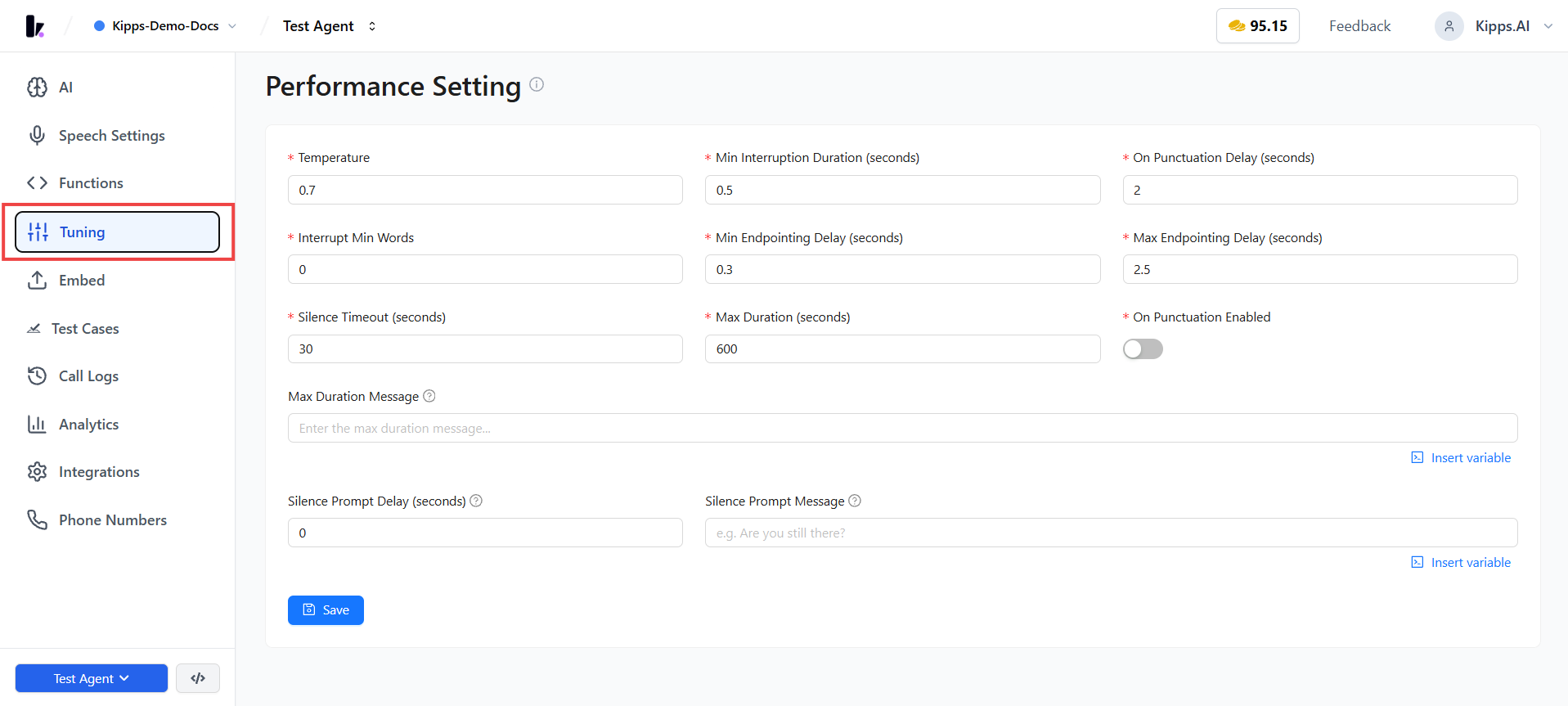
-
Edit the values you need.
-
Click Save. A "Tuning settings saved successfully" message confirms it.
-
Make a test call. New values apply from the next call, not to calls already in progress.
The Save button only appears if your role can edit agents. All number fields must have a value. The two message fields can stay empty.
Settings
Turn-taking
These decide when the agent decides the caller has finished speaking.
| Setting | Default | What it does |
|---|---|---|
| Min Endpointing Delay (seconds) | 0.3 | The shortest pause the agent waits after the caller stops speaking before it replies. |
| Max Endpointing Delay (seconds) | 2.5 | The longest the agent waits for the caller to carry on before it replies. |
Interruptions
These decide when the caller can cut the agent off.
| Setting | Default | What it does |
|---|---|---|
| Min Interruption Duration (seconds) | 0.5 | How long the caller must speak before the agent stops talking. |
| Interrupt Min Words | 0 | The fewest words the caller must say to interrupt. At 0, any speech that lasts long enough counts. |
Replies and speech
| Setting | Default | What it does |
|---|---|---|
| Temperature | 0.7 | How varied the model's replies are. Lower values give steadier, more predictable answers. Higher values give more varied ones. |
| On Punctuation Enabled | Off | Whether the transcript of the caller's speech includes punctuation. Works with Deepgram, Google, and Speechmatics speech-to-text. Other providers ignore it. |
| On Punctuation Delay (seconds) | 2 | Asks OpenAI voices to pause at punctuation. Other voice providers ignore it. |
Silence and call length
| Setting | Default | What it does |
|---|---|---|
| Silence Timeout (seconds) | 30 | Ends the call when nothing has been said by either side for this long. |
| Silence Prompt Delay (seconds) | 0 | After this many seconds of silence, the agent speaks the silence prompt. 0 turns the prompt off. |
| Silence Prompt Message | Empty | What the agent says to re-engage a quiet caller, such as "Are you still there?". Leave it empty to turn the prompt off. |
| Max Duration (seconds) | 600 | Ends the call after this long, however it's going. |
| Max Duration Message | Empty | What the agent says just before ending a call that hit Max Duration. On pipeline agents the caller can't interrupt it. |
The silence prompt is spoken once per quiet stretch. Set Silence Timeout longer than Silence Prompt Delay, or the call ends before the agent gets to ask.
Pipeline and Realtime agents
Some settings only work when the agent uses separate speech-to-text, language model, and text-to-speech providers (the default). If you switched the agent to a Realtime model on the AI tab, here is what still applies:
| Setting | Realtime agents |
|---|---|
| Silence Timeout, Silence Prompt, Max Duration, and Max Duration Message | Apply |
| Temperature and Min Endpointing Delay | Apply to OpenAI and Gemini Realtime models only |
| Max Endpointing Delay, both Interruption settings, and both Punctuation settings | Don't apply |
Fix common problems
The agent replies before the caller finishes. Raise Min Endpointing Delay a little, for example from 0.3 to 0.6. If callers pause mid-sentence to think, raise Max Endpointing Delay too.
The agent takes too long to answer. Lower Min Endpointing Delay. Go in small steps and test after each change.
A cough, background noise, or "uh-huh" stops the agent mid-sentence. Raise Min Interruption Duration, or set Interrupt Min Words to 2 or more.
Callers can't interrupt the agent, or it feels slow to stop. Lower Min Interruption Duration and set Interrupt Min Words back to 0.
Callers go quiet and the call drags on. Set a Silence Prompt Delay (for example 8) and a Silence Prompt Message. Keep Silence Timeout longer so the agent asks before the call ends.
Calls must never run past a fixed time. Set Max Duration and add a Max Duration Message such as "I have to end our call now. Thanks for your time," so the call doesn't just cut off.
Replies sound too repetitive or too random. Adjust Temperature in steps of 0.1. If the agent still gives wrong answers, the fix is usually in its instructions or Knowledge Base on the AI tab, not here.
Troubleshooting
I changed a value but the call behaves the same. Check that you clicked Save and saw the success message. Then start a new call, because a call in progress keeps the settings it started with. Also check the setting applies to your agent type in the table above.
I see "Failed to load tuning settings." The tab couldn't reach the server, so it's showing default values instead of your saved ones. Refresh the page before changing anything, or you may overwrite your saved values on Save.
The Save button is missing. Your role can view but not edit agents. Ask your organization admin.
The silence prompt never plays. Both Silence Prompt Delay (above 0) and Silence Prompt Message must be filled in. The delay must also be shorter than Silence Timeout.
My call ended on its own. It hit Silence Timeout or Max Duration. Open the call in Call History to see how it ended, then raise the limit if it's too low.
Related settings
- Voice and listening: Speech Settings
- Ending a call when a goal is reached: the End Call function
- Checking changes with repeatable scenarios: Test Cases
Related Articles