Voice Agent – Smart Skills
Turn on ready-made rules that control which language your Voice Agent speaks and how it says dates, times, and numbers—no prompting needed.
Smart skills are ready-made rules you can switch on from the AI tab. Each one adds a block of instructions to your agent's prompt, so it handles things like language switching or reading out a date properly, without you having to write that guidance yourself.
All skills are off by default. Your agent works as before until you turn one on.
Available skills
Skills come in two groups. Which skills you see in your dashboard can change over time.
Language (choose one, or none)
| Skill | What the agent does |
|---|---|
| Switch when asked | Keeps speaking the language of its welcome message. It changes language only when the caller asks, for example "Can you speak in Hindi?". Mixed speech like Hinglish doesn't count as a request. |
| Match the caller | Replies in whichever language the caller used in their latest message, and switches as soon as they do. It handles callers who mix languages by answering in the main one. |
Speaking (turn on any combination)
| Skill | What the agent does |
|---|---|
| Say dates naturally | Says "15th August" instead of reading "15/08". Times are spoken the way people say them ("three thirty in the afternoon") without AM, PM, or time zones. The year is mentioned only if it isn't the current year. |
| Read numbers clearly | Reads phone numbers without the country code (such as +91) and says repeated digits as "double five" instead of "five five". |
Today's date is always known:
You don't need a skill for the agent to know today's date. Every call includes it, so words like "tomorrow" and "next Monday" work out of the box. Say dates naturally only changes how dates are spoken.
Turn on a skill
-
Open your Voice Agent and go to the AI tab.
-
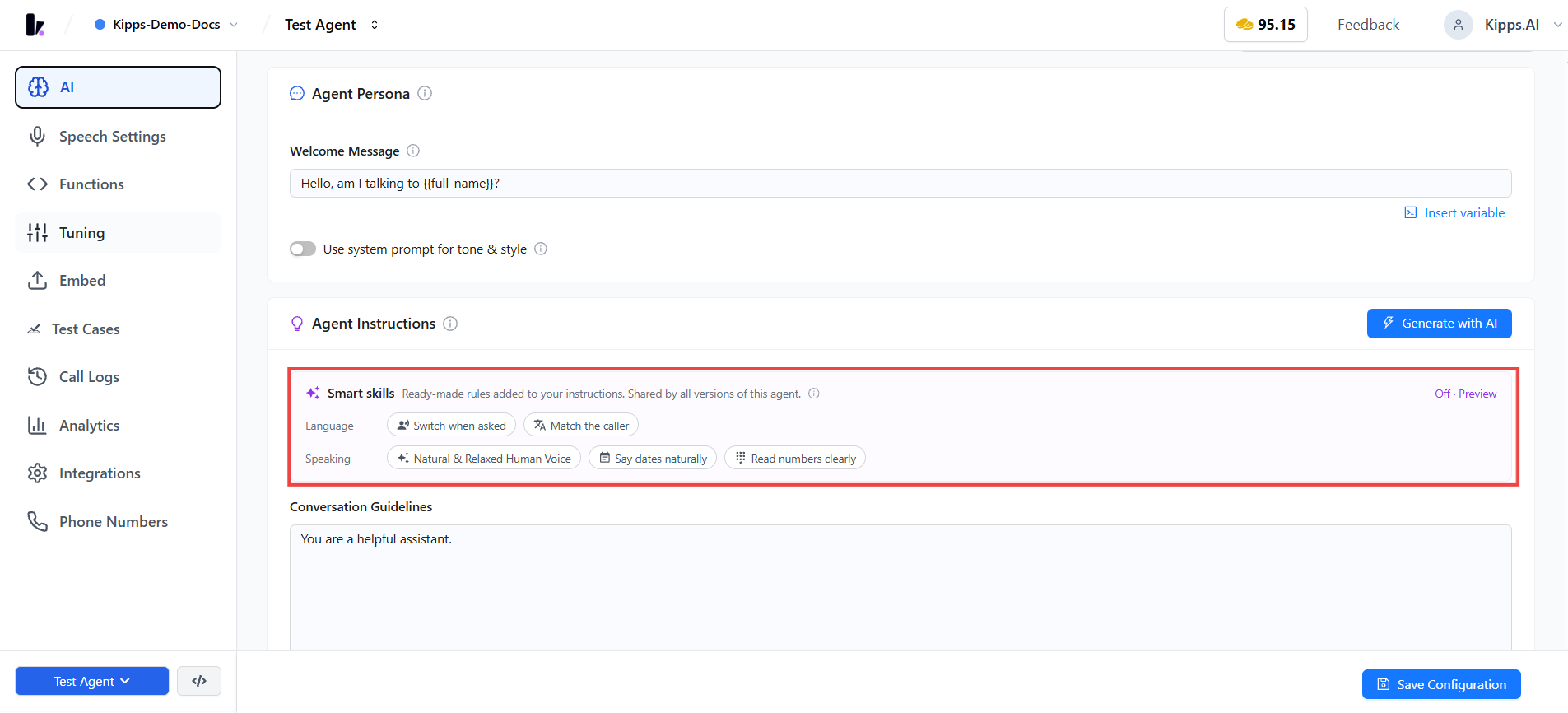
Find the Smart skills strip at the top of Agent Instructions. It shows how many skills are on, or "Off" if none are.
-
Under Language, click one option. Click the selected option again to turn it off.
-
Under Speaking, click each skill you want. A tick shows it's on. Hover over a skill for a short example.
-
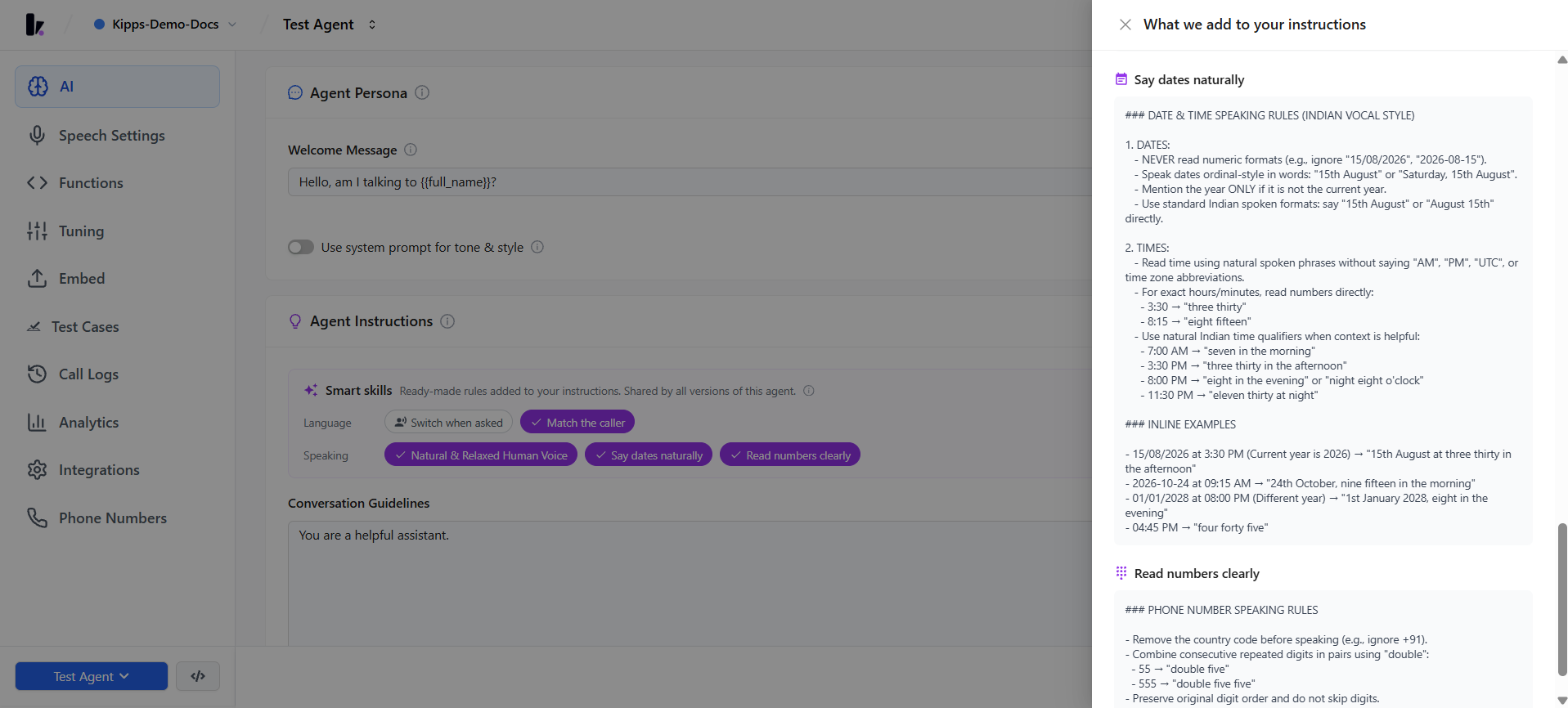
Click Preview to see the exact text that will be added to your instructions.
-
Click Save Configuration at the bottom of the page. Skills take effect on the next call.
The skills are disabled if your role can't edit agents.
How skills work
- The text of each skill you turn on is added to the end of your own instructions on every call. The Preview shows it word for word.
- Skills belong to the agent, not to a version. If you switch to an older version from the Versions dropdown, or save new instructions, the same skills stay on.
- Your own instructions still matter. If they say "always reply in English" while Match the caller is on, the two will conflict. Keep them consistent.
Get the best results
The agent can only speak a language that the rest of your setup supports.
- For Match the caller, choose a listening language and model in Speech Settings that can understand your callers, and a voice that can speak those languages.
- For Switch when asked, write the welcome message in the language you want to start with. That is the language the agent keeps until asked to change.
Always test with a Web Call after you turn on a skill. See Test it.
Troubleshooting
I can't click any skill. Your role can view but not edit agents. Ask your organization admin.
I turned a skill on but nothing changed. Click Save Configuration and start a new call. A call in progress keeps the settings it started with.
The agent doesn't switch language. Check that the language is supported by your listening and voice settings in Speech Settings. With Switch when asked, the caller has to clearly ask for the change.
The agent still starts in the wrong language. It starts in the language of the welcome message. Edit the welcome message on the AI tab.
Dates are still read as numbers. Make sure Say dates naturally shows a tick, you saved, and your own instructions don't tell the agent to read dates in another format.
I want to see exactly what a skill adds. Click Preview in the Smart skills strip.
Related Articles