AI Chat Agent Appearance – Customize Your AI Agent’s Look and Feel
The AI Chat Agent Appearance feature lets you fully brand and personalize your AI Chat Agent’s interface, enabling seamless visual integration with your website and corporate identity.
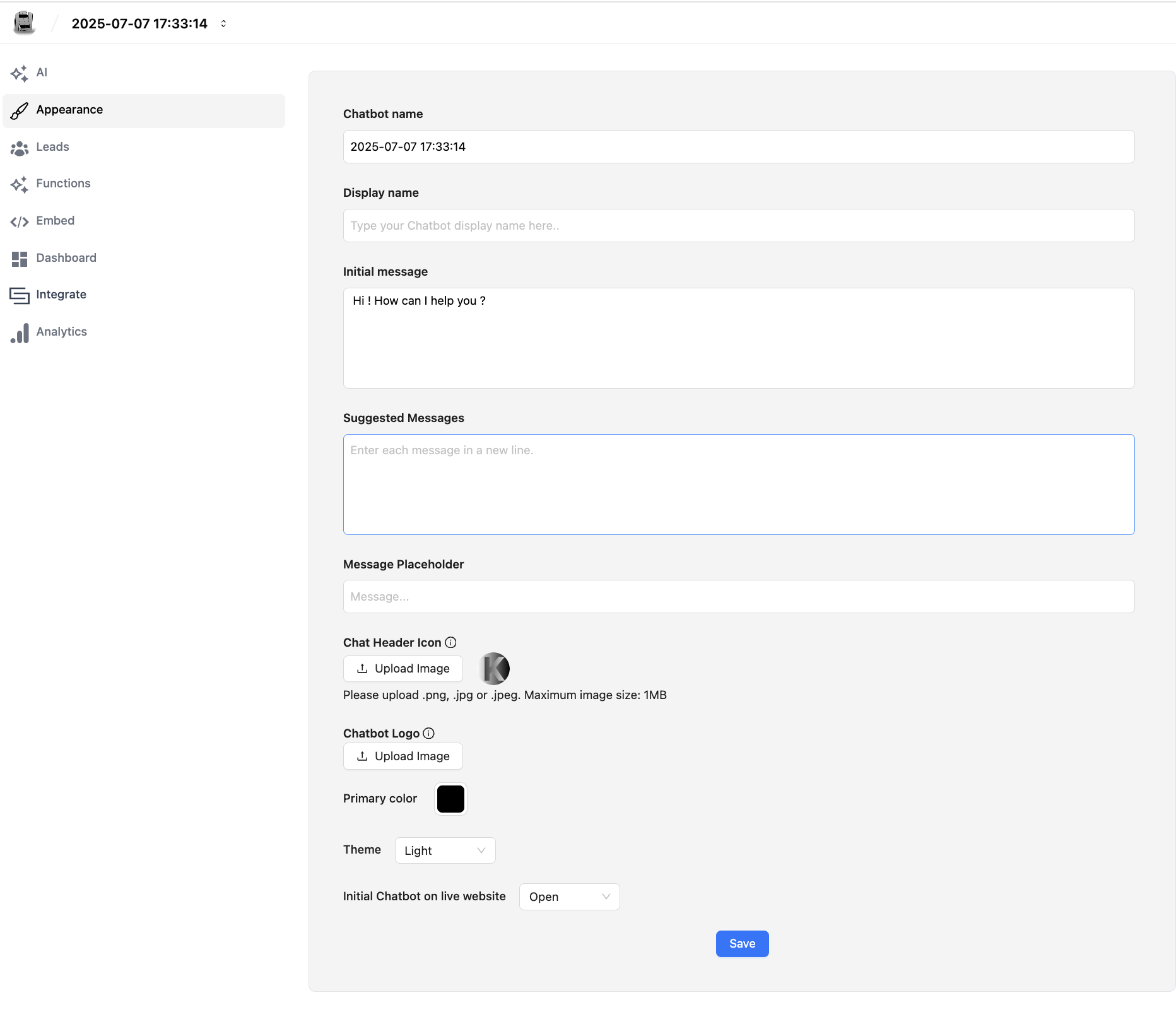
Core Appearance Features
Visual Customization Options
AI Chat Agent Identity & Branding
- Display Name Configuration: Customize the AI Chat Agent's name displayed in the header
- Chat Header Icon: Upload custom header images for brand consistency
- Chat Icon Image: Personalize the chat button icon that users interact with
- Watermark Integration: Add custom watermarks with clickable URLs for brand attribution
Color Scheme Management
- Primary Color Selection: Define the main brand color for buttons and interactive elements
- Chat Bubble Colors: Customize background colors for both user and bot message bubbles
- Message Text Colors: Control text color schemes for optimal readability
- Send Button Styling: Personalize the send button appearance with custom colors
Theme System
- Light Mode: Clean, bright interface optimized for daytime usage
- Dark Mode: Sophisticated dark theme for modern user preferences
- Automatic Color Adaptation: Dynamic text and background color adjustment based on theme selection
Initial AI Chat Agent Behavior
- Default State Configuration: Set whether the AI Chat Agent opens or remains closed on website load
- Welcome Message Customization: Configure the first message users see when interacting with the AI Chat Agent
- Message Placeholder Text: Personalize the input field placeholder text
Implementation Architecture
Frontend Integration
The appearance system is built into the main AI Chat Agent component through the AI Chat AgentiFrame.tsx file, which handles:
- Real-time Style Updates: Dynamic styling changes without page refresh
- Redux State Management: Centralized appearance state through the chat slice
- Theme Persistence: Automatic theme preference saving and loading
Backend Configuration
The appearance settings are managed through the Django backend via the AI Chat Agent model, storing:
- Color Preferences: Hex color codes for various interface elements
- Image Assets: File uploads for icons, headers, and branding materials
- Display Settings: Text content and behavioral preferences
Customization Categories
1. Brand Identity Elements
Display Name & Headers
Configure how your AI Chat Agent presents itself to users:
- AI Chat Agent Name: The title displayed in the chat header
- Header Icon: Visual branding element in the chat interface
- Professional Presentation: Consistent brand messaging across all interactions
Watermark & Attribution
Maintain brand presence throughout conversations:
- Custom Watermark Text: Branded messaging at the bottom of the chat
- Clickable Watermark URLs: Direct users to your website or landing pages
- Subtle Brand Reinforcement: Non-intrusive brand visibility
2. Visual Theme Control
Color Palette Management
Create cohesive visual experiences:
- Primary Brand Colors: Main color scheme reflecting your brand identity
- Message Bubble Styling: Distinct colors for user and bot messages
- Interactive Element Colors: Consistent button and link styling
- Text Color Optimization: Automatic contrast adjustment for readability
Theme Modes
Provide user-friendly viewing options:
- Light Theme: Traditional bright interface with high contrast
- Dark Theme: Modern dark interface reducing eye strain
- Automatic Adaptation: Color scheme adjustments based on selected theme
3. User Experience Configuration
Initial Interaction Settings
Control first impressions:
- AI Chat Agent Open State: Whether the chat interface loads open or closed
- Welcome Message: First message users see when starting a conversation
- Message Placeholders: Helpful text guiding user input
Interactive Elements
Enhance user engagement:
- Send Button Styling: Custom colors and hover effects
- Input Field Appearance: Consistent styling with your website
- Chat Icon Branding: Personalized chat button reflecting your brand
Technical Implementation
Real-time Updates
The appearance system provides instant visual feedback:
- Live Preview: Changes appear immediately in the chat interface
- No Refresh Required: Seamless updates without page reloading
- State Persistence: Settings automatically saved and applied
Responsive Design
Appearance settings adapt across devices:
- Mobile Optimization: Consistent branding on smartphones and tablets
- Desktop Enhancement: Full-featured appearance on larger screens
- Cross-platform Consistency: Uniform brand presentation across all devices
Integration Flexibility
The appearance system works with all deployment methods:
- Website Embedding: Iframe integration maintains custom styling
- JavaScript Integration: Direct embedding preserves appearance settings
- API Integration: Programmatic appearance control for advanced implementations
Configuration Process
Setting Up Appearance
- Navigate to the AI Chat Agent agent → Appearance tab
- Brand Configuration:
- Upload logo, header icon
- Set AI Chat Agent display name
- Add watermark and attribution
- Color Selection:
- Choose brand’s primary color
- Customize chat bubble and text colors
- Select light or dark theme
- Initial Behavior:
- Set initial AI Chat Agent state (open/closed)
- Enter welcome message and input placeholder
- Preview Changes in real-time
- Click Save
Best Practices
- Brand Consistency: Align AI Chat Agent appearance with your website's design language
- Color Contrast: Ensure sufficient contrast for accessibility and readability
- Theme Consideration: Test both light and dark modes for optimal user experience
- Mobile Testing: Verify appearance on various device sizes and orientations
Advanced Features
Dynamic Styling
- Conditional Appearance: Different styling based on user interaction patterns
- Time-based Themes: Automatic theme switching based on user preferences
- Context-aware Styling: Appearance adjustments based on conversation content
Analytics Integration
- User Preference Tracking: Monitor theme and appearance preference patterns
- Engagement Metrics: Measure how appearance affects user interaction rates
- A/B Testing Support: Test different appearance configurations for optimization
Integration Benefits
Brand Reinforcement
- Consistent Identity: Maintain brand presence throughout customer interactions
- Professional Appearance: Polished interface reflecting business quality
- Trust Building: Familiar brand elements increase user confidence
User Experience Enhancement
- Personalized Interface: Tailored appearance improving user satisfaction
- Accessibility Features: Theme options supporting different user needs
- Seamless Integration: Natural fit with existing website design
The AI Chat Agent Appearance system ensures your AI assistant not only provides intelligent responses but also maintains your brand's visual identity and professional standards throughout every customer interaction.
Troubleshooting
I changed the widget colors but the live embedded widget still shows the old colors. Appearance changes apply immediately to new chat sessions. If a browser has an active session, it may display cached widget assets. Hard refresh the page (Ctrl+Shift+R / Cmd+Shift+R) to force the browser to load the updated widget. Existing open sessions may retain old styling until the user refreshes.
The logo I uploaded is not displaying in the widget. Check the image format (PNG or JPG recommended) and file size — very large images may be rejected or slow to load. Ensure the logo URL is publicly accessible if hosted externally. Try re-uploading the logo directly through the appearance panel and saving again.
The dark mode setting is not respected on my website.
Dark mode detection uses the visitor's system preference (prefers-color-scheme). If the visitor's OS or browser does not support this preference or has it disabled, the widget falls back to light mode. You can lock the widget to a specific theme to ensure consistent appearance regardless of the visitor's system setting.
The lead form is not appearing even though it is enabled in Appearance settings. The lead form display requires the Lead Collection toggle to be enabled in the Leads settings (separate from Appearance). Confirm the Lead Collection toggle is on and at least one field (Name, Email, Phone) is active in the Leads configuration.
Frequently Asked Questions
Can I have different appearance settings for different websites where the agent is embedded? The appearance settings are applied globally to the agent. All embedded instances of the same agent share the same appearance. To have different appearances for different websites, create separate agents with different appearance configurations and embed each agent on the respective site.
Does changing the appearance break existing conversations? No. Appearance changes are cosmetic and do not affect conversation data, the knowledge base, or agent behavior. Changing colors, logo, or welcome text will not interrupt or reset ongoing conversations.
Can I preview the widget before saving changes? Yes. The Appearance settings panel includes a live preview of the widget that updates as you make changes. Use this preview to check the layout, colors, and form appearance before clicking Save.
What image dimensions work best for the chat widget logo? A square image (1:1 ratio) between 100×100 and 500×500 pixels works best. The widget scales the logo to fit the header area. Use a PNG with a transparent background for the cleanest result against different header background colors.
Can I remove the "Powered by Kipps.AI" branding from the widget? White-label removal of platform branding depends on your Kipps.AI subscription plan. Check your plan features or contact Kipps.AI support to confirm whether branding removal is available for your account.
Related Articles