Usage Dashboard
Complete guide to monitoring and managing your AI platform usage, billing, and account balance. Track consumption by AI models, view transaction history, and manage your account funds.
Overview
The Usage Dashboard provides comprehensive monitoring and management of your AI platform consumption, billing, and account balance. This essential tool helps you track spending across different AI models, monitor your account balance, view transaction history, and manage your billing information in real-time.
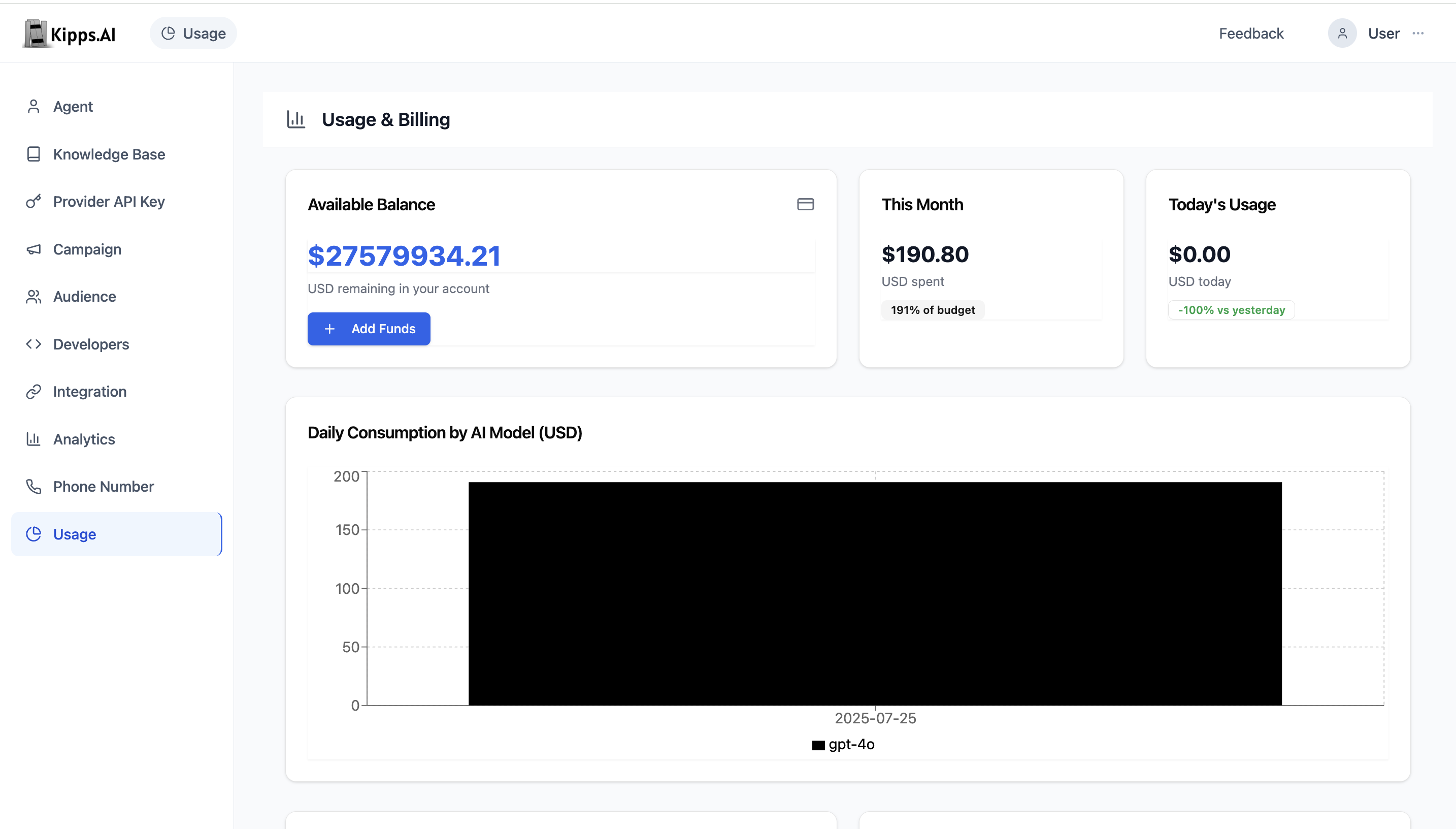
Accessing the Usage Dashboard
- Navigate to Usage: From the main navigation menu, click on the "Usage" tab (represented by a pie chart icon)
- Authentication: Ensure you're logged in with your account credentials
- Dashboard Loading: The dashboard will automatically load with current usage data and account balance
Dashboard Layout
The Usage Dashboard is organized into several key sections:
1. Header Section
The top section contains:
- Dashboard Title: "Usage & Billing" with a bar chart icon
- Real-time Data: All metrics update automatically to show current information
2. Credits Overview Section
This section displays four key financial metrics in card format:
Available Balance (Primary Card)
- What it shows: Current USD balance remaining in your account
- Icon: Credit card icon
- Action Button: "Add Funds" button for account top-up
- Description: "USD remaining in your account"
This Month
- What it shows: Total USD spent in the current month
- Budget Indicator: Percentage of monthly budget used
- Badge: Shows budget utilization (e.g., "75% of budget")
Today's Usage
- What it shows: USD spent today
- Comparison: Percentage change compared to yesterday
- Color Coding: Green for decrease, red for increase

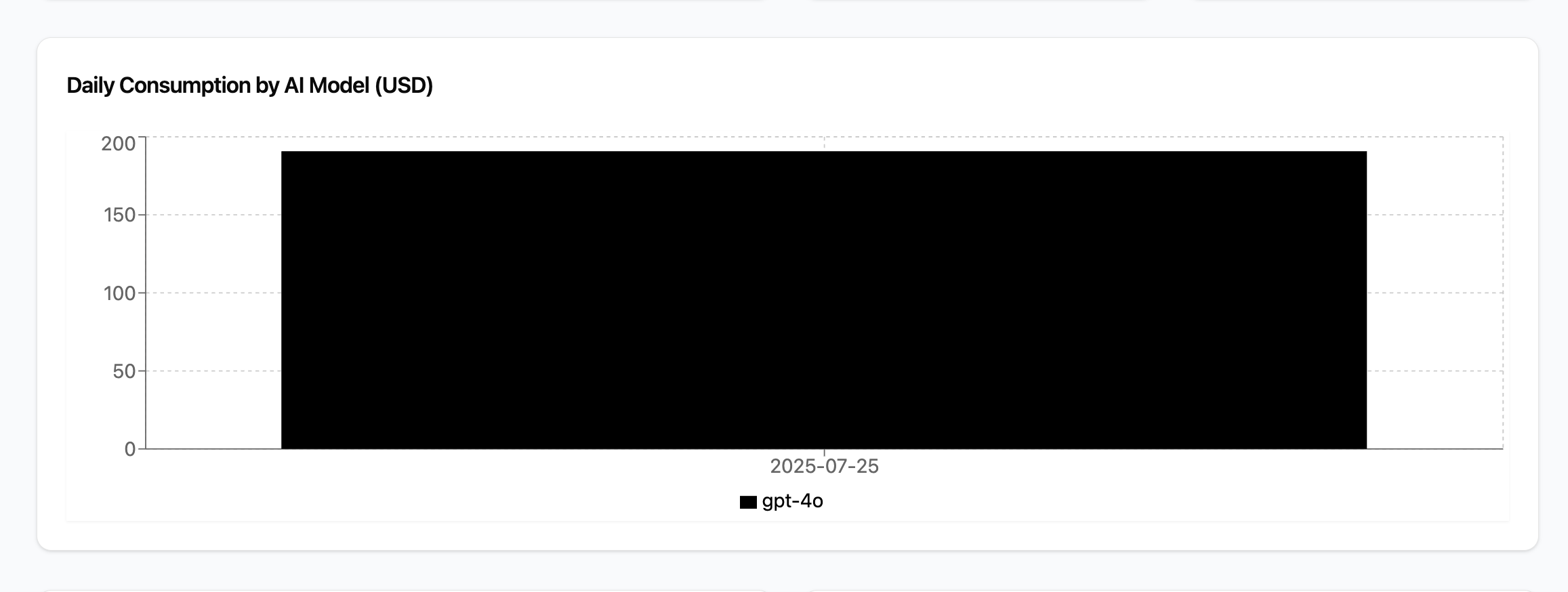
3. Daily Consumption Chart
A comprehensive stacked bar chart showing:
Chart Features
- X-Axis: Dates for the current month
- Y-Axis: USD amount spent
- Stacked Bars: Different AI models used each day
- Color Coding: Each AI model has a distinct color
- Tooltip: Hover to see detailed breakdown by model
AI Models Tracked
- GPT-4: Blue color (#3B82F6)
- Claude-3: Purple color (#8B5CF6)
- Whisper: Green color (#10B981)
- TTS: Orange color (#F59E0B)
- Other Models: Auto-generated colors
4. Usage Breakdown and Quick Actions
Usage Breakdown Card
Shows detailed consumption metrics:
- Messages Sent: Total number of chat messages processed
- Voice Minutes: Total duration of voice calls in minutes
- API Calls: Total number of API requests made
Each metric includes:
- Icon: Visual representation of the metric type
- Count: Numerical value of usage
- Visual Design: Clean card layout with consistent styling
Quick Actions Card
Provides access to common billing functions:
- Download Usage Report: Export detailed usage data as CSV
- View Billing History: Access complete transaction history
- Update Payment Method: Manage payment information (Coming Soon)
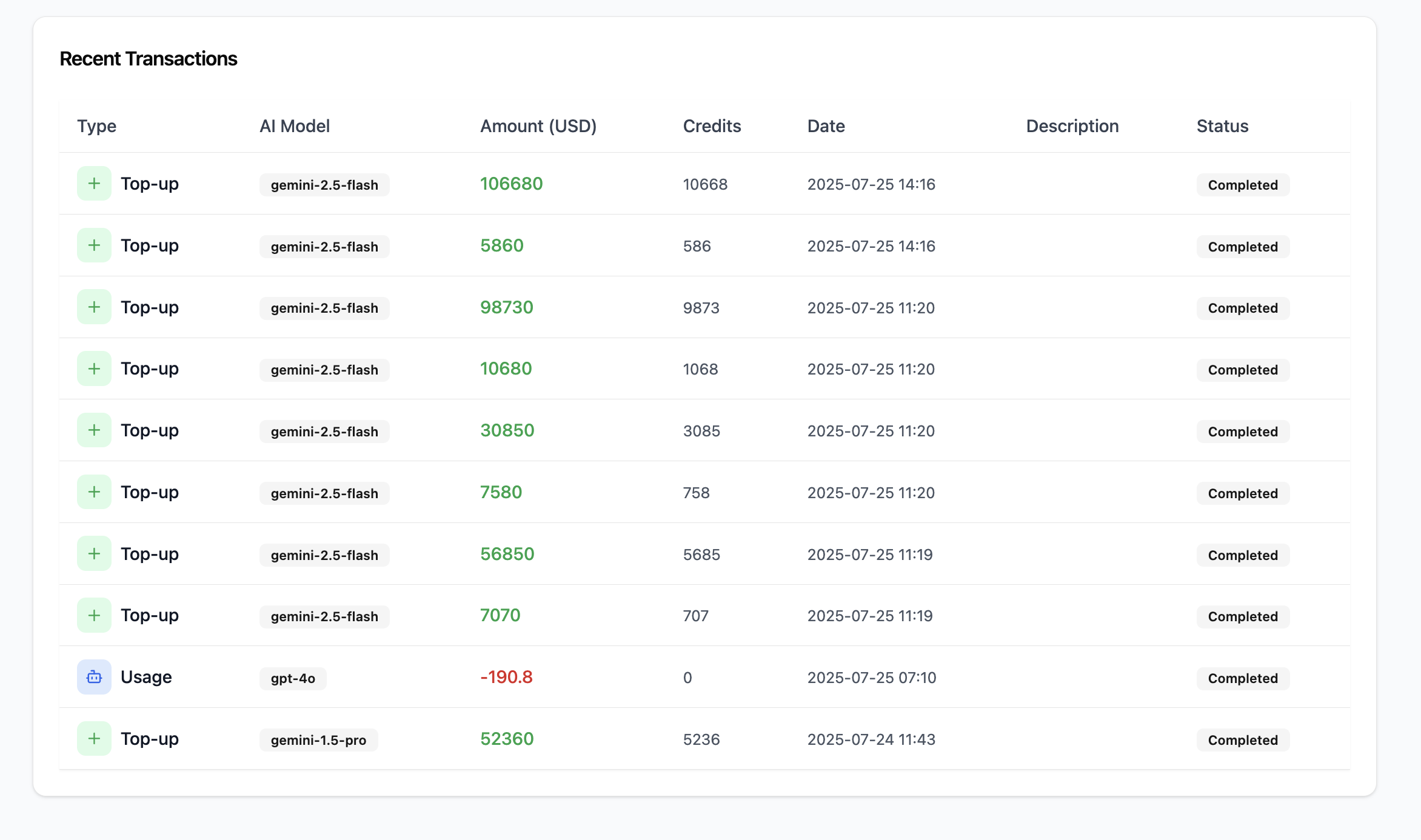
5. Recent Transactions Table
A comprehensive table showing the last 10 transactions:
Table Columns
- Type: Transaction type (Top-up or Usage)
- AI Model: Specific AI model used or "Account Credit" for top-ups
- Amount (USD): Transaction amount (positive for top-ups, negative for usage)
- Credits: Token consumption for usage transactions
- Date: Transaction timestamp
- Description: Additional transaction details
- Status: Transaction status (typically "Completed")
Visual Indicators
- Top-up Transactions: Green background with plus icon
- Usage Transactions: Blue background with bot icon
- Model Badges: Color-coded badges for different AI models
- Amount Colors: Green for credits, red for debits
Key Features
Account Balance Management
Adding Funds
- Click the "Add Funds" button in the Available Balance card
- You'll be redirected to the payment gateway
- Complete the payment process
- Funds are immediately available in your account
Balance Monitoring
- Real-time Updates: Balance updates automatically after transactions
- Low Balance Alerts: System warns when balance is running low
- Transaction Tracking: All top-ups and usage are logged
Usage Tracking
AI Model Consumption
- Per-Model Tracking: Individual consumption for each AI model
- Daily Breakdown: See which models you use most frequently
- Cost Analysis: Understand spending patterns across different services
Usage Categories
- Messages: Chat interactions and text processing
- Voice: Speech-to-text and text-to-speech services
- API Calls: Direct API usage and integrations
Billing History
Accessing History
- Click "View Billing History" in Quick Actions
- A modal window opens with paginated transaction history
- Navigate through pages using Previous/Next buttons
- Each page shows 20 transactions
History Features
- Complete Records: All transactions from account creation
- Detailed Information: Full transaction details including descriptions
- Export Capability: Download complete history as CSV
- Search and Filter: Find specific transactions (Coming Soon)
Usage Reports
Downloading Reports
- Click "Download Usage Report" in Quick Actions
- System generates a CSV file with all transaction data
- File automatically downloads to your device
- Report includes all historical data
Report Contents
- Transaction ID: Unique identifier for each transaction
- Type: Top-up or Usage classification
- AI Model: Specific model used
- Amount: USD value of transaction
- Credits: Token consumption (for usage)
- Date/Time: Precise transaction timestamp
- Status: Transaction completion status
- Description: Additional context
Data Interpretation
Understanding Your Usage
Spending Patterns
- Daily Trends: Monitor daily spending to identify usage spikes
- Model Preferences: See which AI models you use most
- Cost Efficiency: Compare costs across different models
Budget Management
- Monthly Budget: Track spending against your monthly budget
- Budget Percentage: Visual indicator of budget utilization
- Spending Alerts: Proactive monitoring to prevent overspending
Transaction Types
Top-up Transactions
- Purpose: Adding funds to your account
- Amount: Positive USD values
- Frequency: As needed when balance is low
- Methods: Credit card, bank transfer, etc.
Usage Transactions
- Purpose: Consumption of AI services
- Amount: Negative USD values
- Frequency: Real-time as services are used
- Tracking: Detailed breakdown by model and service type
Troubleshooting
Common Issues
Balance Not Updating
- Cause: Payment processing delay or network issues
- Solution: Refresh the page or wait a few minutes
- Prevention: Check payment confirmation emails
Missing Transactions
- Cause: Recent transactions may take time to appear
- Solution: Wait 5-10 minutes for system updates
- Verification: Check billing history for complete records
Download Issues
- Cause: Browser settings or network connectivity
- Solution: Check browser download settings
- Alternative: Try different browser or clear cache
Error Messages
Payment Failed
- Message: "Failed to initiate payment session"
- Solution: Check payment method and try again
- Support: Contact support if issue persists
Report Download Failed
- Message: "Failed to download usage report"
- Solution: Check internet connection and try again
- Alternative: Use billing history view instead
Best Practices
Budget Management
- Set Alerts: Monitor your monthly budget percentage
- Regular Reviews: Check usage patterns weekly
- Cost Optimization: Use appropriate AI models for different tasks
Usage Monitoring
- Daily Checks: Review today's usage regularly
- Trend Analysis: Monitor spending patterns over time
- Model Selection: Choose cost-effective models for your needs
Account Maintenance
- Regular Top-ups: Maintain adequate balance
- Payment Method: Keep payment information updated
- Transaction Review: Regularly review billing history
Support and Resources
Getting Help
- Documentation: Refer to this user guide for detailed instructions
- Support Team: Contact support for billing and technical issues
- Community: Join user forums for best practices
Additional Resources
- Video Tutorials: Step-by-step usage dashboard walkthroughs
- Knowledge Base: Comprehensive FAQ and troubleshooting guides
This documentation covers the main Usage Dashboard functionality. For specific billing questions or advanced configurations, please refer to the billing documentation or contact our support team.
Troubleshooting
My usage is showing higher than expected — agents made fewer calls than the dashboard reports. Usage is calculated based on actual API calls processed, not just user-visible conversations. Background processing such as knowledge base training, retries, and function calls all consume credits. Review the breakdown by agent and model to identify which components are driving the higher usage.
I added credits but my balance is not updated in the dashboard. Balance updates may take a few minutes after a successful payment. Refresh the page after 2–3 minutes. If the balance is still not reflected after 10 minutes, contact Kipps.AI support with your payment confirmation.
The Usage Dashboard shows data for today but the historical data is missing. Historical usage is stored from the date your account was created. If your account was recently migrated or reset, historical data prior to the migration may not be available. Contact support if you need historical usage records from before the migration.
My usage alert is not triggering even though I exceeded the threshold. Ensure the alert threshold is saved correctly in the Budget Settings. Also confirm that your notification email is verified and that alert emails are not being filtered to spam. Re-save the threshold setting to confirm it is active.
Frequently Asked Questions
How are credits calculated for voice calls? Voice call credits are calculated per minute of call duration, and the rate varies by the TTS and STT providers configured for your agent. Calls that connect but last only a few seconds (e.g., unanswered calls or immediate hang-ups) consume minimal credits based on actual call duration.
Do failed campaign calls (busy, no answer) still consume credits? Attempted outbound calls that do not connect typically consume fewer credits than connected calls since no TTS or LLM processing occurs. However, telephony connection fees may still apply depending on your phone number provider and plan.
Can I set spending limits to prevent accidental credit overuse? Yes. Use the Budget Alert settings to receive notifications when your usage reaches a defined percentage of your monthly budget. To hard-cap usage, contact Kipps.AI support to configure a spending limit that automatically pauses agents when the threshold is reached.
How do I know which agent or campaign is consuming the most credits? The Usage Dashboard provides a breakdown by agent and service type. Sort by usage volume to identify your highest-consuming agents. This helps you optimize model selection or conversation flow to reduce costs on high-volume agents.
Are credits shared across all agents and campaigns in my organization? Yes. Credits are pooled at the organization level and shared across all agents, campaigns, and channels. Any agent or campaign in your organization draws from the same credit balance.
Related Articles