Provider API Key
Learn how to securely connect and manage third-party AI provider accounts with Kipps.AI using your own API keys.
Overview
The Provider API Key section in Kipps.AI allows you to connect your own third-party AI service accounts using the Bring Your Own Key (BYOK) model. This gives you full control over the services powering your agents, such as:
Bringing your own keys enhances billing transparency, data privacy, and access to advanced features provided by external services.
How to Add a Provider API Key
You can add and manage API keys directly from your Kipps.AI dashboard — no external navigation required. Just follow these steps:
Step 1: Open the API Keys Panel
From the main Kipps.AI dashboard, go to:
Provider API Keys
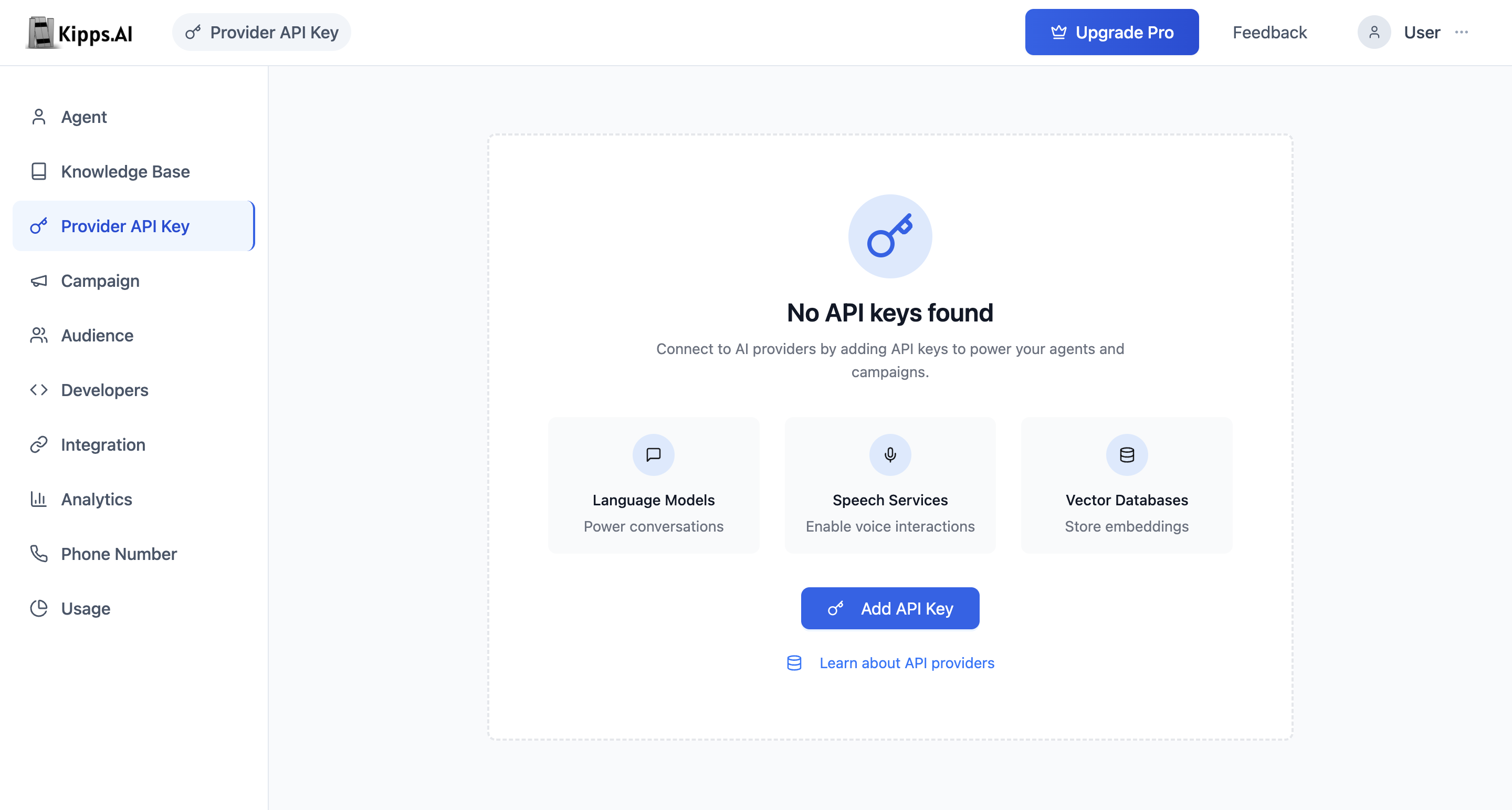
This section is accessible globally and does not require you to open a specific agent.
Step 2: Select the Service Category
The API Keys interface is divided into the following tabs:
- Language Models
- Speech-to-Text
- Text-to-Speech
- Vector Databases
Choose the appropriate tab based on the type of service you want to connect.
Step 3: Add a New Key
Click the "+ Add Key" button in the selected tab. A secure configuration form will appear.
Step 4: Fill in Key Details
Enter the required fields:
-
Provider: Select the provider (e.g., OpenAI, Pinecone, Google)
-
Name: Enter a unique label to identify the key (e.g., "Prod GPT-4 Key")
-
API Key: Paste your API token from the provider dashboard
-
Optional Fields: Depending on the provider, additional fields may appear:
- Default model (e.g.,
gpt-4) - Region (e.g.,
us-east1) - Project ID or Index name
- Default model (e.g.,
Step 5: Save and Encrypt
Click "Add" to securely store the key. It will appear in your key management table with encryption enabled.
Why Use Your Own API Keys?
Direct Billing with No Additional Fees
You are billed directly by the provider (e.g., OpenAI, Google, Pinecone). Kipps.AI does not apply any markup or additional charges on top of the provider’s billing.
Enhanced Data Security
When using your own vector database key, all your embeddings and sensitive knowledge base data are stored in your infrastructure. Kipps.AI does not store or access your data, providing a higher level of security and compliance.
Flexibility and Control
Using your own keys allows you to:
- Access premium or custom models
- Take advantage of usage credits or enterprise plans
- Choose specific regions, endpoints, or models
Centralized Key Management
All keys are securely stored and encrypted within Kipps.AI. From a single interface, you can:
- Add or update keys
- Assign them to specific agents or services
- Revoke or rotate keys when necessary
Managing Existing API Keys
All added keys are displayed in a table format where you can monitor and manage them efficiently.
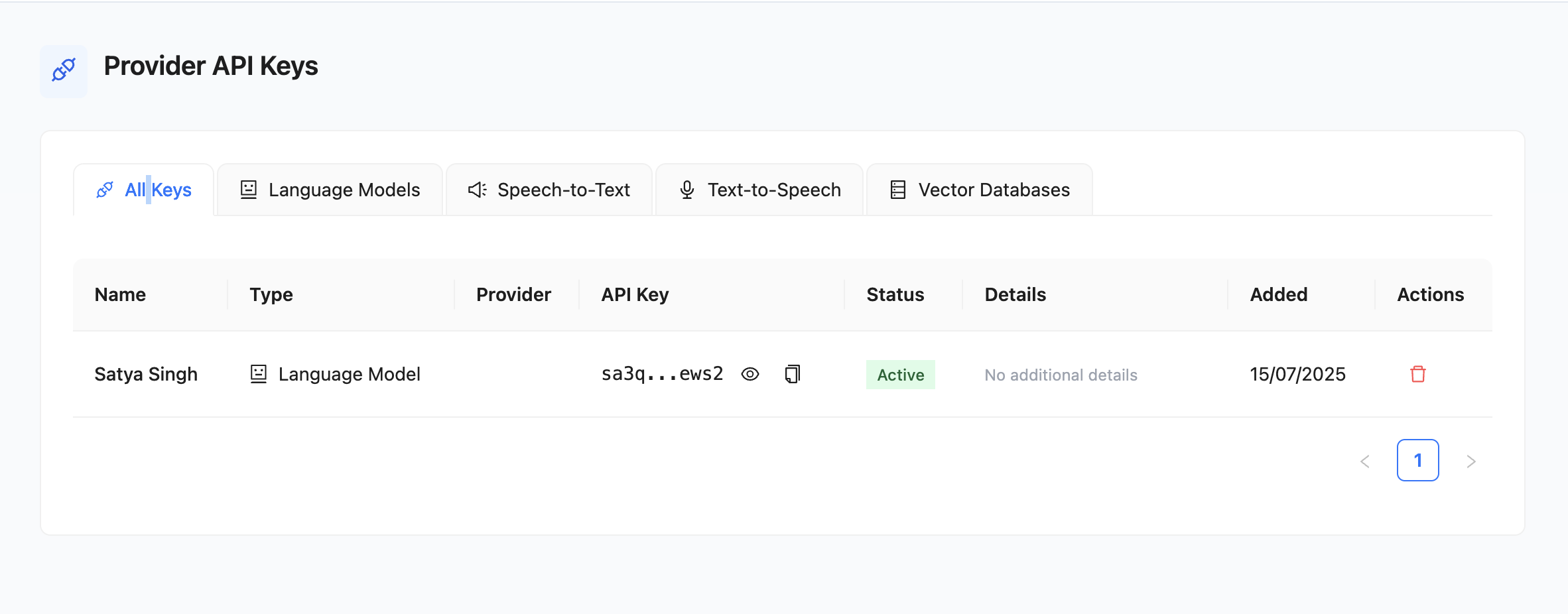
Column Definitions
- Name: A user-defined label for easy identification
- Type: Service category (e.g., Language Model)
- Provider: The external provider (e.g., OpenAI, Pinecone)
- API Key: Masked view of your secret key
- Status: Shows if the key is active or inactive
- Details: Any additional configuration notes
- Added: Date the key was added
- Actions: Options to remove the key
Best Practices
- Use descriptive names to distinguish between keys (e.g., “Dev GPT-4” vs “Prod GPT-4”)
- Rotate keys periodically to maintain security
- Revoke and regenerate keys if compromised
- Limit access to key management to authorized team members only
- Monitor usage and billing from the provider’s own dashboard
Troubleshooting
- Key Not Working? Double-check provider name, model selection, or region.
- Permission Denied? Ensure the API key has the required scopes or roles from your provider.
- Rate Limits? Monitor usage against provider quotas.
For more details, refer to the official documentation of supported providers like OpenAI, Google Cloud, or Pinecone.
Frequently Asked Questions
Do I have to bring my own API keys, or does Kipps.AI provide default models? Kipps.AI provides default AI processing so your agents work without any provider API keys. Bringing your own keys is optional but recommended for production deployments where you want full cost control, access to specific models, or compliance with data residency requirements.
Can I add multiple API keys from the same provider? Yes. You can add multiple keys from the same provider—for example, different OpenAI keys for different agents (production vs. staging). Each key is stored independently and can be assigned to specific agents.
Are my API keys visible to Kipps.AI staff? API keys are stored in encrypted form. They are masked in the dashboard UI (only a prefix is visible). Kipps.AI uses the key to make API calls on your behalf but does not expose the full key value after it is saved.
What happens to my agents if I delete an API key? Deleting a key immediately disables any agent that is configured to use it. Before deleting a key, reassign all dependent agents to a different key, or they will stop functioning. This action cannot be undone.
How do I know which agents are using a specific API key? Review each agent's AI or Speech-Settings configuration to see which provider key is selected. There is no global view of key usage per agent—check each agent individually before rotating or deleting keys.