Knowledge Base – Importing Content from Notion
Learn how to connect your Notion workspace to Kipps.AI and import pages into your AI Chat Agent’s Knowledge Base. This guide covers authentication, importing, and managing Notion content.
Knowledge Base: Adding Content from Notion
The Notion integration provides a powerful and seamless method for populating your Knowledge Base with existing internal content such as company wikis, documentation, and project notes. Instead of manually copying and pasting, Kipps.AI allows you to securely connect your Notion workspace and import selected pages in just a few clicks. This ensures your AI agent always stays up-to-date with your company's source of truth.
How to Use the Notion Integration
- Navigate to the Knowledge Base section from the main menu.
- Select the Knowledge Base where you want to import content.
- Expand the "Notion" section to access the integration panel.
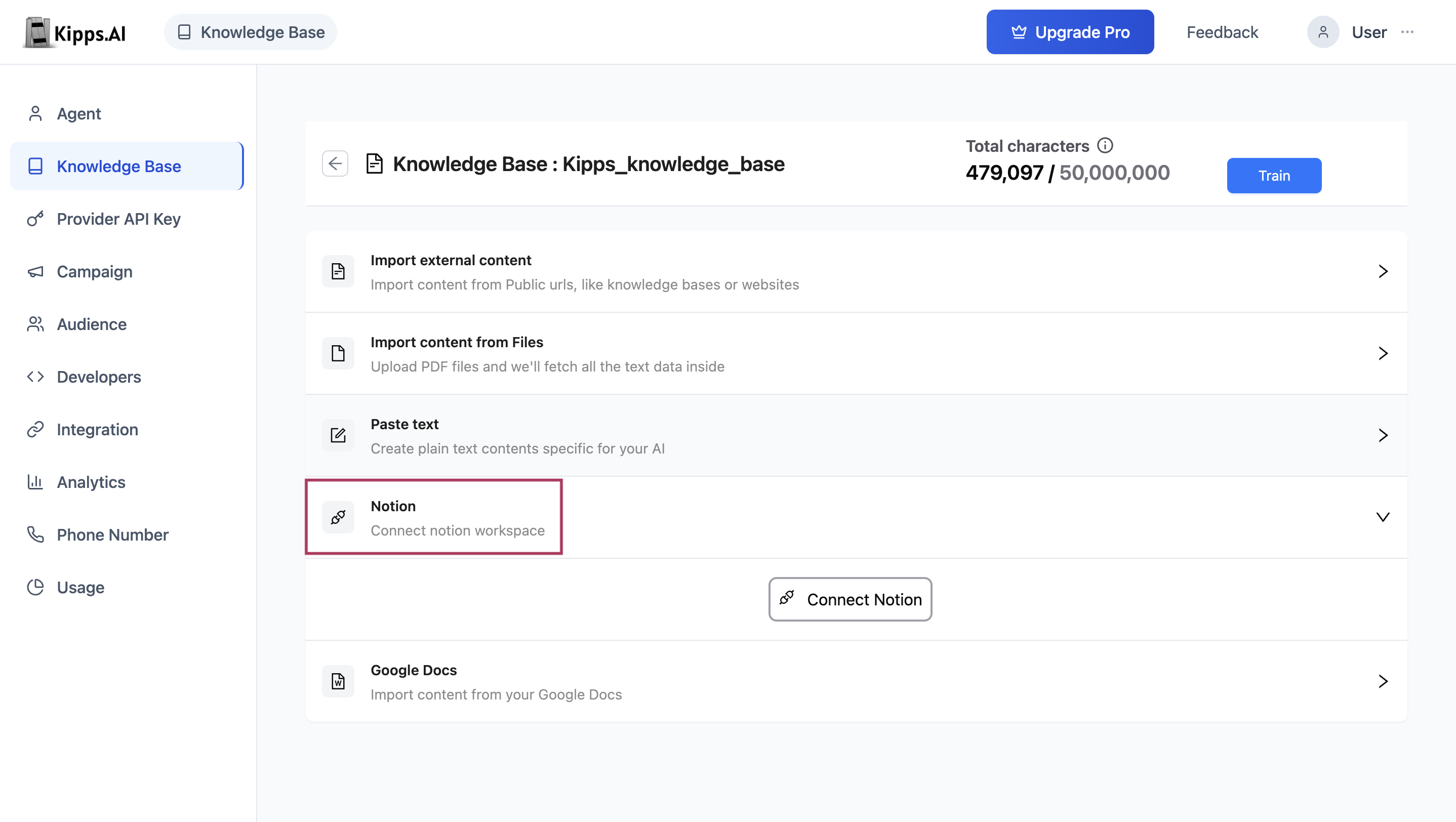
Step 1: Connect Your Notion Workspace
Before importing content, you must authorize Kipps.AI to access your Notion workspace. This is a secure, read-only connection managed directly by Notion.
- Click the “Connect Notion” button.
- You will be redirected to a secure Notion login screen.
- Notion will prompt you to select the pages or databases you want to share with Kipps.AI.
- Select specific pages or entire workspaces as needed.
- Click “Allow Access” to complete the authorization process.
Your original Notion content will remain untouched. Kipps.AI only retrieves data for use in the Knowledge Base.
Step 2: Automatic Import & Background Processing
Once permission is granted, you will be redirected back to the Kipps.AI interface, where the import process will begin automatically.
-
A loading screen will display a message such as
"Hold tight, we are fetching your data!" -
Kipps.AI communicates with the Notion API to:
- Retrieve the list of selected pages
- Extract the textual content from each page
- Save the content to your selected Knowledge Base
-
After processing is complete, you will be redirected back to the updated Knowledge Base page.
Step 3: Manage Imported Notion Pages
After the import, the Notion section will display all the pages that were successfully added to your Knowledge Base.
- Page Title: Displays the original title of the imported Notion page.
- Character Count: Indicates the size of the content extracted from each page.
Available management actions:
- Delete a Page: Click the red trash icon next to a page name to remove it from the Knowledge Base.
- This action only affects the Knowledge Base and does not impact the original page in your Notion workspace.
Step 4: Train Your Knowledge Base
To enable your AI Chat Agent to use the newly imported data, you must train the Knowledge Base.
-
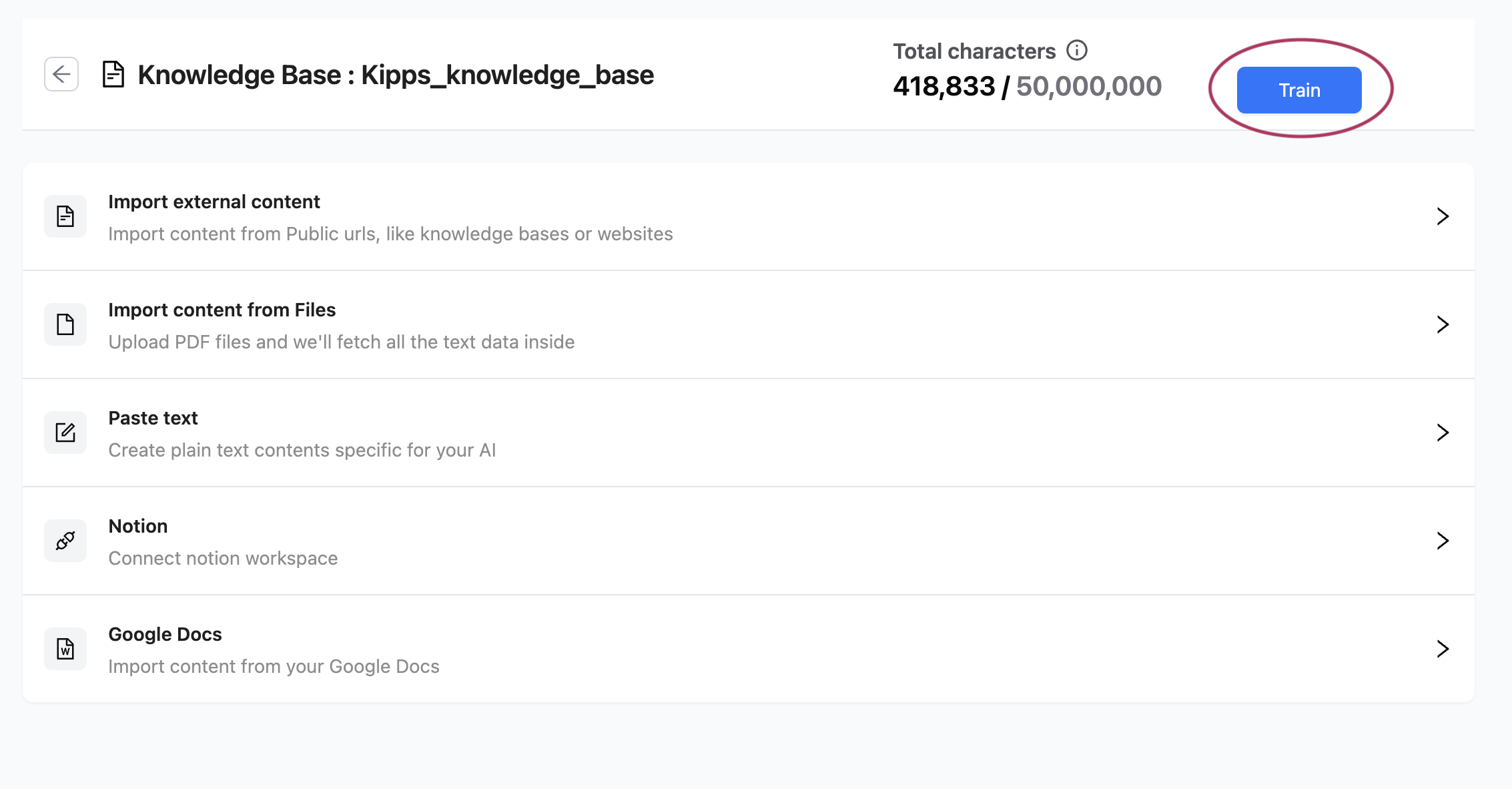
Locate the “Train” button at the top of the Knowledge Base interface.
-
Click the button to initiate training. Kipps.AI will:
- Chunk the content
- Generate embeddings
- Index the data for fast retrieval
-
A progress bar will display real-time training status.
-
Once training completes, a confirmation message will appear and the “Last Trained On” date will update.
Your AI Chat Agent is now equipped with content from your Notion workspace and ready to provide accurate responses based on that information. Be sure to retrain the Knowledge Base whenever new pages are imported or existing ones are updated.
Best Practices
- Share only relevant pages during authorization: When Notion asks which pages to share, be selective. Granting access to your entire workspace imports unnecessary content, which can degrade retrieval accuracy.
- Retrain after every Notion update: Kipps.AI does not automatically sync changes made to Notion pages after the initial import. Whenever a page is edited in Notion, re-import it in Kipps.AI and retrain the knowledge base.
- Organize Notion pages by topic before importing: If your Notion workspace has a mix of internal and public-facing content, separate them into distinct pages before connecting. Import only the pages appropriate for your agent's audience.
- Use the character count column to spot oversized pages: Very large pages (high character counts) may slow down retrieval or cause truncation. Consider splitting large Notion pages into smaller, topic-focused sub-pages before importing.
Troubleshooting
The Notion authorization page opened but I was redirected back and no pages were imported. This usually means you clicked "Allow Access" without selecting any pages for Kipps.AI to access. Reconnect and ensure you select at least one page before approving access in the Notion permission dialog.
I connected Notion but the fetching screen runs indefinitely. Long fetch times can occur for Notion workspaces with many pages. Wait up to 5 minutes. If it still does not complete, check your internet connection and try the import again. Very large workspaces may require importing in smaller batches.
Some Notion pages imported successfully but others show 0 characters. Pages with 0 characters were either empty at the time of import or contain only Notion blocks that are not supported for text extraction (e.g., embedded databases, synced blocks). Convert the content to standard Notion text blocks and re-import.
I deleted a Notion page from my workspace but it still appears in Kipps.AI. Deleting a page in Notion does not remove it from Kipps.AI. To remove it from the knowledge base, click the red trash icon next to it in the Notion section and then retrain.
Frequently Asked Questions
Does Kipps.AI sync Notion content automatically? No. Imports are manual snapshots taken at the moment of connection. To update the knowledge base with Notion changes, delete the existing import, re-import the updated pages, and retrain.
Can I import Notion databases or only pages? The integration imports Notion pages. Notion databases are imported as pages when they are included in the shared content, but the structured database format (table rows, filtered views) is flattened into text. For best results, convert key database content into standard page format before importing.
What Notion content types are supported? Standard text blocks, headings, bullet lists, numbered lists, code blocks, and callouts are supported. Media files, embedded content, and Notion formulas are not extracted as text.
Can I connect multiple Notion workspaces to the same knowledge base? You can connect one Notion workspace at a time per knowledge base. To access content from multiple workspaces, export content from secondary workspaces as PDF files and upload them separately.
Is my Notion content stored securely by Kipps.AI? Kipps.AI stores the extracted text from your Notion pages within your knowledge base. The connection credentials (OAuth token) are stored securely and are not exposed in the dashboard. Access is read-only—Kipps.AI cannot modify your Notion workspace.
Related Articles