Knowledge Base - Add PDF/Markdown Files
Learn how to upload and process PDF/Markdown documents in Kipps.AI to enhance your AI agent’s knowledge with rich, structured content.
Kipps.AI allows you to upload PDF/Markdown files as a powerful way to enrich your AI agent’s knowledge. Whether it's manuals, FAQs, product sheets, or internal documentation, the file upload feature converts your static documents into actionable AI-ready data.
This feature ensures that all your important written content is captured and usable—without requiring manual data entry or formatting.
How to Upload PDF/Markdown Files
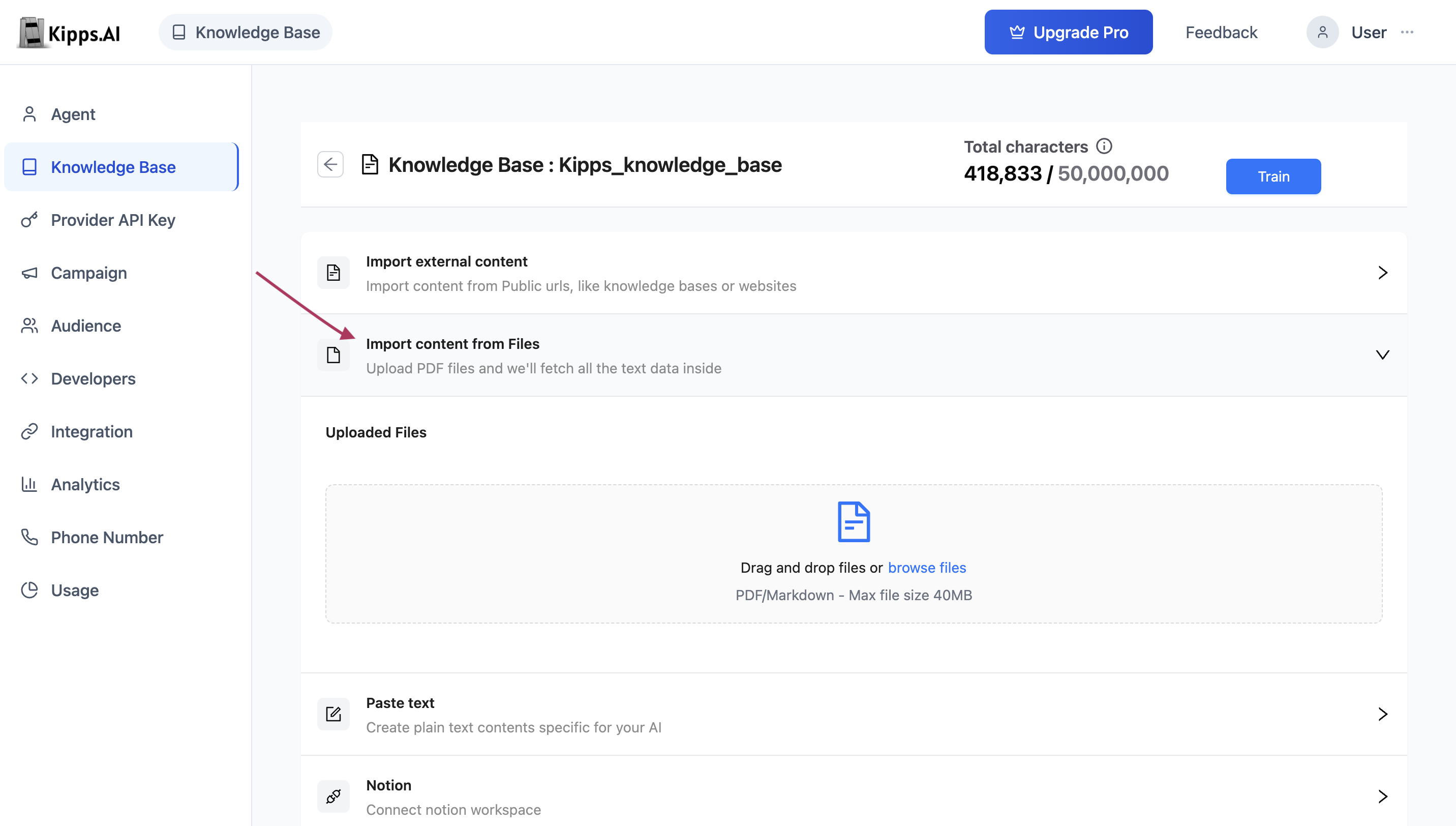
1. Navigate to the File Upload Section
- Go to the Knowledge Base section from the sidebar.
- Select the Knowledge Base you want to update.
- Expand the Import content from Files section to access the upload panel.
2. Upload Your PDF/Markdown Files
You can upload files in two convenient ways:
-
Drag and Drop
Simply drag your PDF/Markdown files from your computer into the upload area. -
Click to Browse
Click anywhere inside the upload zone to open your file browser and select PDF/Markdown files manually.
Multiple PDF/Markdown files can be uploaded at once. Each file will begin uploading as soon as it's selected.
3. Background Processing
Once a file is uploaded, Kipps.AI handles all the heavy lifting:
-
Secure Upload
The document is safely uploaded to the platform. -
Text Extraction
The system begins analyzing the file to extract usable text content. A status label such as"Processing..."will indicate that the file is being handled. -
Scalability
Large files are automatically split into smaller segments so they can be processed reliably—without delays or errors.
4. PDF/Markdown Processing Modes
Kipps.AI supports both digital and scanned documents through flexible processing modes:
-
Standard Text Extraction
Works best for digital PDF/Markdown files where the text is selectable (not scanned). This method is fast and highly accurate. -
Advanced OCR (Optical Character Recognition)
If your PDF is a scanned image (e.g., a printed document), our OCR engine will extract the text content from the images. This ensures no knowledge is left behind—even in image-only documents.
OCR mode is typically configured at the account level or automatically applied when needed.
5. Managing Uploaded Files
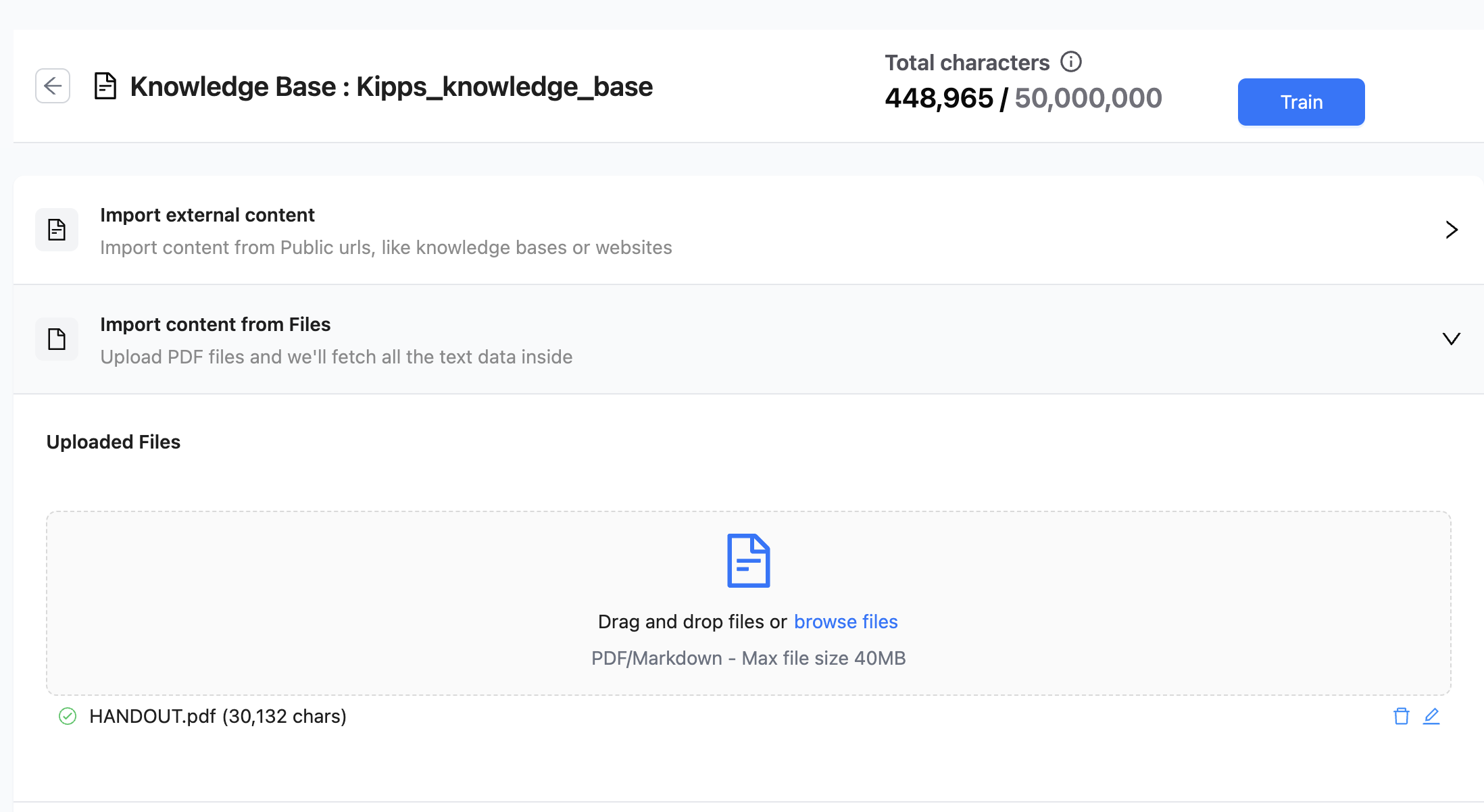
As your PDF/Markdown files are uploaded and processed, they appear in a real-time list with status indicators:
- Upload Status: Displays "Uploading," "Processing," or "Done" depending on file progress.
- Character Count: Once processed, the number of characters extracted is displayed.
- Delete Option: Remove any uploaded file at any time. Deleted files are excluded from the agent's knowledge on the next training cycle.
Step 6: Train Your Knowledge Base
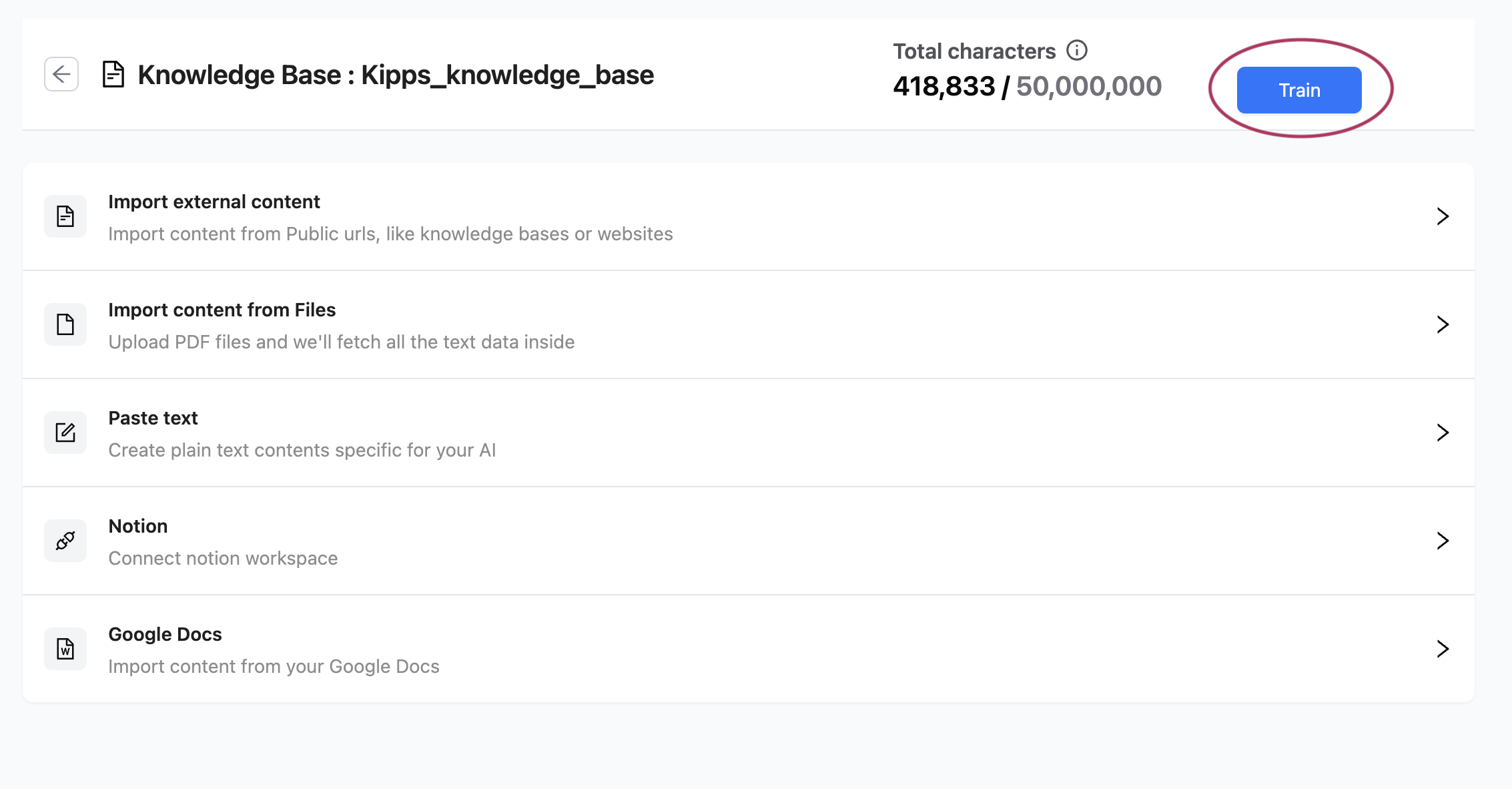
After uploading and processing files, you must train your Knowledge Base to make the content accessible to your AI agents.
How to Train
-
Locate the Train Button
At the top of the Knowledge Base content panel, you’ll see a Train button. This activates when new files or content are added. -
Start the Training
Click Train to begin. Kipps.AI will convert the extracted content into a vectorized format your AI agents can understand. -
Monitor Training Progress
- A live progress bar will show the number of content items being processed.
- Status will update in real time (e.g.,
3/5 files trained).
-
Training Complete
Once complete, you'll receive a success message. The “Last Trained On” date in the agent configuration section will update accordingly.
Without training, your AI agent will not recognize the uploaded content.
Best Practices
-
Use Clean, Structured PDF/Markdown Files
Avoid documents with poor formatting or illegible text for better extraction quality. -
Combine Related Content
Group related files into one Knowledge Base for cleaner AI training and organization. -
Review Before Training
Double-check the list of uploaded documents and delete outdated ones before hitting “Train.”
Adding PDF/Markdown files to your Kipps.AI Knowledge Base transforms static documents into dynamic, conversational knowledge that your AI agents can leverage across any channel.
Troubleshooting
A PDF was uploaded successfully but the agent doesn't use its content. Uploading the file only adds it to the data store. The agent uses content only after training is complete. Click the Train button and wait for the success message before testing the agent.
The file shows "Processing…" for a long time without completing. Very large PDFs (hundreds of pages) can take several minutes to process. If processing stalls for more than 10 minutes, try splitting the document into smaller files (50–100 pages each) and uploading them separately.
The PDF was processed but the character count shows 0. This usually means the PDF is image-only (a scanned document) and standard text extraction returned no text. If OCR is available for your account, it will be applied automatically. Contact support to enable OCR if scanned PDFs are not being extracted.
The agent's answers from PDF content are inaccurate or incomplete. Poor-quality PDFs (heavy formatting, tables, two-column layouts, or lots of images) are harder to extract accurately. Try exporting the content as a plain-text Markdown file or pasting the key sections using the Text content type instead.
Frequently Asked Questions
What file formats are supported beyond PDF?
Kipps.AI supports PDF (.pdf) and Markdown (.md) files. For Word documents (.docx), convert them to PDF first before uploading.
Is there a file size limit per upload? Individual file size limits depend on your subscription plan. For very large files, splitting them into smaller documents improves both upload reliability and extraction quality.
Can I upload multiple PDFs at once? Yes. The upload zone accepts multiple files simultaneously. Each file is processed independently—you can monitor each one's status in the uploaded files list.
Does the agent use all pages in a PDF or only the first few? All extracted pages are used. Large documents are automatically chunked into segments during processing so the full content is available to the agent.
If I delete a PDF from the knowledge base, do I need to retrain? Yes. Deleting a file removes it from the data store but the trained embeddings remain active until you retrain. Click Train after deleting files to reflect the change.
Related Articles