Knowledge Base – Import from Sitemap
Learn how to add entire websites to your Knowledge Base in Kipps.AI using sitemap URLs to automate large-scale content ingestion.
Kipps.AI allows you to seamlessly import large amounts of web content by providing a sitemap URL. A sitemap is a structured XML file listing all the pages of a website. By analyzing this file, Kipps.AI automatically discovers and extracts content from multiple pages—saving time and improving knowledge coverage.
This process ensures your AI agents are always informed with accurate and updated information from your website, without requiring manual entry of individual URLs.
Sitemap Import Workflow
1. Accessing the Import Tool
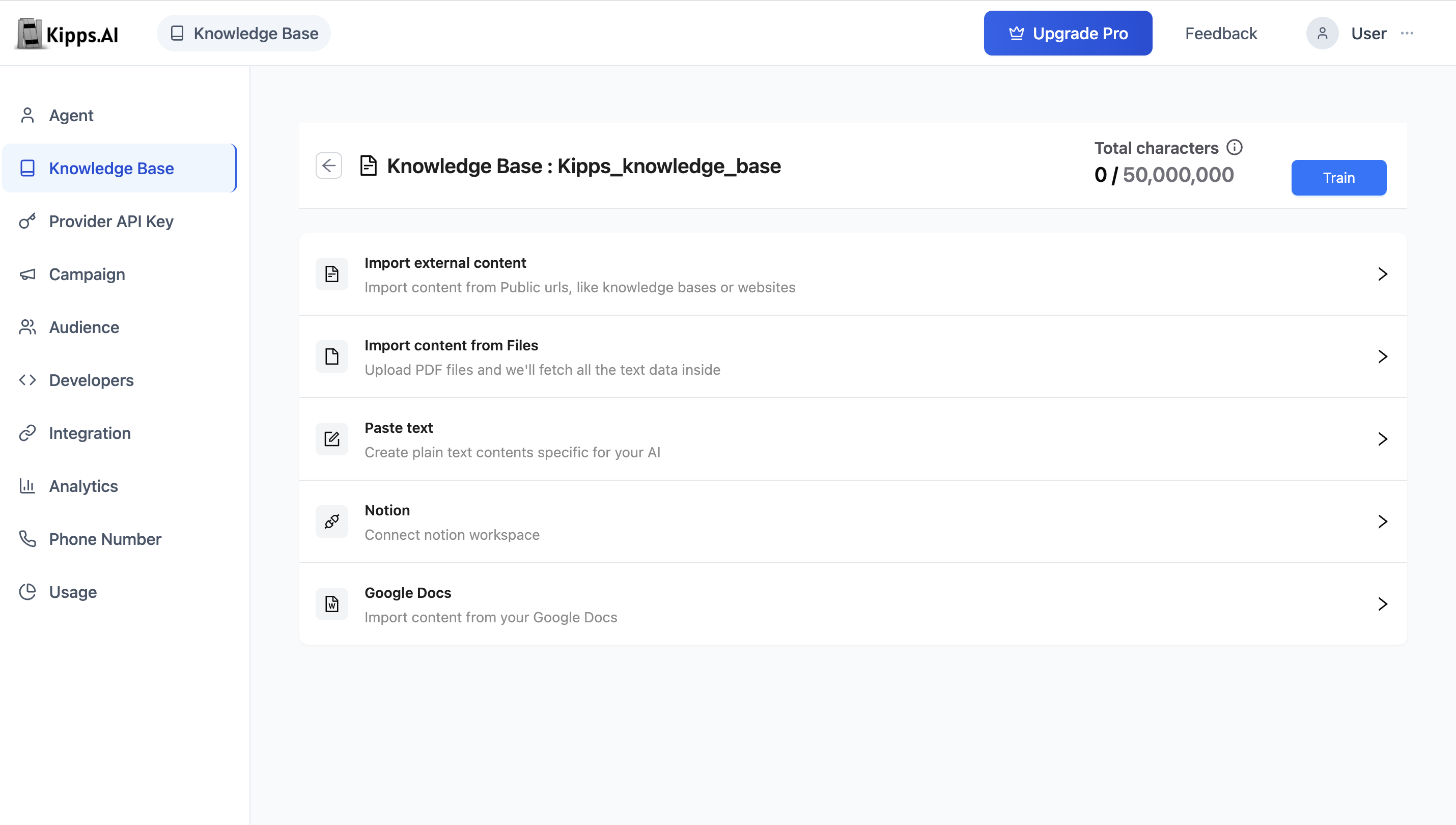
- Go to the Knowledge Base section from the left sidebar.
- Select the Knowledge Base where you want to add web content.
- On the Knowledge Base page, scroll to and expand the Import external content section.
2. Analyzing the Sitemap
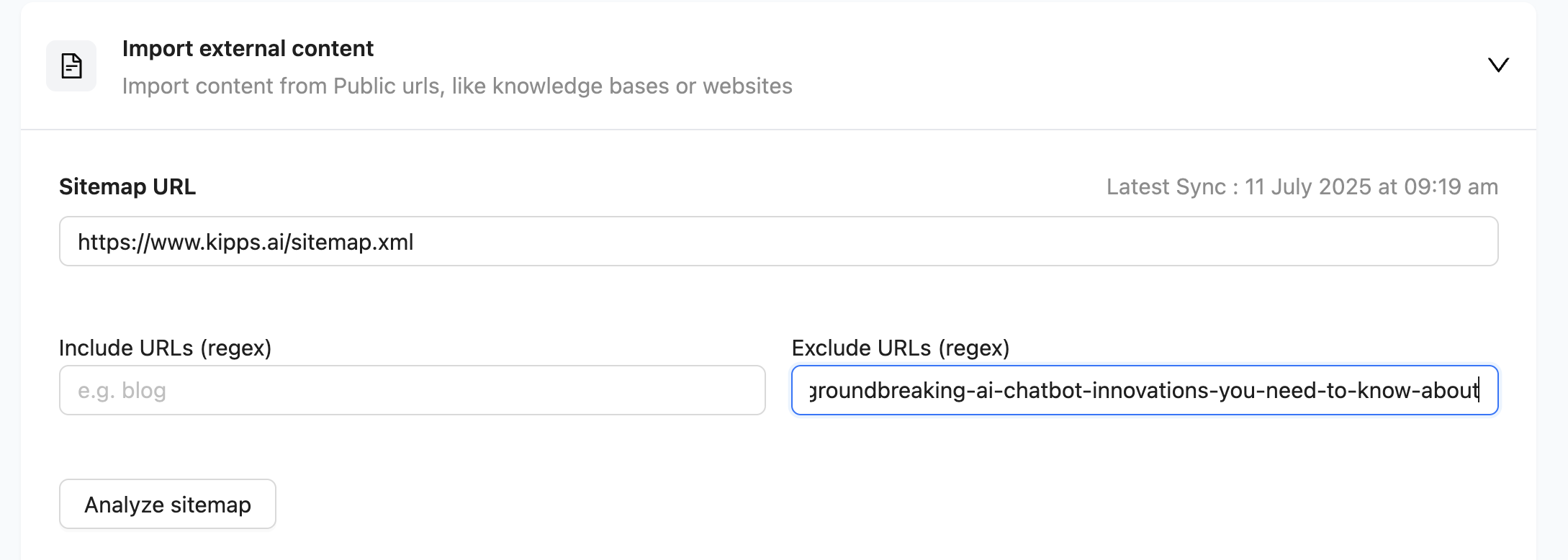
- Enter Sitemap URL: Paste the full sitemap link (e.g.,
https://example.com/sitemap.xml). - Click "Analyze sitemap": Kipps.AI will fetch the file and generate a preview summary:
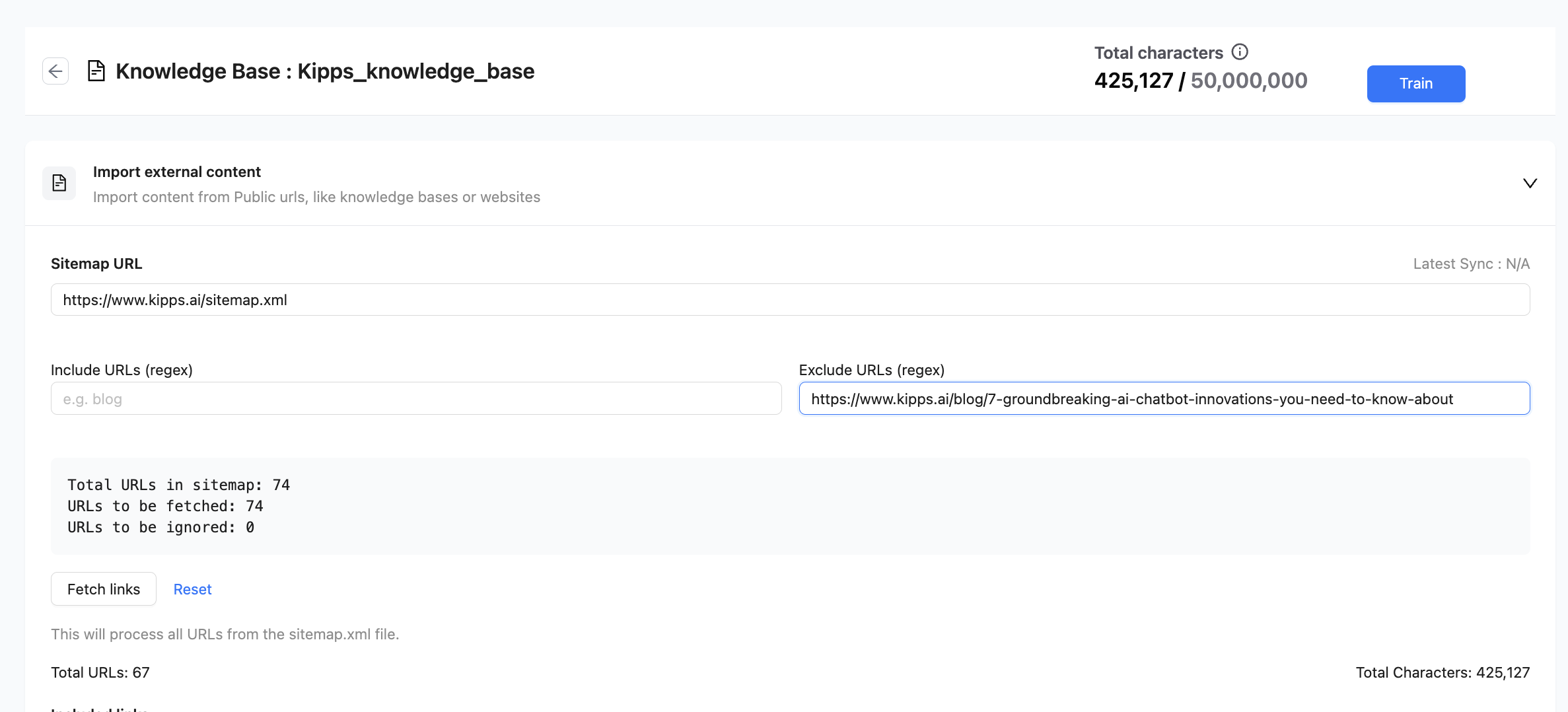
- Total URLs in sitemap: Number of pages listed in the file.
- URLs to be fetched: Pages that match your import criteria.
- URLs to be ignored: Pages excluded based on filtering rules.
This step gives you full visibility before importing any content.
3. Filtering with URL Patterns (Optional)
To refine what content is imported, you can apply regex-based filters:
- Include URLs (regex): Only URLs matching this pattern will be added.
Example: Enteringblogwill include pages with "blog" in the URL. - Exclude URLs (regex): URLs matching this pattern will be skipped.
Example: Enteringarchivewill exclude pages with "archive" in the URL.
Update your filters and re-analyze the sitemap to preview changes before fetching.
4. Fetching and Processing Content
Once you’re satisfied with the sitemap analysis:
- Click "Fetch links": This begins the actual content import. The button becomes active after analysis is complete.
- Live Progress Tracking: A real-time progress bar shows how many pages are being processed.
- Included Links List: Successfully imported URLs will be listed along with the number of characters extracted from each.
You can continue working or navigate away while the import completes in the background.
5. Train Your Knowledge Base
This is the most important step. Adding content is like placing books in a library—but until you train it, your AI agent doesn’t know where anything is. Training builds the internal index so the agent can accurately retrieve answers from your imported content.
How to Train:
-
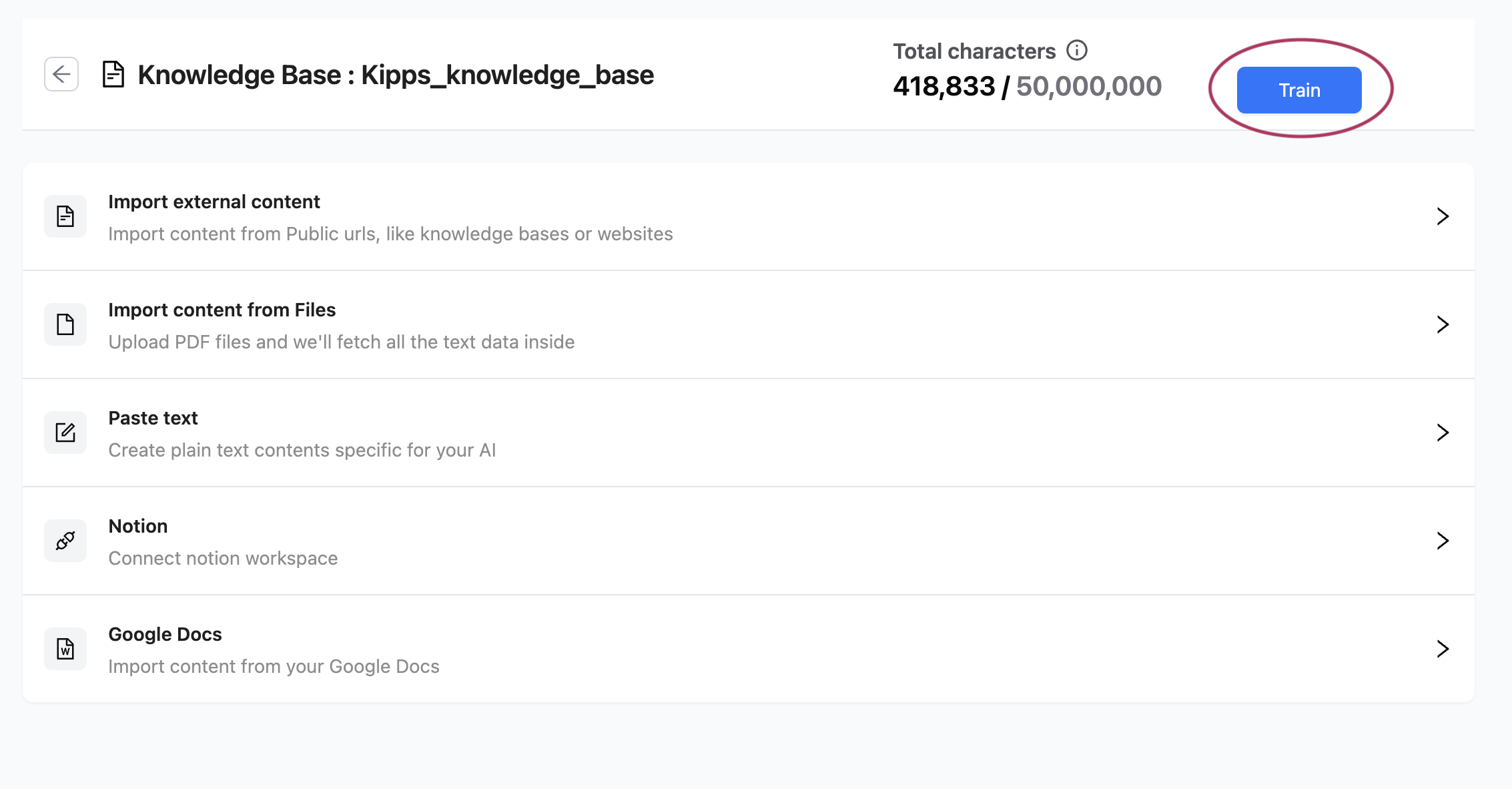
Locate the Train Button
On the top-right of the Knowledge Base content page, click the prominent Train button. It appears whenever new or updated content is detected. -
Start the Training Process
Clicking the button will trigger a background training task. The system will begin converting your content into vector embeddings (a format the AI understands) and store them in a high-performance database. -
Monitor Training Progress
A progress bar will display real-time updates as content is being processed. This may show aprocessed/totalcounter to help you track completion. -
Training Complete
Once the training finishes, a "Training Successful" notification will appear. You’ll also see the "Last Trained On" timestamp updated in your AI agent’s training section.
Without this step, your AI agent will not recognize or use the newly added website content—so be sure to train every time you import or update data.
Automatic Daily Refresh
To keep your AI agent’s knowledge up to date, Kipps.AI supports Daily Refresh:
- When enabled, the system re-checks the sitemap every 24 hours.
- Changed pages are automatically re-imported.
- This ensures the agent’s knowledge reflects your latest web content—without manual effort.
Enable this feature when creating or editing your Knowledge Base.
Managing Imported Content
After importing:
- Included Links View: See a list of all successfully added pages.
- Character Count: View the size of each imported page (in characters).
- Manual Deletion: Remove any individual page from the Knowledge Base if needed.
This gives you complete control over what your AI agents can reference.
Best Practices
- Use clean sitemaps: Ensure your sitemap contains only relevant content you want to include.
- Test with filters: Use include/exclude patterns to fine-tune the import.
- Enable auto-refresh: Keep knowledge synchronized without manual updates.
- Always train after import: Train the Knowledge Base each time content is added or changed.
By using sitemap imports and following up with proper training, Kipps.AI enables you to build deeply knowledgeable AI agents that can reliably answer questions based on real, up-to-date website content.
Troubleshooting
The "Analyze sitemap" button returns an error. Verify the sitemap URL is publicly accessible—Kipps.AI must be able to fetch it without authentication. Test by pasting the URL in an incognito browser window. If it asks for a login, the sitemap is behind a paywall or authentication and cannot be imported directly.
The sitemap analyzes successfully but shows 0 URLs to be fetched. This usually happens when an overly restrictive Include URL filter excludes all pages. Remove the filter and re-analyze to see all pages, then apply a more targeted regex pattern.
Some pages import but others are missing from the included links list. Pages excluded by your filters, or pages that the crawler could not access (e.g., JavaScript-only pages, redirects, or login-required pages), will not be imported. Adjust your include/exclude patterns and check that all target pages are publicly accessible.
The agent gives outdated answers from website content. Enable Daily Refresh to keep the knowledge base synchronized with your website. Without it, the knowledge base only reflects content at the time of the last manual import. After enabling, allow 24 hours for the first automatic refresh.
Frequently Asked Questions
Where do I find my website's sitemap URL?
Most websites have a sitemap at /sitemap.xml (e.g., https://example.com/sitemap.xml). You can also check robots.txt (https://example.com/robots.txt) which often lists the sitemap location. WordPress, Shopify, and most CMS platforms generate sitemaps automatically.
Can I import a sitemap index file (a sitemap of sitemaps)? Yes. Kipps.AI handles both standard sitemaps and sitemap index files. When a sitemap index is provided, all child sitemaps are crawled and all their URLs are made available for filtering and import.
Does the import capture dynamic content generated by JavaScript? The sitemap importer fetches and processes the HTML content of each page. Content that is only rendered by JavaScript (without server-side rendering) may not be fully captured. For JS-heavy sites, consider exporting content as PDFs or using the Text content type.
How many pages can I import from a sitemap? The number of pages you can import per knowledge base depends on your subscription plan. Use include/exclude filters to limit the import to only the most relevant pages and stay within your plan's limits.
Will importing a competitor's sitemap violate any terms? You should only import content you have the right to use. Public web content may be subject to copyright. Review the target website's terms of service before importing their sitemap into your knowledge base.
Related Articles