Knowledge Base – Introduction
Learn how Kipps.AI’s Knowledge Base powers your AI agents with centralized, reusable information across chat, voice, and messaging platforms.
Welcome to the Knowledge Base, the most critical component for making your AI agents intelligent and helpful. Think of a Knowledge Base as a centralized digital brain that you create and curate. It's where you store all the information, documents, and data you want your AI Chat Agents, AI Voice Agents, and WhatsApp bots to know and use when answering user questions.
The power of the Knowledge Base lies in its ability to provide a single source of truth. By maintaining information in one place, you ensure that a customer receives the same accurate, relevant, and consistent answer whether they are typing on your website, speaking to a voice agent over the phone, or messaging on WhatsApp.
Each agent you create—be it a AI Chat Agent for your site or a VoiceAgent for your support line—is linked to a single Knowledge Base. This allows you to build highly specialized agents for different purposes (e.g., a "Sales Inquiries" KB for a sales bot and a "Technical Support" KB for a support bot) while maintaining consistency.
How to Get Started
Navigating to the Knowledge Base
- Log in to your Kipps.AI account.
- On the main dashboard, locate the navigation sidebar on the left-hand side.
- Click on the "Knowledge Base" menu item.
This will open the main Knowledge Base dashboard, where you can view your existing knowledge bases or create a new one.
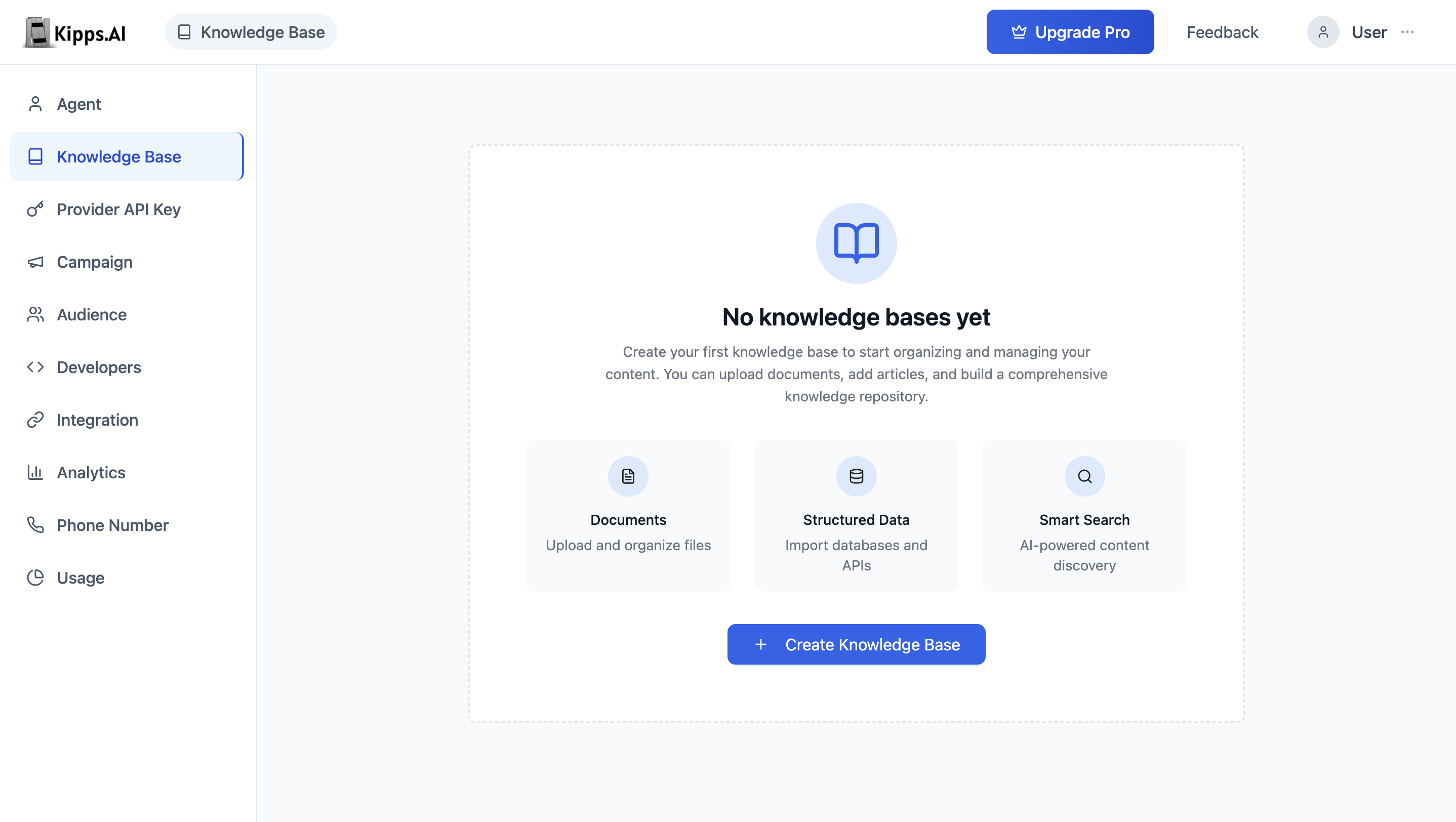
Creating Your First Knowledge Base
If you're new to Kipps.AI, your dashboard will be empty. Creating a Knowledge Base is your first step toward enabling any AI agent.
-
On the Knowledge Base dashboard, click the "Create Knowledge Base" button.
-
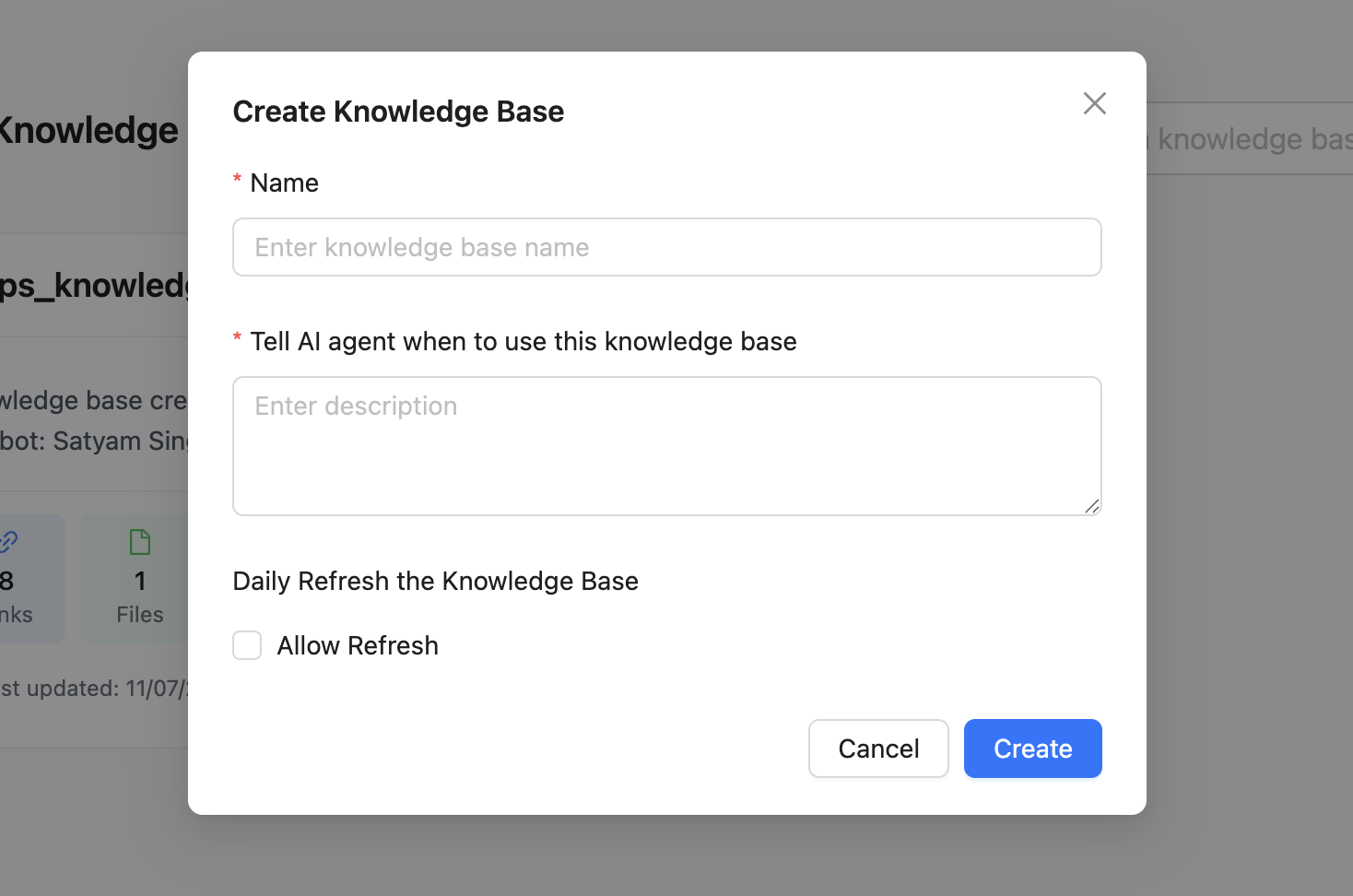
A pop-up window will appear prompting you to enter the following fields:
-
Name: Provide a clear and descriptive name for your Knowledge Base.
Examples:Customer Support Docs,Product Information,Internal HR Policies -
Description: Clearly describe what this knowledge base contains and when an AI agent should reference it.
Example:
“Use this knowledge base for all questions related to product features, pricing, and troubleshooting across all customer support channels.” -
Daily Refresh (Optional): Enable this option if you want Kipps.AI to automatically fetch and update information daily from sources like websites.
-
-
Click "Create" to save your new Knowledge Base.
Managing Your Knowledge Bases
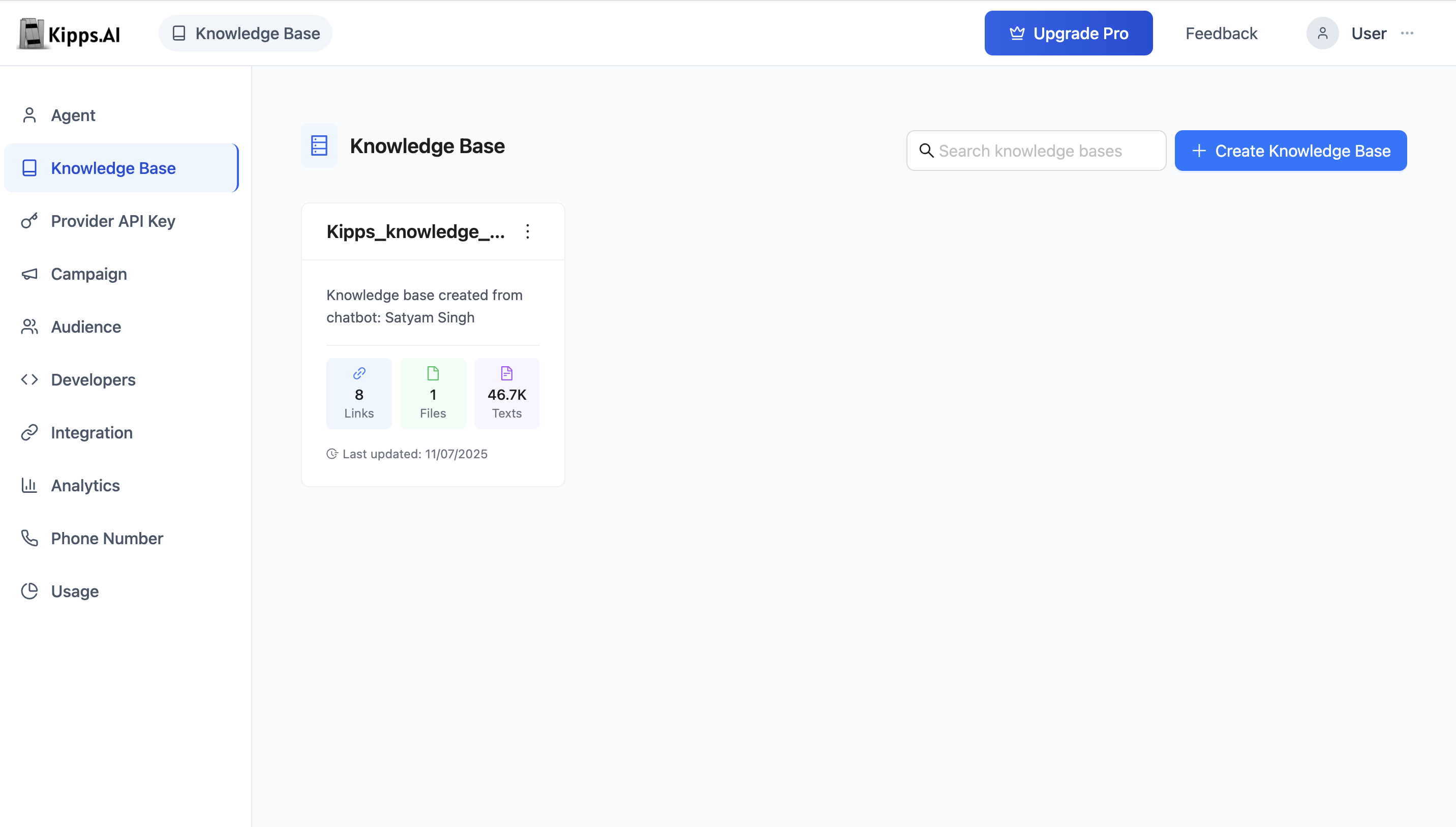
Once created, each Knowledge Base appears as a card on the main dashboard. These cards offer a quick overview of:
- Name and Description – Shows the identity and purpose of the Knowledge Base.
- Content Summary – Displays how many websites, files, and text entries are currently added.
- Last Updated – Shows the date and time of the last content update.
You can:
-
Search for any Knowledge Base using the search bar.
-
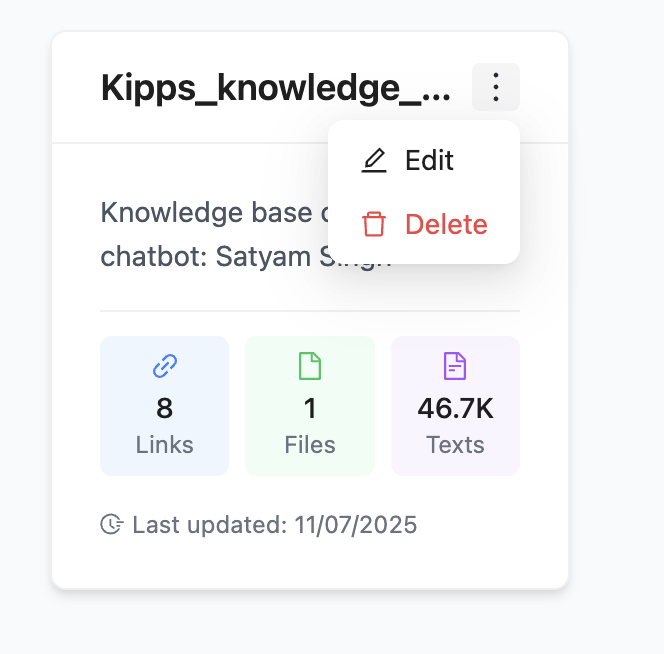
Edit a Knowledge Base's name or description using the options menu.
-
Delete a Knowledge Base permanently if it's no longer needed.
Next Steps: Adding Content and Connecting to AI Agents
After creating a Knowledge Base, the next step is to populate it with useful content. Click on any Knowledge Base card to access its detail page and start adding various types of information sources:
- Websites: Add content directly by entering URLs or submitting full sitemaps.
- Files: Upload documents such as PDFs or Word files.
- Text: Paste content directly or enter structured question-answer pairs.
- Notion: Connect to your Notion workspace and import relevant pages.
- Google Docs: Import documents from your Google Drive.
Once your Knowledge Base contains content, it can be linked to any of your AI agents—whether AI Chat Agent, VoiceAgent, or WhatsApp bot.
For AI Chat Agent agents, the option to link a Knowledge Base is located in the AI section.
For VoiceAgent agents, the Knowledge Base can be selected from the Speech Settings section.
This connection ensures that your agents always have access to accurate, relevant, and up-to-date information when engaging with users.
Best Practices
- One knowledge base per agent purpose: Resist the temptation to put all information into a single knowledge base. Separate knowledge bases by topic (e.g., "Sales FAQ", "Technical Support", "Onboarding") keeps retrieval focused and responses more accurate.
- Write clear descriptions: The Description field is used by the AI to understand when to reference this knowledge base. Write it as an instruction—"Use this knowledge base to answer questions about product features, pricing, and troubleshooting."—rather than a generic label.
- Enable Daily Refresh for website sources: If you add content from your website URL, enable the Daily Refresh option so the knowledge base automatically picks up page updates without manual intervention.
- Retrain after every content change: Adding, editing, or removing content does not take effect until you click Train. Make retraining part of your content update workflow.
Troubleshooting
I created a knowledge base but the agent gives generic answers instead of using my content. Confirm you have linked the knowledge base to the agent. Creating a knowledge base and adding content is not enough—you must connect it to the agent in the agent's AI section (for chat agents) or Speech-Settings (for voice agents).
Training keeps failing or the progress bar never completes. Very large content imports (especially large sitemaps or PDFs) can take several minutes. If training consistently fails, try reducing the amount of content imported at once and retrain in smaller batches.
The knowledge base shows a high content count but the agent doesn't know the information. Verify that training was completed successfully—look for the "Last Trained On" timestamp. If it is missing or very old, click Train again and wait for the success message.
I deleted a knowledge base but the agent still uses it. After deleting a knowledge base, open the agent settings and verify no deleted knowledge base is still referenced. Save the agent settings to clear the reference.
Frequently Asked Questions
How many knowledge bases can I create? The number of knowledge bases you can create depends on your Kipps.AI subscription plan. Most plans support multiple knowledge bases. Contact support for details on your current plan's limits.
Can two agents share the same knowledge base? Yes. A single knowledge base can be linked to multiple agents simultaneously. Any changes made to the knowledge base and followed by retraining will affect all agents linked to it.
What is the difference between "adding content" and "training"? Adding content stores the raw text or files in your knowledge base's data store. Training converts that content into vector embeddings that the AI can search and retrieve. Both steps are required for the agent to use the content.
Can I mix different content types in one knowledge base? Yes. A single knowledge base can contain websites, PDFs, text entries, Notion pages, and Google Docs simultaneously. All content types are treated equally after training.
How do I know which knowledge base content an agent used to answer a question? In the chat window, AI responses typically include citation indicators linking to the source content chunks retrieved. You can also review the conversation history to see which knowledge base entries were referenced.
Related Articles