WhatsApp Inbox – Managing Conversations
Learn how to manage incoming WhatsApp messages, manual replies, automation behavior, templates, and chat history inside the Kipps.AI WhatsApp Inbox.
WhatsApp Inbox Overview
The WhatsApp Inbox provides a unified interface for managing all incoming and outgoing WhatsApp conversations. Messages update in real time, and you can switch between automated replies, manual responses, and template-based messaging.
This guide explains how to navigate the Inbox, manage conversations, handle 24-hour messaging windows, and control AI automation settings.
Inbox Interface Layout
The WhatsApp Inbox consists of three core panels:
- Conversation List – All customer chats, search, filters
- Chat Window – Full message history with media support
- Details & Settings Panel – Contact info, export, manual mode, automation controls
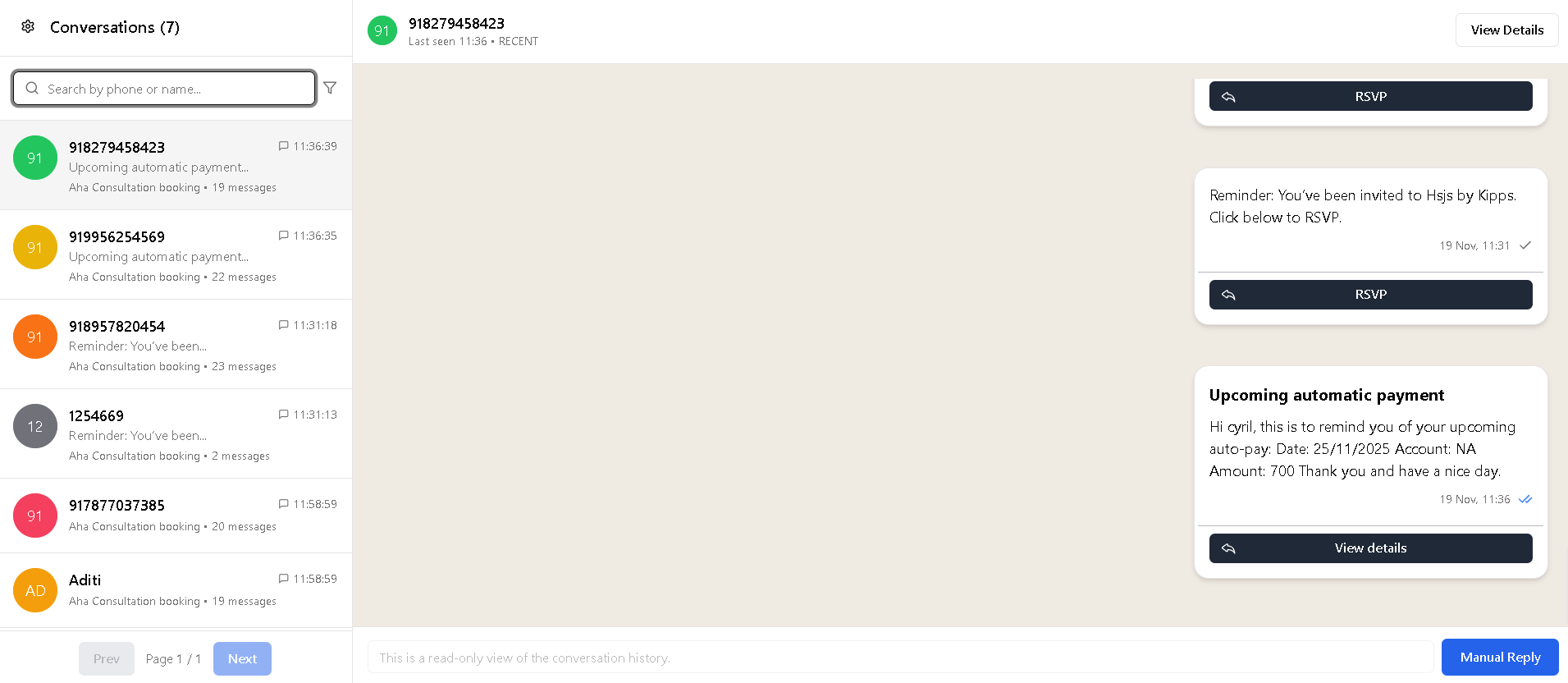
Step 1: Browsing Conversations
Conversation List
The left panel shows all conversations with:
- Contact name and avatar
- Last message preview
- Timestamp
- MANUAL badge (if manual mode is active)
You can search by name or phone number.
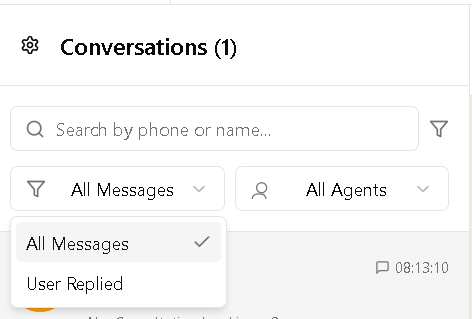
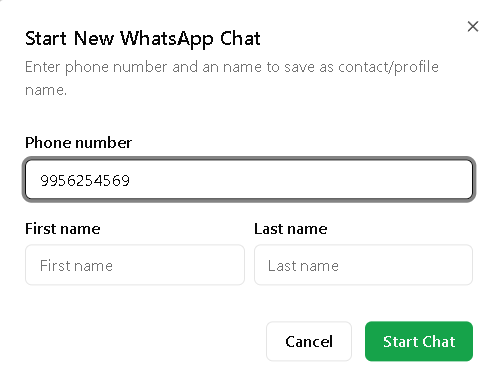
Starting a New Chat
If a phone number has no previous conversation, the Inbox allows starting a new message thread.
- Enter a phone number or name in search
- If no chat exists, click Start a New Chat
- Enter contact details
- Click Start Chat
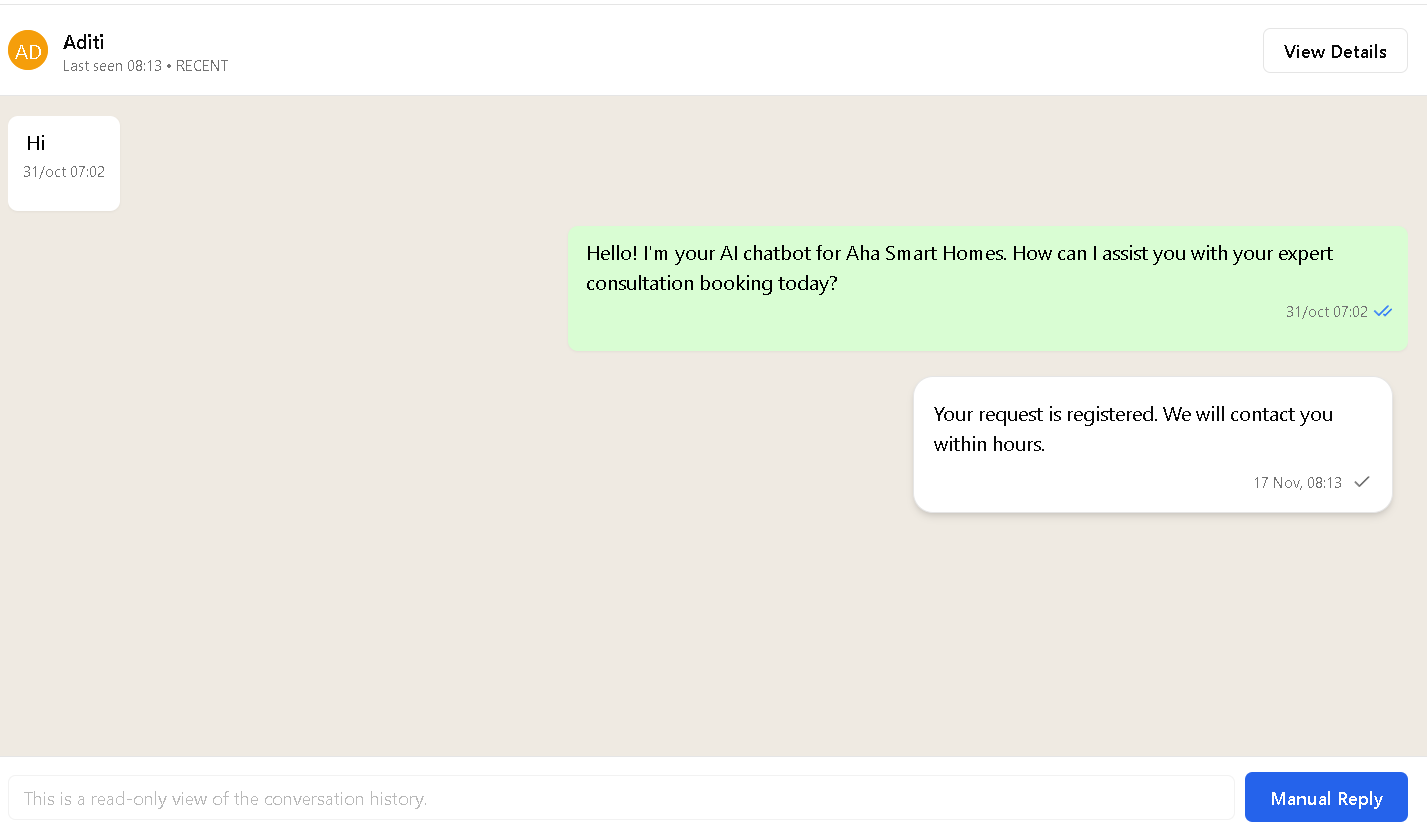
Step 2: Understanding the Chat Window
The main panel displays:
- Incoming messages
- Outgoing template messages
- AI-generated replies
- Manual replies
- Media (images, PDFs, video, audio)
- Delivered/read indicators
Step 3: 24-Hour Messaging Window
WhatsApp requires a business to send a template message when:
- The customer’s last message is older than 24 hours
- Or no previous conversation exists
When this occurs, Kipps.AI shows the 24-Hour Window Warning:
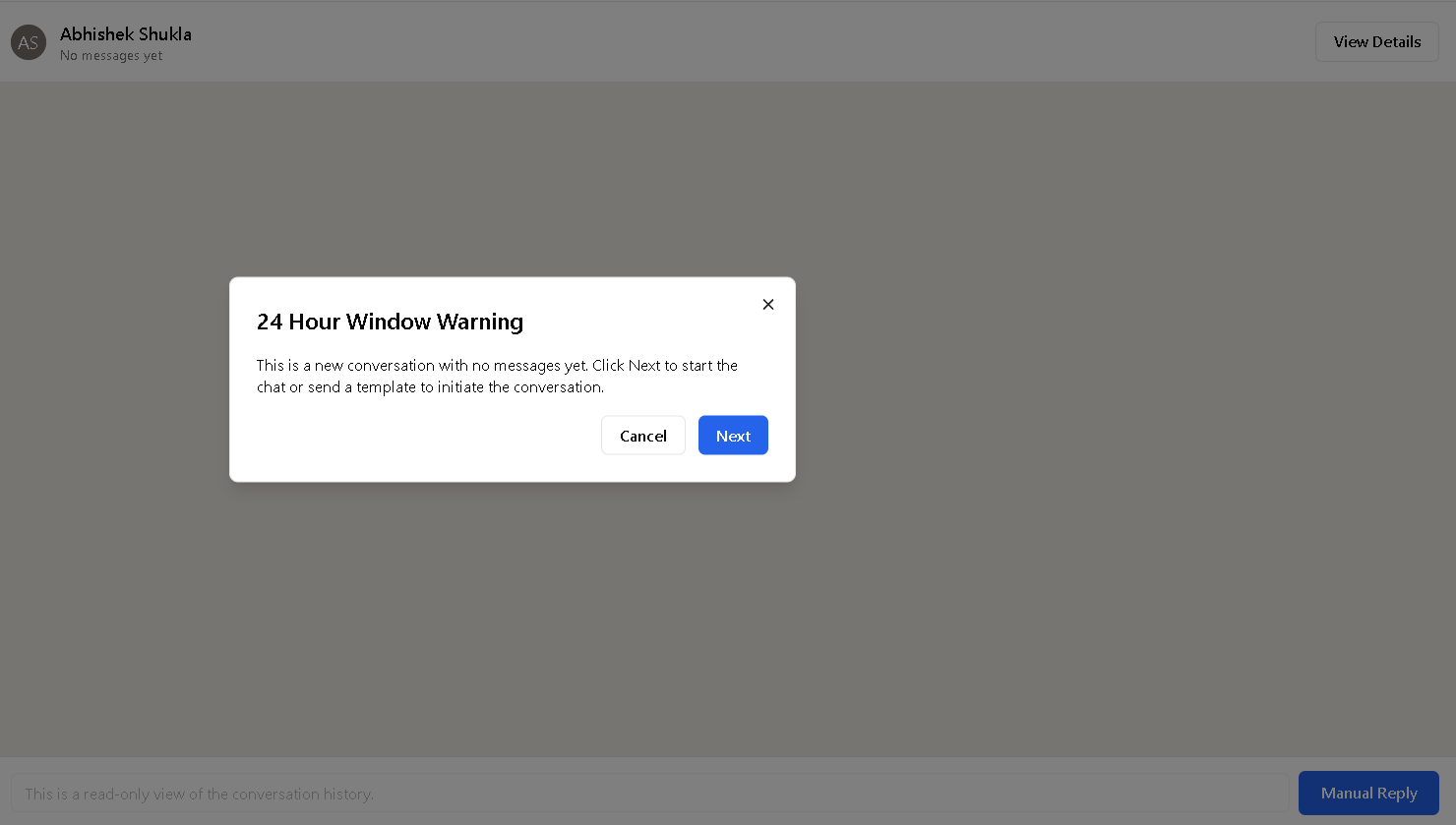
Click Next to continue.
Sending a Required Template
To reopen the session:
- Choose a template from the approved list
- Fill any required parameters
- Send the message
If the message fails, open the failed message status and check the returned error code. A common cause is missing billing/credits for outbound template messaging.
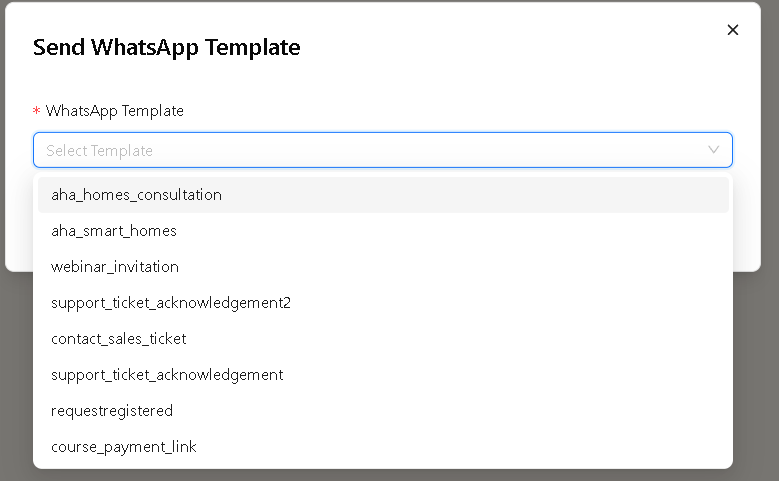
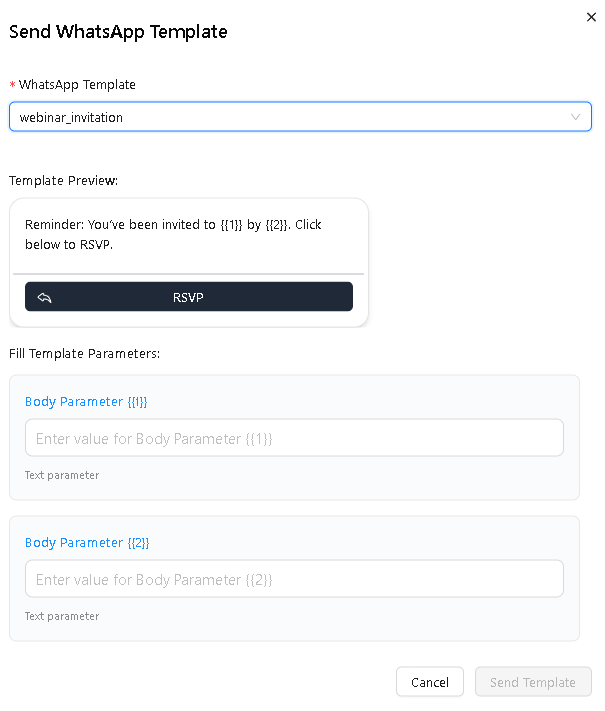
After sending, the 24-hour session resets and you can reply normally.
Step 4: Manual Reply Mode
Manual Reply Mode disables automation for that specific conversation.
When enabled:
- Only text messages can be sent
- AI replies pause
- Media and templates are disabled
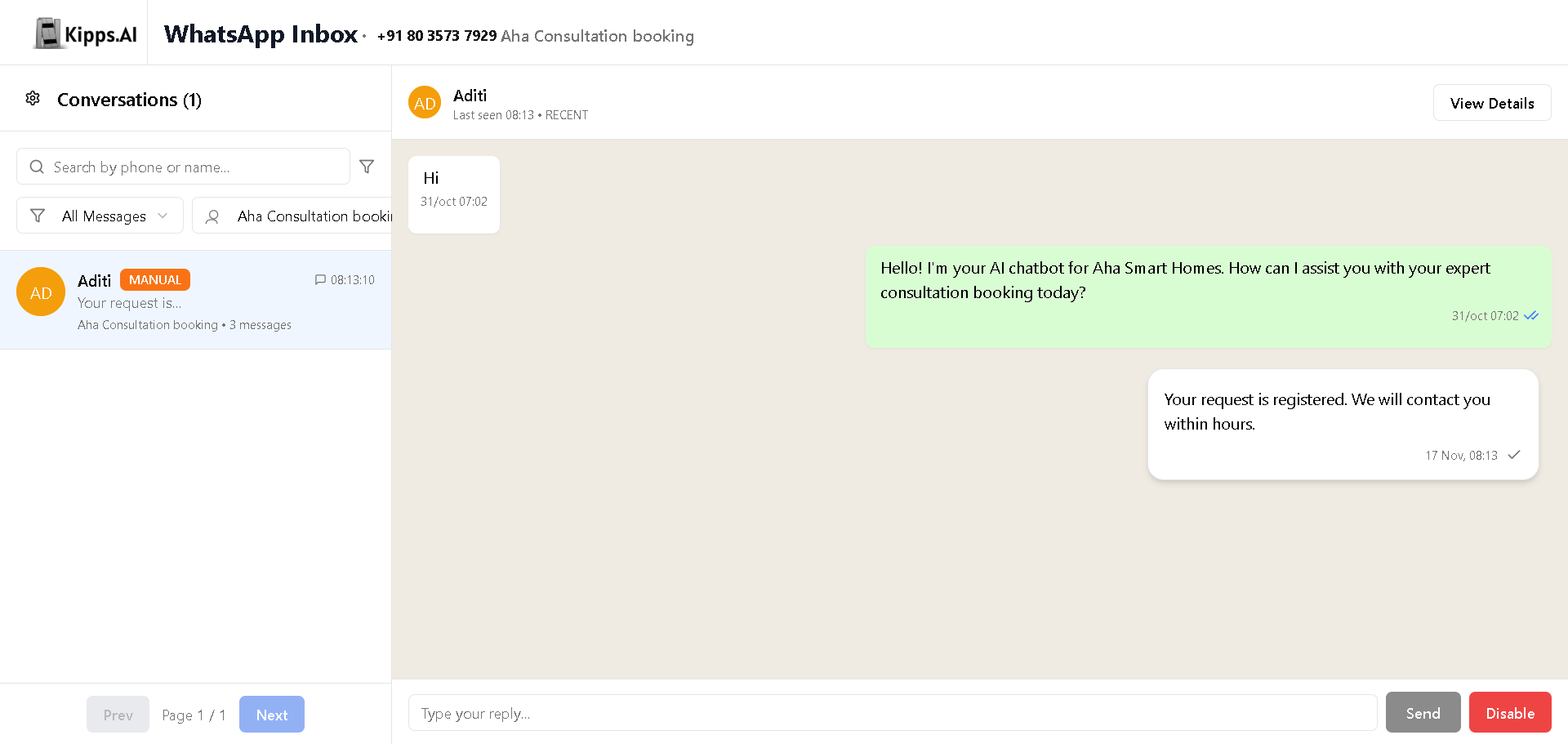
To exit manual mode, click Disable.
Step 5: Contact Details & Export Options
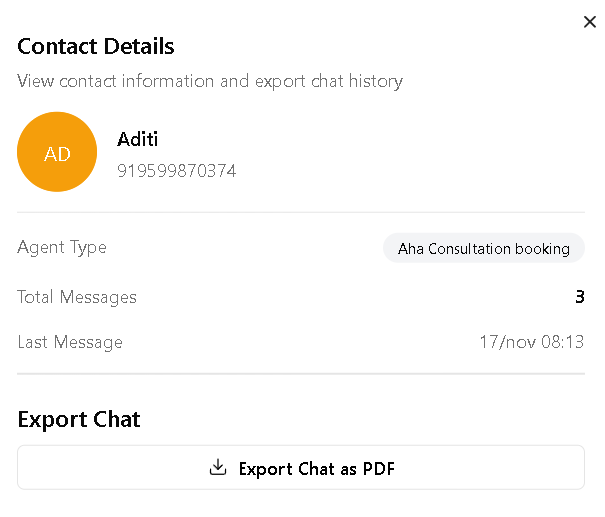
Click View Details to open the Contact Details panel.
This panel displays:
- Contact name
- Assigned agent
- Total messages
- Timestamps
- Phone number information
You can also export the full chat as a PDF.
Step 6: Inbox Settings
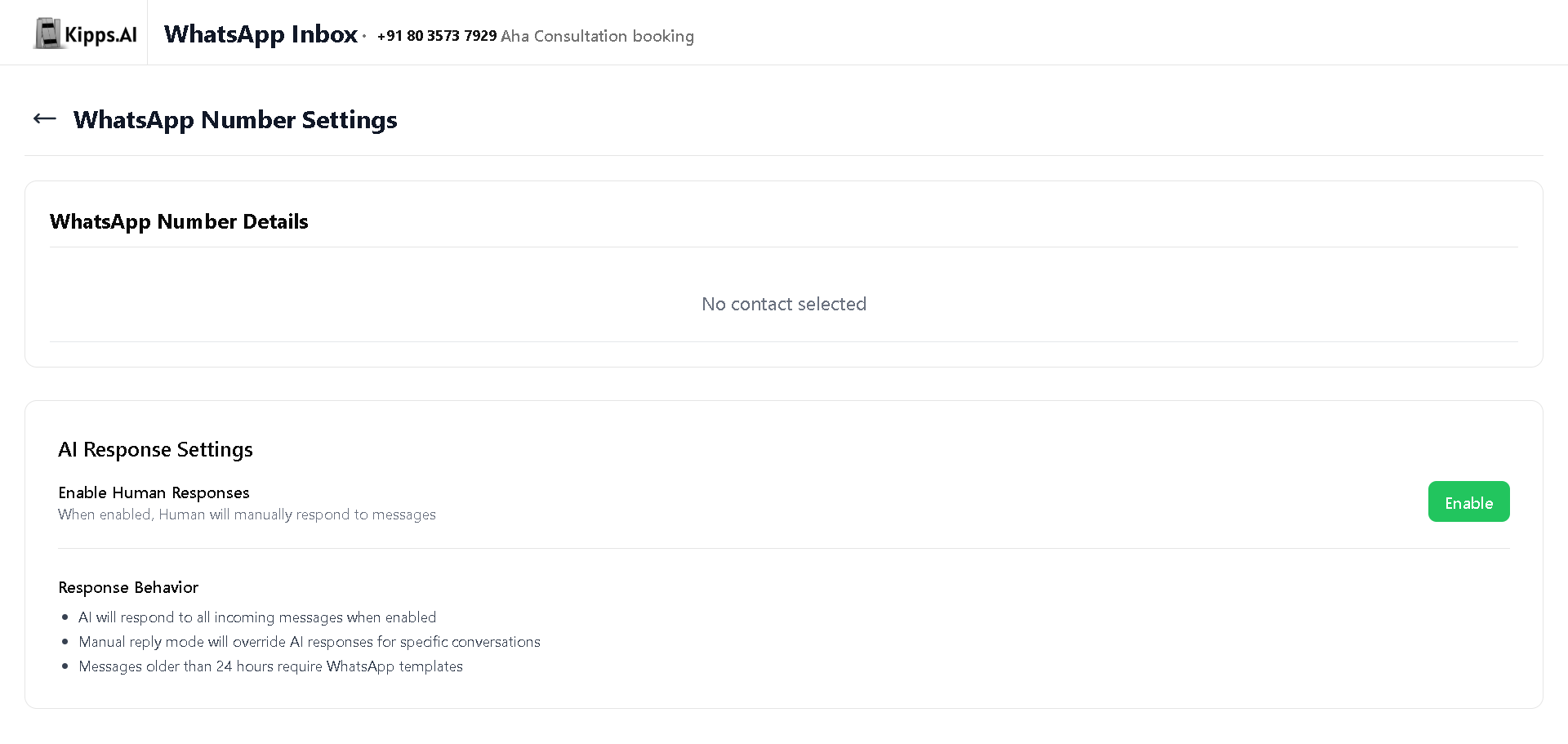
The Settings panel provides control over automation and WhatsApp number configuration.
AI Response Settings
- Enable Human Responses – Turns off automation for all conversations
- Only manual text replies are allowed while active
WhatsApp Number Settings
- Connected number
- Integration status
- WhatsApp agent details
Message Types Supported
Incoming:
- Text
- Images
- PDFs
- Audio / Voice notes
Outgoing (Automation Enabled):
- Templates
- Text
- Images
- Videos
Outgoing (Manual Mode):
- Text only
Delivery Status Indicators
- Sent
- Delivered
- Read
- Failed
When a message is Failed, the UI clearly indicates the failure with a red error icon.
Failed Message Handling
- A red failure icon (❗) appears next to the failed message in the chat window
- This indicates that the message was not delivered successfully
Viewing Failure Details
To check why the message failed:
- Click on the failed message
- A Message Details modal will open
- The modal displays:
- Message content
- Campaign name
- WhatsApp agent
- Timestamp
- Failure reason
- Error code
This helps identify issues such as:
- 24-hour messaging window restrictions
- Template not approved
- Insufficient balance/credits
- WhatsApp policy restrictions
Manual Mode – Unread Message Count
When Manual Reply Mode is enabled, the system highlights incoming messages count in the conversation list.
- A green badge with a number appears next to the conversation
- This number indicates how many new messages have been received from the user
Key Points:
- This is visible only when Manual Mode is active
- Helps agents track pending conversations easily
- Ensures no incoming messages are missed while automation is disabled
Related Guides
Summary
The WhatsApp Inbox centralizes all conversation activity into a single interface where you can manage chats, send templates, handle manual replies, and control AI automation. With filters, search, export, and contact details, it ensures clean, structured communication management for your team.
Troubleshooting
The WhatsApp Inbox is not showing new incoming messages. Ensure your WhatsApp Business number is properly connected and in LIVE mode (check the Profile page). Refresh the inbox page. If messages are still not appearing, verify the webhook is active in your WhatsApp integration settings and that the number is not flagged or restricted by Meta.
I enabled Manual Reply Mode but the AI agent is still sending automated responses. After enabling Manual Mode, save the settings. There may be a short delay of a few seconds before automation is fully paused. If automated responses continue, refresh the inbox and toggle Manual Mode off and back on, then save again to ensure the setting is applied correctly.
Template messages are failing to send from the inbox. Confirm the template is approved in your Meta Business Manager account. Template delivery failures are usually caused by: the template not yet approved, wrong template language code, or the contact being outside the 24-hour session window without an approved template. Check the template status in your Meta account before retrying.
The conversation export is missing some messages. Exports reflect what is currently displayed in the filtered inbox view. If a date filter or contact filter is applied, only matching conversations are exported. Remove all filters and re-export to capture all conversations.
Frequently Asked Questions
What is the difference between AI Mode and Manual Reply Mode? In AI Mode, the connected WhatsApp Agent automatically responds to every incoming message using its configured instructions and knowledge base. In Manual Reply Mode, AI responses are paused and your team handles replies directly from the inbox. You can switch between modes at any time without affecting conversation history.
Can multiple team members manage the inbox simultaneously? Yes. Multiple team members with access to the Kipps.AI organization can view and respond to conversations in the inbox concurrently. There is no built-in conversation assignment system, so teams typically coordinate who responds to which conversation through internal processes.
Can I send images or files through the WhatsApp Inbox? WhatsApp Business supports media messages. Template messages can include images, documents, and videos as header components. For session messages (within 24 hours of the last user message), you can send text, images, and documents directly from the inbox.
Does the inbox show conversations from all connected WhatsApp numbers? Each WhatsApp Agent has its own inbox corresponding to its connected number. If your organization has multiple WhatsApp Agents (each with a different number), you need to switch between agents to view each inbox separately.
How long are conversation records stored in the inbox? Conversation retention depends on your Kipps.AI subscription plan. Export conversations regularly if you need records beyond the platform's retention window. The export feature in the inbox allows you to download conversation history in a structured format.
Related Articles