WhatsApp Agent Profile Page – Kipps.AI
Learn how to create a WhatsApp Agent, connect a WhatsApp Business number, and understand profile, quality, and verification details inside the Kipps.AI dashboard.
Overview
The WhatsApp Agent Profile Page in Kipps.AI gives you a complete view of your connected WhatsApp Business account. From agent creation to number linking, verification status, quality rating, and throughput limits — everything is visible in one place.
This guide walks you through:
- Creating a WhatsApp Agent
- Linking a WhatsApp Business number
- Navigating and understanding the Profile Page
- Troubleshooting and best practices
Creating a WhatsApp Agent
Step 1: Navigate to Dashboard
Log in to Kipps.AI and open your Main Dashboard.
Step 2: Create WhatsApp Agent
- Click Create WhatsApp Agent (green button with WhatsApp icon).
- If WhatsApp integration is not enabled for your organization, setup instructions will be shown instead.
Step 3: Configure Agent Details
- Enter the Agent Name and required details.
- Continue to the WhatsApp Settings page.
Selecting a WhatsApp Number
Step 1: Open WhatsApp Settings
After creating the agent, you are redirected to WhatsApp Settings.
Step 2: Choose WhatsApp Business Number
- Under Select WhatsApp Number, choose a number from the dropdown.
- If no number is connected yet, click + Add Number to integrate your WhatsApp Business account.
Step 3: Save Settings
- Click Save to confirm.
- Your agent is now linked to the selected WhatsApp number.
Accessing the Profile Page
Step 1: Open Agent Sidebar
- In the WhatsApp Agent sidebar, select the agent.
Step 2: Open Profile
- Click Profile from the sidebar menu.
The Profile Page displays real-time information about your WhatsApp Business account and its verification state.
Profile Page Sections Explained
Header
WhatsApp Profile Settings
A short description explaining profile and verification management.
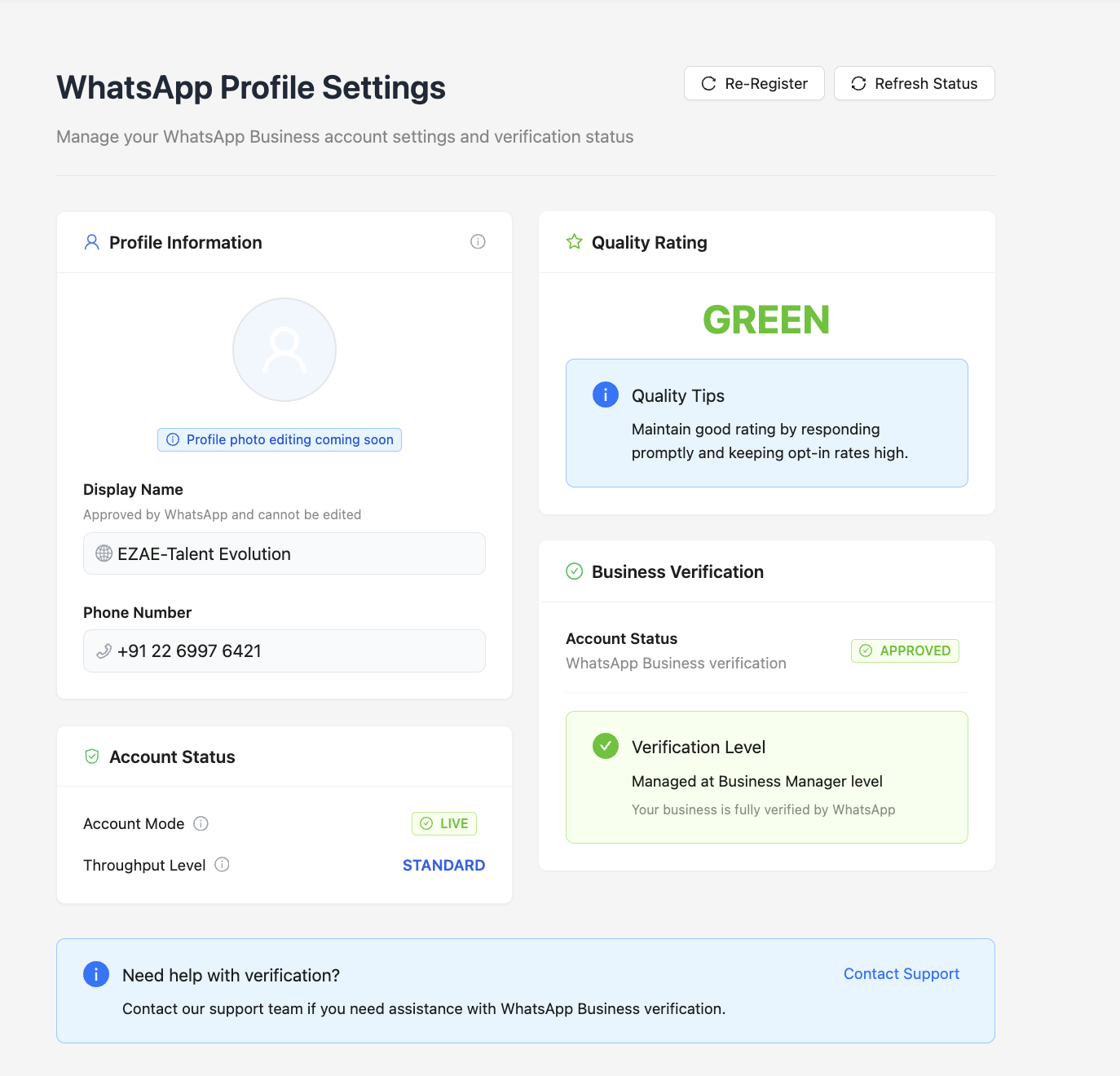
Actions
- Re-Register: Re-register your WhatsApp number if required.
- Refresh Status: Fetch the latest profile and verification data from WhatsApp.
Profile Information Card
-
Profile Photo
Displays your WhatsApp profile photo (editing support coming soon). -
Display Name
Verified WhatsApp Business display name (read-only). -
Phone Number
Connected WhatsApp Business phone number (read-only).
Account Status Card
-
Account Mode
Indicates whether the account is:LIVE– fully activePENDING– test or awaiting approval
-
Throughput Level
Messaging capacity level (e.g., Level 1, Level 2). -
Throughput Tier
Visual progress bar showing your current messaging tier.
Quality Rating Card
-
Quality Rating
Current WhatsApp quality rating:- Green
- Yellow
- Red
-
Quality Tips Best practices such as:
- Respond promptly
- Maintain high opt-in rates
- Avoid spam or blocked messages
Business Verification Card
-
Account Status Business verification state:
- APPROVED
- PENDING
-
Verification Level Explanation of your current verification tier and its benefits.
Footer Help
- Support
Click Contact Support to reach the Kipps.AI support team for help with:
- Verification delays
- Account issues
- WhatsApp setup problems
Troubleshooting & Tips
Profile Not Updating
- Use Refresh Status to sync the latest WhatsApp data.
Number Not Showing
- Ensure the WhatsApp Business number is properly connected in WhatsApp Settings.
Verification Issues
- If verification remains pending for an extended time, contact Kipps.AI Support.
Best Practices
- Keep your WhatsApp account in LIVE mode for uninterrupted messaging.
- Maintain a Green quality rating by respecting opt-ins and responding quickly.
- Regularly review:
- Verification status
- Throughput tier
- Quality rating
These directly impact your messaging capacity and delivery reliability.
Summary
The WhatsApp Agent Profile Page is your control center for WhatsApp Business integration in Kipps.AI. It helps you monitor account health, verification, quality, and messaging limits — ensuring reliable and compliant WhatsApp communication.
For additional help, visit the Kipps.AI Support Page.
Frequently Asked Questions
Why is my WhatsApp account showing "PENDING" mode instead of "LIVE"? PENDING mode typically means your WhatsApp Business number is still going through Meta's verification or approval process. Use the Refresh Status button to check for updates. If it remains PENDING for more than a few business days, contact Kipps.AI Support for assistance.
What does the Quality Rating mean and how does it affect my campaigns? Quality Rating reflects how recipients engage with your messages — specifically whether they block or report your number. A Green rating allows full messaging capacity. A Yellow rating is a warning that delivery may be throttled. A Red rating can result in messaging restrictions. Maintain a high quality rating by sending relevant messages only to opted-in contacts.
Can I change the Display Name shown on my WhatsApp profile? Display Name is managed through your Meta Business Manager account and is subject to WhatsApp's approval. It cannot be changed directly from the Kipps.AI dashboard. Submit a name change request through Meta and then use Refresh Status in Kipps.AI to sync the updated name.
What is Throughput Level and how do I increase it? Throughput Level determines how many messages per day your WhatsApp Business number can send. New accounts typically start at Level 1 (1,000 conversations per day). You can increase your tier by maintaining a Green quality rating and consistently sending messages to engaged, opted-in recipients over time.
If I re-register my number, will it affect my active WhatsApp conversations? Re-registering your number should only be done if instructed by Kipps.AI Support or if you are resolving a connection issue. Re-registration can temporarily disrupt active sessions. Avoid using this option unless you are troubleshooting a specific problem.
Can I connect multiple WhatsApp Business numbers to one Kipps.AI organization? Yes. You can connect multiple WhatsApp Business numbers, each assigned to a separate WhatsApp Agent. Each agent has its own Profile Page showing the status, quality rating, and verification details for its connected number.
Related Articles