Knowledge Base – Google Docs Integration
Connect your Google Drive and import documents directly into Kipps.AI’s Knowledge Base to power your AI agents with collaborative content.
The Google Docs integration provides a seamless way to connect your existing documentation with your AI agent. Rather than manually copying and pasting text, this integration allows you to authorize access to your Google Drive and import documents with just a few clicks. It is an efficient solution for leveraging team-based content and shared documentation maintained in Google Docs.
Whether you store internal FAQs, operational guidelines, product manuals, or training resources in Google Docs, this feature enables you to make that knowledge instantly accessible to your AI agents.
Step-by-Step Guide to Importing Google Docs
Step 1: Connect Your Google Account
- Navigate to the Knowledge Base section from the main dashboard.
- Select the Knowledge Base where you want to add Google Docs content.
- Expand the Google Docs section.
- Click the "Connect Google Docs" button.
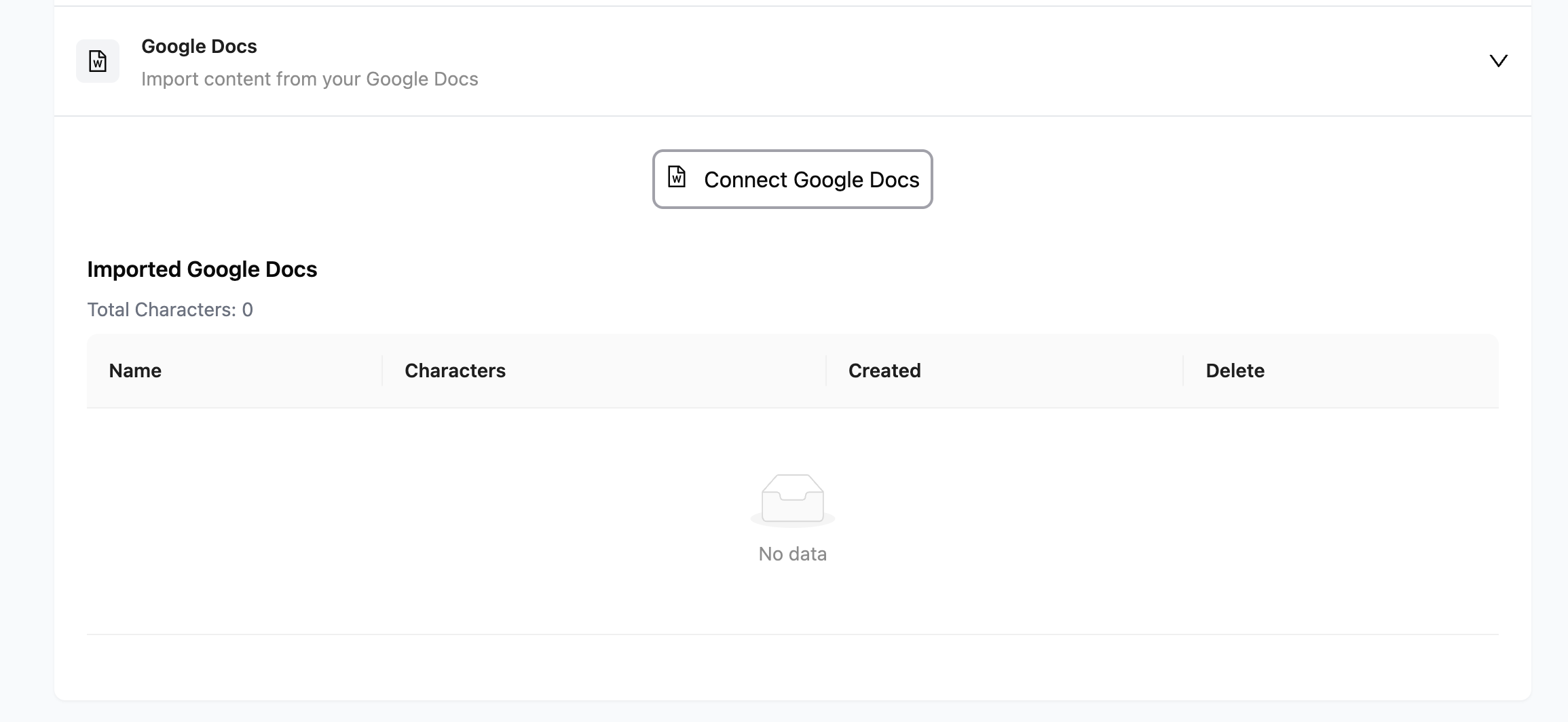
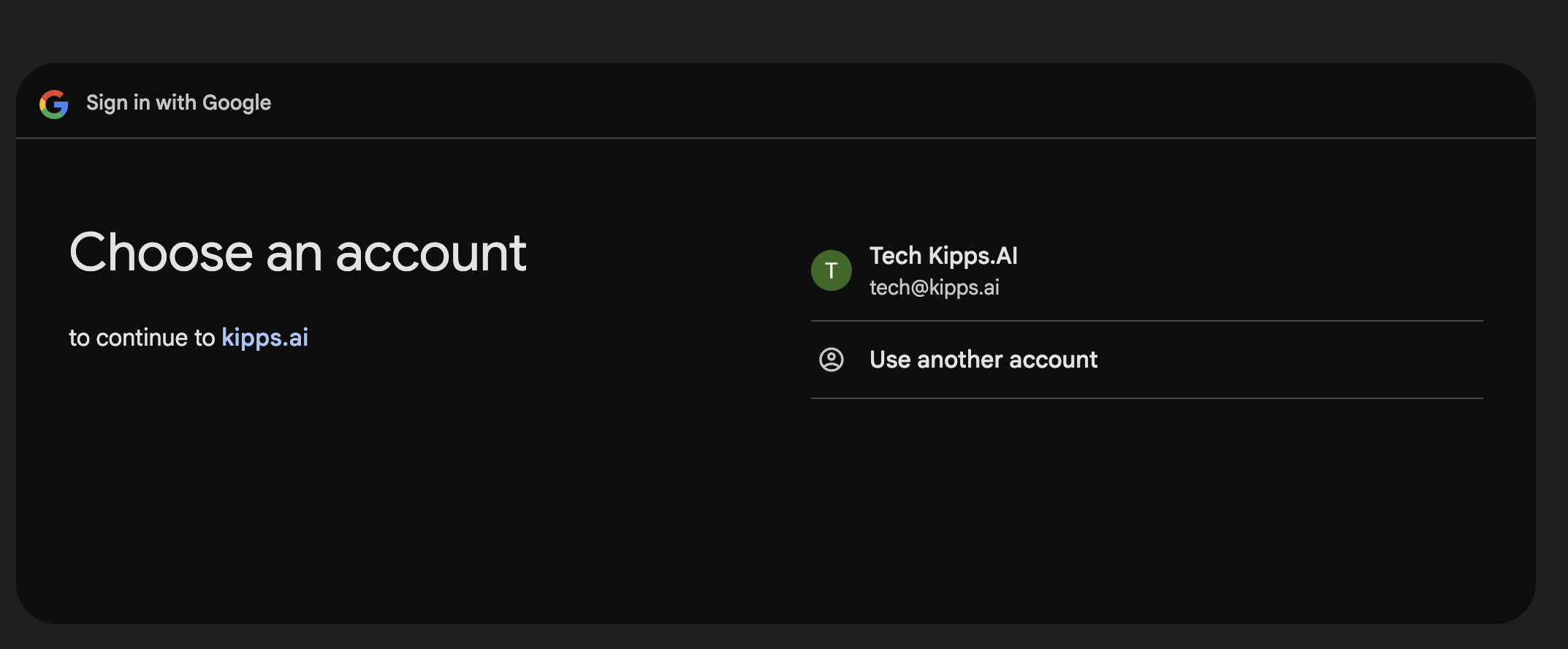
A secure Google login prompt will appear. Sign in with the Google account that contains the documents you wish to import. You will be asked to grant Kipps.AI read-only access to your Google Drive. This authorization allows the system to view and import content but does not permit any editing or deletion of your original files.
Once authorization is successful, the interface will update to indicate that the connection has been established.
Step 2: Select Documents for Import
After connection, Kipps.AI will retrieve a list of your Google Docs files. These documents will be displayed in a table, including the document title and last modified date.
- Use the checkboxes to select individual files, or use the master checkbox to select all visible files.
- Review the list to ensure only relevant documents are selected for import.
Step 3: Import and Monitor Progress
Once you’ve selected the desired files:
- Click "Import Selected Documents" to begin the import process.
- A background process will initiate, extracting the content from each selected document.
- A progress bar will indicate the status of the import, showing how many documents have been processed.
- Upon completion, a confirmation message will indicate the number of documents successfully imported into your Knowledge Base.
This is a non-blocking operation—you may navigate away while the import continues.
Step 4: Manage Imported Google Docs
After the import, all successfully added documents will be listed under the Imported Google Docs section. This management panel includes several key functions:
- Preview Content: View the exact extracted text by clicking the preview icon.
- Character Count: Understand the volume of data added to the Knowledge Base per document.
- Remove Document: Delete any imported document from the Knowledge Base without affecting the original file in Google Drive.
Step 5: Train the Knowledge Base
Importing documents alone is not sufficient—your agent must be trained to understand and use the new content. Training ensures that all imported information is processed, embedded, and indexed for fast and accurate retrieval during user interactions.
Training Process:
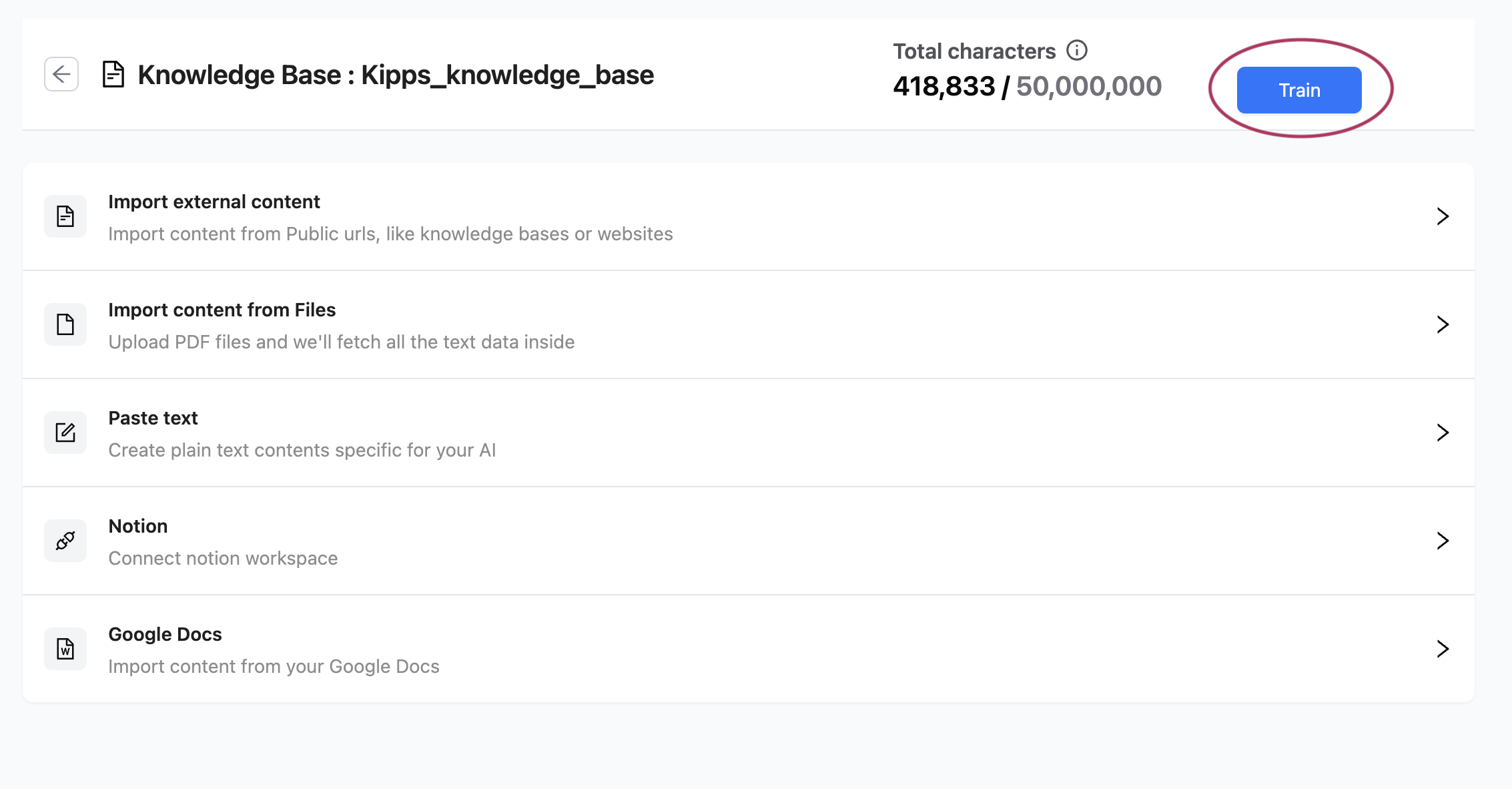
- Click the "Train" button located at the top of the Knowledge Base content page.
- The system will begin the training operation, which includes converting document content into structured vector representations.
- A progress bar will indicate training status and completion metrics.
- Once training is complete, you will receive a confirmation, and the Last Trained On timestamp will be updated.
It is recommended to retrain your Knowledge Base every time new documents are added to ensure that your AI agent has access to the latest information.
By integrating Google Docs into Kipps.AI’s Knowledge Base, you enable your AI agents to access critical team knowledge without duplicating or manually transferring content—streamlining operations and ensuring consistent, intelligent responses.
Best Practices
- Import only relevant documents: Connecting your entire Google Drive can introduce noise. Select only the documents directly relevant to the agent’s purpose to keep retrieval precise.
- Keep source documents up to date: Kipps.AI imports a snapshot of the document at the time of import. If your Google Doc changes frequently, use the Daily Refresh option on the knowledge base to automatically re-import updated content.
- Use clear document titles: The imported document list shows the original Google Docs title. Use descriptive, topic-focused titles in Google Docs to make management easier in Kipps.AI.
- Retrain after every import: Importing new documents does not automatically retrain the knowledge base. Always click Train after adding or removing documents.
Troubleshooting
The Connect Google Docs button does nothing when I click it. Check that your browser is not blocking pop-ups. The Google authorization prompt opens in a new window and requires pop-ups to be allowed for the Kipps.AI domain.
I authorized Google but no documents appeared in the list.
Kipps.AI only shows Google Docs files (not Sheets, Slides, or Drive folders). If you have no .gdoc files accessible to the connected account, the list will be empty. Switch to a Google account that has Google Docs, or create a document in the account.
Some documents appear in Google Drive but not in the Kipps.AI import list. Only documents owned by or explicitly shared with the connected Google account are shown. Documents in shared drives may require additional sharing permissions to appear.
Training completed but the agent gives outdated information from a document I updated. Re-import the document (remove the old version and re-select it from the list) and then retrain. Kipps.AI does not automatically sync document edits unless Daily Refresh is enabled.
Frequently Asked Questions
Does Kipps.AI get write access to my Google Drive? No. The connection is read-only. Kipps.AI can only view and import document content. It cannot create, edit, move, or delete any files in your Google Drive.
Can I connect multiple Google accounts? Currently, one Google account can be connected per knowledge base. If you need content from multiple Google accounts, export the relevant documents to a shared Google account and import from there, or upload the documents as PDF files instead.
How often should I re-import and retrain? Whenever the source documents change meaningfully—particularly for policy documents, pricing, or operational procedures. For frequently updated content, enable Daily Refresh so the knowledge base stays current automatically.
Is there a file size or page count limit for Google Docs imports? Very large documents (hundreds of pages) may be truncated during import. For large reference documents, consider breaking them into topic-specific files before importing.
What happens to my knowledge base if I revoke Kipps.AI’s Google authorization? Revoking access prevents future imports and Daily Refresh updates. Existing content already imported and trained into the knowledge base remains available until you manually delete it.
Related Articles