Knowledge Base – Add Text Content
Learn how to enrich your AI agent’s brain by directly pasting frequently asked questions, policy details, or custom text into your Kipps.AI Knowledge Base.
Adding Raw Text to Your Knowledge Base
The Paste Text feature provides the simplest and most flexible method to add custom content directly into your Knowledge Base. It’s ideal for content that doesn’t reside on a website or in a document—like internal policies, specific instructions, or frequently asked questions.
This feature allows you to enter raw text manually, giving you full control over what the AI learns and how it should respond to user queries.
How to Add Text Content
Step 1: Open the Text Entry Section
- Go to the Knowledge Base section from the main menu.
- Select the Knowledge Base you want to add text to.
- Expand the Paste Text section to reveal a rich text editor.
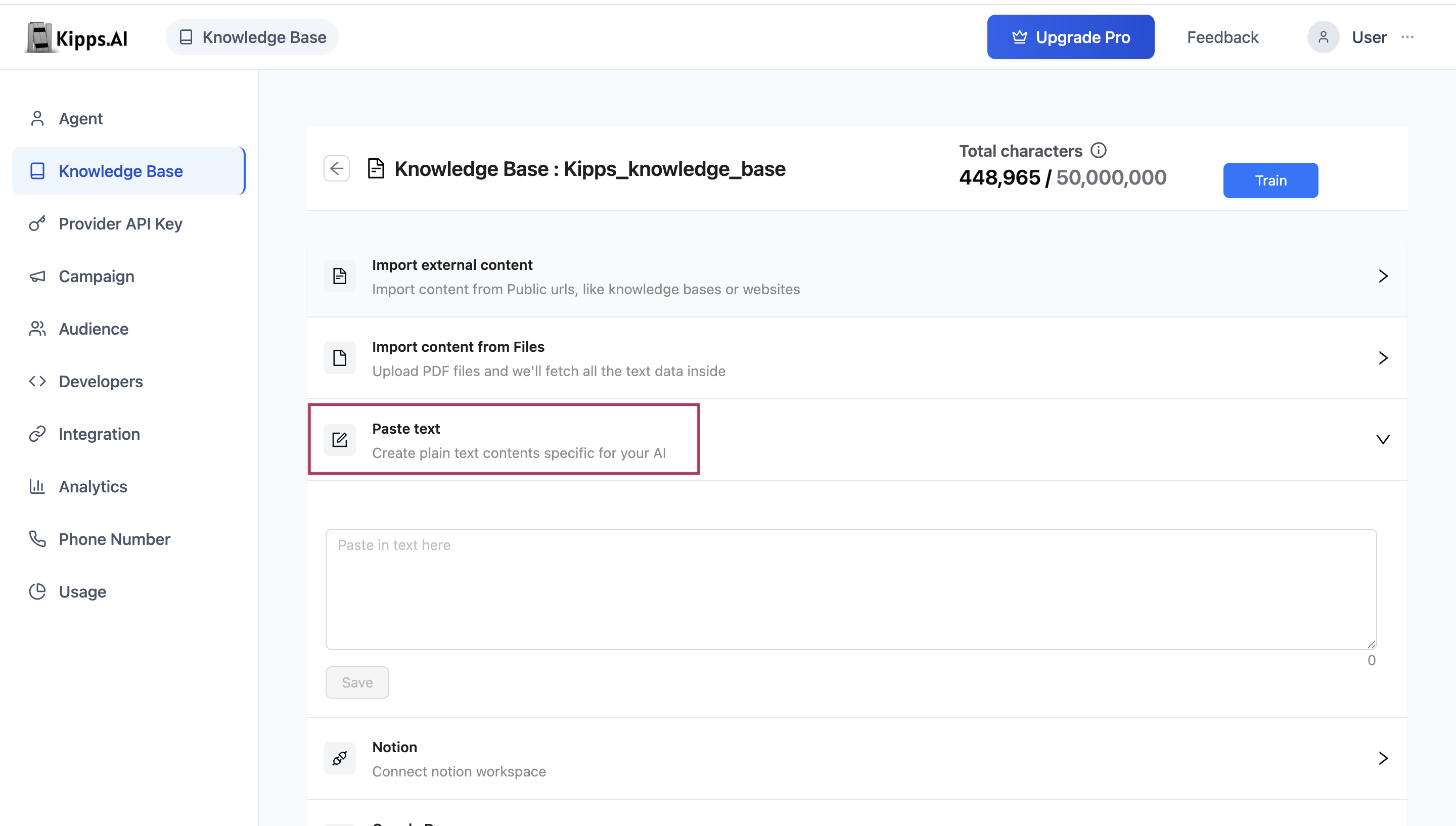
Step 2: Add Your Content
You can either type directly or paste from another source.
- Supports up to 50,000 characters per entry. A live counter helps track usage.
- Ideal for FAQs, internal processes, pricing details, or any direct-answer format.
- You can structure content as Q&A for better understanding:
Step 3: Save Your Text
- Once your content is entered, click the Save button.
- The text is saved as a standalone data block within your Knowledge Base.
- To edit, simply update the text and save again—it will overwrite the previous version.
Why Use Paste Text?
- Precision & Control: You decide exactly what the agent learns.
- Speed: No need to prepare files or links—just type and save.
- Perfect for FAQs: Create structured answers for common user questions quickly and easily.
Step 4: Train Your Knowledge Base
Adding content is only half the process. To make the content usable by your AI agent, you must train the Knowledge Base.
How to Train
-
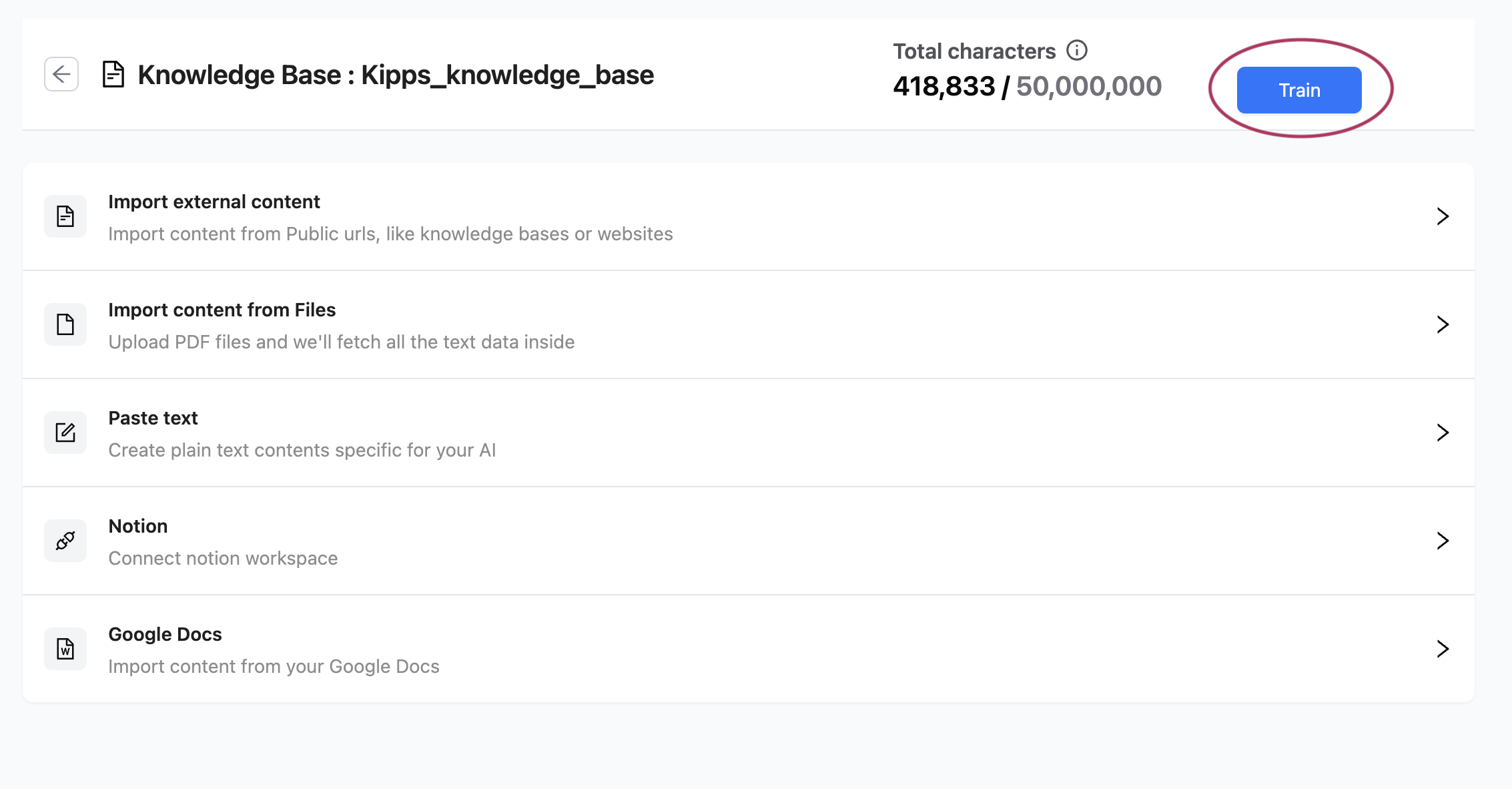
Click the "Train" Button
Located at the top of the Knowledge Base screen, the Train button becomes active after content changes. -
Begin Training
Click the button to start the training process. The system begins analyzing all new content. -
Real-Time Progress
A progress bar will appear showing how many data blocks are being processed. Behind the scenes, your text is converted into vectors that the AI can understand and search quickly. -
Completion Confirmation
Once training finishes, you'll see a success message and the "Last Trained On" timestamp will update.
Always re-train your Knowledge Base after adding or editing content to ensure your AI agent is using the latest information.
Once trained, your agent can immediately use the new text content in conversations across web, WhatsApp, or voice channels—ensuring accurate, custom responses based on exactly what you want it to know.
Best Practices for Text Content
- Structure content as Q&A pairs: Writing content in a question-and-answer format directly mirrors how users will ask questions. The agent retrieves more accurately when the knowledge base mirrors the phrasing of real queries.
- Keep individual entries focused: Rather than pasting one enormous block of text, split content by topic. Focused chunks improve retrieval precision.
- Update and retrain regularly: Whenever pricing, policies, or procedures change, update the text in your knowledge base and click Train again. Stale content leads to incorrect agent answers.
- Use the 50,000 character limit strategically: For very large content sets, split material across multiple text entries or consider uploading a PDF instead, which has its own size limits and processing pipeline.
Troubleshooting
My text was saved but the agent still gives wrong answers. Saving text adds it to the knowledge base data store, but the agent only uses trained content. Click the Train button and wait for the progress bar to complete before testing.
The character counter is at 100% but I still have content to add. You have reached the 50,000 character limit for a single text entry. Create a second text entry for the remaining content and save it separately. Both entries will be included when you train.
I updated existing text and retrained, but the agent still gives the old answer. Clear your browser cache or test in an incognito window. Also confirm the training completion message appeared—if training was interrupted, the old embeddings may still be active.
The Save button is greyed out. The Save button becomes active only after you make a change to the text content. If you haven't modified the text, there is nothing new to save.
Frequently Asked Questions
What is the best way to add a list of FAQs?
Format them as a series of question-and-answer pairs in the text editor, like this:
Q: What is your return policy? A: We accept returns within 30 days of purchase.
This format helps the AI match user questions to the right answer reliably.
Can I add HTML or markdown formatting in the text editor? The text editor accepts plain text. Markdown or HTML formatting may be rendered literally rather than styled. For rich formatting, upload a PDF document instead.
Is there a limit to how many text entries I can add to a knowledge base? There is no stated limit on the number of individual text entries. Each entry has a 50,000 character maximum. Add as many separate entries as needed.
How does the AI use the text I add compared to a website or PDF? All content types—text, PDF, website, Notion—are converted to vector embeddings and treated the same during retrieval. The source type does not affect how the agent uses the content at inference time.
If I delete a text entry, do I need to retrain? Yes. Deleting a text entry only removes it from the data store. You must retrain for the deletion to be reflected in what the agent can retrieve.
Related Articles