Provider API Key - Language Models(LLM)
Learn how to securely connect and manage third-party AI provider accounts with Kipps.AI using your own API keys.
Overview
The Provider API Keys section allows you to connect your own accounts from third-party AI providers directly to Kipps.AI. This "Bring Your Own Key" (BYOK) model gives you greater control and flexibility over the AI models that power your agents.
This guide focuses on configuring keys for Language Models (LLMs), which are the core "brains" responsible for understanding, reasoning, and generating text for your AI Chat Agents and voicebots.
How to Add an LLM API Key
You can add Language Model keys directly from your Kipps.AI dashboard.
Step 1: Navigate to Provider API Keys
From the main dashboard, go to: Provider API Keys
This is a global section and not tied to any individual agent.
Step 2: Add LLM Key
Click the "+ Add Key" button. A configuration modal will appear.
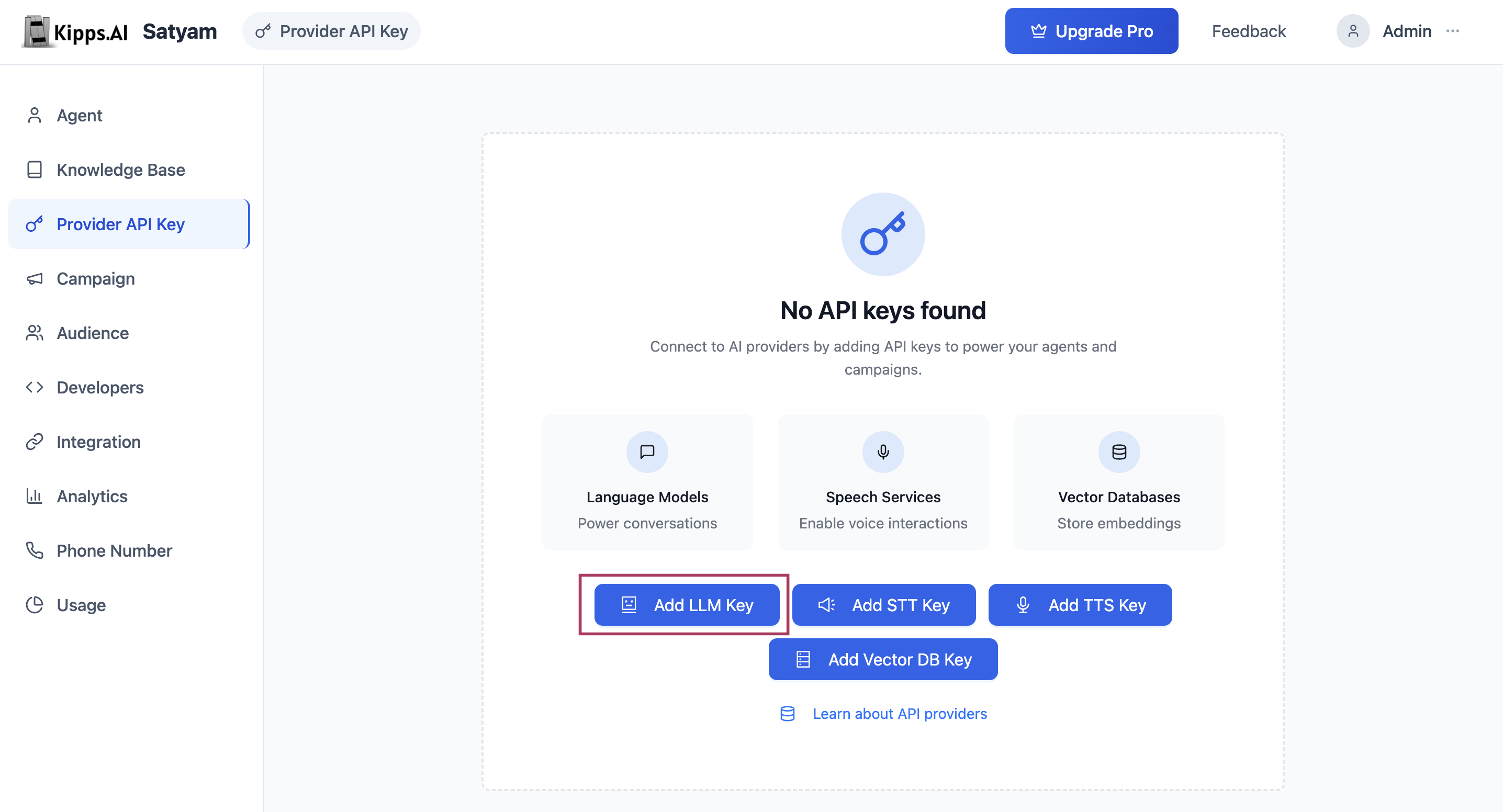
Step 3: Fill in Configuration Fields
- Provider: Choose your LLM provider (e.g., OpenAI, Google AI, Anthropic, Groq)
- Name: A friendly name to identify this key (e.g., "My GPT-4 Key")
- API Key: Paste your API token from the provider’s console
Step 4: Provider-Specific Optional Fields
Depending on the provider, you may see extra fields:
- OpenAI: Default model (e.g.,
gpt-4o), Organization ID - Anthropic: Default model (e.g.,
claude-3-sonnet) - Google AI: Default model (e.g.,
gemini-pro)
Step 5: Save the Key
Click "Add" to securely save and encrypt your API key. It will appear in the management table.
Why Use Your Own LLM API Key?
Control Your Usage
All model usage is billed directly to your provider account, giving you complete visibility over usage and cost.
Access to Specific Models
Use private, fine-tuned, or provider-restricted models that are only available through your own account.
Leverage Existing Credits
Utilize any existing credits or special billing arrangements with your AI provider.
Centralized Key Management
Manage and organize all your AI keys securely from a single interface in Kipps.AI.
Managing Your LLM API Keys
Once added, keys appear in a dedicated table under the Language Models tab.
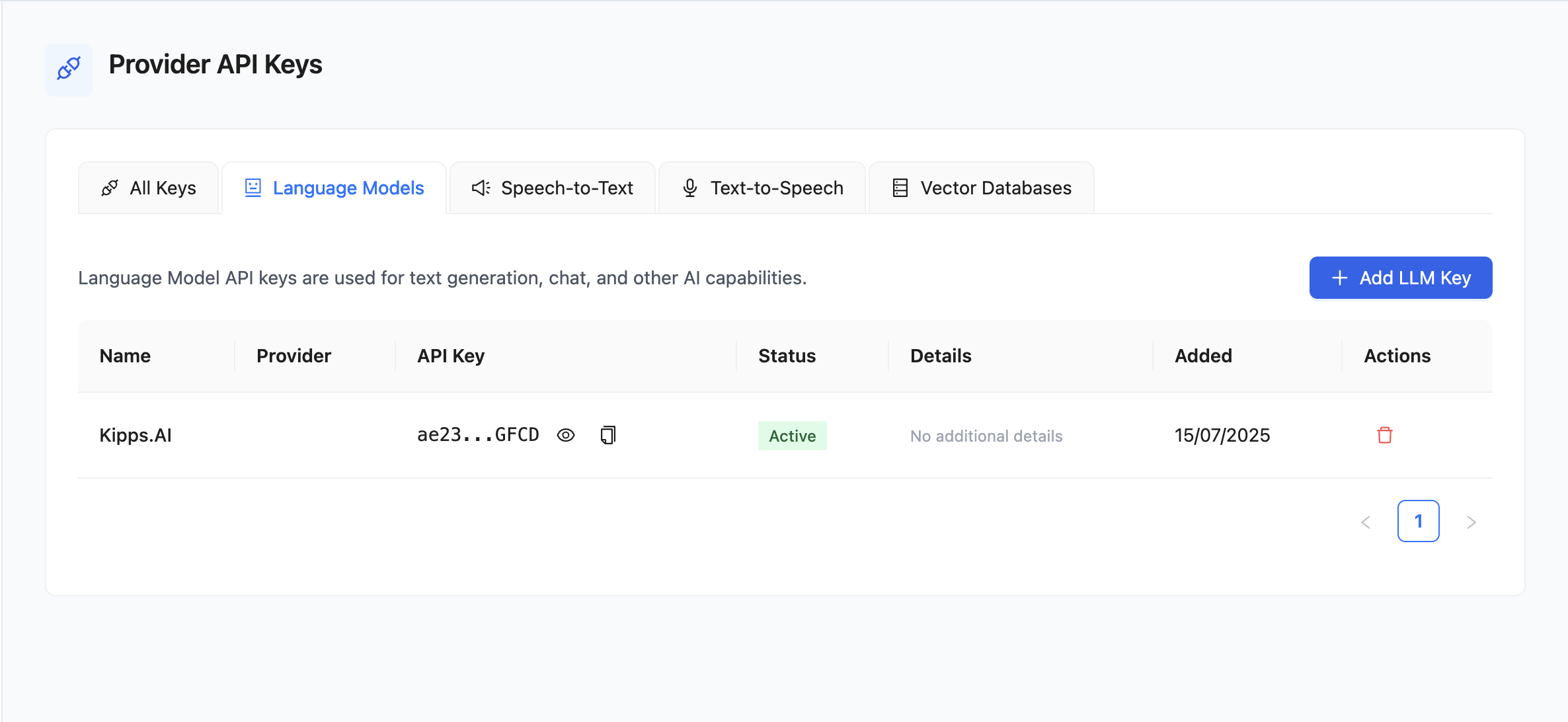
What You Can See and Do
-
Provider & Name: Easily identify the key’s origin and purpose
-
API Key: Masked by default with reveal/copy options
-
Details: Any extra configurations such as default models
-
Status: Shows if the key is active or inactive
-
Actions:
- Delete: Remove a key. This action is permanent and may affect active bots.
By bringing your own LLM keys, your bots will now use your personal or enterprise-grade models for more control, transparency, and performance.
Best Practices
- Use descriptive key names: Label each key with both the provider and the intended agent, such as
"OpenAI GPT-4o – Sales Bot". This makes it immediately clear which agent a key serves, especially when managing multiple agents. - Assign model defaults at the key level: Where possible, set a default model in the key configuration. This reduces the chance of an agent accidentally using a less capable or more expensive model than intended.
- Monitor model costs at the provider level: Kipps.AI does not aggregate token costs—check your provider's usage dashboard (OpenAI, Anthropic, Google AI) directly to understand what each agent costs to run.
- Test new model versions in a staging agent first: When switching to a newer model (e.g., from GPT-4 to GPT-4o), create a duplicate agent for testing. Validate response quality before updating your production agent.
Troubleshooting
I added an LLM key but the agent still doesn't respond intelligently. After adding the key in Provider API Keys, go to the agent's AI settings and select the new key from the LLM provider dropdown. Saving the agent settings is required—adding the key globally does not automatically assign it to any agent.
The agent returns an error saying the API key is invalid. Verify the key was copied in full without extra spaces or line breaks. Also confirm the key is still active in your provider's console—keys can be revoked if you regenerate them from the provider's side.
I switched models but the agent's responses seem unchanged. Check that you saved both the provider API key settings and the agent settings after making changes. Clear your browser cache and make a fresh test query to rule out cached responses.
I get a "rate limit exceeded" error in agent conversations. The rate limit applies to your provider account, not Kipps.AI. Log into your provider's console to check current usage limits and request an increase if needed.
Frequently Asked Questions
Which LLM providers are supported? Kipps.AI currently supports OpenAI (including GPT-4 models), Google AI (Gemini), Anthropic (Claude), and Groq. Additional providers may be added in future releases.
Can I use a fine-tuned model with my key? Yes. If your provider account has access to a fine-tuned model, enter the model's ID in the "Default Model" field when adding the key. The agent will use that model for all conversations.
What happens if my LLM provider has an outage? If the LLM provider is unavailable, your agents will not be able to generate responses. Conversations will fail or time out. Monitor your provider's status page for incidents and consider configuring a secondary agent with a different provider as a fallback.
Do I need to add a separate key for each agent? No. One LLM API key can be shared across multiple agents. All agents using the same key will count against the same provider quota. Add separate keys if you need cost tracking or quota separation per agent.
Can I use both Kipps.AI's default LLM and my own key simultaneously? An agent uses one LLM key at a time—either the platform default or your own key. Switching to your own key in the agent's AI settings replaces the platform default for that agent.
Related Articles