Provider API Keys - Text-to-Speech (TTS)
Learn how to connect your own TTS providers like ElevenLabs and Google to Kipps.AI for generating lifelike audio responses.
Overview
The Text-to-Speech (TTS) engine is the "voice" of your Voicebot—responsible for converting text into spoken responses. By integrating your own TTS providers such as ElevenLabs, Google, or Azure, you can select voices that align with your brand's tone, language, and quality standards.
How to Add a TTS API Key
You can add Text-to-Speech keys directly from your Kipps.AI dashboard.
Step 1: Navigate to Provider API Keys
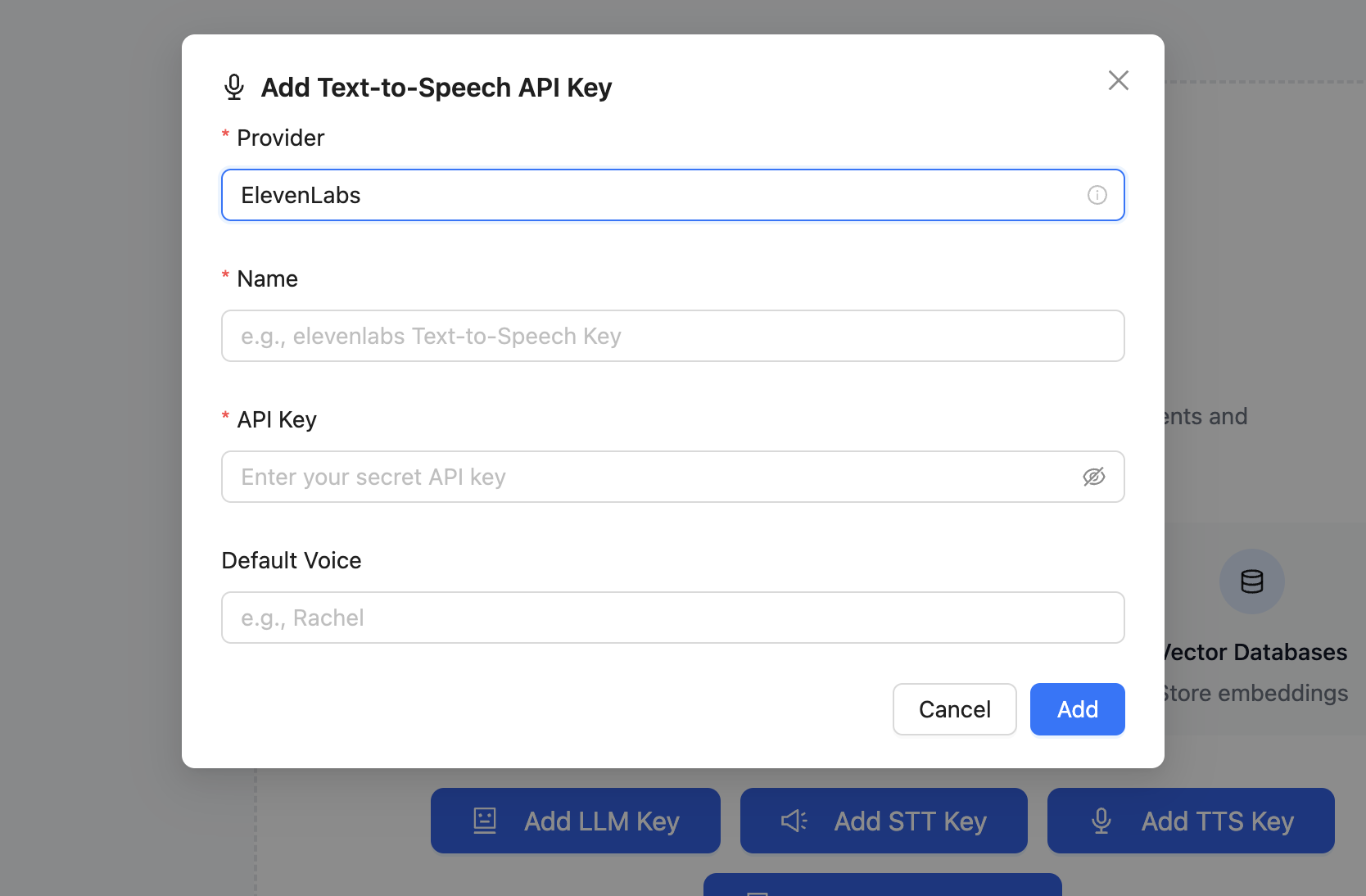
From the main dashboard, go to Provider API Keys
This is a centralized section and applies across all bots.
Step 2: Add TTS Key
Click the "+ Add Key" or "Add TTS API Key" button. A configuration form will appear.
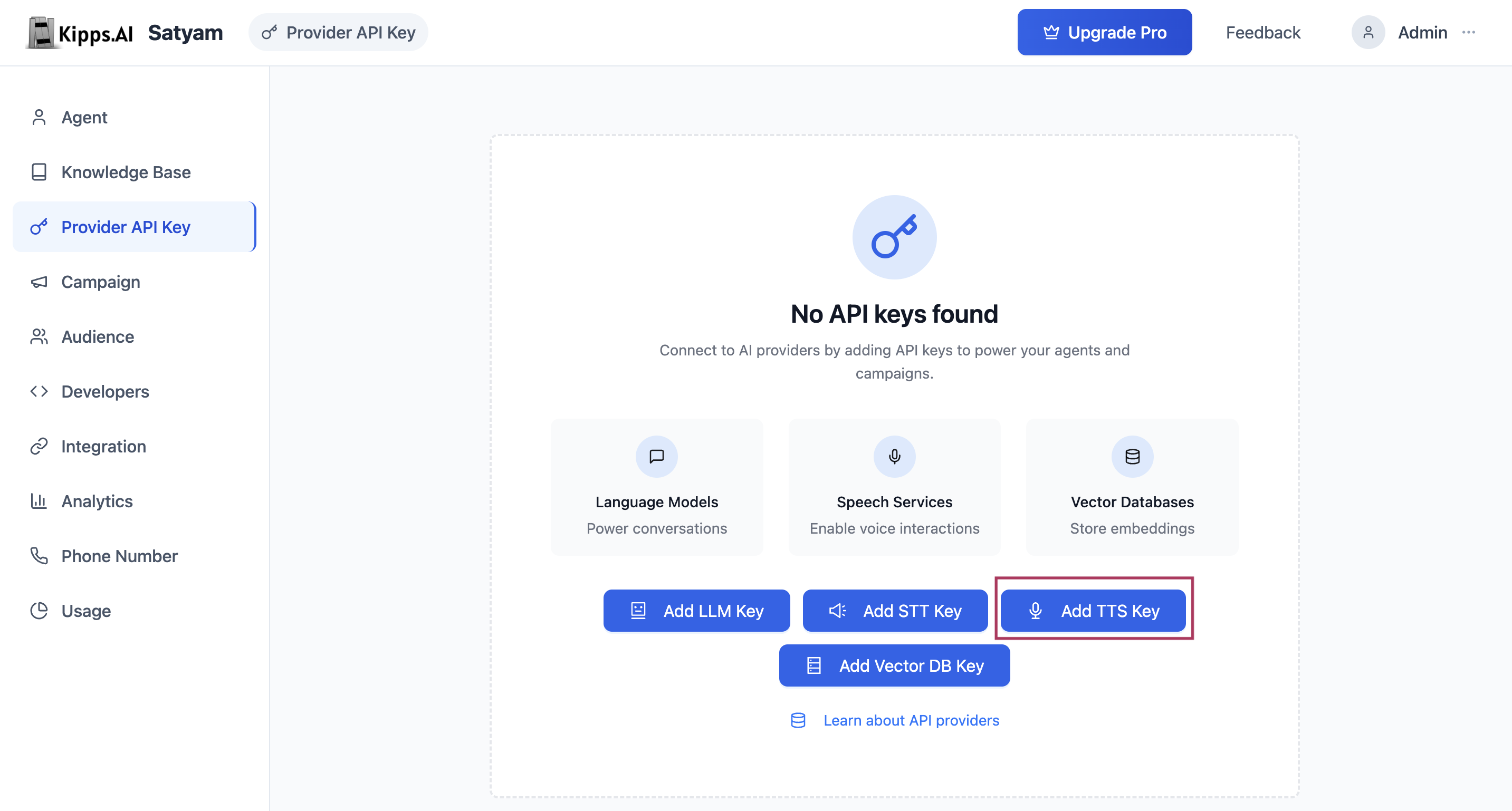
Step 3: Fill in Configuration Fields
- Provider: Choose your voice provider (e.g., ElevenLabs, Google, Azure)
- Name: Assign a unique label (e.g., "Sales Bot - ElevenLabs")
- API Key: Paste your provider-issued key securely
Step 4: Provider-Specific Optional Fields
Some providers require additional parameters:
- ElevenLabs: Default Voice ID
- Azure: Region and Endpoint
Step 5: Save the Key
Click "Add" to save and encrypt the key in Kipps.AI. It will appear in your management table.
Managing and Using Your TTS Keys
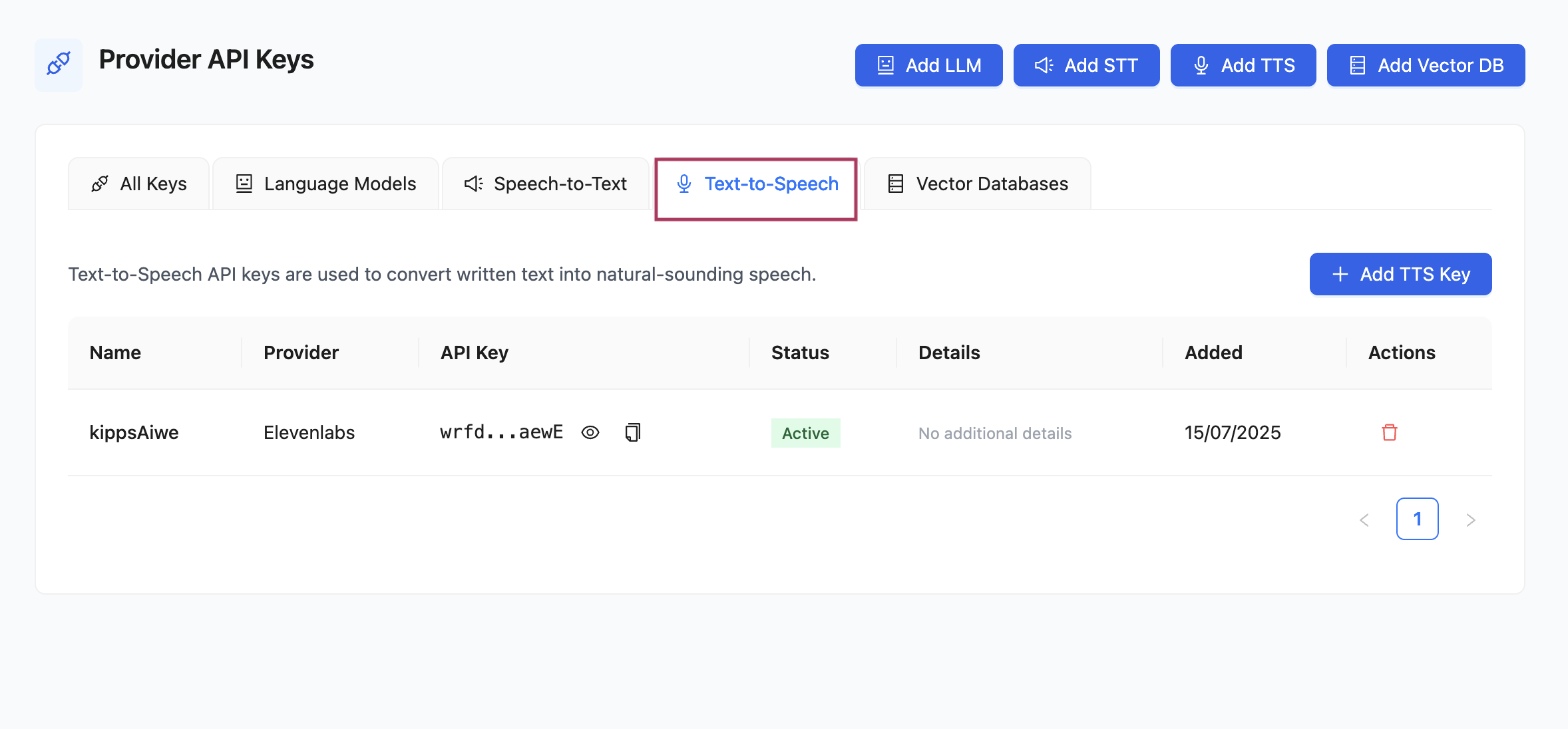
Once saved, keys are displayed in a table under the Text-to-Speech tab.
Management
- View Details: See provider, model, and configuration
- Delete: Remove keys using the action icons
Usage in Voicebot
- Navigate to your Voicebot's dashboard
- Go to Speech-Settings
- Select the provider and key you've added from the dropdown
Your Voicebot will now use this key for generating audio responses in real time, using your selected voice profile.
Using your own TTS keys gives you control over output quality, eliminates markup charges, and enables full customization of your Voicebot's voice identity.
Best Practices
- Test voices before going live: Each TTS provider offers a range of voices. Use your provider's demo tool to audition voices and choose one that matches your brand's tone—warm and conversational for support bots, clear and authoritative for information delivery.
- Name keys by voice profile: Use descriptive names like
"ElevenLabs – Rachel (Sales)"rather than generic labels, especially when you manage multiple bots with different voice personas. - Consider language coverage: If your bot serves users in multiple languages, confirm your chosen TTS provider and voice support all required languages and accents before deploying.
- Monitor TTS costs in your provider's dashboard: Costs scale with the number of characters generated per call. Long agent responses in high-volume deployments can accumulate quickly.
Troubleshooting
The voicebot is not speaking—calls connect but there is only silence. Verify that a TTS key is selected in the voicebot's Speech-Settings. If a key is selected, check that the key is still valid in your TTS provider's dashboard and has not been revoked or hit a usage quota.
The voice sounds robotic or low quality. Some TTS providers offer different quality tiers. Ensure you are using a high-quality model (e.g., ElevenLabs' Multilingual v2 or Google's Neural2 voices) rather than a basic/standard tier. Update the Default Voice ID or model in your key configuration.
I changed the TTS provider but the voicebot still uses the old voice. After updating the Speech-Settings to point to a new TTS key, save the settings and make a fresh test call. Cached sessions may use the previous voice for a short period.
The ElevenLabs integration gives a 403 Forbidden error.
This usually means the Voice ID entered does not belong to the account associated with the API key. Confirm the Voice ID exists in your ElevenLabs account's voice library.
Frequently Asked Questions
Which TTS providers does Kipps.AI support? Kipps.AI currently supports ElevenLabs, Google Text-to-Speech, and Azure Cognitive Services Speech. Additional providers may be supported in future releases.
Can I use different TTS voices for different voicebots? Yes. Create a separate TTS key entry for each voice or provider configuration, then assign the appropriate key in each voicebot's Speech-Settings.
Does bringing my own TTS key affect transcription (STT)? No. TTS and STT are independent provider configurations. Your TTS key only controls voice output; transcription is governed by your STT provider key.
Can I preview how the voice sounds before assigning it to my voicebot? Kipps.AI does not have a built-in voice preview. Use your TTS provider's own console or API to audition voices, then note the Voice ID and configure it in Kipps.AI.
What happens if my TTS provider has an outage? If the TTS provider is unavailable, your voicebot will not be able to generate audio responses. Calls may connect but remain silent until the provider recovers. Monitor your provider's status page and consider configuring a fallback provider if uptime is critical.
Related Articles