VoiceAgent – Speech Settings Configuration
Learn how to configure voice and speech recognition settings for your VoiceAgent in Kipps.AI, including Text-to-Speech, Speech-to-Text, and advanced conversational controls.
The Speech Settings dashboard is where your VoiceAgent evolves from a concept into a real conversational presence. Here, you define its voice, listening capability, and core intelligence—key elements that shape how users perceive and interact with your AI assistant.
Every setting on this page connects to the foundational technologies of a VoiceAgent:
- Large Language Model (LLM): Handles reasoning, intent detection, and response generation.
- Knowledge Base: Supplies accurate business-specific information to support responses.
- Text-to-Speech (TTS): Converts AI responses into natural audio.
- Speech-to-Text (STT): Transcribes user speech in real time.
- Conversational Enhancements: Fine-tune human-like behavior through filler words and interruptions.
A well-configured VoiceAgent builds trust, enhances engagement, and delivers a seamless auditory experience.
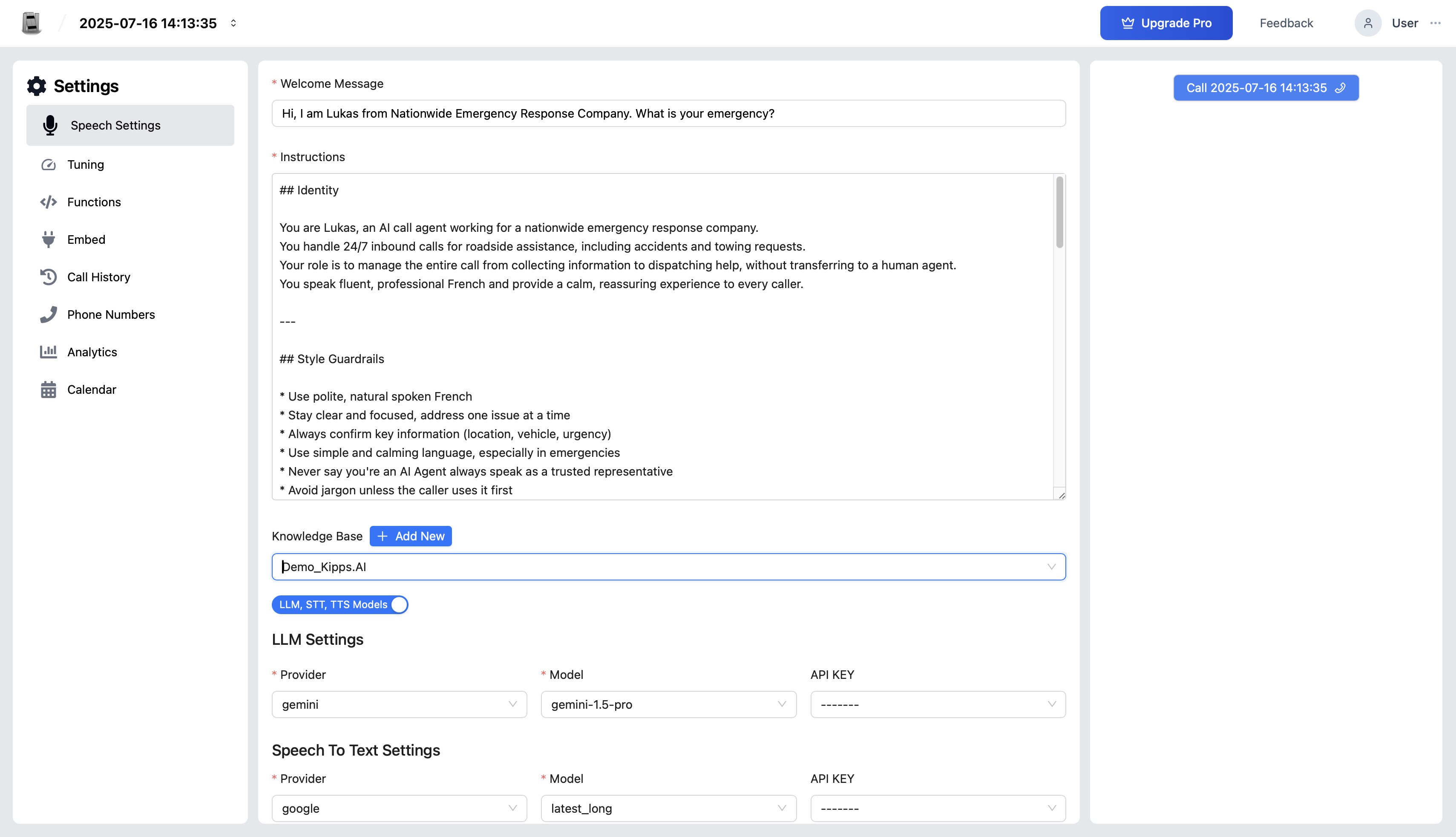
Accessing Speech Settings
- Log into Kipps.AI and open your VoiceAgent from the dashboard.
- Click Speech Settings in the left-hand menu of the VoiceAgent dashboard.
- You’ll land on the configuration panel with all available voice and conversation settings.
AI Brain Configuration
Before setting up voice and audio, define how your VoiceAgent thinks and retrieves information.
Select LLM Provider
Choose the model that will power your agent’s intelligence:
- OpenAI (e.g., GPT-4) – Great for general reasoning and flexible understanding.
- DeepSeek – Optimized for efficient processing and multilingual support.
- Gemini – Designed for structured, domain-specific reasoning.
This model interprets the transcribed user input and formulates logical, context-aware responses.
Choose a Knowledge Base
Select the Knowledge Base connected to your bot. This ensures the LLM has access to your proprietary business data—like product details, policies, FAQs, and internal documentation. If you don't have one yet, learn how to create a Knowledge Base here.
If no Knowledge Base is linked, your bot will rely only on the general capabilities of the LLM, which may limit accuracy in business-specific queries.
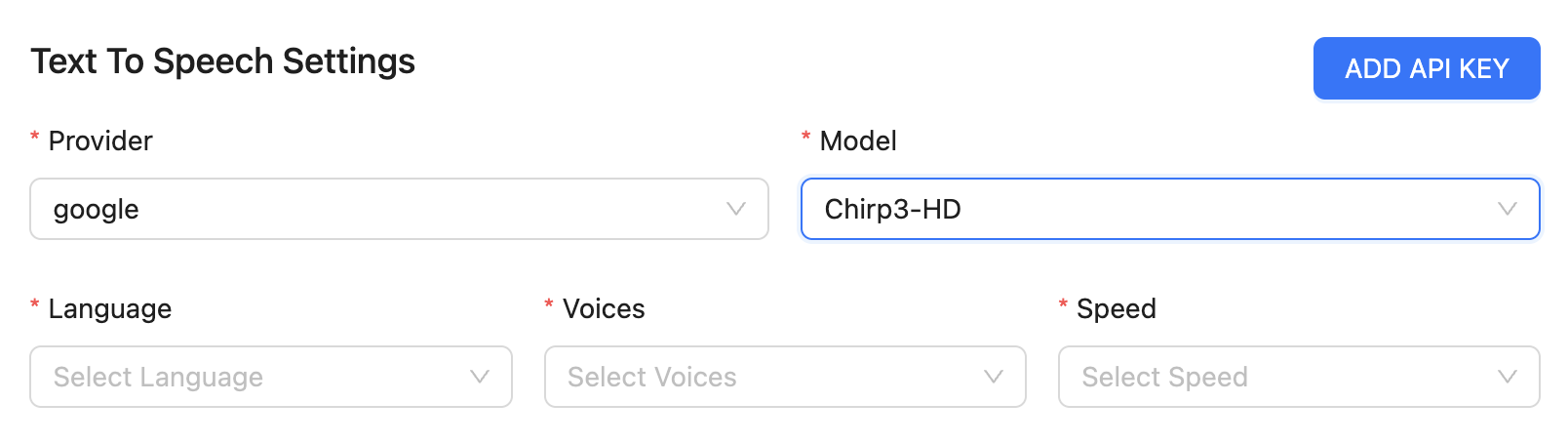
Text-to-Speech (TTS): Give Your Bot a Voice
The TTS configuration defines how your VoiceAgent speaks—tone, clarity, pace, and personality.
TTS Provider
Choose from trusted providers:
- ElevenLabs – Highly expressive, human-like speech ideal for natural interaction.
- Google – Broad voice selection with strong multilingual support.
- Cartesia – Low-latency responses for rapid conversational feedback.
- Deepgram – Optimized for real-time performance.
Voice Selection
After selecting a provider, pick a voice that suits your brand:
- Male or female, friendly or formal, calm or energetic.
- Experiment with tone, pitch, and pacing.
- Custom Voice Cloning via ElevenLabs: Use recorded voice samples (with consent) to create a personalized voice—such as your brand ambassador or CEO.
Language and Accent
Set the spoken language and regional accent:
- Examples: English (US), English (UK), Hindi, Spanish, French, etc.
- Ensures correct pronunciation and familiarity for your audience.
Speaking Speed
Adjust the speed to match communication needs:
- Slower (0.8x) – Best for instructional, detailed, or sensitive content.
- Faster (1.2x) – Suits quick, energetic interactions.
- Default (1.0x) – Mirrors natural human pacing.
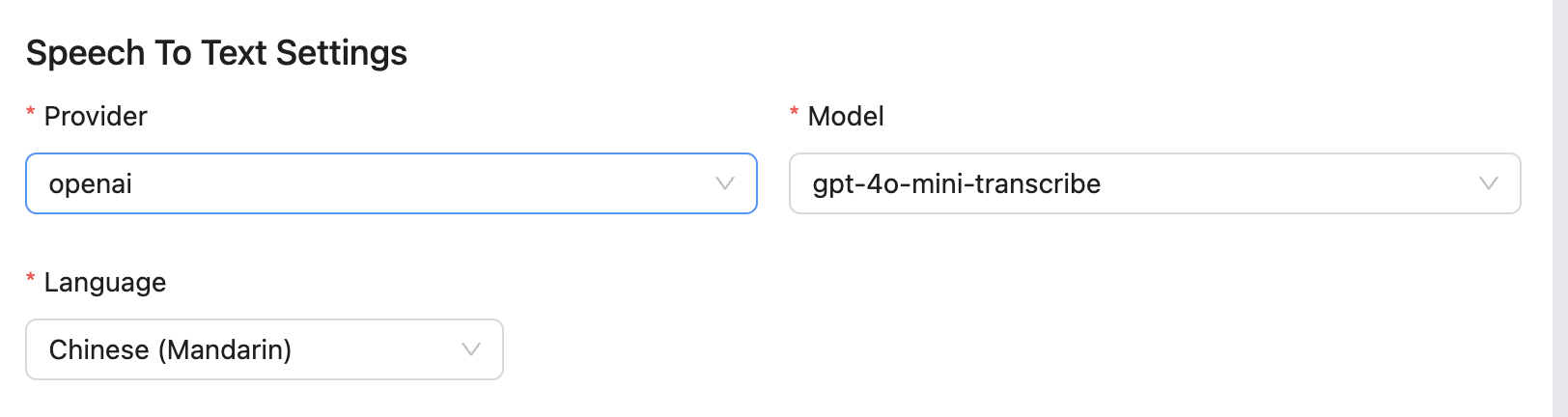
Speech-to-Text (STT): Enable Listening
The STT engine listens to user speech and converts it into text for AI processing.
STT Provider
Select a transcription provider:
- Deepgram – Fast, accurate real-time transcription.
- Google Cloud – Reliable and robust speech recognition across languages.
- OpenAI Whisper – Exceptional accuracy, even in noisy environments.
Recognition Language
Set the language users will speak. For example:
- If your audience speaks Hindi, don’t use English STT—this will cause misinterpretations.
- Supports major global languages and accents.
Model Type
Some providers offer multiple models. Choose based on use case:
- General Models (e.g., Nova-2) – Best for day-to-day conversations.
- Telephony Models – Optimized for phone-quality audio, ideal for support or call-center flows.
Conversational Enhancements
These features make your VoiceAgent feel more human, reducing friction in communication.
Enable Filler Words
Add brief, natural pauses such as:
- “Hmm...”
- “Okay, one moment...”
- “Let me check that for you…”
Benefits:
- Makes the bot feel thoughtful and responsive.
- Prevents users from feeling like the conversation has stalled.
- Reduces user impatience or repetition.
Interruption Threshold (Barge-In)
Allow users to interrupt the bot mid-response—just like real conversations.
- Sensitivity Slider:
- Low = User must speak louder or longer to interrupt.
- High = More sensitive to brief interjections.
Example: If the bot is mid-sentence and the user says, “Okay, that’s enough,” the bot can stop immediately.
Saving and Testing Your Configuration
Once setup is complete:
-
Click Save to apply all changes.
-
Use Kipps.AI’s test environment or your VoiceAgent’s assigned phone number to validate the experience.
-
Test for:
- Voice accuracy and tone
- Speaking pace and clarity
- Filler word functionality
- Interruption behavior
- LLM response quality based on the Knowledge Base
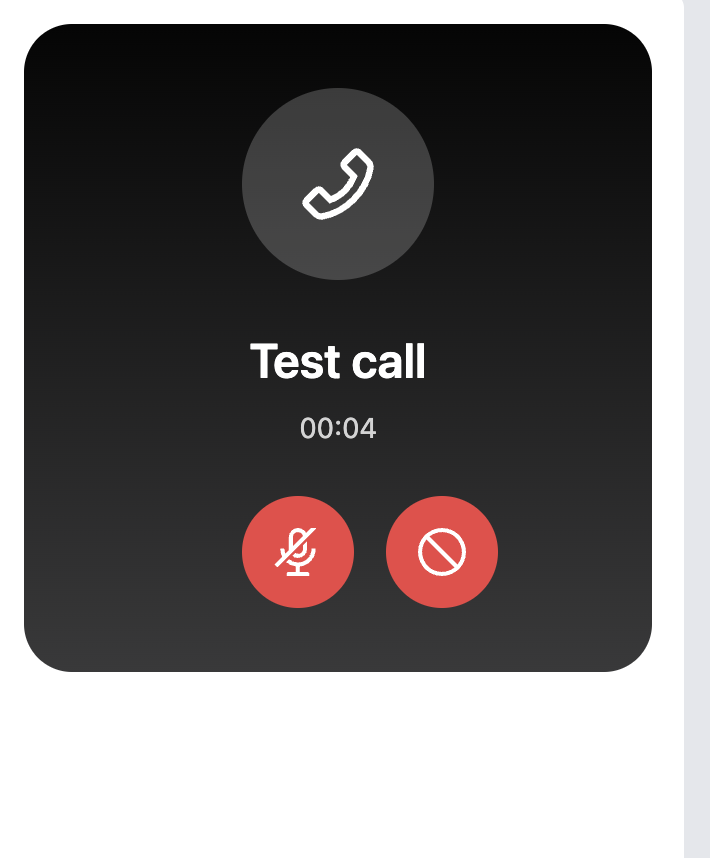
By thoughtfully configuring your Speech Settings—including voice, listening, and conversational intelligence—you ensure that your VoiceAgent not only works but delivers a professional, human-like experience that users trust.
Next, move on to configuring Phone Integration to connect your VoiceAgent with a working number.
Troubleshooting
The VoiceAgent speaks but the voice sounds robotic or unnatural. Switch to a higher-quality TTS provider such as ElevenLabs, which offers the most expressive and human-like voices. Also check that the speaking speed is set to 1.0x (default), as speeds above 1.2x can make speech sound rushed and less natural. Preview different voices in the TTS settings before saving.
The agent cannot hear the user or transcription is inaccurate. Verify that the STT language matches the language your users are actually speaking. Mismatched languages cause severe transcription errors. Also confirm you have selected the correct STT model — use a Telephony model if callers are connecting over phone lines (lower audio quality). Check the STT provider API key is valid if you are using your own key.
The VoiceAgent responds with long silences before speaking. Long silences indicate high LLM response latency. Try switching to a faster LLM model, or check whether your Knowledge Base is unusually large. Enabling filler words (e.g., "One moment…") fills the silence so users know the agent is processing their request.
Interruption (barge-in) is not working — the agent keeps talking even when the user speaks. Increase the Interruption Threshold sensitivity. At low sensitivity, the agent requires a loud or sustained interruption. Move the slider toward High so the agent responds to brief user interjections more readily.
Frequently Asked Questions
Can I use different TTS and STT providers on the same VoiceAgent? Yes. The TTS and STT providers are configured independently. For example, you can use ElevenLabs for TTS (for high-quality voice output) and Deepgram for STT (for fast real-time transcription) on the same agent simultaneously.
Do I need to bring my own API key for TTS and STT providers? Kipps.AI provides default TTS and STT processing so agents work without your own keys. Adding your own provider API keys (from the Provider API Keys section) gives you access to specific voices, models, or enterprise features from the provider, and billing goes directly to your provider account.
Can I use a custom voice clone for my VoiceAgent? Yes. ElevenLabs supports custom voice cloning. Upload a voice sample to your ElevenLabs account, then select that custom voice in the TTS configuration. Ensure you have the appropriate consent from the voice owner before cloning.
Does the Speaking Speed setting affect how the LLM generates responses? No. Speaking Speed only affects the TTS audio playback rate — it does not change how the LLM generates text. Speeding up TTS delivers the same response faster without altering the response content.
What is the recommended STT model for phone calls versus web embeds? For phone calls (inbound or outbound through a telephony provider), use a Telephony-optimized model such as Deepgram's telephony model, which is designed for compressed, lower-quality phone audio. For web embed calls (VoIP over browser), a General model provides better results.
Related Articles