Voice Agent – End Call Function
Empower your Voiceagent to gracefully and intelligently terminate phone calls using the end_call built-in function.
Overview
The end_call function is arguably the most fundamental tool in your VoiceAgent's toolkit. Its purpose is simple but critical: it gives the AI agent the ability to gracefully and definitively terminate the phone call.
Without this function, the AI can say "goodbye," but it has no way to actually hang up. This can lead to awkward silences, stuck phone lines, and unnecessary costs. By enabling end_call, you empower your agent to manage the entire conversation lifecycle from start to finish.
Why is the end_call Function Important?
- Natural Conversation Flow: It allows for a natural conclusion to the call. The agent can confirm the user's needs have been met, say goodbye, and then terminate the connection, just as a human would.
- Prevents Hanging Calls: It ensures that calls are properly disconnected, preventing situations where a user hangs up but the line remains technically active on the backend, which could incur extra costs.
- Improves User Experience: A clean, crisp ending to a call feels professional and efficient. It avoids the confusion of a silent line after the conversation is seemingly over.
- Enables Task Completion: It's the logical final step after a task is completed. For example, after successfully scheduling an appointment, the agent can confirm the details, say goodbye, and use
end_call.
How to Create an end_call Function
Setting up this function involves telling your VoiceAgent when it should use it. This is done by providing a clear description that the AI will use to make its decision.
-
Navigate to the Functions Page:
- From your VoiceAgent's main dashboard, click on "Functions" in the navigation menu.
-
Add a New Built-in Function:
- Click the "+ Add Function" button. A dropdown menu will appear.
- From the list of available built-in functions, select
end_call.
-
Configure the Function:
- A pop-up window will appear. You will see a field labeled "Description". This is the most important part of the configuration.
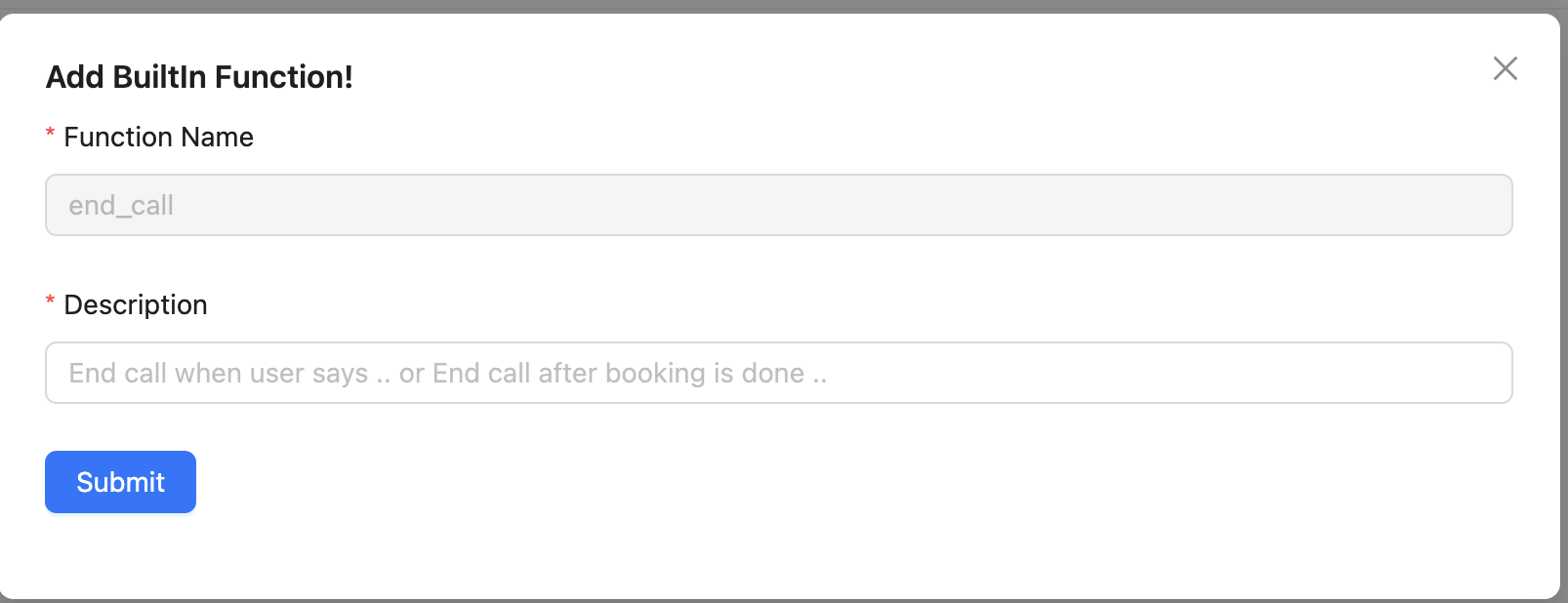
The Art of the Description: Instructing Your AI
The text you write in the "Description" field is a direct instruction to the AI brain (the LLM). It tells the agent under what circumstances it should use the end_call tool. A vague description will lead to poor performance, while a clear, specific description will make your agent behave intelligently.
When the agent is deciding what to do next, it reviews the descriptions of all its available tools. If the current state of the conversation matches the description for end_call, it will trigger the function.
Best Practices for the end_call Description:
Your description should focus on the user's intent and the completion of the conversation's goal.
-
GOOD (Recommended):
Use this function to end the conversation when the user has clearly indicated they are finished or have no more questions. Trigger this tool if the user says things like 'that's all', 'I'm done', 'no thank you', or 'goodbye'.Why it works: It gives the AI specific examples of user phrases and focuses on the user's intent to conclude the conversation.
-
GOOD (Task-Oriented):
Use this function to terminate the call after you have successfully completed the user's primary request (e.g., after confirming a booking or providing a requested piece of information) AND the user has confirmed they need no further assistance.Why it works: It links the action of ending the call to the successful completion of a task, which is a common and logical endpoint.
-
BAD (Too Vague):
Ends the call.Why it's bad: This doesn't give the AI any context about when it is appropriate to end the call. It might lead to the agent hanging up prematurely.
-
BAD (Too Restrictive):
Only use this function if the user says the exact phrase 'end the call now'.Why it's bad: Real users rarely speak in such specific commands. This description lacks the flexibility to understand the natural variations of a conversation's end.
Final Step: Save the Function
Once you have crafted your description, click "Submit" or "Save". Your VoiceAgent now has the ability to end calls.
Managing Your Functions
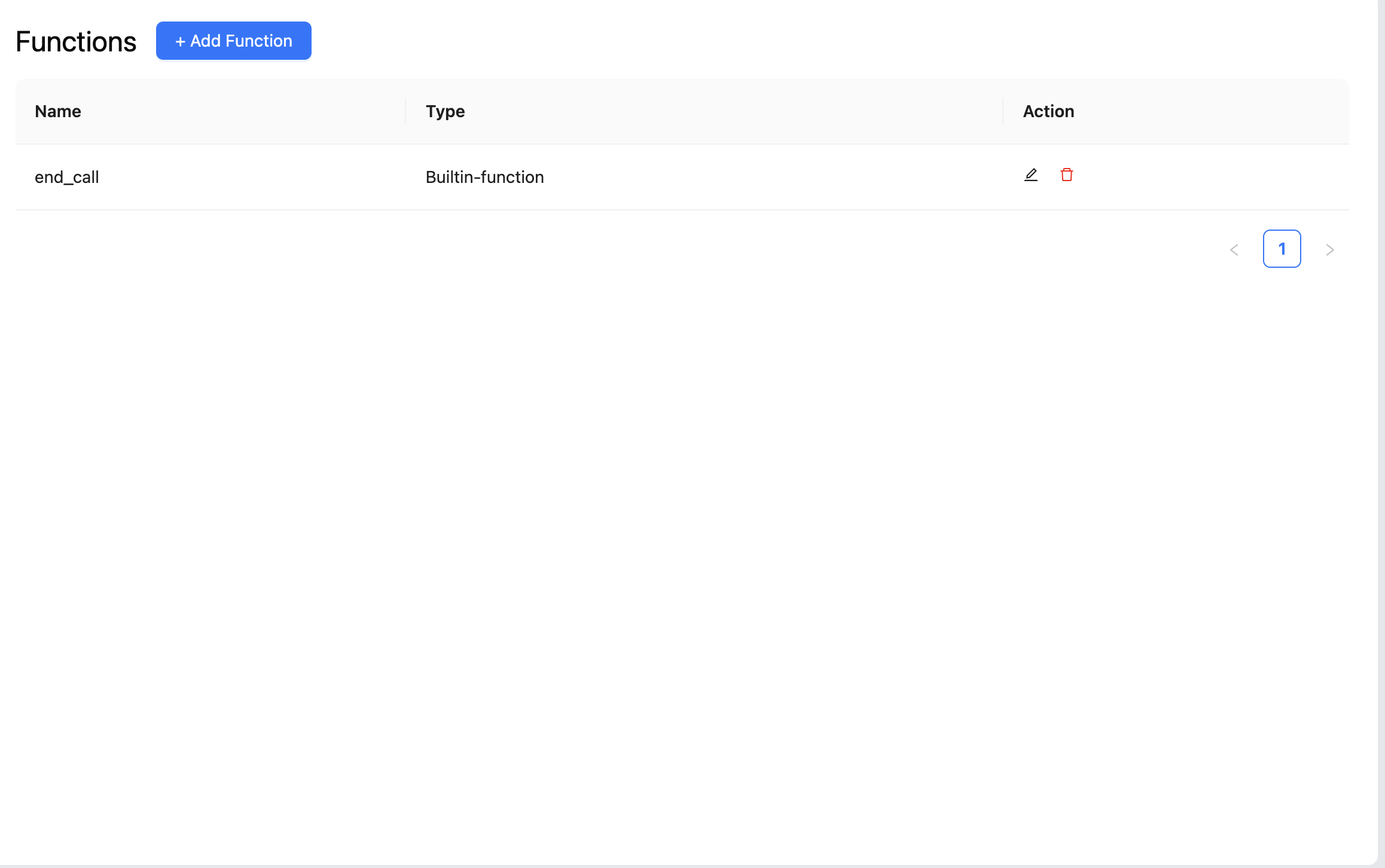
After creating a function, the main "Functions" page becomes your central dashboard for managing it. All your created functions will appear in a list, allowing you to easily see, edit, or delete them as your needs change.
Editing a Function
You may need to update a function's description over time to improve your agent's performance.
- Find the Function: In the list of functions, locate the function you wish to modify.
- Click the "Edit" Icon: Next to the function's name, you will see an Edit icon (which looks like a pencil). Click it.
- Modify the Details: The same configuration form you used to create the function will appear, pre-filled with its current description. You can now change the text.
- Save Your Changes: After making your adjustments, click "Save" or "Update". The system will save the new configuration, and your VoiceAgent will use the updated instructions from that point forward.
Deleting a Function
If you no longer want your agent to have this ability, you can permanently remove the function.
- Find the Function: In the list of functions, locate the one you want to remove.
- Click the "Delete" Icon: Next to the function's name, you will see a Delete icon (which looks like a trash can). Click it.
- Confirm the Deletion: To prevent accidental removal, a confirmation pop-up will appear asking if you are sure you want to delete the function.
- Confirm to Delete: Click "Delete" or "Yes" to permanently remove the function. The function will be erased, and your VoiceAgent will no longer be able to use it. This action cannot be undone.
Troubleshooting
The agent says "goodbye" but the call does not disconnect.
Verify the end_call function is saved and visible in the Functions list. If the function is missing, the agent has no mechanism to hang up regardless of what it says. Also review the function description—if it's too restrictive, the agent may decide conditions for ending the call aren't met and continue speaking.
The agent ends the call too early—before completing the user's request. The description is triggering the function prematurely. Narrow the conditions: "Only use this function AFTER you have confirmed the user's primary request is complete AND the user has explicitly indicated they are done." The word "AFTER" and explicit conditions reduce premature hang-ups.
The agent ends the call mid-sentence without a proper closing. Add closing language to your agent's system prompt: "Before using the end_call function, always say a polite closing statement such as 'Thank you for calling, have a great day!' first." This gives the agent instructions to complete the farewell before terminating.
Frequently Asked Questions
Is the end_call function required, or will the call eventually time out on its own?
Without end_call, most telephony providers will time out an idle call after a period of silence (typically 30–60 seconds of no audio). However, this creates a poor user experience. Adding end_call ensures the conversation ends cleanly and professionally.
Can I configure the agent to end a call after a maximum duration?
The end_call function is triggered by the AI's decision-making, not by a timer. For hard time limits, configure your telephony provider's call timeout settings. Within Kipps.AI, you can instruct the agent in the system prompt to wrap up after a certain number of exchanges.
Can the end_call function be used in combination with the send_whatsapp_message function?
Yes. A common pattern is to have the agent send a WhatsApp follow-up message and then use end_call to close the conversation. The order is determined by the agent's logic based on your function descriptions and system prompt.
What happens on the telephony side when end_call is triggered?
The function sends a signal to the SIP trunk to terminate the call session. From the caller's perspective, the call ends the same way as if the agent hung up the phone—cleanly and immediately.
Can the caller trigger the end_call function by saying a specific phrase?
The function's description controls when it fires. You can write the description to include specific user phrases: "Trigger if the user says goodbye, that's all, I'm done, or hang up." The agent listens for these intents and terminates the call accordingly.
Related Articles