Voice Agent – WhatsApp Messaging Function
Enable your Voiceagent to send follow-up information over WhatsApp with the send_whatsapp_message built-in function.
Function – WhatsApp Message
Overview
The send_whatsapp_message function gives your VoiceAgent the ability to send a text message directly to a user's WhatsApp account during a live call. This is an incredibly powerful feature for bridging the gap between a voice conversation and a text-based follow-up, allowing you to provide persistent information that users can save and refer to later.
This function is perfect for sending information that is difficult to convey or remember over the phone, such as website links, addresses, tracking numbers, or complex names.
Why is the send_whatsapp_message Function Important?
- Provides Persistent Information: Users can easily save links, addresses, confirmation numbers, and other details sent via WhatsApp, which they might forget after the call ends.
- Enhances User Experience: It offers a convenient way for users to receive information without needing to write it down, improving satisfaction and efficiency.
- Creates an Omnichannel Journey: It seamlessly connects your voice channel with your text-based channels, allowing for a smoother customer journey. A user can start on a call and receive follow-up information on WhatsApp.
- Confirms Actions: Use it to send instant confirmations for appointments booked, orders placed, or tickets created during the call.
Prerequisites: WhatsApp Integration
Before you can use this function, you must have a WhatsApp Business account correctly integrated with the platform. The function relies on the credentials from your WhatsApp integration settings to authorize and send messages. If this integration is not set up, the function will fail.
How to Create a send_whatsapp_message Function
Setting up this function is simpler than other tools because it's designed to work automatically. You only need to tell the AI when to use it and what to send. The system intelligently handles the "where" by default.
-
Navigate to the Functions Page:
- From your VoiceAgent's main dashboard, click on "Functions" in the navigation menu.
-
Add a New Built-in Function: * Click the "+ Add Function" button and select
send_whatsapp_messagefrom the list.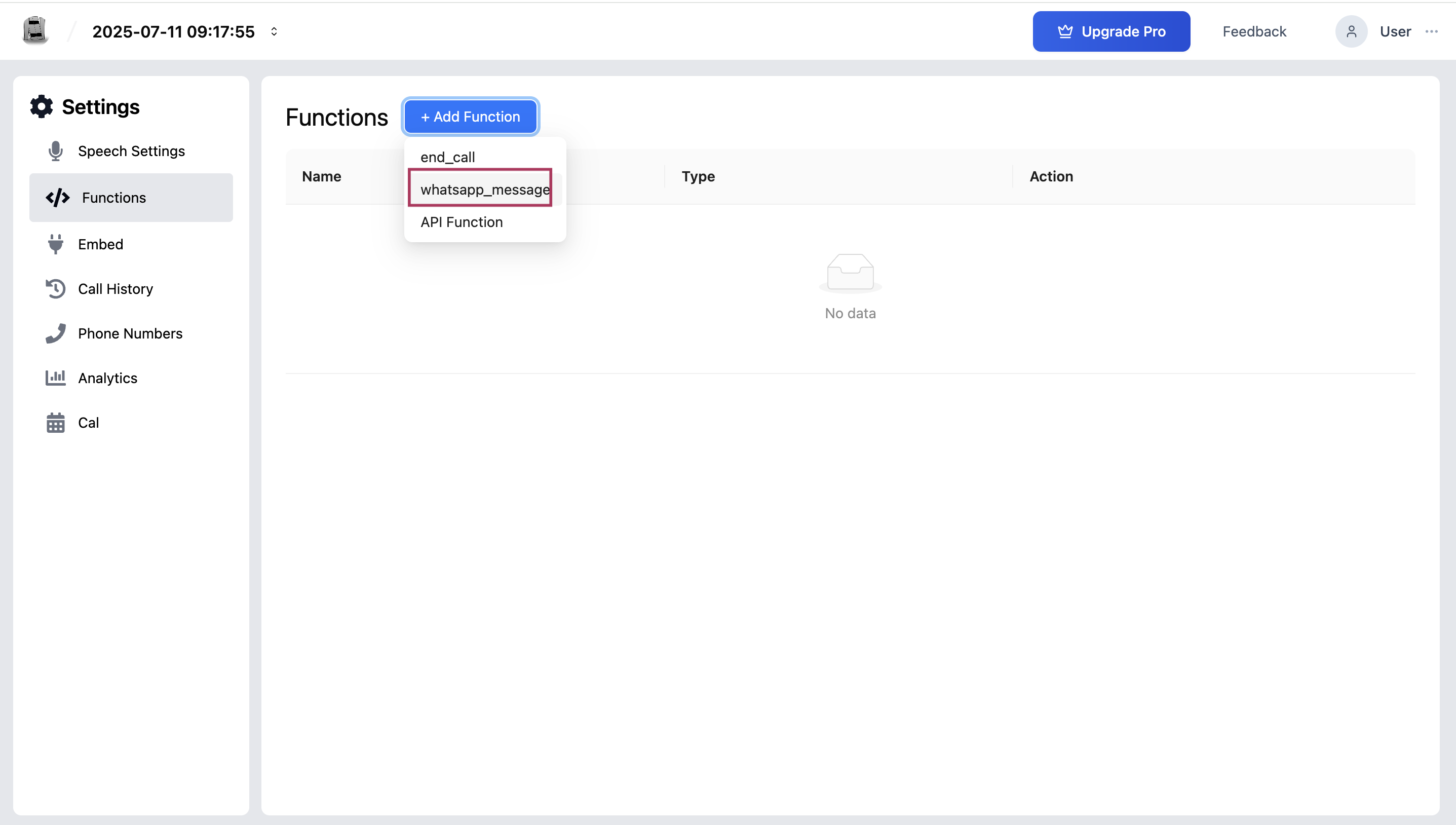
-
Configure the Function:
- A pop-up window will appear. You only need to provide a Description for the AI and define the Message content.
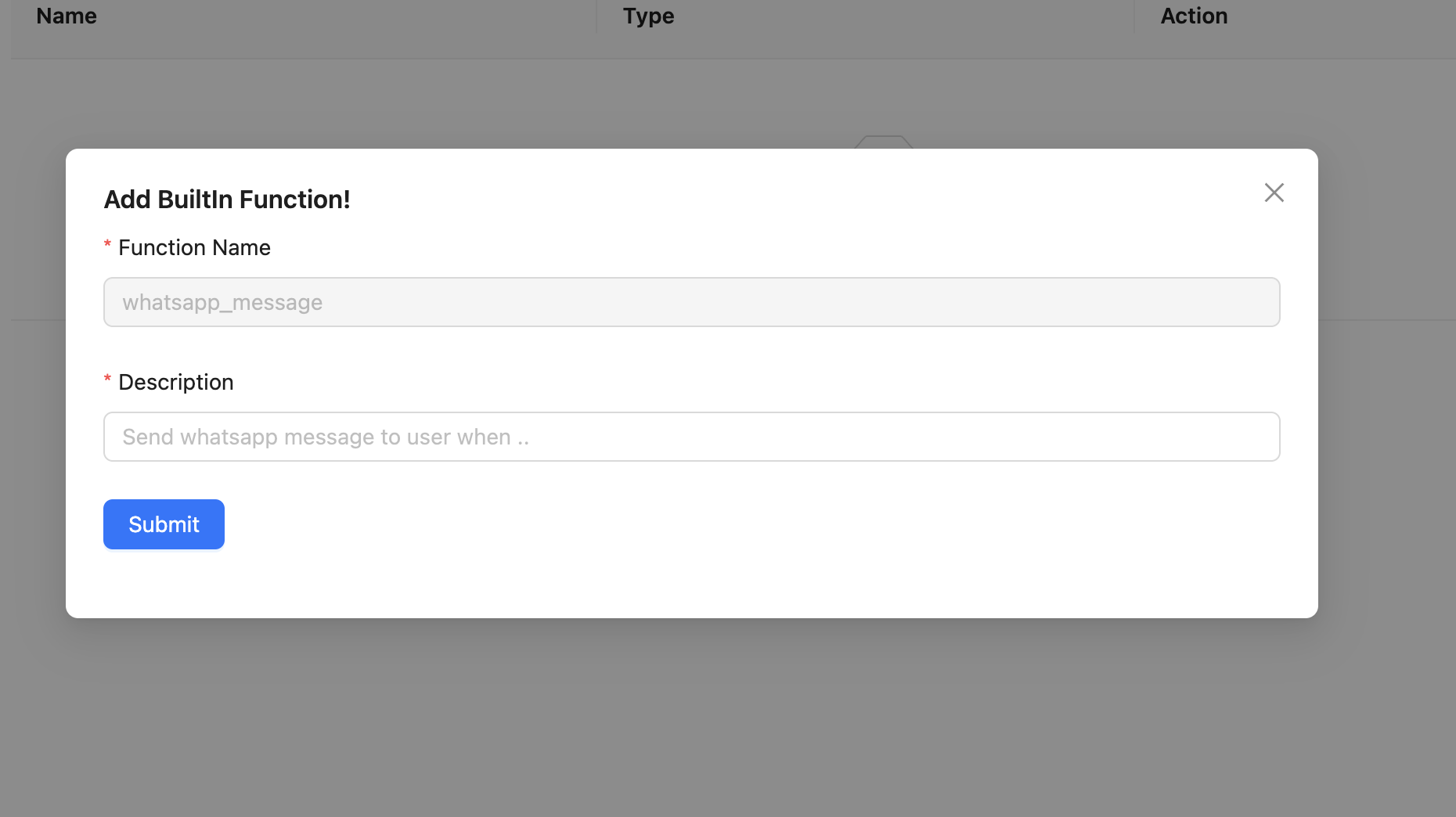
Step 1: The Art of the Description
The "Description" field is a direct instruction to the AI brain (the LLM). It tells the agent under what circumstances it should offer to send a WhatsApp message.
Best Practices for the send_whatsapp_message Description:
-
GOOD (Recommended):
Use this function to send a WhatsApp message to the user. Trigger this tool if the user asks you to send them information, a link, a summary, or a confirmation via text or WhatsApp.Why it works: It's clear and covers multiple user intents (send info, link, summary). The AI will understand to use this tool when the user makes such a request.
-
BAD (Too Vague):
Sends a message.Why it's bad: This gives the AI no context about the channel (WhatsApp) or when it's appropriate to use this function.
Step 2: Define the Message Content (Payload Schema)
For this function, you only need to define one attribute: the message itself.
- Attribute: message
- Name: message
- Description: "The content of the WhatsApp message to be sent to the user."
- Required: Yes
You do not need to ask the user for their phone number. The system is designed to automatically use the phone number of the person who is currently on the call.
Step 3: Save the Function
Once you have configured the function, click "Submit" or "Save". Your VoiceAgent is now capable of sending WhatsApp messages.
Managing Your Functions
After creating a function, the main "Functions" page becomes your central dashboard for managing it. All your created functions will appear in a list, allowing you to easily see, edit, or delete them as your needs change.
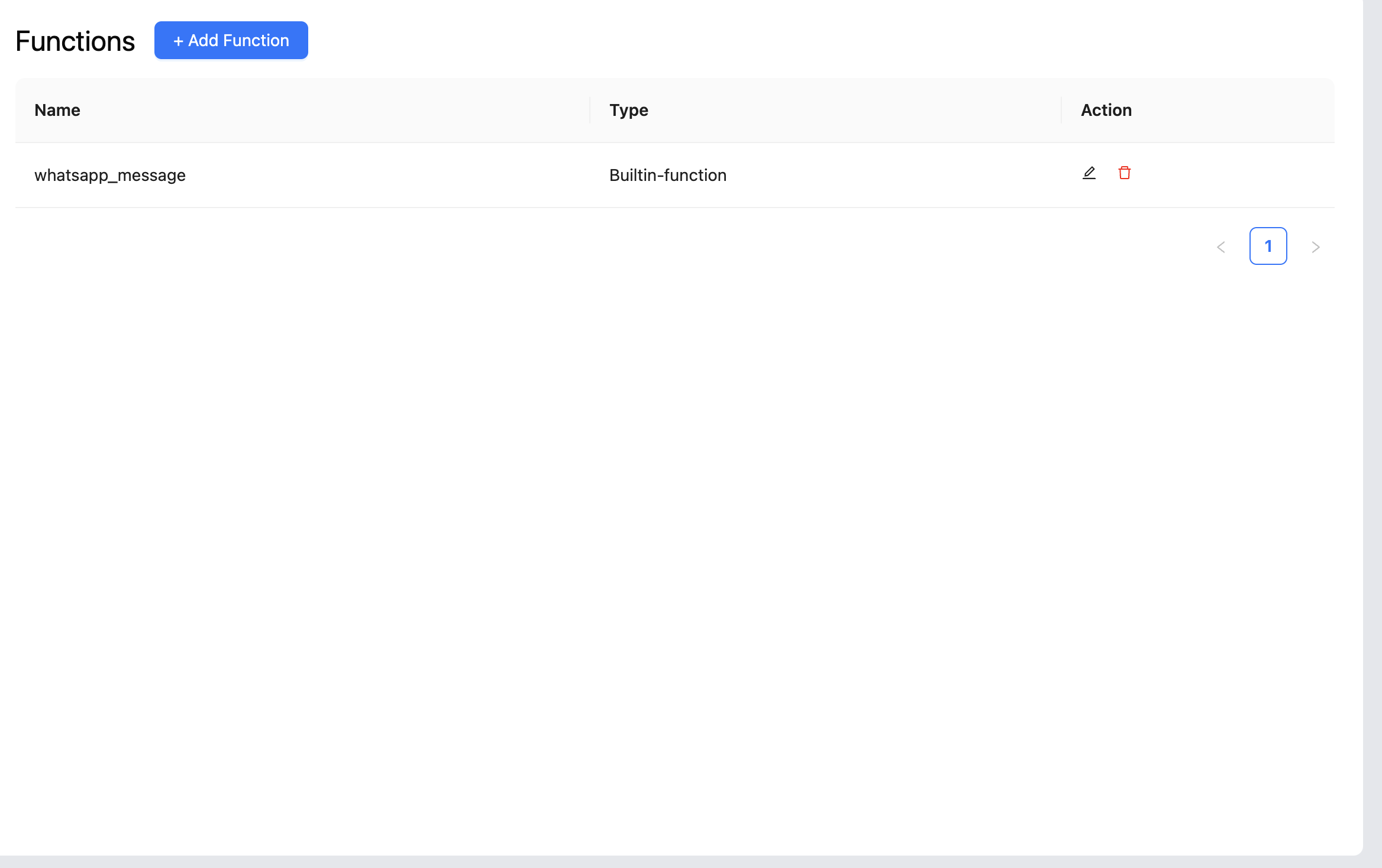
Editing a Function
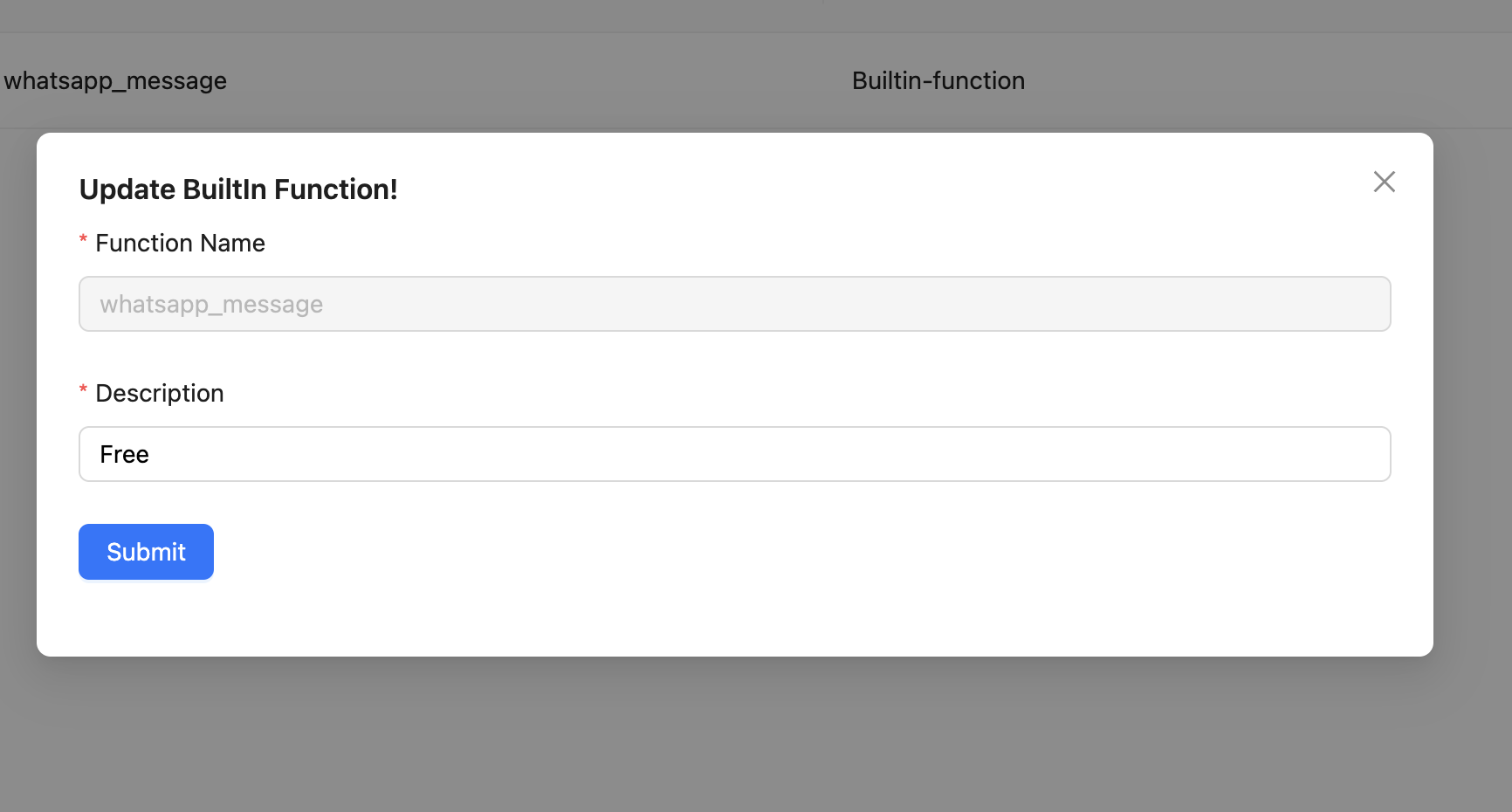
You may need to update a function's description over time to improve your agent's performance.
- Find the Function: In the list of functions, locate the send_whatsapp_message function you wish to modify.
- Click the "Edit" Icon: Next to the function's name, you will see an Edit icon (which looks like a pencil). Click it.
- Modify the Details: The same configuration form you used to create the function will appear, pre-filled with its current settings. You can now change the description.
- Save Your Changes: After making your adjustments, click "Save" or "Update". The system will save the new configuration, and your VoiceAgent will use the updated instructions from that point forward.
Deleting a Function
If you no longer want your agent to have this ability, you can permanently remove the function.
- Find the Function: In the list of functions, locate the one you want to remove.
- Click the "Delete" Icon: Next to the function's name, you will see a Delete icon (which looks like a trash can). Click it.
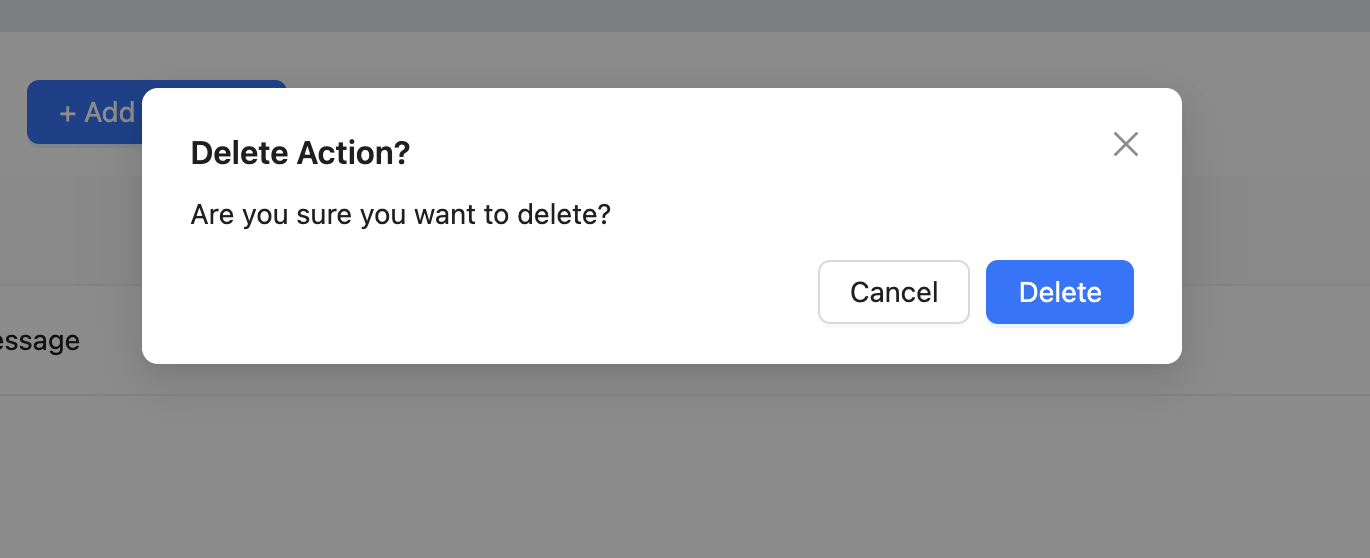
- Confirm the Deletion: To prevent accidental removal, a confirmation pop-up will appear asking if you are sure you want to delete the function.
- Confirm to Delete: Click "Delete" or "Yes" to permanently remove the function. The function will be erased, and your VoiceAgent will no longer be able to use it. This action cannot be undone.
Troubleshooting
The VoiceAgent says it will send a WhatsApp message but the user never receives it. Verify your WhatsApp Business integration is active in the Integrations section. Also confirm the caller's phone number is a valid WhatsApp number in E.164 format. Callers using phone numbers not registered with WhatsApp will not receive the message.
The function triggers but the agent sends the wrong content.
Review the message definition in the function configuration. The message attribute should have a clear description so the AI understands exactly what content to include. Update the description to be more specific and test again.
The function is set up but the agent never offers to send a WhatsApp message even when asked. The function description may not match the user's phrasing. Update the description to include a broader set of triggering scenarios: "Trigger this function if the user asks for a link, an address, a confirmation, or asks you to text them information."
Frequently Asked Questions
Can the agent send WhatsApp messages without the user explicitly requesting one? Yes. You can configure the function description to trigger proactively—for example, "After confirming an appointment booking, automatically send the user a WhatsApp message with the confirmation details." The agent will then send the message as part of completing the task.
Does the function send a plain text message or can it include images and documents? The current implementation supports plain text messages. Rich media (images, PDFs, documents) are not supported through this built-in function. For rich media delivery, use a WhatsApp Campaign workflow instead.
Is there a character limit for messages sent via this function? WhatsApp supports up to 4,096 characters per message. Messages generated by the AI are unlikely to exceed this, but keep your instructions concise to ensure the message content is focused and readable.
Can the function send a WhatsApp message to a number different from the caller's? By default, the function sends to the phone number of the person on the call. Sending to a different number requires a custom API function—contact support for guidance on this use case.
What happens if the WhatsApp message fails to deliver? If delivery fails (e.g., the number is invalid or the user has blocked WhatsApp messages from your number), the VoiceAgent continues the call normally. The failed delivery is not surfaced to the user during the call but can be reviewed in your WhatsApp integration logs.
Related Articles