VoiceAgent – Embed Web Integration
Learn how to embed your Kipps.AI VoiceAgent on your website using a click-to-call button that initiates conversations directly from the browser.
Overview
The Web Embed feature allows you to integrate your VoiceAgent directly into your website, providing a seamless "click-to-call" experience for your visitors. By simply copying and pasting a small code snippet, you can place a button on any page that, when clicked, instantly launches a voice call with your AI agent directly from the user's browser.
This is a powerful way to engage with website visitors, answer their questions in real time, and capture leads without them ever needing to pick up a phone.
Why Embed Your VoiceAgent on Your Website?
- Instant Engagement: Convert website traffic into live conversations. Visitors can get immediate answers to their questions, increasing engagement and reducing bounce rates.
- Lead Generation: Offer a frictionless way for potential customers to connect with you. The agent can qualify leads and even schedule follow-up calls with your human team.
- Enhanced Support: Provide an instant voice support channel directly on your product or help pages, improving customer satisfaction.
- User Tracking: By customizing the embed code, you can pass user information to the call, allowing you to see in your call history who initiated the call and from where.
How to Get Your Web Embed Code
The platform automatically generates the necessary HTML code for you. Here’s how to find it:
-
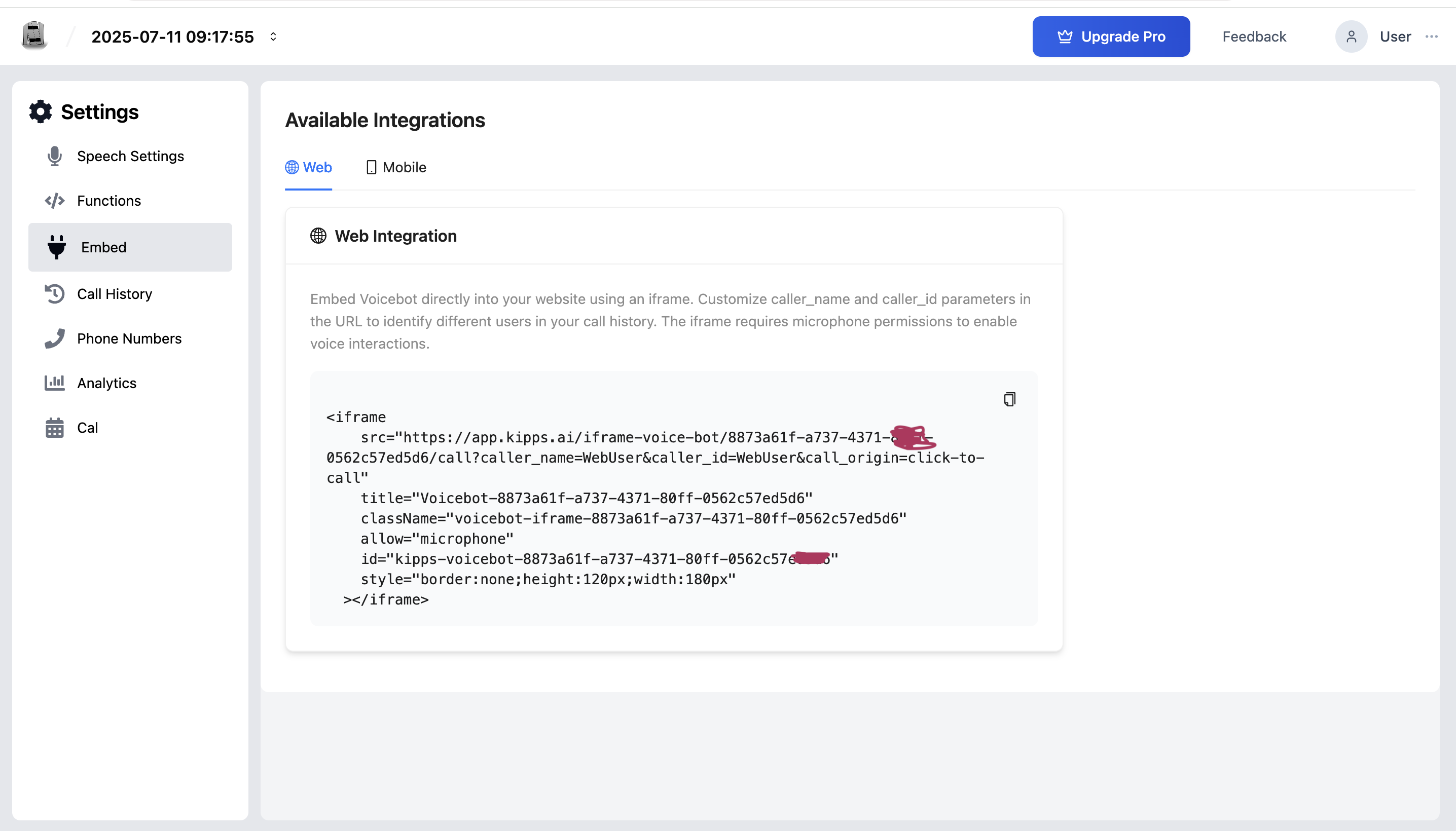
Navigate to the Embed Page From your VoiceAgent's main dashboard, click on "Embed" in the navigation menu.
-
Select the "Web" Tab The Embed page will present different integration options. Ensure you are on the "Web" tab.
-
Copy the Code Snippet You will see a section labeled "Web Integration" containing a pre-formatted code block. This is your
iframeembed code. Click the "Copy" icon or button next to the code block to copy the entire snippet to your clipboard.
Understanding and Using the Embed Code
The code you copied is an HTML <iframe>. An iframe is like a small window on your website that displays content from another URL. In this case, it displays the voice call interface.
Example Code:
<iframe
  src="https://your-app-url.com/iframe-voice-bot/{VoiceAgentId}/call?caller_name=WebUser&caller_id=WebUser&call_origin=click-to-call"
  title="My VoiceAgent"
  allow="microphone"
  style="border:none; height:120px; width:180px;"
></iframe>
How to Add it to Your Website
Simply paste this line of code into the HTML of your webpage where you want the click-to-call button to appear.
Key Parts of the Code Explained
- src (Source URL): This is the most important part. It's the link to your VoiceAgent's call interface.
- caller_name=WebUser: This parameter sets the name of the caller that will appear in your call logs. You can change "WebUser" to something more specific.
- caller_id=WebUser: This is a unique identifier for the caller.
- call_origin=click-to-call: This tells you where the call came from.
- allow="microphone": This is critical. This attribute asks the user for permission to use their microphone when they click the call button. Without this, the VoiceAgent will not be able to hear the user, and the call will not work.
- style: This attribute controls the appearance (height, width, border) of the iframe. You can change these values to match the design of your website.
Customizing the Call for User Tracking
To get the most out of your web integration, you should dynamically change the caller_name and caller_id parameters for each user. This allows you to track exactly who is calling you from your website.
For example, if you have a user logged into your website, you could use JavaScript to generate the iframe code with their specific details:
<iframe
  src="https://your-app-url.com/iframe-voice-bot/abc123/call?caller_name=JohnDoe&caller_id=12345&call_origin=click-to-call"
  title="My VoiceAgent"
  allow="microphone"
  style="border:none; height:120px; width:180px;"
></iframe>
This ensures that every voice call made from your site is linked to a known user, enhancing your analytics and lead tracking inside Kipps.AI.
Troubleshooting
The iframe appears on the page but clicking it does nothing.
Ensure the allow="microphone" attribute is present in the iframe tag. Without this attribute, the browser blocks microphone access and the call cannot start. Also check that your website is served over HTTPS—microphone access is blocked on non-secure origins.
The browser shows a microphone permission error. The first time a user starts a call, the browser will ask for microphone permission. If the user previously denied permission, they need to reset it in their browser settings (usually via the lock/info icon in the address bar). Instruct users to allow microphone access for your domain.
The iframe is visible but the call drops immediately. Verify your VoiceAgent is active and has a working STT and TTS provider configured in its Speech-Settings. A missing or misconfigured provider key will cause the call to fail immediately after connecting.
The caller_id in the call history shows "WebUser" for all calls.
You are not dynamically setting the caller_id parameter. Customize the embed code to pass your logged-in user's ID or session identifier dynamically so each call can be traced to a specific user.
Frequently Asked Questions
Does the web embed work on mobile browsers? Yes. The iframe is responsive and works on mobile browsers that support WebRTC (most modern iOS Safari and Android Chrome versions). For a native mobile app experience, use the Mobile SDK instead.
Can I place multiple VoiceAgent embeds on the same page? Yes, but only one should be active (calling) at a time. Embedding more than one VoiceAgent on the same page without logic to prevent simultaneous activation can cause audio conflicts.
Will the embed work behind a corporate firewall or VPN? The embed uses WebRTC for audio, which requires certain network ports to be open. Some strict corporate firewalls or VPNs block WebRTC traffic. Users behind such networks may need to connect through a different network to make calls.
Can I style the embed to match my website's design?
Yes. Modify the style attribute in the iframe tag to change the height, width, and border to match your site's design. The call button's appearance is controlled by the embed URL styles—contact support for advanced customization options.
Is there a limit to how many concurrent web calls my VoiceAgent can handle? Concurrency limits depend on your Kipps.AI subscription plan and your telephony provider's capacity. Contact support to understand the concurrency limits applicable to your account.
Related Articles