VoiceAgent – Mobile Embed Integration
Learn how to embed your VoiceAgent inside native mobile apps using our React Native SDKs for both Expo and CLI environments.
Overview
The Mobile Embed feature allows you to bring the power of your VoiceAgent directly into your native mobile applications. By using our official Software Development Kits (SDKs), you can integrate a "click-to-call" experience, enabling your users to have a voice conversation with your AI agent without ever leaving your app.
This is ideal for providing in-app support, creating voice-controlled features, or offering a hands-free way for users to interact with your service.
Why Embed Your VoiceAgent in a Mobile App?
- Seamless In-App Support: Allow users to get instant voice support for issues they encounter while using your app.
- Voice-Powered Features: Build innovative features that users can control with their voice, enhancing accessibility and user experience.
- Hands-Free Interaction: Provide a convenient way for users to get information or perform actions when they can't use their hands, such as when driving.
How to Get Your Mobile Embed Instructions
Our platform supports both major frameworks within the React Native ecosystem: Expo and the standard React Native CLI. The "Embed" page provides the necessary commands and links to get you started.
-
Navigate to the Embed Page From your VoiceAgent's main dashboard, click on "Embed" in the navigation menu.
-
Select the "Mobile" Tab The Embed page will present different integration options. Click on the "Mobile" tab.
-
Choose Your Framework You will see two options, one for React Native (Expo) and one for React Native (CLI). Choose the one that matches your app's development framework.
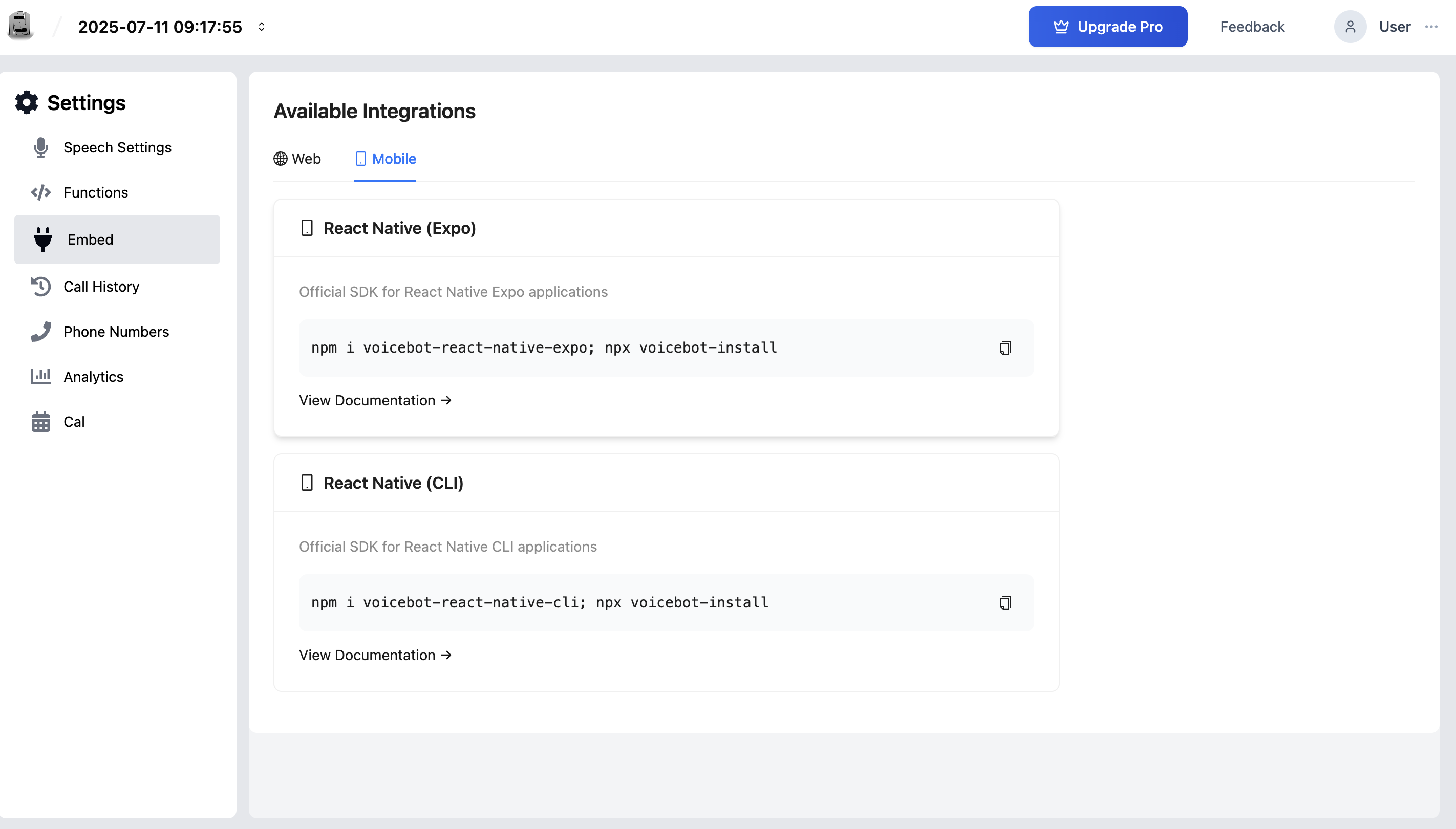
React Native (Expo) Integration
This option is for mobile applications built using the Expo framework. Expo simplifies development by managing much of the native configuration for you.
- Description: Official SDK for React Native Expo applications.
- Installation Command:
npm i VoiceAgent-react-native-expo; npx VoiceAgent-install
- Documentation: A link is provided to the official NPM page for the SDK. This documentation contains complete, detailed instructions on how to import the necessary components, configure the call, and manage its state within your Expo app.
React Native (CLI) Integration
This option is for mobile applications built using the standard React Native Command Line Interface (CLI), which provides more direct control over the native project files.
- Description: Official SDK for React Native CLI applications.
- Installation Command:
npm i VoiceAgent-react-native-cli; npx VoiceAgent-install
- Documentation: Just like the Expo version, a link is provided to the official NPM page for the CLI-specific SDK. This is where developers will find the comprehensive guide for implementing the VoiceAgent in their application.
How It Works (For Your Development Team)
-
Install the SDK Your developer will run the appropriate installation command from the Embed page in your mobile app's project directory.
-
Import Components They will then import the necessary components from the SDK into the screens where they want the click-to-call functionality.
-
Configure the Call The SDK components will require your
VoiceAgentIdand can be configured to pass user information (like a user ID or name) to the call for tracking purposes. -
Handle Permissions The SDK is designed to handle requests for microphone permissions on both iOS and Android, which is a critical step for the voice call to function.
By following the detailed instructions in the linked NPM documentation, your development team can quickly integrate a powerful and seamless voice experience directly into your mobile app.
Troubleshooting
The SDK installs successfully but the call button doesn't appear. Ensure you imported the correct component from the SDK and rendered it within a screen that is active in your navigation stack. Check the NPM documentation for the exact import path and component name.
The call connects but there is no audio in both directions. Microphone permissions must be granted on the device. The SDK handles the permission request, but if a user previously denied it, they need to go to the device's Settings > App > Permissions to re-enable microphone access for your app.
Expo integration fails with a native module error.
Run npx VoiceAgent-install after the npm install to complete the native linking step required by Expo. Some Expo SDK versions may also require you to run npx expo prebuild to expose native modules. Refer to the NPM documentation for your Expo SDK version's specific requirements.
The CLI integration fails with a linking error on iOS.
After installing the package, run cd ios && pod install to install the required CocoaPods dependencies. On newer React Native versions, auto-linking handles this automatically, but manual linking may be required on older versions.
Frequently Asked Questions
Does the SDK support both iOS and Android?
Yes. Both the Expo and CLI SDKs support iOS and Android. The npx VoiceAgent-install command handles platform-specific native configuration for both platforms.
What is the minimum supported React Native version? Refer to the NPM package documentation for the minimum React Native and Expo SDK versions. Using an older version may result in compatibility issues with native modules.
Can I customize the appearance of the call UI within my app? The SDK provides a set of configurable props for customization. Refer to the component's API documentation on the NPM page for available customization options such as colors, button labels, and positioning.
Does the mobile embed count as a "Web" call or a "Phone" call in call history? Mobile embed calls are categorized as "Web" calls in the Call History, because they use the same WebRTC-based call flow as the web iframe embed—not a traditional phone number.
Can I pass the logged-in user's information to the call for tracking?
Yes. Both SDKs accept a caller_id and caller_name prop that you can populate dynamically from your app's user session. This ensures each call in your Call History is linked to a known user.
Related Articles