Provider API Key - Speech-to-Text (STT)
Learn how to connect your own STT providers like Deepgram and Google to Kipps.AI for transcribing speech into text.
Overview
The Speech-to-Text (STT) engine is the "ears" of your Voicebot—responsible for transcribing spoken input into text that your Language Model can understand. By adding your own API keys from providers such as Deepgram, Google, or Azure, you gain full control over accuracy, latency, pricing, and customization of your voice pipeline.
How to Add an STT API Key
You can add Speech-to-Text keys directly from your Kipps.AI dashboard.
Step 1: Navigate to Provider API Keys
From the main dashboard, go to ** Provider API Keys**
This is a centralized section and applies across all bots.
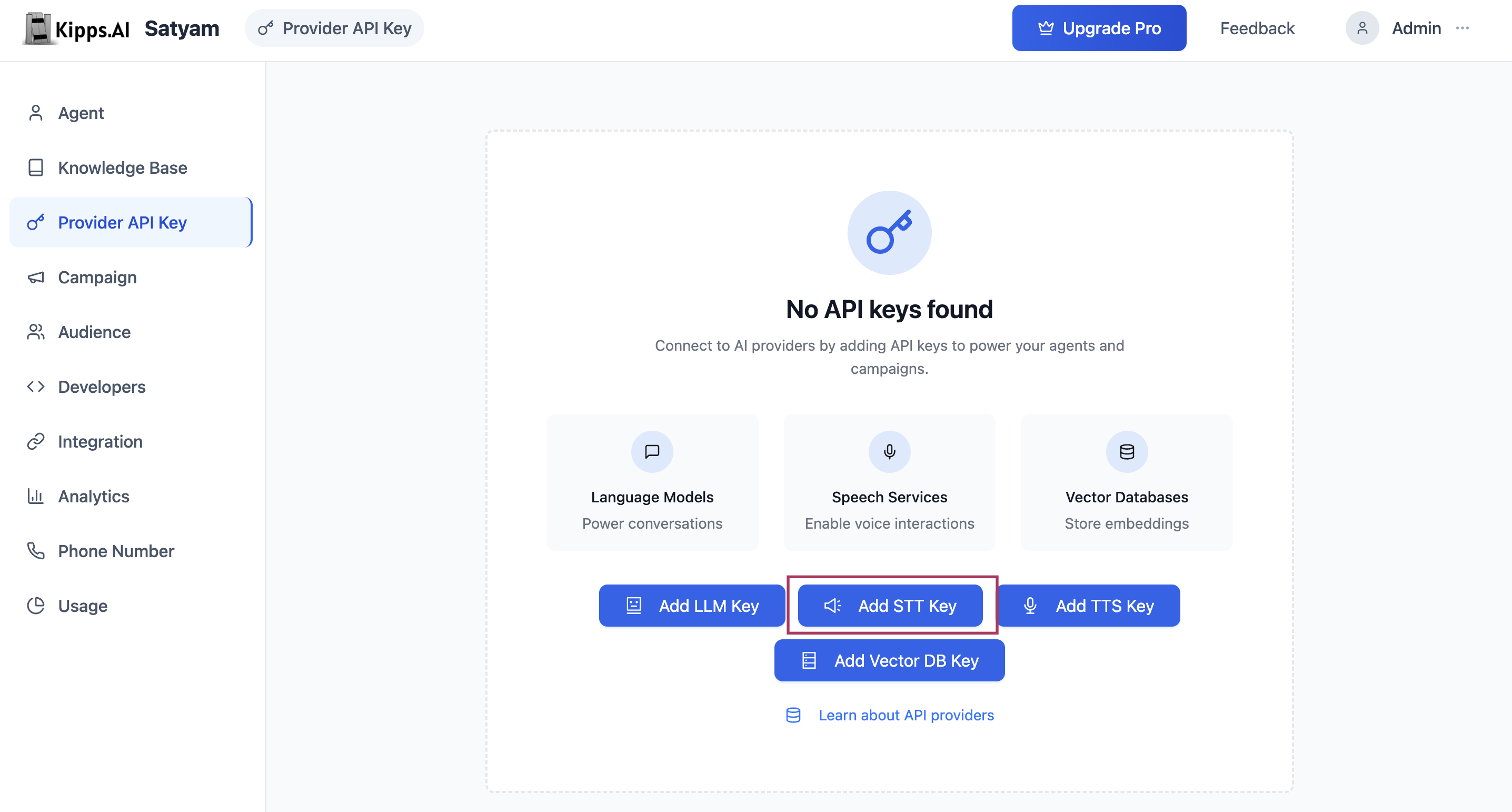
Step 2: Add STT Key
Click the "+ Add Key" or "Add STT API Key" button. A configuration form will appear.
Step 3: Fill in Configuration Fields
- Provider: Choose your transcription provider (e.g., Google, Azure, Deepgram)
- Name: Assign a unique label (e.g., "Support Bot - Deepgram")
- API Key: Paste your provider-issued key securely
Step 5: Provider-Specific Optional Fields
Some providers require additional parameters:
- Google: Project ID and Default Language
- Azure: Region and Endpoint
- Deepgram: Default model (e.g., "Nova 2")
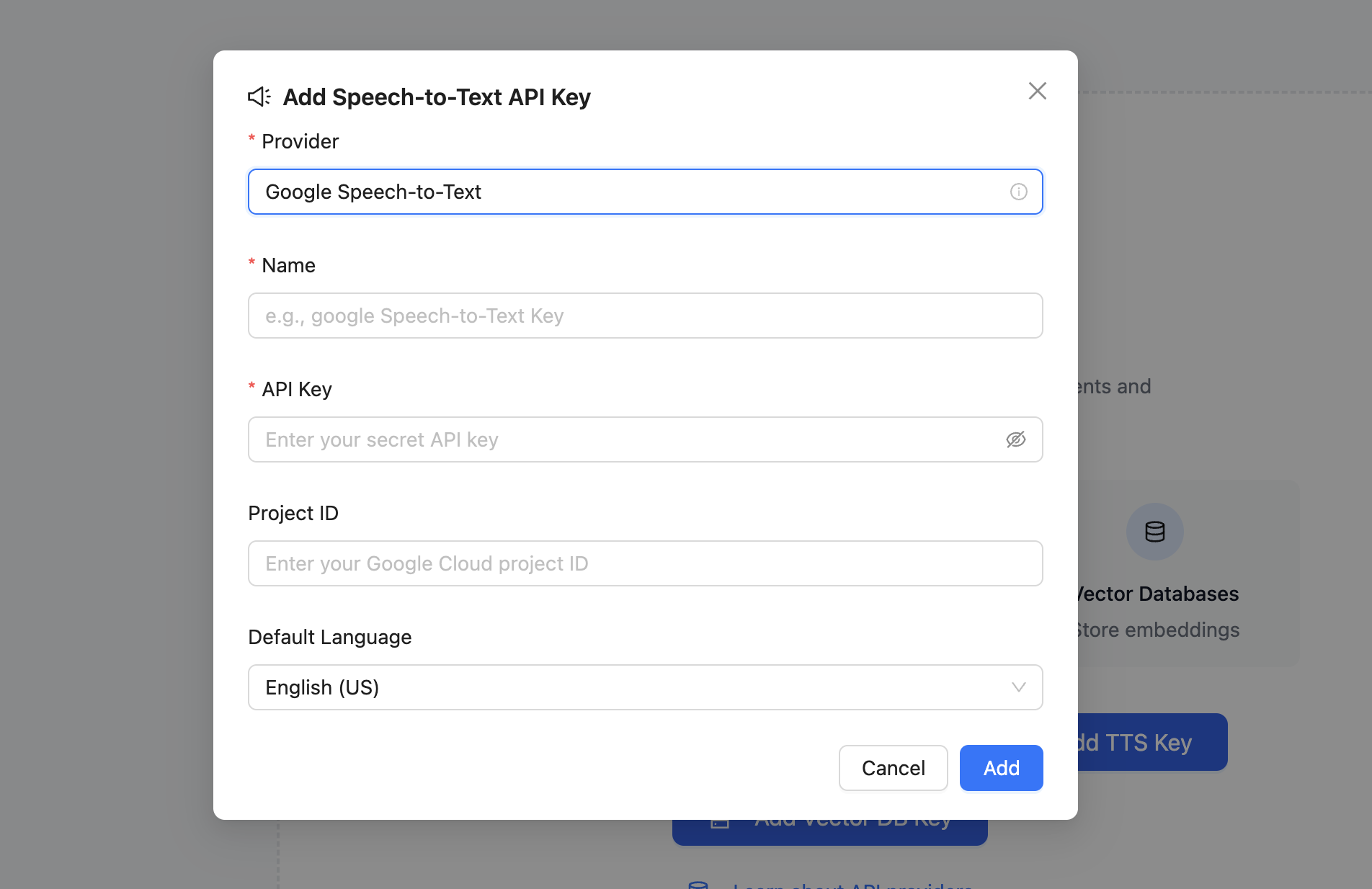
Step 6: Save the Key
Click "Add" to save and encrypt the key in Kipps.AI. It will appear in your management table.
Managing and Using Your STT Keys
Once saved, keys are displayed in a table under the Speech-to-Text tab.
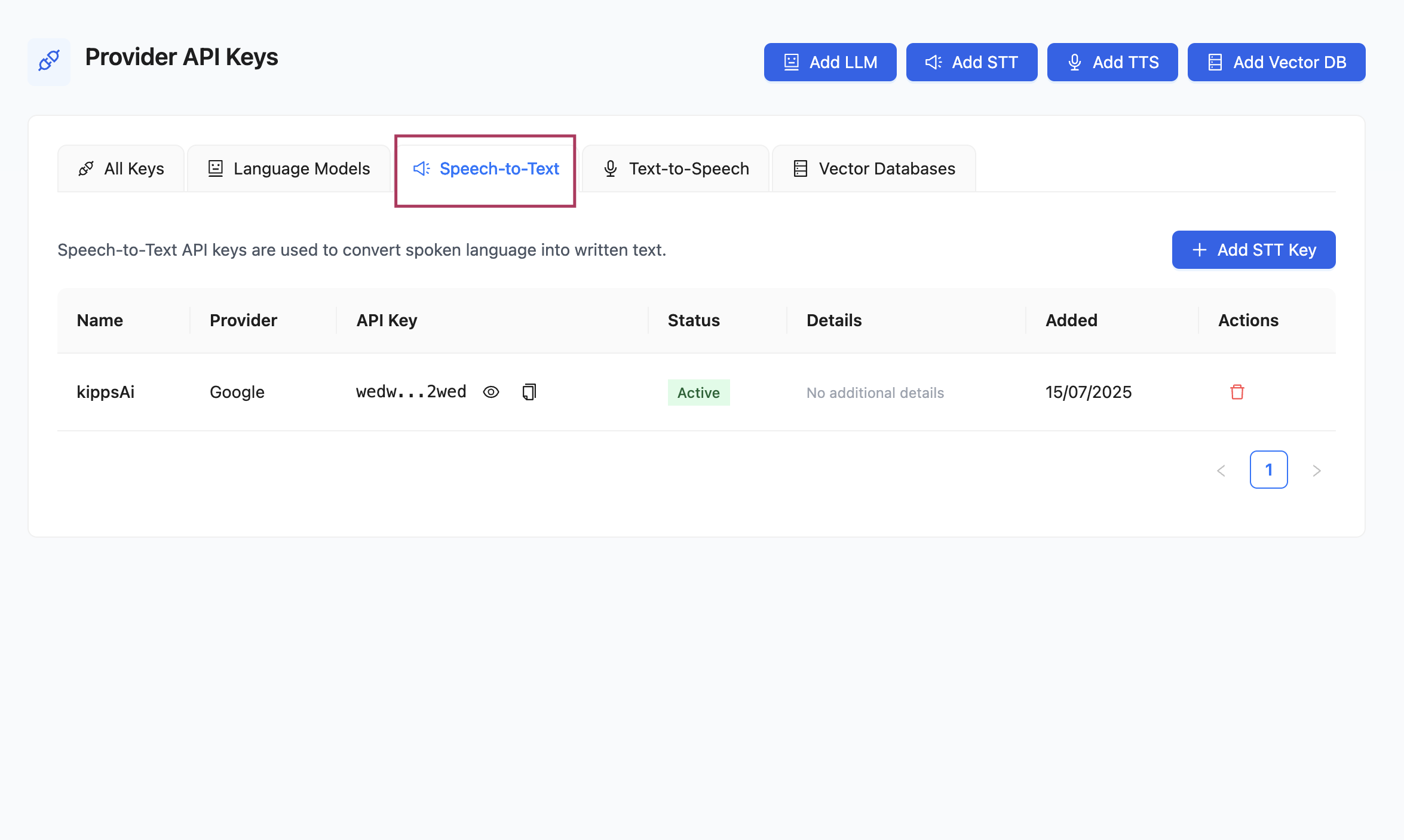
Management
- View Details: See provider, model, and configuration
- Delete: Remove keys using the action icons
Usage in Voicebot
- Navigate to your Voicebot's dashboard
- Go to Speech-Settings
- Select the provider and key you've added from the dropdown
Your Voicebot will now use this key for all transcriptions, with no intermediate layers or charges from Kipps.AI.
Using your own STT keys ensures full transparency, allows access to premium transcription models, and lets you integrate transcription services tailored to your specific domain or language needs.
Best Practices
- Match the STT model to your use case: General-purpose models work well for broad conversations, but if your voicebot handles industry-specific terminology (medical, legal, financial), choose a provider and model that supports domain-specific vocabulary.
- Test transcription accuracy before go-live: Make several test calls in the expected acoustic environment (headset, phone, speakerphone) and review transcripts in Call History to confirm accuracy meets your quality bar.
- Use descriptive key names: Label keys by provider and purpose (e.g.,
"Deepgram – Nova2 – Support Bot") so it is clear at a glance which key powers which voicebot. - Monitor your STT provider's billing dashboard: High call volumes generate significant transcription requests. Reviewing costs regularly prevents unexpected billing surprises.
Troubleshooting
The voicebot transcribes speech incorrectly or produces garbled text.
Try switching to a higher-quality model (e.g., Deepgram's nova-2 or Google's Chirp model). Also verify the language code configured in the key matches the language your users are speaking.
I added a key but the voicebot still says it cannot hear me. After adding an STT key, navigate to the voicebot's Speech-Settings and select the new key from the STT provider dropdown. Saving the agent settings is required—just adding the key in Provider API Keys is not sufficient.
The Google STT provider requires a Project ID—where do I find this? Your Google Cloud Project ID is visible on the Google Cloud Console home page, listed under "Project info". It is a short alphanumeric string, not the project name.
Deepgram transcriptions are working but very slow. Latency can vary by Deepgram region. If you are serving users in a specific geography, contact Deepgram to confirm you are using the endpoint closest to your users.
Frequently Asked Questions
Which STT providers does Kipps.AI support? Kipps.AI currently supports Deepgram, Google Speech-to-Text, and Azure Cognitive Services Speech. Additional providers may be added in future updates.
Can I use different STT providers for different voicebots? Yes. Add as many STT keys as you need in Provider API Keys, then assign the appropriate key to each voicebot via its Speech-Settings.
Does my STT provider choice affect the languages my voicebot can understand? Yes. Each STT provider supports a different set of languages and locales. Check your provider's documentation to confirm your required languages are supported before committing to a provider.
What happens if my STT provider is unavailable during a call? If the STT service cannot transcribe the user's speech, the voicebot will not receive input and the conversation will stall. The caller may hear silence or an error message depending on your fallback configuration.
Does Kipps.AI store the audio recordings of my calls? Call recordings are stored according to your account's data retention settings, not by the STT provider. The STT provider receives the audio stream for transcription but does not retain it after processing.
Related Articles