Integrations - Cal.com
Learn how to connect your Cal.com calendar to Kipps.AI and enable agents to automatically book meetings through conversation.
Overview
The Cal.com integration connects your AI agents directly to your calendar, empowering them to schedule meetings and book appointments automatically. When a user asks to schedule a call, your agent can check your Cal.com schedule for available slots, offer them to the user, and confirm the meeting—all within the same conversation.
How It Works
The integration is completed in two steps:
- Connect Your Cal.com Account: Provide your Cal.com API key and choose a default event type and schedule.
- Enable for an Agent: Assign the integration to a specific AI Chat Agent or voicebot so it can handle scheduling requests.
Step 1: Connect Your Cal.com Account
-
Go to Integrations:
- From your dashboard, click on "Integrations".
-
Find Cal.com:
- Locate the Cal.com integration card and click "Integrate".

- Locate the Cal.com integration card and click "Integrate".
-
Add Cal.com Details:
-
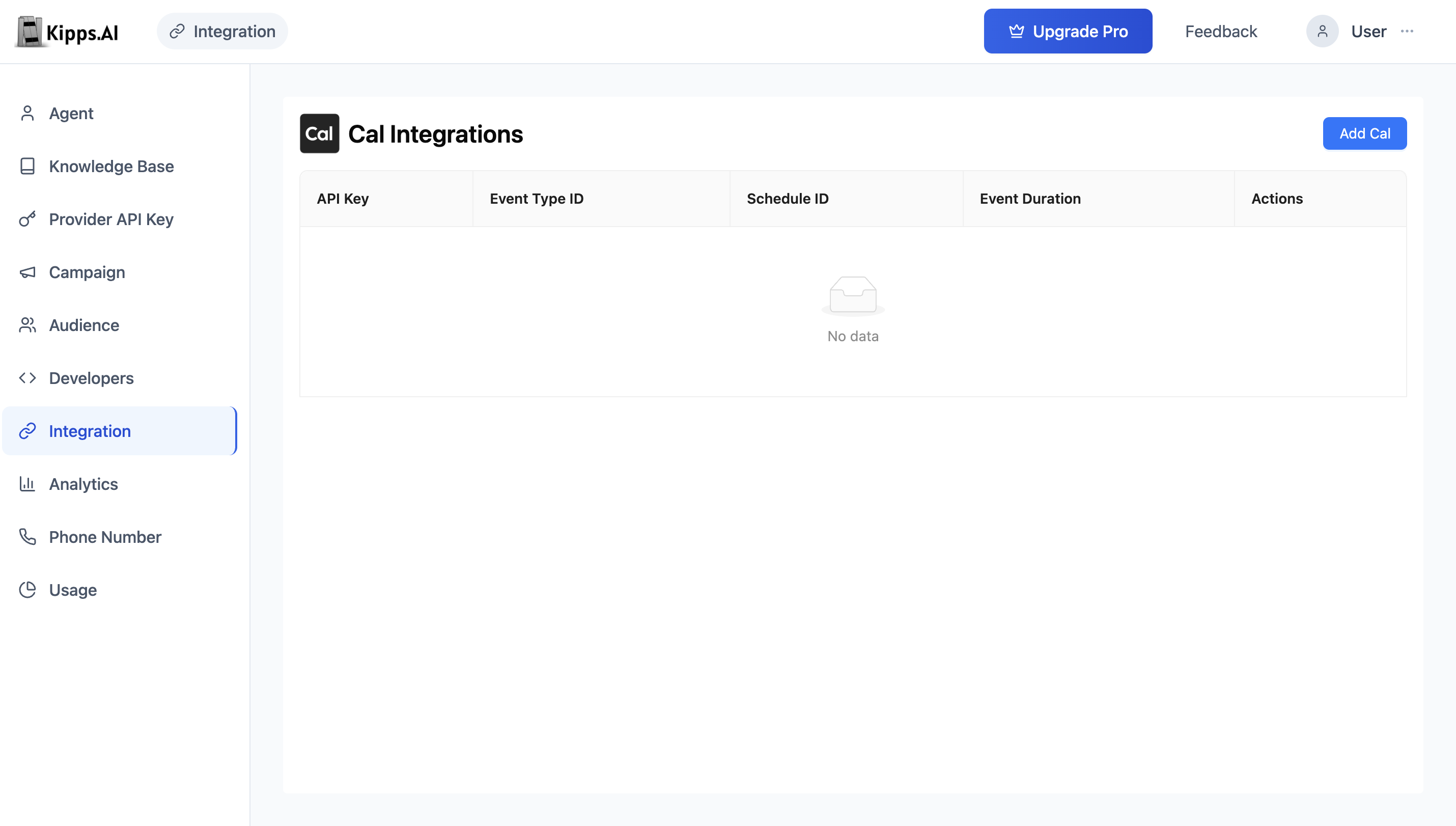
Click "+ Add Cal" to open the setup modal.
-
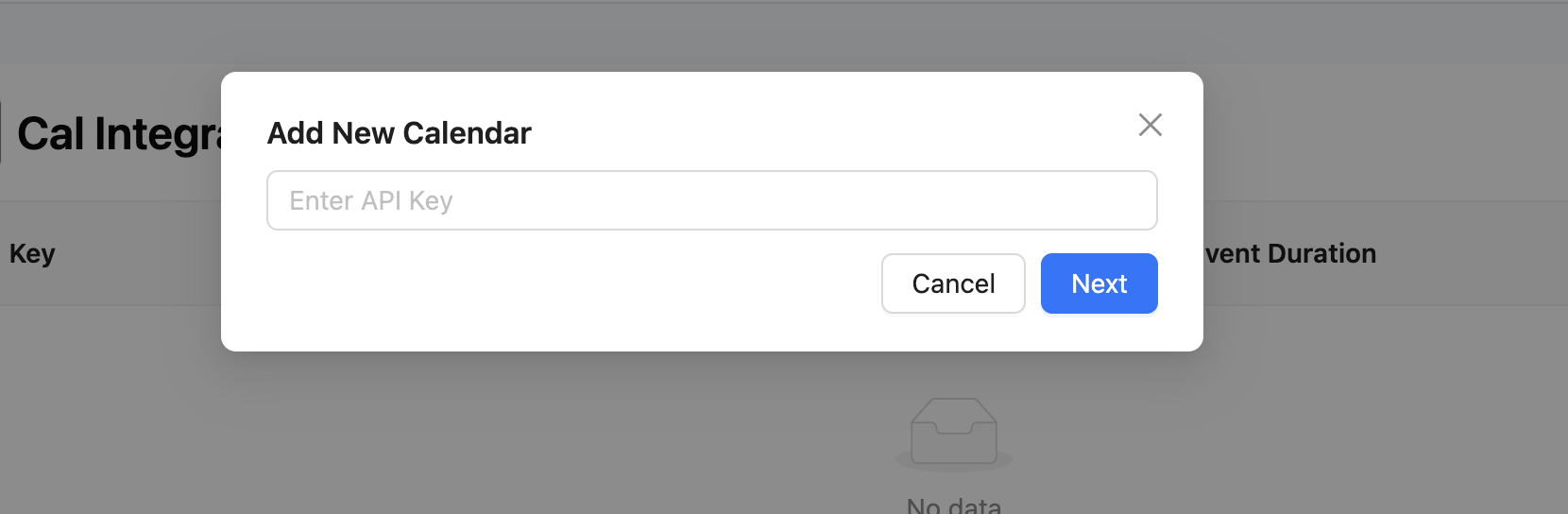
Enter your Cal.com API Key.
-
Click "Next" to fetch your available Event Types and Schedules.
-
Choose the event type and schedule you'd like to use.
-
-
Save the Integration:
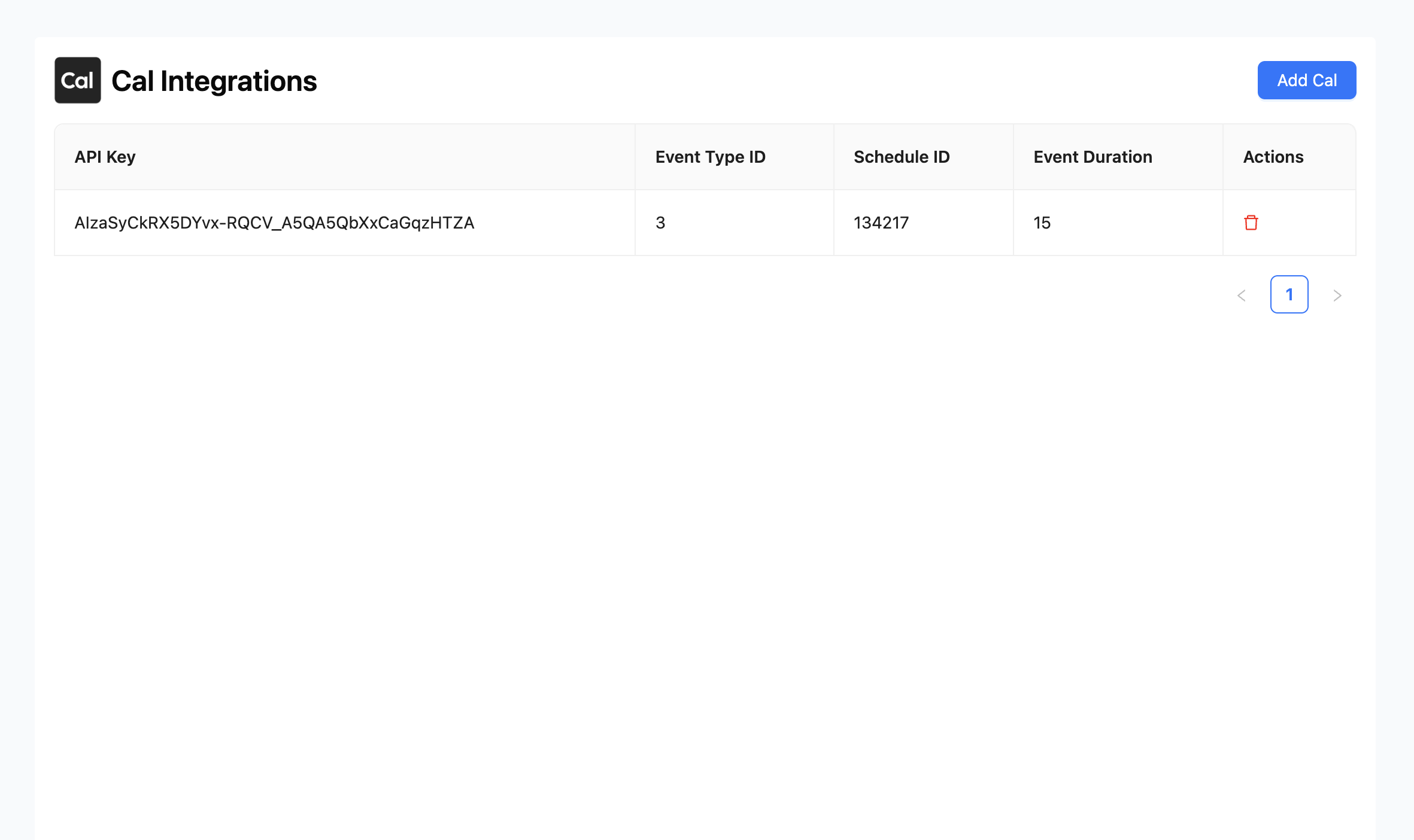
- Click "Add" to complete the connection.
- Click "Add" to complete the connection.
Your Cal.com account is now linked and ready to be assigned to an agent.
Step 2: Enable Cal.com for an Agent
-
Go to Agent Settings:
- Open the settings for the AI Chat Agent or voicebot you want to enable.
-
Select Cal.com Integration:
- In the integrations section, use the dropdown to select the Cal.com account you previously connected.
-
Save Changes:
- Click "Save" to complete the setup.
Your agent can now schedule meetings automatically using your Cal.com account, streamlining the booking process for both your team and your users.
Troubleshooting
The agent connected successfully but says "no available slots" every time. Verify the Schedule selected during setup has working hours that include future dates. Log into Cal.com and confirm the schedule is active and not set to a past date range.
I get an error when entering my Cal.com API key. Make sure you copied the full API key from Cal.com's Developer settings without extra spaces. Also confirm your Cal.com account has at least one Event Type and one Schedule configured—the integration requires both.
The integration was deleted from Kipps.AI but meetings are still being booked on Cal.com. Deleting the integration in Kipps.AI removes the agent's ability to book via that connection going forward. Any meetings already confirmed before deletion remain on your Cal.com calendar.
I connected multiple Cal.com accounts—which one does the agent use? The agent uses the Cal.com account selected in the agent's integration dropdown. You can switch it by editing the agent's settings and saving the new selection.
Frequently Asked Questions
Does the agent check real-time availability or only fixed slots? The agent queries Cal.com's live availability API in real time, based on the Schedule you selected during setup. It only offers slots that are genuinely open at the moment of the conversation.
Can the same Cal.com account be connected to multiple agents? Yes. You can connect a single Cal.com account in the Integrations section and then assign it to as many agents as needed. Each agent will book meetings into the same Cal.com calendar.
What happens if a user books a slot that has just been filled by someone else? Cal.com handles conflict resolution automatically. If a slot is no longer available, the booking attempt will fail and the agent will offer the next available time.
Can I use different Cal.com event types for different agents? Yes. Create separate Cal.com integrations in Kipps.AI—one per event type—and assign the appropriate integration to each agent.
Is my Cal.com data stored by Kipps.AI? Kipps.AI only stores the API key and the selected event type and schedule configuration. Your calendar data (existing events, contact details) remains in Cal.com and is not persisted in Kipps.AI.
Can a voice agent and a chat agent both use the same Cal.com integration? Yes. Both AI Chat Agents and VoiceAgents can be assigned the same Cal.com integration from the Integrations section.