Integrations - Shopify
Learn how to connect your Shopify store to Kipps.AI and enable agents to check order status and automate e-commerce workflows.
Overview
The Shopify integration empowers your AI agents to connect directly to your e-commerce store. This allows them to perform automated actions, with the primary function being to check a customer's order status in real-time, providing instant support and reducing the load on your human agents.
How It Works
The process involves two main stages:
- Connecting Your Store: You first provide your Shopify store's credentials to create a secure connection.
- Creating a Shopify Tool: You then define what your agent can do with the connection—like checking a customer's order status.
Step 1: Connect or Update Your Shopify Store
This setup is done from the main Integrations section of your dashboard.
-
Go to Integrations:
- From your dashboard, click on "Integrations".
-
Find the Shopify Integration:
- Locate the Shopify integration card.
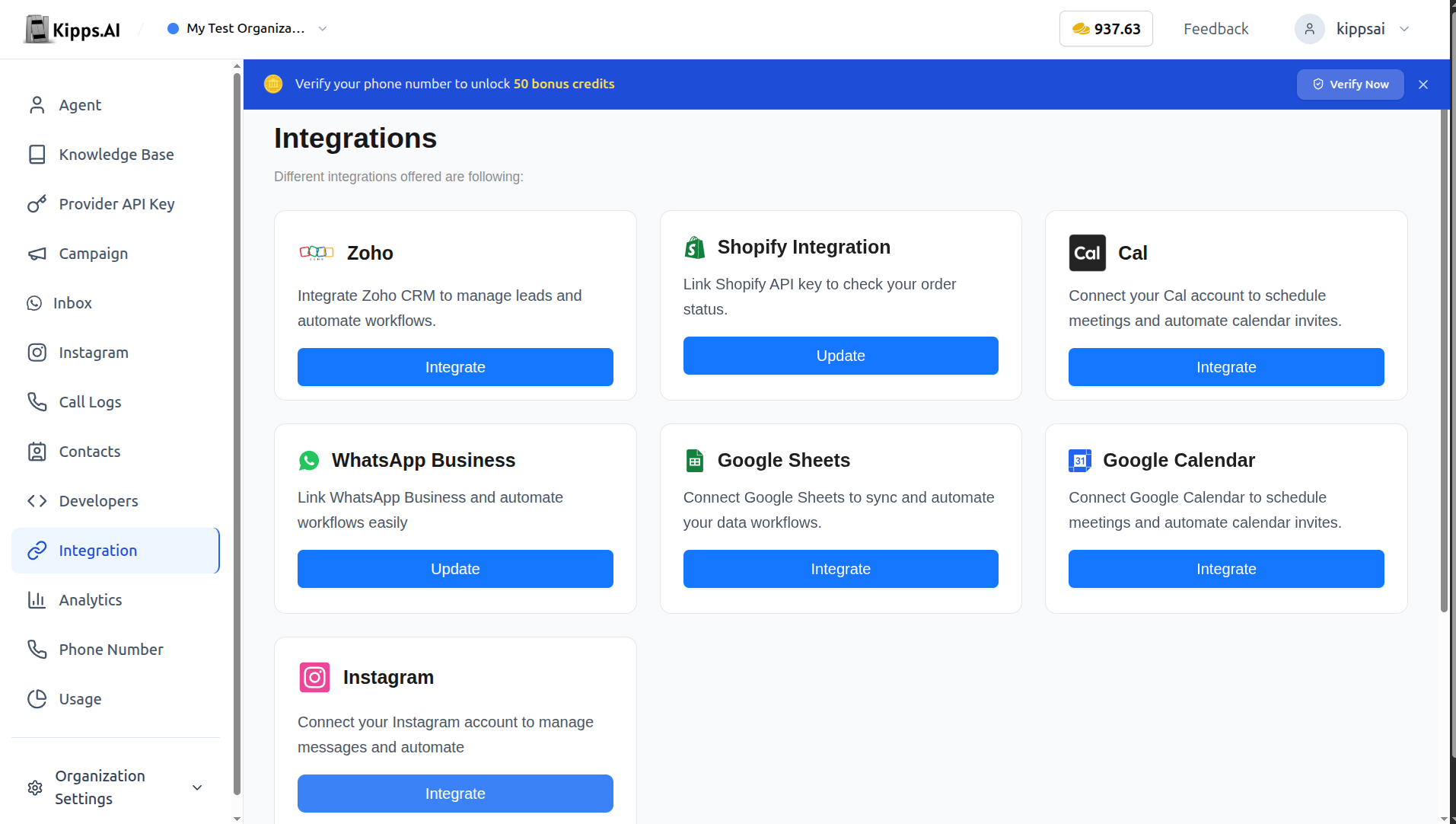
- Locate the Shopify integration card.
-
Begin Integration:
- Click the button labeled "Integrate" (or "Update" if already connected).
-
Enter Shopify Store Credentials:
-
Fill in the required information:
- Shopify Client ID: The Client ID from your Shopify app.
- Shopify Client Secret: The Client Secret from your Shopify app.
- Shopify Access Token: Generated using a
curlcommand against the Shopify Admin API. - Shopify Shop Name: Just your store's name, not a URL (e.g.,
my-cool-store, withouthttps://or.myshopify.com).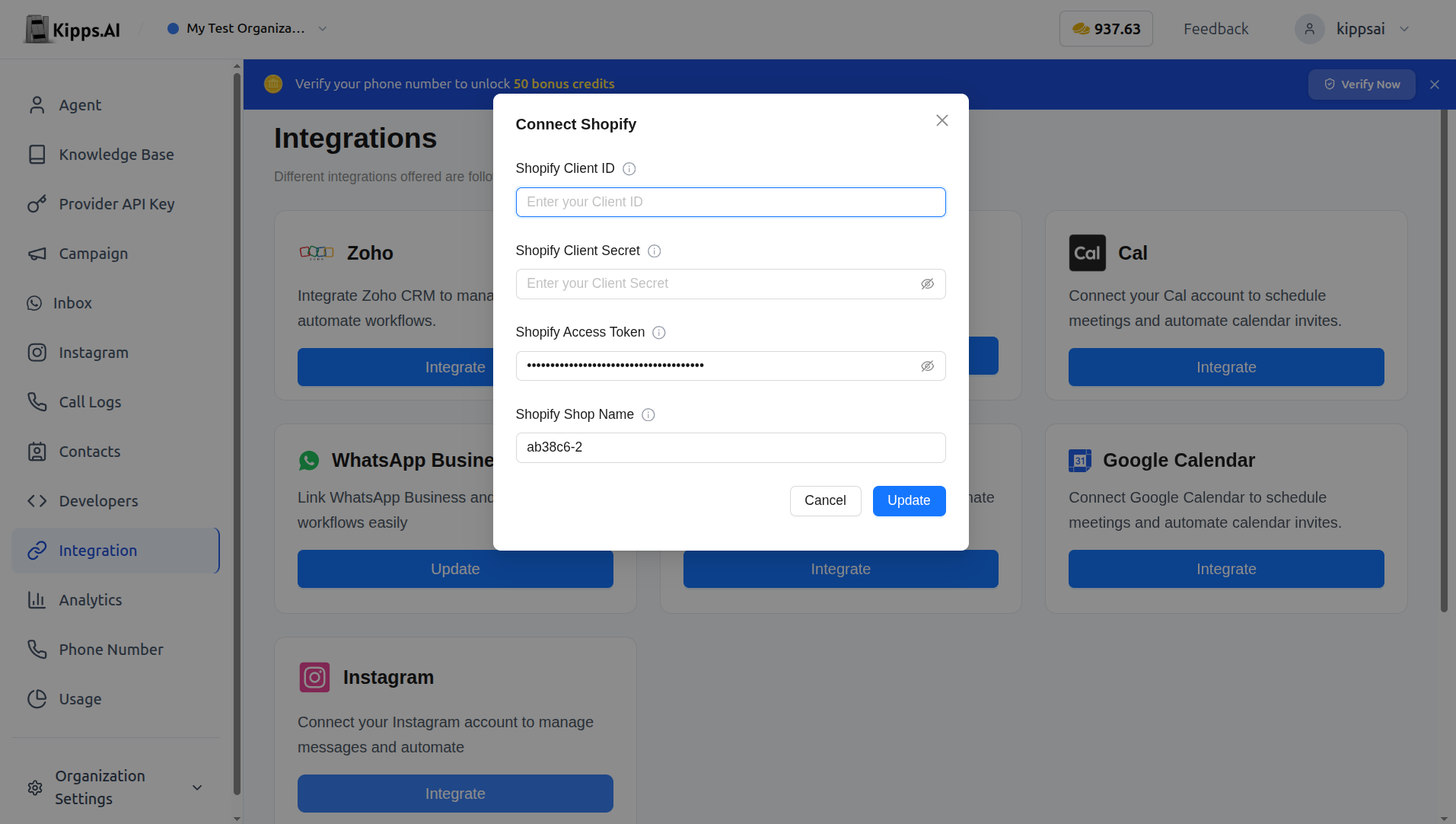
Need help generating these credentials? Follow this step-by-step Shopify credentials setup guide to create your Client ID, Client Secret, and Access Token (including the
curlcommand used to generate the Access Token). You can also watch the walkthrough video at the top of this page for a live demo of the setup. -
-
Save the Connection:
- Click "Connect" or "Update" to save your Shopify credentials.
Step 2: Enable Shopify Functionality for an Agent
After connecting your store, enable your AI Chat Agent or voicebot to use it:
-
Open Your Agent Settings
-
Find the "Functions" or "Tools" Section
-
Add a New Function:
- Click "+ Add Function" and choose "Shopify"
-
Fill in Function Details:
- Function Name: Choose a simple, descriptive name like
get_order_status - Description: Explain when the AI should use this, e.g., "Use this function to check a customer's Shopify order status after getting their email address or order ID."
- Function Name: Choose a simple, descriptive name like
-
Save:
- Your agent is now equipped to use the Shopify integration.
How It's Used in a Conversation
Order lookups can be performed using either the customer's email address or their order ID.
- Customer: "Where is my order?"
- Agent: "I can help. Could you please provide the email you used for your order, or your order ID?"
- Customer shares their email or order ID.
- Agent looks up the order in Shopify using that information.
- Agent responds with the order’s current status in real-time.
This integration lets your agents provide immediate, accurate support for order inquiries—without any manual effort from your support team.
Best Practices
- Write a precise function description: The agent uses the description to decide when to call the Shopify function. Be specific: "Use this function when a customer asks where their order is or wants order tracking information, after collecting their email address or order ID." Vague descriptions lead to the function being triggered at the wrong moments.
- Ask for an identifier before checking orders: Shopify order lookups require a customer identifier—either an email address or an order ID. Configure your conversation flow to collect one of these before the agent attempts a status check.
- Test with real Shopify orders: After setup, create a test order in your Shopify store and ask the agent about it. Verify the order status returned is accurate before going live.
- Use a limited-scope Access Token: When generating your Shopify Client ID, Client Secret, and Access Token, grant only the permissions needed (read orders). Avoid using credentials with write access for this integration.
Troubleshooting
The agent says it cannot find the order after the customer provides their email or order ID. Confirm the email or order ID the customer entered matches exactly what's on the Shopify order—including capitalization and any typos for email addresses. Also verify the Access Token you provided has read access to orders.
I get a connection error when saving Shopify credentials.
Double-check the Shopify Shop Name field. Enter only the store's name (e.g., my-cool-store), without https://, .myshopify.com, or any trailing slashes. The Client ID, Client Secret, and Access Token must also be valid and not revoked.
The Shopify function is not triggering even when customers ask about orders. Review the function's description field. If it is too broad or too narrow, the AI may not match it to order inquiry intents. Update the description to include explicit examples of phrases that should trigger it.
I updated my Shopify credentials but the agent still uses the old connection. After updating credentials in the Integrations section, open each agent that uses the Shopify function, confirm the function settings, and save the agent. Some caching may require a brief wait before the new credentials take effect.
Frequently Asked Questions
Does the Shopify integration work with Shopify Starter plans? The integration requires access to Shopify's Admin API, which is available on all Shopify plans including Starter. Verify that your plan allows API access by checking your Shopify admin under Settings > Apps and sales channels > Develop apps.
Can the agent perform actions beyond checking order status, like cancelling or refunding orders? Currently, the primary supported action is checking order status. Write operations (cancellations, refunds) are not exposed through this integration to prevent accidental modifications.
Can I connect multiple Shopify stores? You can update the connection to point to a different store, but only one Shopify store can be connected per account at a time. Contact support if you need multi-store support.
Is customer order data stored by Kipps.AI after being retrieved? Order data retrieved from Shopify is used only to formulate the agent's response in that conversation session. It is not stored persistently in Kipps.AI beyond standard conversation logging.
What Shopify API permissions are required for this integration?
The minimum required permission is read_orders. When creating a Custom App in your Shopify admin, enable the read_orders Admin API access scope and use the generated Admin API access token for the integration.
Related Articles