Functions – Shopify Function (WhatsApp Agent)
How to configure Shopify Functions for a WhatsApp Agent to look up orders, products, and send context-aware WhatsApp updates (session messages or approved templates).
Overview
The Shopify Function for WhatsApp Agents connects your Shopify store to a WhatsApp-enabled agent. Use it to fetch order details, product availability, and transactional info and then deliver that information to users over WhatsApp (session messages or templates).
See the general Shopify Function guide for baseline setup: AI Chat Agents – Shopify Function.
Why Use Shopify Functions with a WhatsApp Agent?
- Deliver order confirmations, tracking links, and receipts via WhatsApp so users can save them.
- Provide product availability or price checks directly in chat.
- Automate follow-ups (cart reminders, shipping updates) using WhatsApp templates.
- Bridge voice/web interactions with WhatsApp for persistent records.
Also ensure your WhatsApp integration is active: WhatsApp Settings. To send messages programmatically from voice or chat flows, consider the built-in send_whatsapp_message function.
How It Works (WhatsApp-specific)
- Configure a Shopify Function in the WhatsApp Agent (name, description, action mapping).
- Define payload attributes the agent should collect (e.g., order_id, email, product_sku).
- When intent matches, the agent calls Shopify via the configured integration to fetch data.
- Use the API response to compose a WhatsApp reply — session message for in-window replies or an approved template for messages outside the 24-hour session.
- Platform sends the message using the agent’s connected WhatsApp number.
How to Configure a Shopify Function for WhatsApp Agents
Step 1: Open Functions in Your WhatsApp Agent
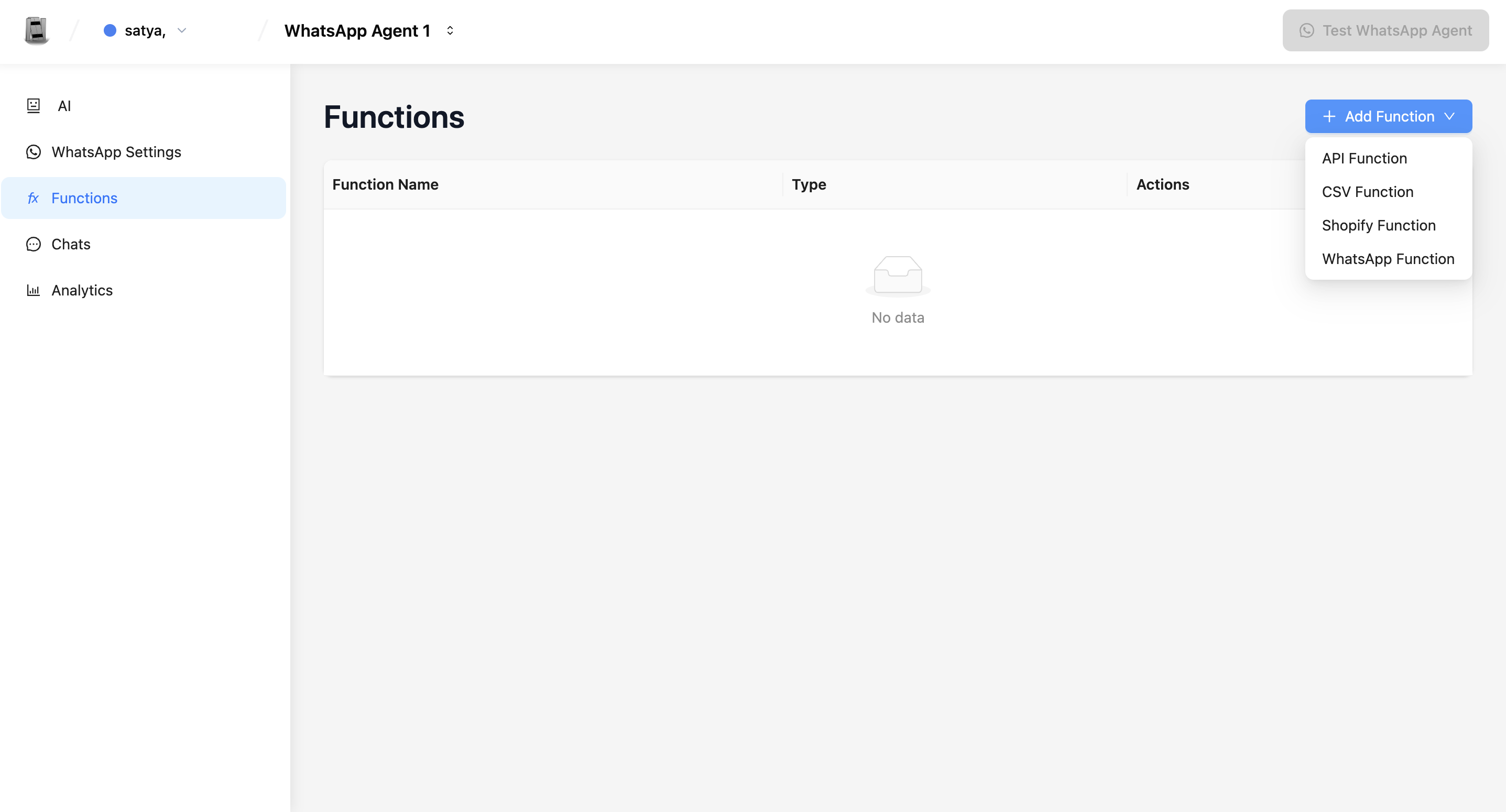
From your WhatsApp Agent dashboard, click Functions.
Step 2: Add Shopify Function
Click + Add Function → Shopify Function.
Step 3: Fill in Details
- Function Name: e.g.,
whatsapp_get_order_status - Description: Explain when to use it (e.g., “Fetch order status by order_id and offer to send a WhatsApp tracking link to the user.”)
- Payload Schema: Define attributes like
order_id,email,product_sku(mark required where needed).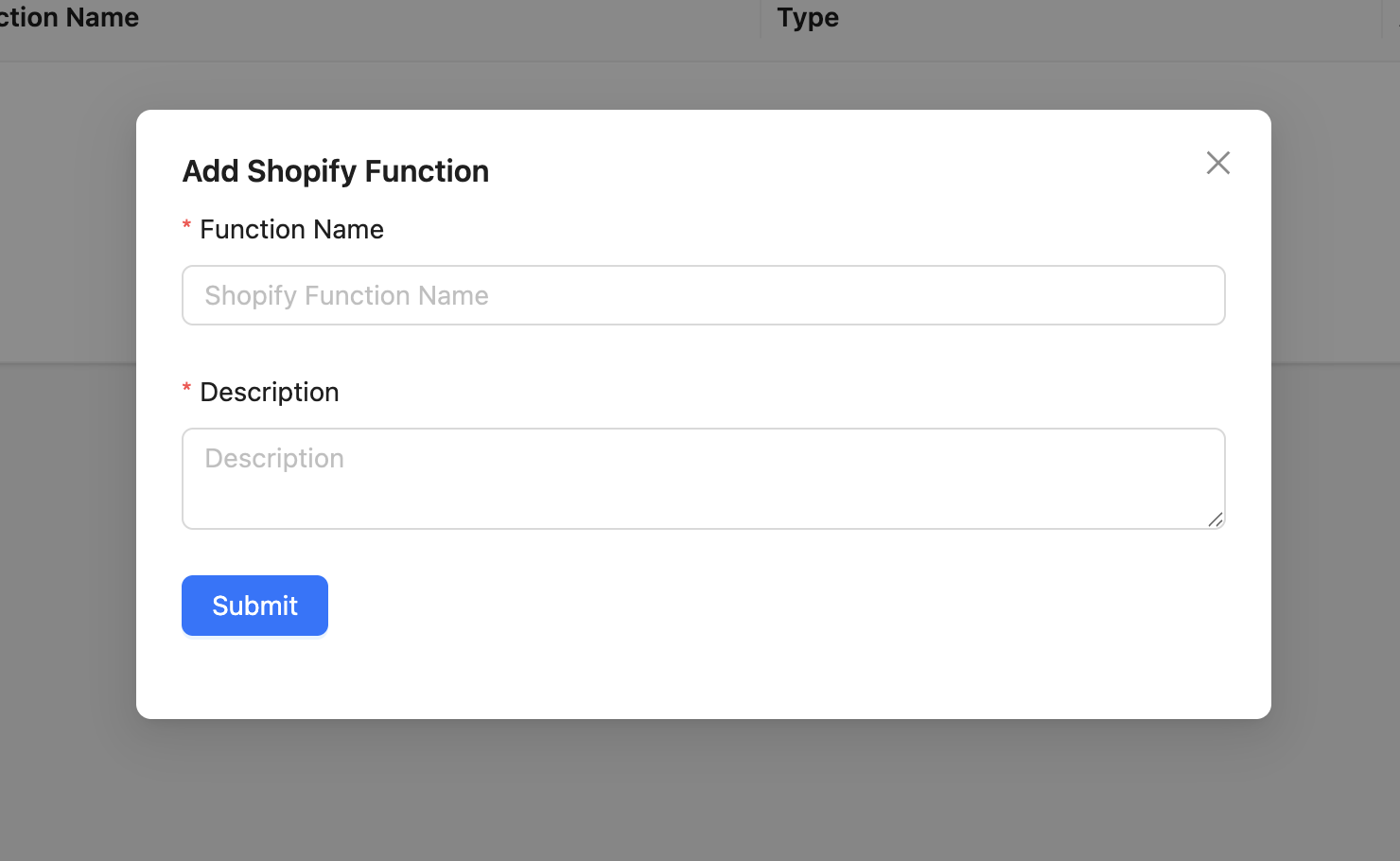
Important WhatsApp notes:
- You generally do not need to request the recipient phone number — the platform uses the WhatsApp session identity.
- For messages outside the 24-hour window, use approved templates and map CSV/API fields to template params.
Step 4: Save and Test
Click Submit and test using the agent's WhatsApp integration or sandbox.
Payload & Message Patterns
Common attributes:
- order_id (string, required)
- email (string, optional)
- product_sku (string, optional)
- send_as_template (boolean) — if true, map response fields to a template
Message options:
- Session text: quick conversational reply inside 24-hour session.
- Template message: for transactional pushes outside the session window — include template name, namespace, language, and params.
If you need to trigger a WhatsApp send after retrieving Shopify data, call or map to send_whatsapp_message with the prepared message/template parameters.
Example Use Case
User: "Where's my order 12345?"
Function:
- Name:
whatsapp_get_order - Payload:
{ order_id: string (required) }
Flow:
- Agent asks for or extracts
12345. - Function queries Shopify for order 12345.
- Response:
{ status: "Shipped", tracking_url: "https://..." }. - Agent offers: "Your order 12345 is Shipped. Would you like the tracking link on WhatsApp?"
- If user agrees, agent triggers
send_whatsapp_messageto send a session or template message with the tracking URL.
- If user agrees, agent triggers
Best Practices (WhatsApp)
- Use clear descriptions so the AI knows when to call the Shopify Function.
- Validate Shopify responses and sanitize any user-facing fields.
- Prefer templates for transactional pushes (outside 24-hour window) and keep template mappings explicit.
- Respect user opt-in and local messaging regulations.
- Test extensively on a sandbox or your integration number.
Managing Your Functions
- Edit: update name, description, or payload mapping from the Functions list.
- Delete: remove unused functions with confirmation.
- Test: simulate common queries and confirm messages deliver correctly.
Summary
The Shopify Function for WhatsApp Agents brings e-commerce capabilities into WhatsApp conversations: order lookups, product checks, and transactional messages. Configure attributes carefully, decide whether replies should be session messages or templates, and use send_whatsapp_message when you need to programmatically deliver WhatsApp messages.
Troubleshooting
The WhatsApp agent doesn't fetch order data even when users ask about their order. Check the function description. It must clearly describe the trigger intent: "Use this function when the user asks where their order is, what the delivery status is, or wants tracking information. Ask for their order ID if not provided." A vague description will cause the agent to skip the function.
The function is called but returns "order not found" for a valid order.
Confirm the Shopify Access Token in the global Shopify integration has read_orders permission. Also check that the order_id or email the customer provided matches exactly what is in Shopify—including case sensitivity for emails.
Messages with tracking links are delivered inside the 24-hour window but fail outside it. Outside the session window, you must use an approved WhatsApp template. Map the tracking URL to the appropriate template variable and ensure the template is approved in your WhatsApp Business Manager before using it.
Frequently Asked Questions
Can the WhatsApp Shopify function also create or modify orders? No. The current Shopify integration supports read-only operations (order status, product availability). Write operations such as creating orders, processing returns, or applying discounts are not supported through this function.
Does the function work with Shopify Headless or Custom Storefronts? The function uses Shopify's Admin API, which is the same regardless of your storefront technology. As long as your Shopify store has the Admin API enabled and the access token has the required scopes, the function will work.
Can I configure the function to automatically send a tracking link without the user asking?
Yes. Configure the function description to trigger proactively—for example, after the agent receives an order confirmation event or when a user provides their order ID without being asked. Pair it with send_whatsapp_message to deliver the link automatically.
What if a customer has multiple orders under the same email? The function returns all orders matching the provided identifier. Your function description and agent instructions should define how to present multiple results to the user (e.g., show the most recent order, or list all orders).
Related Articles