Functions – CSV Function (WhatsApp Agent)
How to configure a CSV Function for a WhatsApp Agent to look up contact data and send context-aware WhatsApp messages using uploaded CSV audiences.
Overview
The CSV Function for WhatsApp Agents lets your agent reference structured CSV data (e.g., phone numbers, order IDs, names) and use those values to send targeted WhatsApp messages or lookups during conversations and campaigns.
This complements the generic CSV Function guidance: Functions – CSV Function.
Why Use the CSV Function for WhatsApp Agents?
- Deliver personalized WhatsApp follow-ups (tracking links, confirmations).
- Use phone-based lookups to find order status or account info quickly.
- Automate message sending to rows from an uploaded audience for campaigns.
- Keep message content dynamic by mapping CSV columns to message templates.
Also see the WhatsApp agent settings for number/connectivity details: WhatsApp Settings and the built-in WhatsApp sender send_whatsapp_message.
How It Works (WhatsApp-specific)
- Upload a CSV that includes a phone number column (E.164 format recommended, e.g.,
+14155552671). - Define which columns the agent should read (e.g., phone, name, order_id, tracking_url).
- When a user query or campaign trigger matches, the WhatsApp Agent can:
- Lookup a row by phone or key column and return values in-chat, or
- Use the data to call a function that sends a WhatsApp message (session message or template).
- The platform uses the agent’s connected WhatsApp number to deliver messages.
How to Configure a CSV Function for WhatsApp Agents
Step 1: Open Functions in Your WhatsApp Agent
From your WhatsApp Agent dashboard, click Functions in the sidebar.
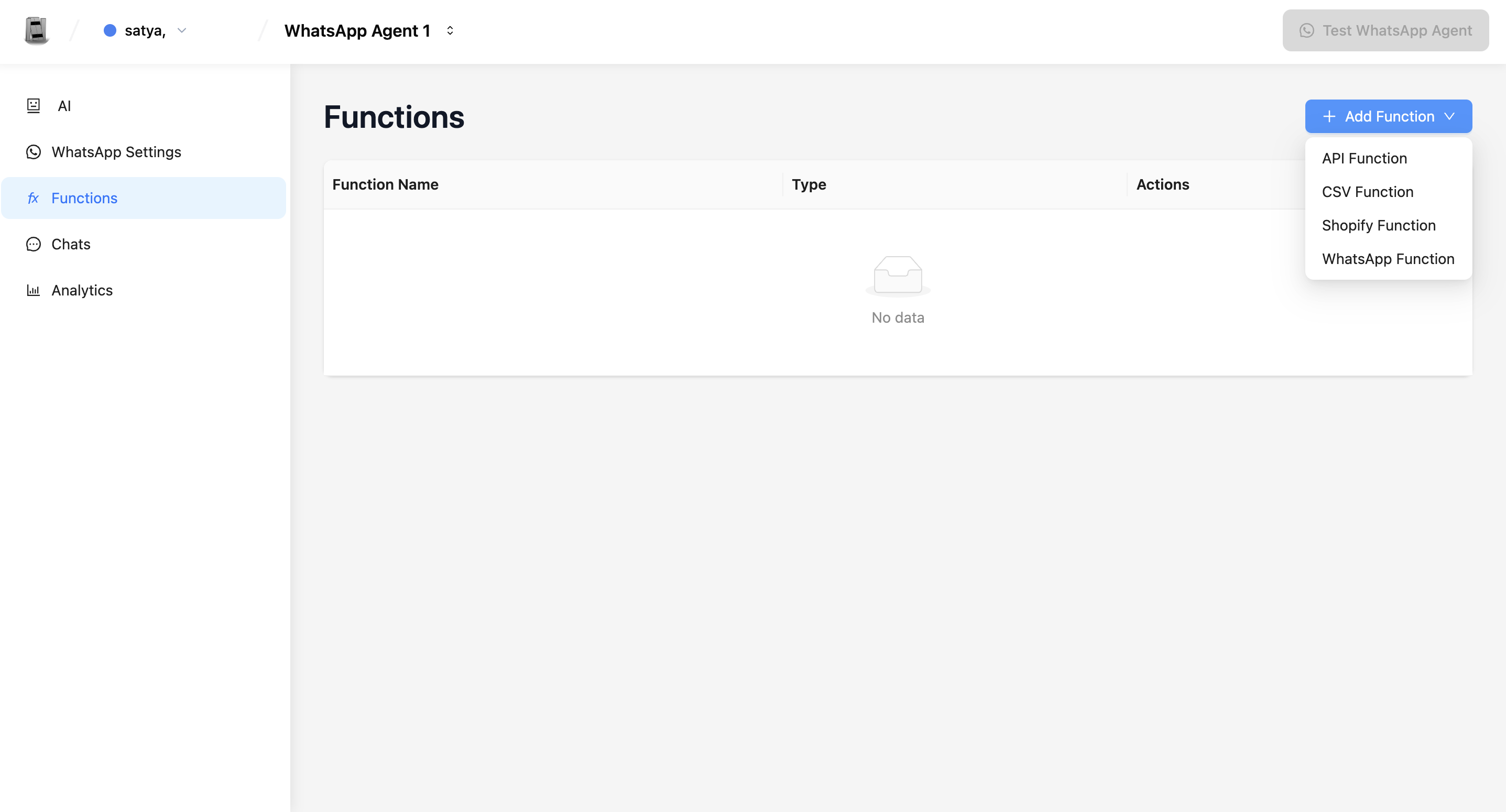
Step 2: Add a New CSV Function
Click + Add Function → CSV Function.
Step 3: Upload and Define the Function
- Function Name: descriptive (e.g.,
whatsapp_audience_lookup,order_lookup_by_phone). - Description: explain when the agent should use it (e.g., “Look up an order by phone and return order status or send a WhatsApp message with tracking info”).
- Upload File: include a required phone column when the CSV is used for outbound messaging.
- Map Columns: indicate which CSV columns map to system attributes (phone, name, order_id, message, media_url).
Important: If your use-case sends messages programmatically, include a column for message content or template params, or let the agent compose messages using looked-up fields.
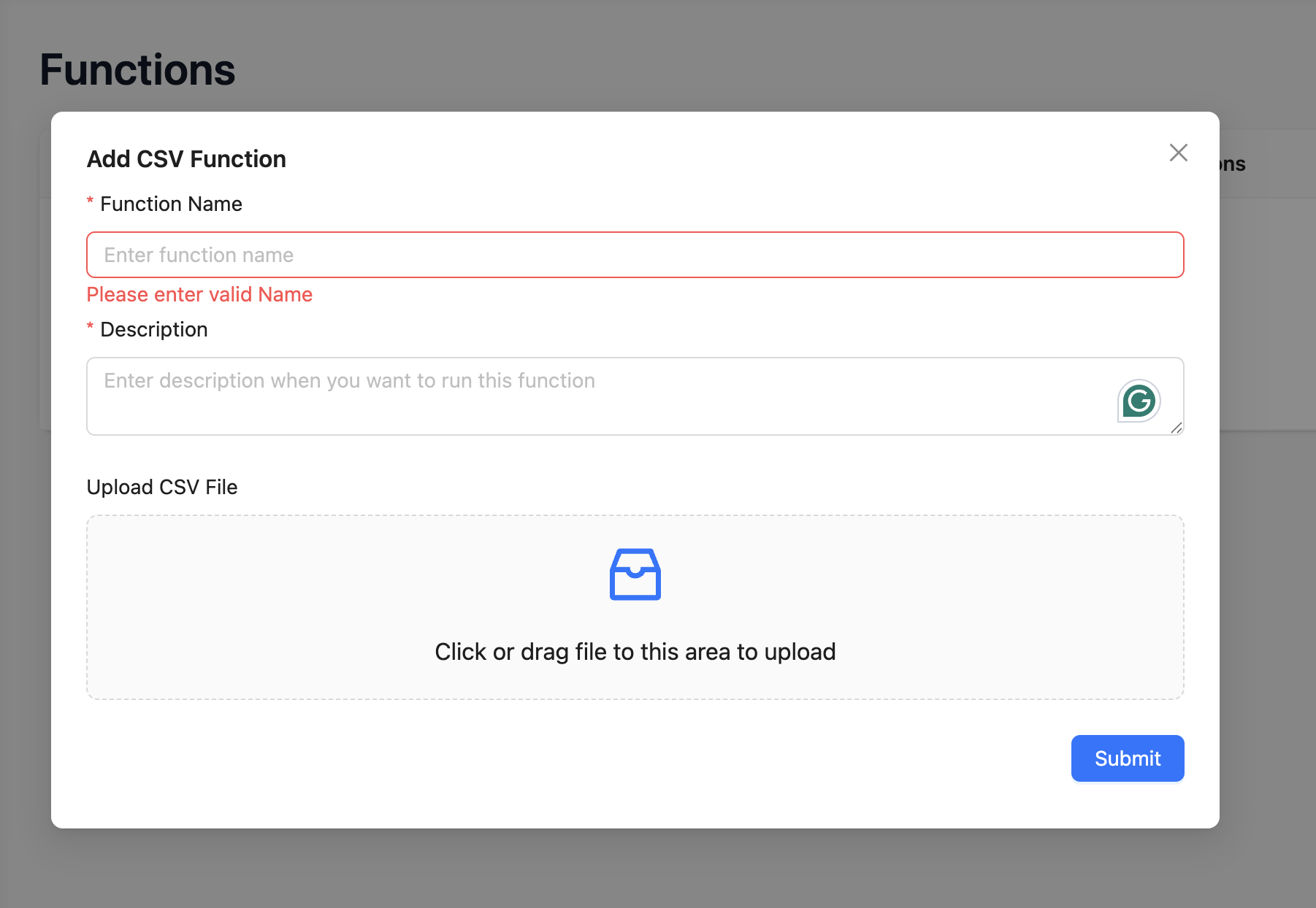
Step 4: Save and Test
Click Submit and test via the Agent test flow or a sandboxed WhatsApp number.
CSV Requirements & WhatsApp Notes
- Phone numbers: use E.164 format (+CountryCodeNumber).
- Opt-in: ensure recipients have consent to receive WhatsApp messages per policy/law.
- Templates: messages outside the 24-hour window require approved templates — map CSV fields to template params.
- Media: include valid URLs for images/documents and respect WhatsApp media limits.
- Rate limits & messaging windows: follow integration provider limits and 24-hour session rules.
Example Use Case
CSV:
| phone | name | order_id | tracking_url |
|---|---|---|---|
| +919876543210 | Priya Singh | 12345 | https://tracker.com/track/12345 |
Flow:
- User asks: “Where is my order?” Agent asks for phone or finds it from context.
- Agent looks up the row by phone → finds
tracking_url. - Agent either replies in-chat: “Your order 12345 is shipped. Track: https://...” or triggers
send_whatsapp_messageto send a session message with the tracking link.
Best Practices (WhatsApp)
- Use clear descriptions so the Agent knows when to use the CSV Function.
- Validate phone formats and clean CSV data before upload.
- Keep CSVs compact for performance; split large audiences.
- Use templates for transactional messages outside session windows.
- Respect privacy and opt-in requirements.
Managing Your Functions
- Edit: update the CSV or mapping using the Edit (pencil) action.
- Delete: remove unused functions via the Delete icon with confirmation.
- Test: always run sample lookups and message sends on a sandbox or your integration number first.
Summary
The CSV Function for WhatsApp Agents connects tabular audience data to your messaging flows—enabling personal, automated WhatsApp interactions. Define phone mappings, map template params, ensure opt-in, and test thoroughly.
Troubleshooting
The WhatsApp agent doesn't trigger the CSV lookup when users ask relevant questions. Update the function description to explicitly cover the phrases users are likely to ask. For example: "Use this function when the user asks about their order, delivery status, or tracking information. Look up by phone number and return the relevant details."
Messages outside the 24-hour session window are not being sent. WhatsApp requires approved templates for messages sent outside the 24-hour session window. Ensure your message uses an approved template and that your template parameters are correctly mapped from the CSV columns.
Phone number lookups return no results even though the number exists in the CSV.
Verify phone numbers in the CSV are in E.164 format (+CountryCodeNumber). Numbers formatted as 09876543210 or +91-9876-543210 with dashes will not match correctly. Clean and reformat the CSV before re-uploading.
Frequently Asked Questions
Can the WhatsApp CSV function send to numbers not in the current conversation?
The CSV function is designed to look up and retrieve data. Sending a message to a phone number other than the active conversation's contact requires using a campaign or the send_whatsapp_message function with a custom number.
What is the maximum number of rows a CSV can have for this function? Keep CSV files concise (under a few hundred rows) for best performance. For large audience lists, use the Campaign feature with a CSV audience source instead of the CSV Function.
How do I ensure WhatsApp opt-in compliance when using CSV data? You are responsible for ensuring all phone numbers in your CSV have opted into receiving WhatsApp messages from your business. Sending messages to non-consenting recipients violates WhatsApp's Business Policy and can result in your number being banned.
Related Articles