Functions – API Function (WhatsApp Agent)
How to configure API Functions for a WhatsApp Agent to fetch live data and send context-aware WhatsApp messages during conversations.
Overview
API Functions for WhatsApp Agents let your bot call external REST APIs and then deliver the results over WhatsApp (session messages or templated messages). This enables dynamic, personalized WhatsApp experiences—e.g., order lookups, booking confirmations, or sending tracking links directly to users.
Why Use API Functions with WhatsApp?
- Deliver Persistent Info: Send links, receipts, and confirmations that users can save in chat.
- Bridge Channels: Combine real-time voice/web logic with WhatsApp follow-ups.
- Automate Workflows: Trigger CRM updates, ticket creation, or notifications and inform the user via WhatsApp.
- Personalize Messages: Use API data (order status, ETA) to craft tailored WhatsApp replies.
Refer to the general API Function guide for baseline setup: AI Chat Agents – API Function.
How It Works (WhatsApp-specific)
- Configure an API Function in your WhatsApp Agent (name, description, URL, HTTP method).
- Define payload attributes the agent should collect (e.g., order_id).
- When intent matches, the agent extracts required values and calls your API.
- Use the API response to compose a WhatsApp message — either a session text or a managed template via the platform's WhatsApp integration.
- The system sends the message using the agent's connected WhatsApp number.
See the WhatsApp messaging function for built-in send behavior: send_whatsapp_message.
How to Configure an API Function for WhatsApp
Step 1: Open Functions in Your WhatsApp Agent
Go to your WhatsApp Agent and click Functions in the sidebar.
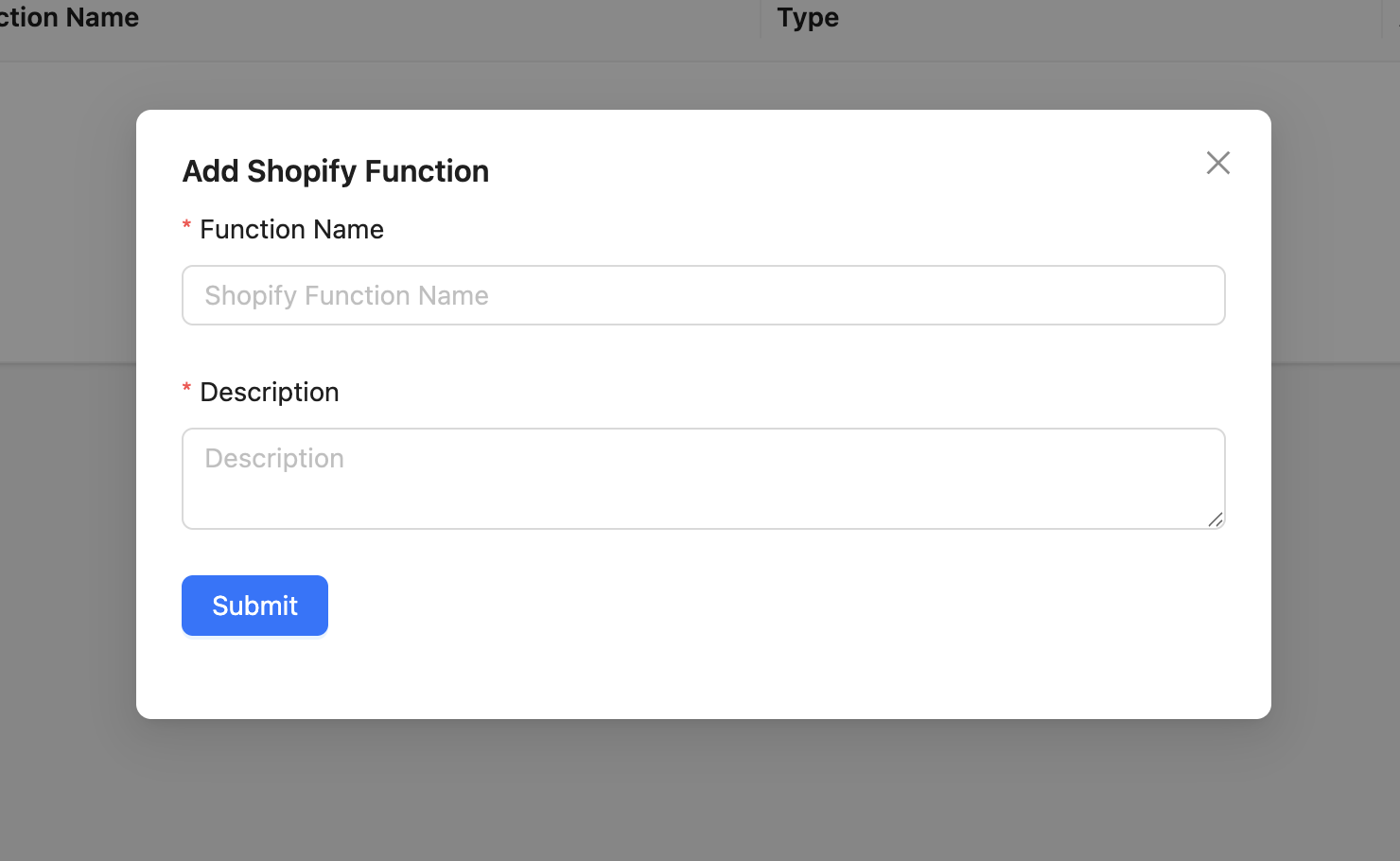
Step 2: Add API Function
Click + Add Function → API Function.
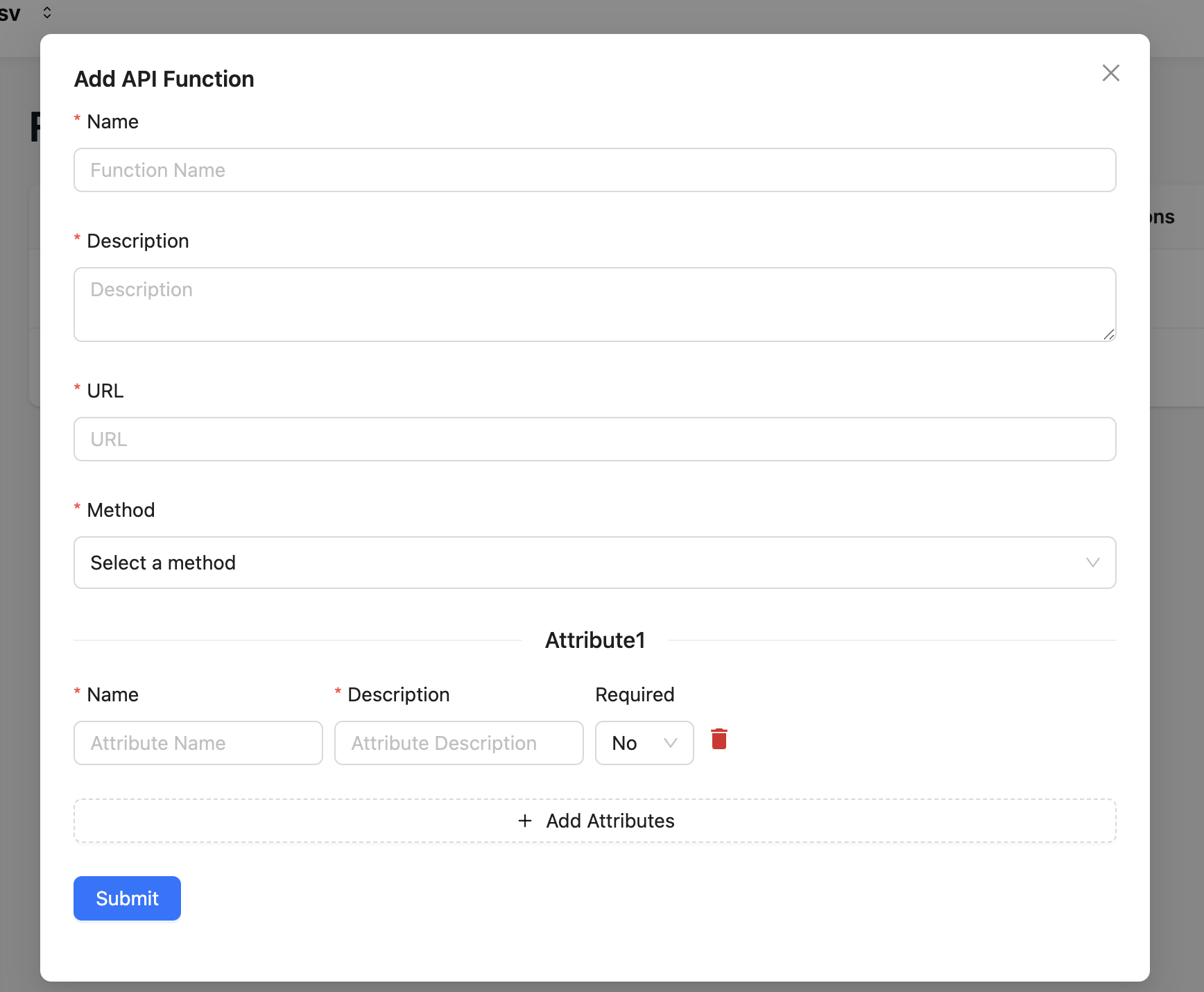
Step 3: Enter Details
- Function Name: e.g.,
send_order_status_whatsapp - Description: Explain when to use it (e.g., "Fetch order status and send a WhatsApp update to the caller").
- URL: Full endpoint (e.g.,
https://api.myshop.com/orders/status) - Method: GET / POST / PUT / DELETE
Step 4: Payload Schema
Add attributes your API needs (e.g., order_id: string (required)). You can also include optional attributes for message formatting, e.g., include_tracking_link: boolean.
Important WhatsApp notes:
- You usually do not need to ask for the recipient phone number; the platform will use the call/session phone automatically.
- For transactional messages outside the 24-hour session, use approved templates (see Best Practices).
WhatsApp Payload and Message Options
Common attributes for WhatsApp flows:
- message (string) — free-text session message content.
- template_name, template_namespace, template_language — when sending pre-approved templates.
- template_components / template_params — structured template variables.
- media_url — for images/documents (ensure WhatsApp media limits).
If you use templates, the agent should call your API and then trigger a send_whatsapp_message with template params.
Example Use Case
User: "What's my order 12345 status?"
Function config:
- Name:
get_order_status - Description:
Fetch order status by order_id and return tracking_url if available. - Payload:
{ order_id: string (required) }
Flow:
- Agent extracts
12345→ callsGET https://api.myshop.com/orders/12345. - API returns
{ status: "Shipped", tracking_url: "https://..." }. - Agent sends a WhatsApp session message: "Your order 12345 is Shipped. Track here: https://..."
Or use a template:Order_Status_Templatewith params [12345, Shipped, tracking_url].
Managing API Functions
- Edit configuration or payload attributes from the Functions list.
- Delete unused functions with confirmation.
- Test functions using the agent's test flows and the connected WhatsApp number (or sandbox).
Best Practices (WhatsApp)
- Use approved templates for messages outside the 24-hour session window.
- Keep templates concise and map API fields precisely to template params.
- Respect WhatsApp media size and format limits when sending images/documents.
- Validate and sanitize API responses before sending to users.
- Test extensively on your connected integration number or sandbox.
- Ensure users opted in to receive WhatsApp messages where required by law.
Also confirm WhatsApp integration is active in the agent settings: WhatsApp Settings.
Summary
API Functions let WhatsApp Agents fetch live data and deliver it directly in chat—improving user experience and automating follow-ups. Describe the function clearly, define payload attributes, and decide whether to send session messages or approved templates.
Troubleshooting
The WhatsApp Agent doesn't call the API function when users ask a relevant question. The function description controls when the agent decides to use the function. Make it more explicit—include specific user phrases and the action to take: "Use this function when the user asks for their order status, delivery details, or tracking information. Extract the order_id from the conversation before calling."
The API is called but the response data is not included in the WhatsApp message. Verify your API endpoint returns data in the format your function expects. Log the API response to confirm it contains the expected fields. Update the function description to specify exactly which fields from the response the agent should reference in its reply.
WhatsApp messages with template parameters are failing. Confirm the template is approved in your Meta Business Manager account and that the template name, namespace, and language code exactly match what is configured in Meta. A single character mismatch will cause template delivery to fail.
Frequently Asked Questions
Can the API function send a WhatsApp message to a number other than the current conversation? By default, the function uses the phone number of the active WhatsApp session. To send to a different number, include the target phone number as a function attribute and configure your backend to handle routing accordingly.
What authentication methods are supported for the external API? The API Function supports standard HTTP headers, including API keys, Bearer tokens, and Basic Auth. Add your authentication headers in the function's header configuration. OAuth flows that require a redirect are not directly supported.
Is there a timeout for API calls made during a WhatsApp conversation? Yes. API calls have a timeout to prevent conversations from stalling. Keep your external API responses fast (under 5 seconds). For slow operations, consider triggering the API asynchronously and sending a follow-up WhatsApp message when the result is ready.
Can I test the API function without sending a real WhatsApp message? Use the agent's test flow in the Kipps.AI dashboard to simulate conversations. The API function will be called with test data, allowing you to verify the API response and agent behavior without triggering an actual WhatsApp delivery.
Can one API function trigger multiple WhatsApp messages in a single conversation? The function is designed to produce one response per call. For multi-message flows, structure your conversation logic so the agent calls the function once per user interaction and uses follow-up messages to continue the dialogue.
Related Articles