Integrations - Zoho CRM
Connect Kipps.AI with Zoho CRM to automate lead management workflows and engage leads through campaigns.
Overview
The Zoho CRM integration connects your Kipps.AI account directly to your Zoho customer relationship management system. This powerful connection enables you to automate lead management workflows, such as instantly engaging new leads from Zoho with an AI-powered WhatsApp campaign.
This guide walks you through the setup process—from entering your Zoho credentials to enabling the integration for automated campaigns.
How the Zoho Integration Works
- Provide Credentials: Submit your Zoho API Client ID and Secret.
- Authorize with Zoho: Log in through Zoho to grant Kipps.AI secure access.
- Activate Workflows: Connect the integration to campaigns and workflows.
Step 1: Configure Your Zoho App
Before you begin, ensure your Zoho API client is set up in the Zoho Developer Console. During the setup, you’ll be asked to provide a Redirect URI.
-
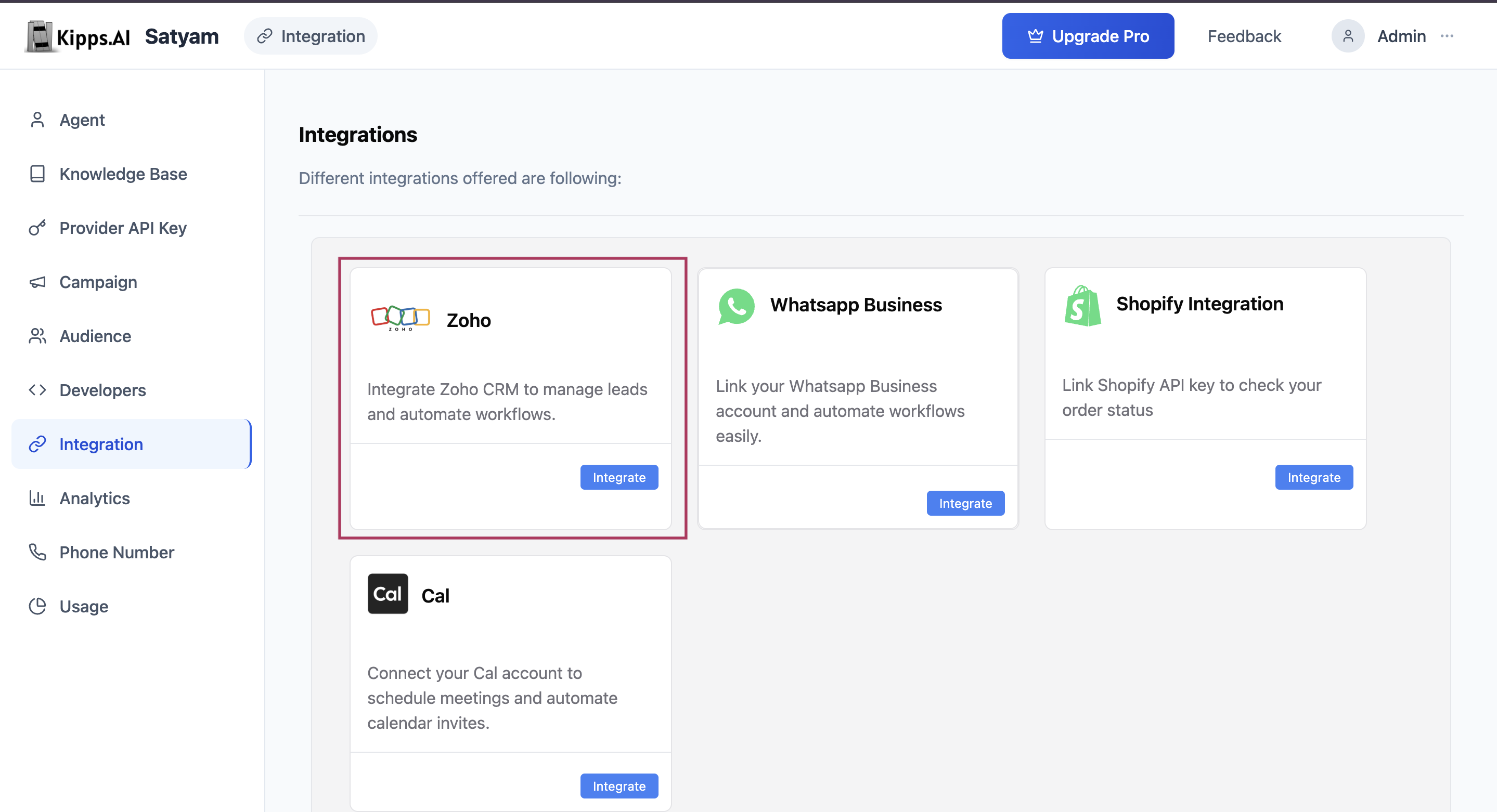
Navigate to Integrations Page From your dashboard, go to:
Integrations > Zoho CRM
-
Copy Redirect URI The page will display your Authorized Redirect URI (e.g.,
https://your-domain.com/integrations/zoho/call_back/your-user-id/). Paste this into your Zoho app configuration under "Authorized Redirect URIs."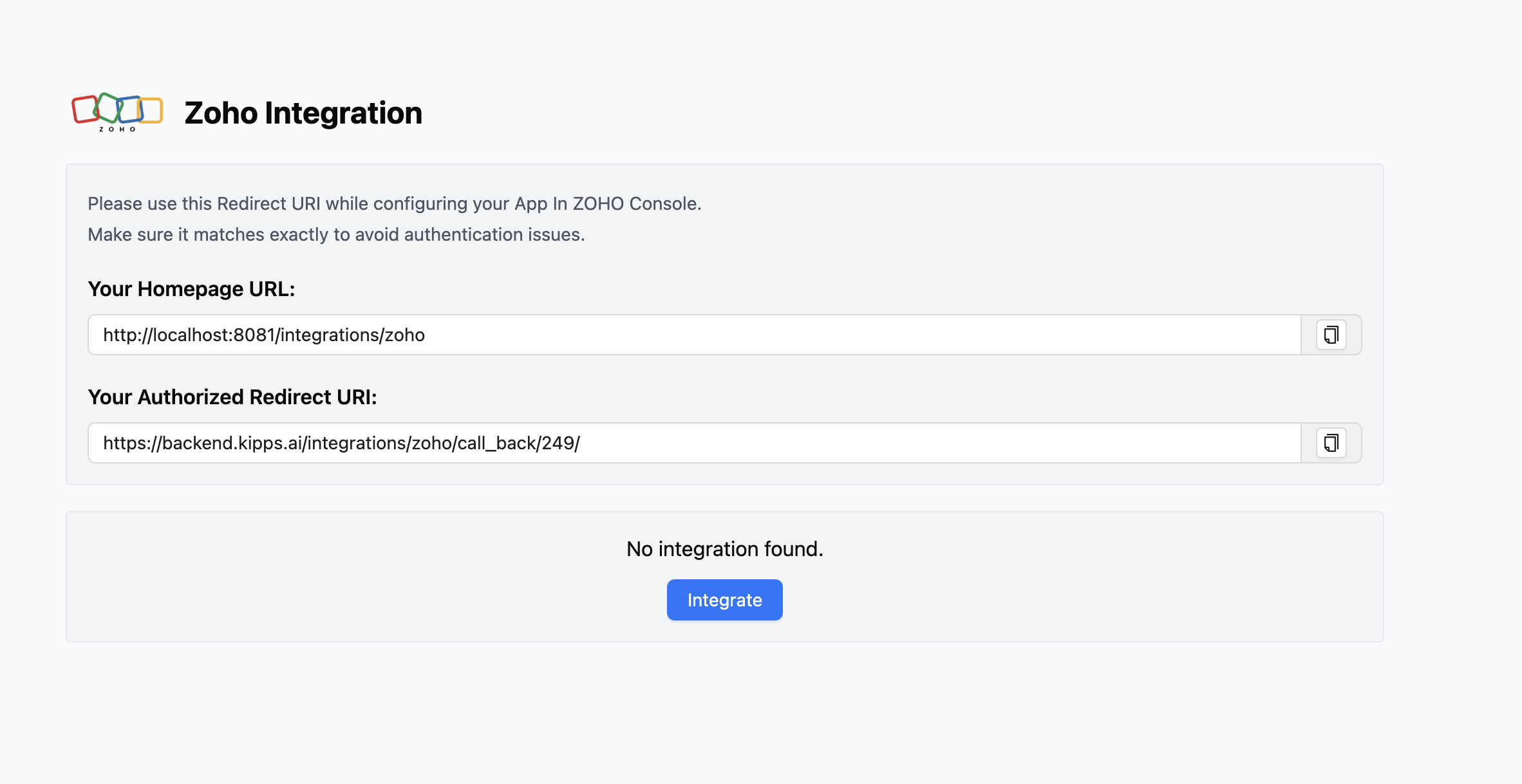
Step 2: Connect Your Zoho Account
-
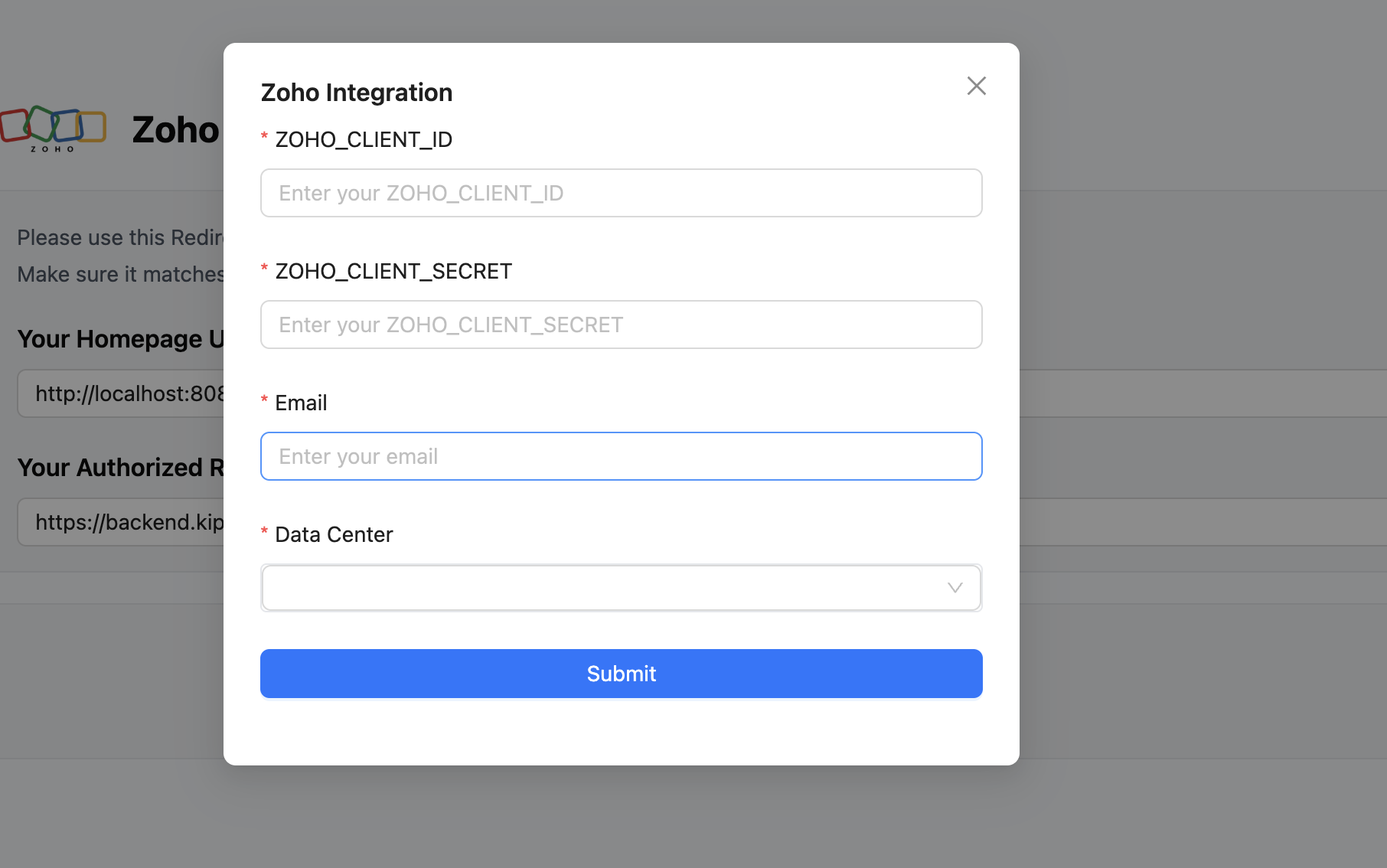
Open Integration Modal Click "Integrate" to open the configuration modal.
-
Enter Zoho Credentials:
- ZOHO_CLIENT_ID
- ZOHO_CLIENT_SECRET
- Email (linked to your Zoho account)
- Data Center (e.g., US, EU, IN)
-
Submit Your credentials will be stored securely and linked to your user profile.
Step 3: Authorize the Integration
After saving your credentials, you must authorize access.
-
Login via Zoho Click "Login with Zoho". A new window will redirect to Zoho’s login page.
-
Grant Access Log in and approve permissions. Upon success, you’ll be redirected back.
-
Confirmation The popup will confirm successful authorization. Kipps.AI stores your access token securely.
Using Zoho CRM in Campaigns
Once authorized, you can use Zoho as a lead source for campaigns.
-
Go to the Campaigns section.
-
When creating a campaign, select Zoho CRM as the audience source.
-
In Zoho CRM, set up a webhook to:
https://your-domain.com/zoho_webhook/<your-user-id>/
When new leads are added to Zoho, the webhook triggers a campaign to automatically engage them via channels like WhatsApp.
Zoho CRM integration allows seamless automation of your sales funnel, reducing manual effort and accelerating lead engagement at scale.
Best Practices
- Test the webhook in a Zoho sandbox first: Before connecting your production Zoho CRM, validate the webhook URL using Zoho's sandbox environment to avoid spamming live leads during setup.
- Use a dedicated Zoho API client for Kipps.AI: Creating a separate API client in the Zoho Developer Console (rather than reusing one shared with other tools) makes it easier to track usage and revoke access independently.
- Monitor webhook delivery logs: Zoho's automation logs show whether webhook triggers are firing correctly. Check these logs if new leads are not triggering campaigns as expected.
- Set up re-authorization reminders: Zoho OAuth tokens can expire. If campaigns stop firing for leads, re-authorize the integration from the Kipps.AI Integrations page.
Troubleshooting
I saved my Zoho credentials but the "Login with Zoho" step fails. Verify the Redirect URI in Kipps.AI exactly matches the one entered in the Zoho Developer Console. Even a trailing slash difference will cause the OAuth flow to fail. Also confirm the Data Center selection (US, EU, IN) matches your Zoho account's region.
Leads added in Zoho CRM are not triggering campaigns. Check that the webhook URL is correctly configured in Zoho's workflow or automation module. Zoho triggers webhooks only when a workflow rule fires—confirm the rule conditions match the new lead records being created.
The integration shows as authorized but campaigns are not running. Ensure the campaign itself is active and set to use Zoho CRM as its audience source. A connected integration does not automatically associate with a campaign—you must configure this in the Campaigns section.
I get a "redirect_uri_mismatch" error during Zoho authorization. Copy the Redirect URI displayed on the Kipps.AI Integrations page and paste it into your Zoho App's Authorized Redirect URIs field exactly. Then save in Zoho and retry the authorization in Kipps.AI.
Frequently Asked Questions
Which Zoho data centers are supported? Kipps.AI supports Zoho's US, EU, and India (IN) data centers. Select the data center that matches your Zoho account's region during setup to ensure proper API routing.
Can I use one Zoho CRM connection for multiple campaigns? Yes. Once the integration is authorized, you can select Zoho CRM as the audience source for as many campaigns as needed without re-authorizing.
What triggers the webhook in Zoho to start a campaign? You configure this in Zoho CRM's Workflow Rules or Automation module. A common trigger is "Lead Created"—when a new lead is added, Zoho fires the webhook, and Kipps.AI starts the configured campaign for that lead.
Does the integration support Zoho CRM's custom fields? The integration uses standard Zoho CRM lead fields for campaign audience segmentation. Custom field support depends on the specific campaign and data mapping configured. Contact support for advanced field mapping needs.
What happens to in-progress campaigns if the Zoho integration is disconnected? Campaigns that have already been triggered for specific leads will continue to run. Disconnecting the integration prevents new leads from triggering future campaigns via the webhook, but does not stop active ones.