Create Campaign for Zoho Audience
Learn how to create a campaign using synced leads from your Zoho CRM, with full voicebot automation, tracking, and reporting.
This guide explains how to create a campaign using your Zoho CRM leads as the audience. Integrating Zoho allows you to automatically sync leads and run campaigns without manual CSV uploads.
1. Integrate Zoho CRM
- Navigate to the Integrations page from the main dashboard.
- Click the Integrate button on the Zoho card.
- Follow the on-screen instructions to authorize your Zoho account:
- Enter your Zoho Client ID, Client Secret, Email, and select your Data Center.
- Copy and use the provided Redirect URI in your Zoho app configuration.
- Complete the authentication flow to connect your Zoho CRM.
2. Start Creating a Campaign
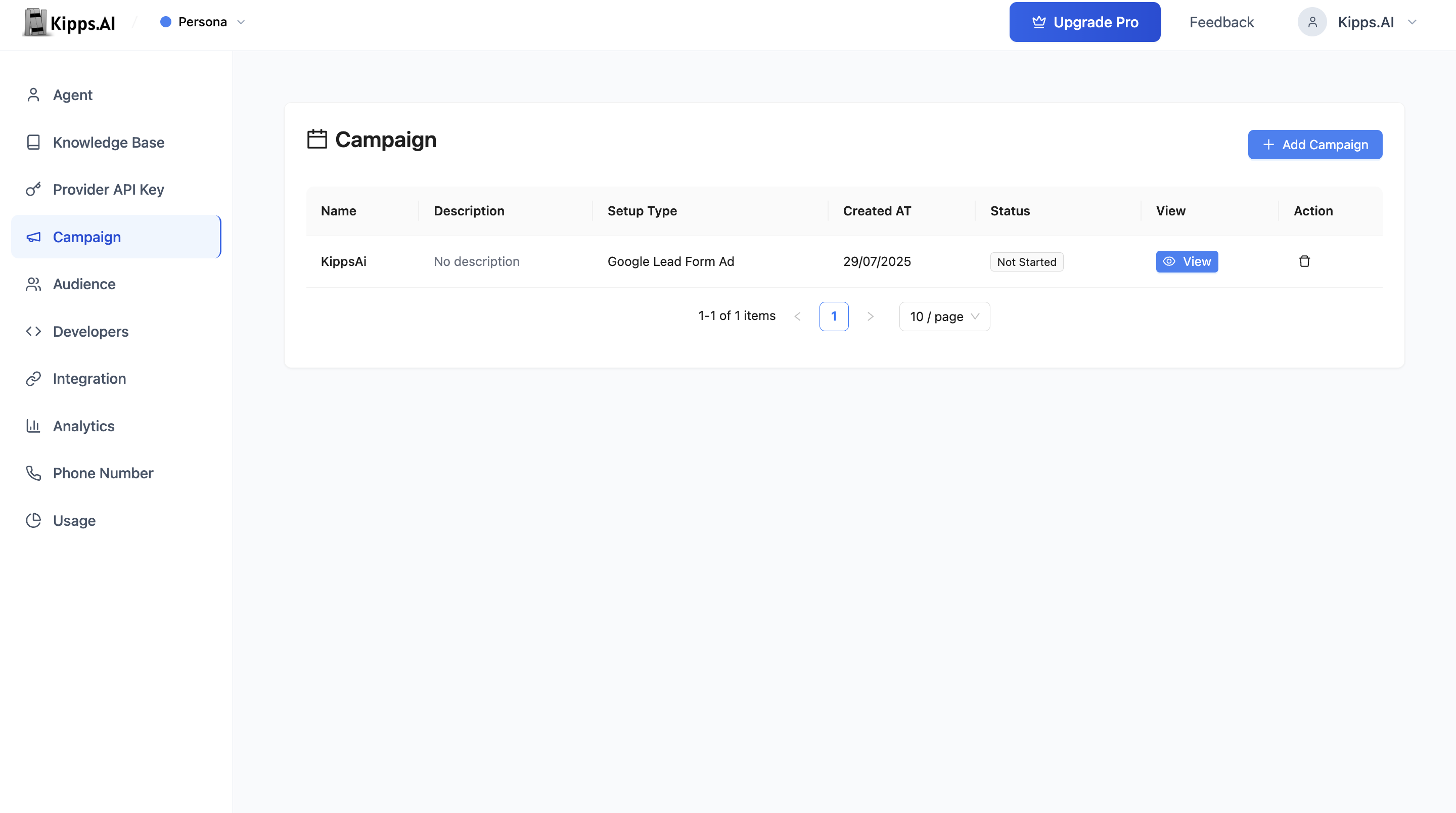
- Go to the Campaign tab.
- Click Add Campaign or + Create Campaign.
3. Fill Campaign Details
- Campaign Name: Enter a descriptive name for your campaign.
- Description: Add details about the campaign’s purpose.
- Duration: Set how many days the campaign should run.
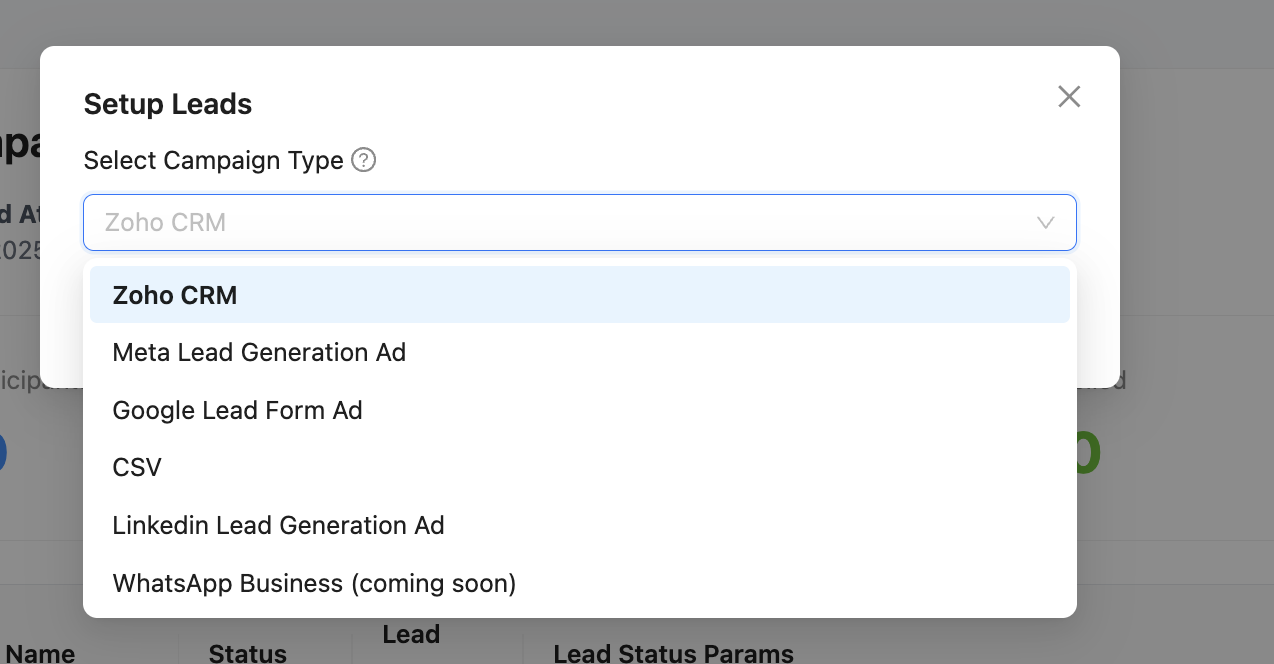
4. Select Setup Type as Zoho
- In the Setup Type or Audience Source field, select Zoho CRM from the dropdown.
- This tells the system to use your Zoho leads as the campaign audience.
5. Configure Campaign Settings
- Select Voice Agent: Choose the AI voicebot that will make the calls (for voice campaigns).
- Initial Message: Set the opening message the bot will deliver.
- System Prompt (optional): Provide instructions for the bot’s behavior.
- Lead Qualification Prompt: Define how the bot should qualify leads.
- Lead Qualification Params: Add any custom fields you want to collect or qualify (e.g., "Interested", "Budget").
6. Review and Launch
- Review all settings.
- Click Create to save the campaign.
- Once setup is complete, start the campaign from the campaign list.
Features
- Automatic Lead Sync: Your Zoho leads are automatically fetched and used as the campaign audience.
- No Manual Uploads: No need to upload CSVs; your CRM data stays in sync.
- AI Voicebot Integration: Use advanced voice agents for automated, natural conversations.
- Custom Prompts: Personalize the initial message and qualification logic.
- Lead Qualification: Automatically tag and qualify leads based on responses.
- Analytics: Track delivery, response, and conversion rates in real time.
- Downloadable Reports: Export leads and campaign results as CSV.
- Status Tracking: Monitor campaign progress (Not Started, On Going, Completed).
Monitoring and Managing Campaigns
View Campaign Status and Analytics:
- See detailed statistics: total participants, contacted, replied, failed, and conversion rates.
Download Lead Data and Call Transcripts:
- Export results for further analysis.
Drill Down into Each Lead:
- View call status, responses, and qualification details.
Tip:
You can update your Zoho integration at any time from the Integrations page to refresh your CRM connection.
Troubleshooting
New Zoho leads are not receiving WhatsApp messages. Verify the webhook URL is correctly configured in Zoho's Workflow Rules module and the rule is active. Also confirm the WhatsApp integration is authorized and the number linked to the campaign is active. Check Zoho's automation execution logs to see if the webhook is firing.
WhatsApp messages show as delivered but leads say they received nothing. Confirm the phone numbers in Zoho are in E.164 format and are registered WhatsApp numbers. Numbers without the country code or with formatting errors will fail silently.
The Zoho CRM option is not appearing in the audience source dropdown. This means the Zoho CRM integration has not been authorized yet. Complete the Zoho integration setup in the Integrations section before creating the campaign.
Frequently Asked Questions
What is the difference between a Zoho WhatsApp campaign and a Zoho Voice campaign? Both pull leads from Zoho CRM via webhook. The WhatsApp campaign sends template or session messages over WhatsApp, while the Voice campaign places outbound phone calls. Choose WhatsApp for text-based, asynchronous engagement and Voice for immediate, real-time conversations.
Do WhatsApp messages to Zoho leads require pre-approved templates? Yes, for new outbound campaigns where no active 24-hour conversation window exists, you must use Meta-approved WhatsApp templates. Prepare and get your templates approved before launching.
Can I segment Zoho leads before they enter the campaign? The integration syncs leads based on Zoho workflow triggers—the segment is defined by the workflow conditions you set in Zoho. Configure specific workflow rules (e.g., "Lead Source = Google Ads") to control which Zoho leads trigger the campaign.
How do I prevent the same Zoho lead from being contacted multiple times across campaigns? Use Zoho's CRM fields to tag leads who have already been contacted and add conditions to your workflow rules that exclude tagged leads from future triggers.
What data from Zoho is available for personalizing WhatsApp messages? The webhook payload typically includes the lead's name, phone number, email, and any other fields captured in Zoho. Use these fields to personalize your WhatsApp template message content.
Related Articles