Team Roles & Permissions
Control who can see and do what inside Kipps.AI by assigning roles to your team members.
Managing a team means not everyone should have access to everything. With Kipps.AI's Role-Based Access Control (RBAC), you can invite team members and assign them specific roles — so each person only sees and does what they need to.
Available Roles
| Role | What They Can Do |
|---|---|
| Admin | Full access to everything — agents, inbox, contacts, campaigns, analytics, billing, team management, and organization settings |
| Manager | Create and manage agents, contacts, campaigns, inbox, channels, and API keys. Cannot access billing or change organization settings |
| Staff | Can only access the inbox and reply to conversations. Cannot see agents, contacts, campaigns, or billing |
| Billing | Can only view and manage billing and payment information. Cannot access agents, inbox, or contacts |
| Viewer | Read-only access to agents, contacts, campaigns, analytics, and channels. Cannot create, edit, or delete anything |
How to Invite a Team Member
- Go to Organization Settings in the left sidebar
- Click on Members
- Click Invite Member
- Enter the person's email address
- Select their role from the dropdown (Admin, Manager, Staff, Billing, or Viewer)
- Click Send Invite
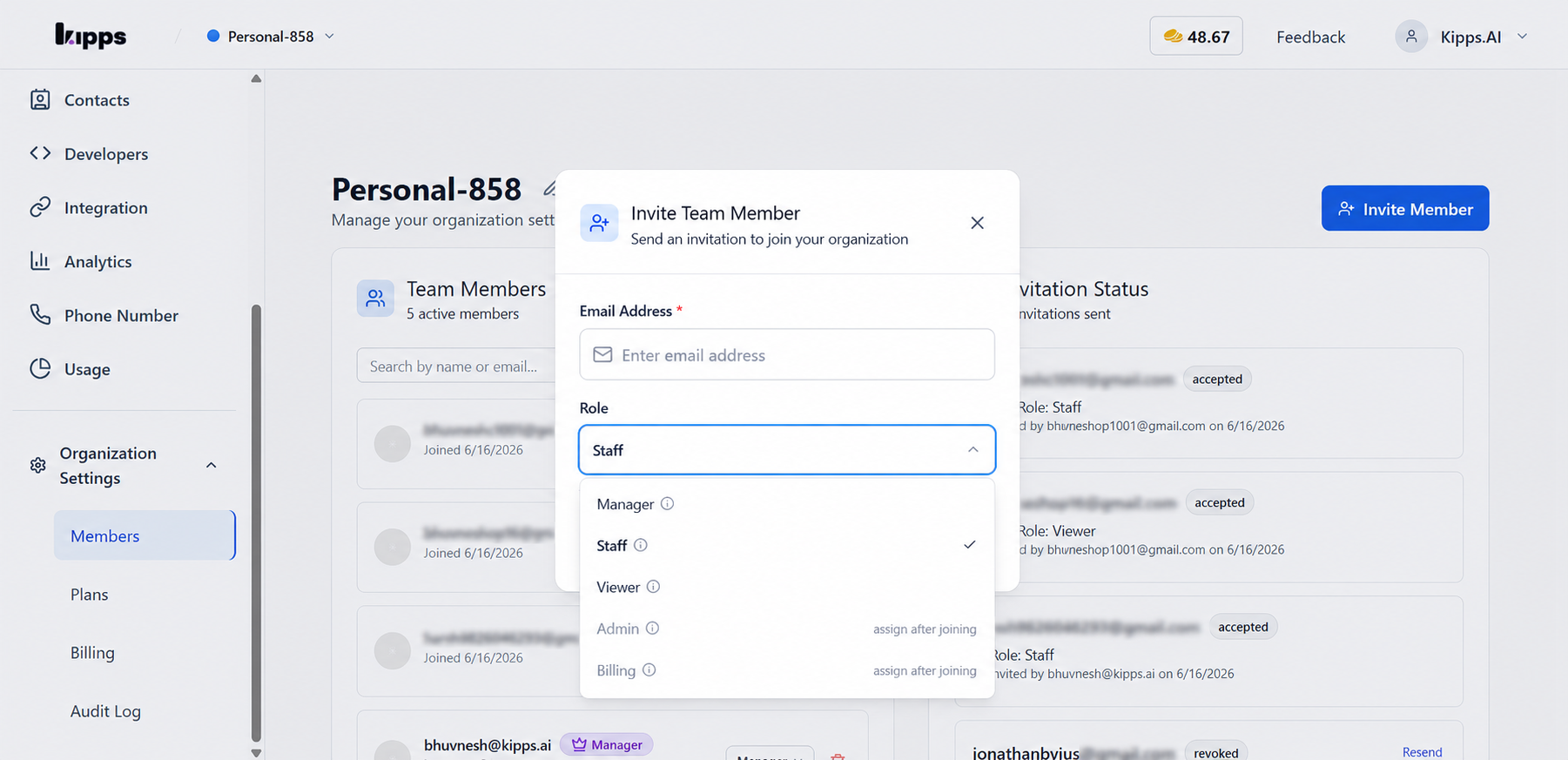
The person will receive an email invitation. Once they accept, they will be added to your organization with the role you selected.
How to Change Someone's Role
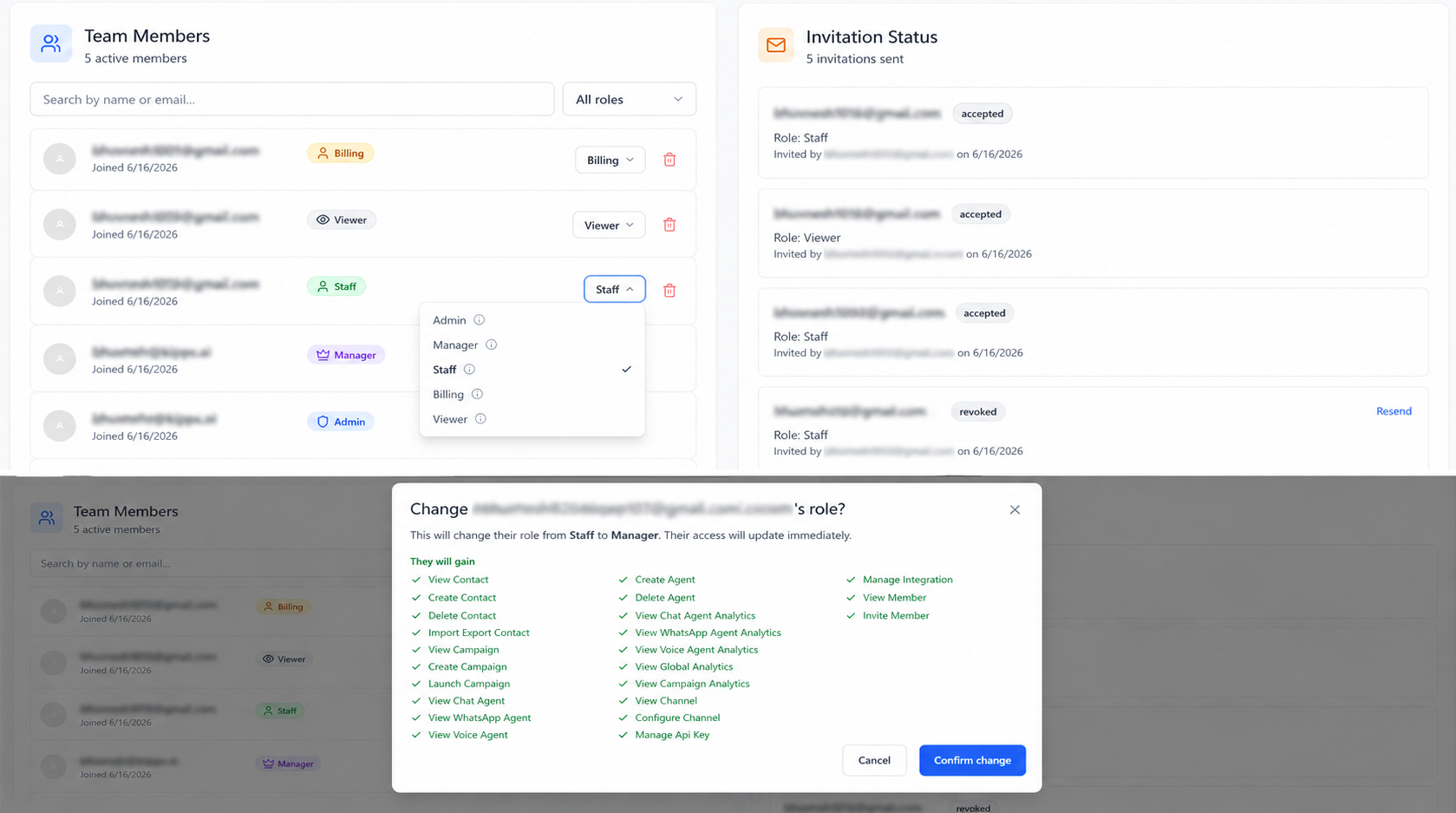
- Go to Organization Settings → Members
- Find the team member whose role you want to change
- Click the role dropdown next to their name
- Select the new role
- The change takes effect immediately — no need to re-invite them
How to Remove a Team Member
- Go to Organization Settings → Members
- Find the team member you want to remove
- Click the Remove button next to their name
- Confirm the action
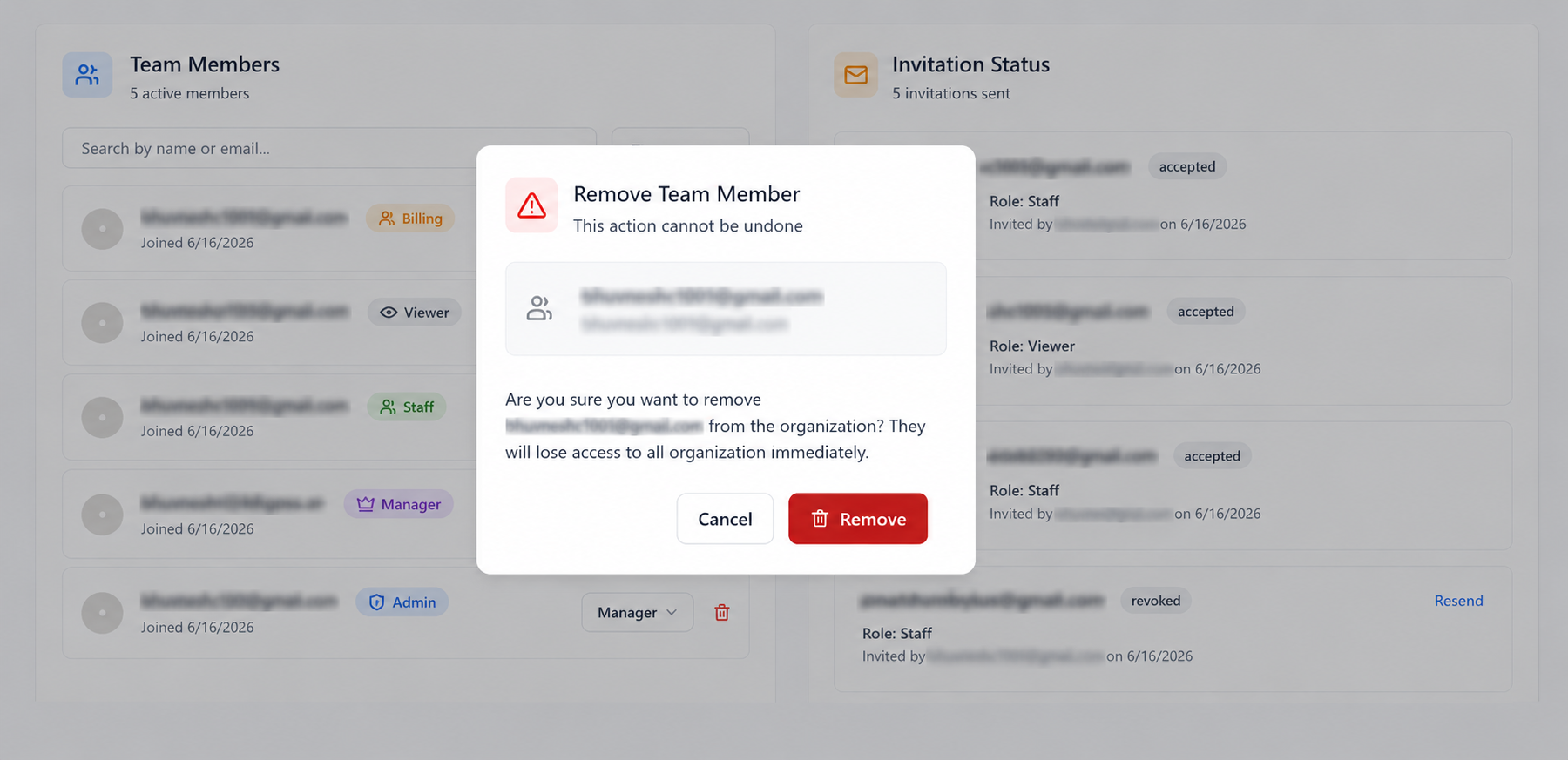
Once removed, they will lose all access to your organization immediately.
Frequently Asked Questions
Can I have multiple Admins? Yes. You can assign the Admin role to as many team members as you need. All Admins have full access to the organization.
What happens when I change someone's role? The change takes effect immediately. If you downgrade someone from Manager to Staff, they will instantly lose access to agents, contacts, and campaigns and will only see the inbox.
Can a Staff member see billing? No. Staff members can only access the inbox and conversations. Billing information is only visible to Admin and Billing roles.
Can a Viewer make any changes? No. Viewers have read-only access. They can browse agents, contacts, campaigns, and analytics but cannot create, edit, delete, or perform any actions.
What is the difference between Admin and Manager? Admins have full access including billing, organization settings, and the ability to remove members or change roles. Managers have operational access but cannot touch billing or organization-level settings.
Related Articles