Outbound Phone Call Node
Configure the Outbound Phone Call node to place an AI voice call to a lead as part of a Workflow Campaign, including optional static or dynamic delays.
The Outbound Phone Call node places an AI voice call to the lead flowing through your workflow, using one of your configured Voice Agents.
1. Add the Phone Call Node
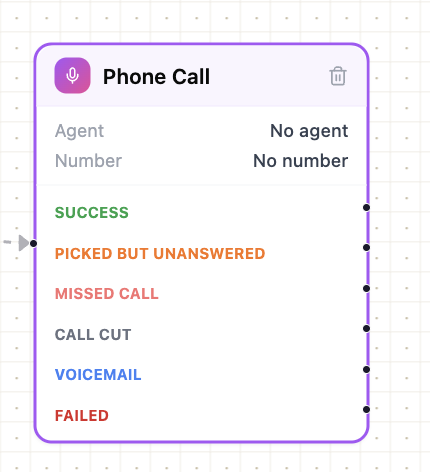
Open the Outbound group in the left NODES sidebar and drag the Phone Call node onto the canvas.
2. Configure the Node
Double-click the node on the canvas to open the Configure drawer on the right.
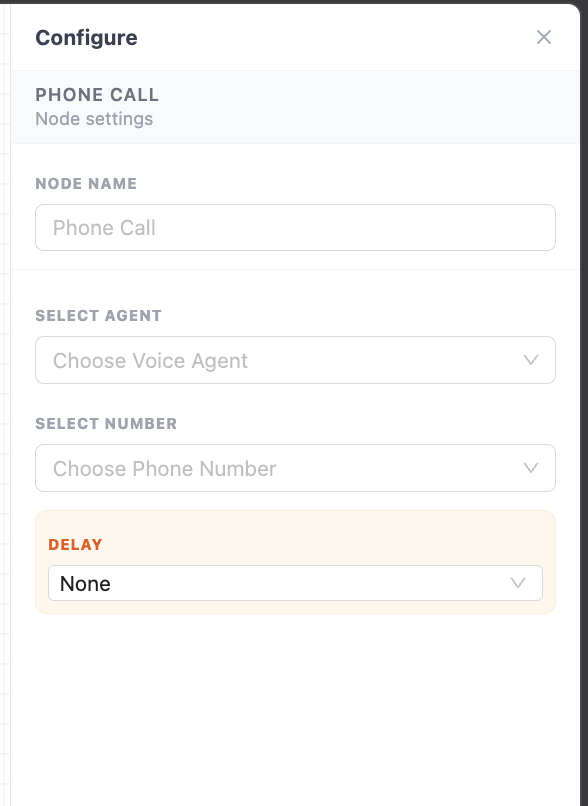
From here, set up:
2.1 Node Name
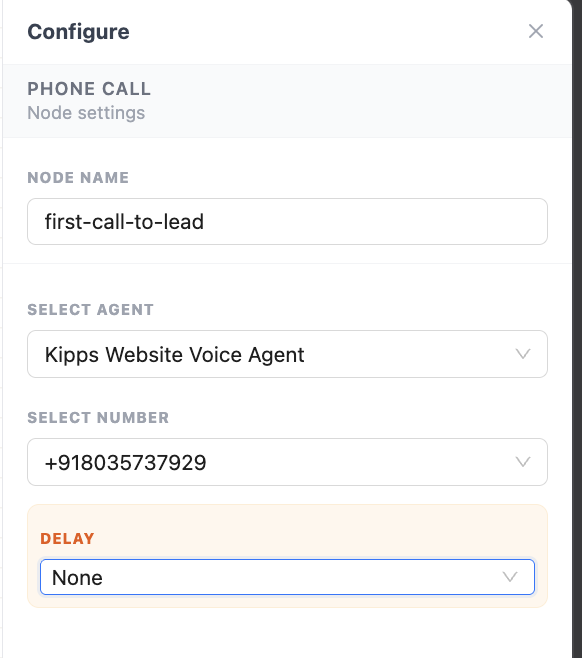
Rename the node to something descriptive, such as first-call-to-lead, so it's easy to identify in the flow.
2.2 Select Agent
Choose the Voice Agent that should carry the conversation on this call.
2.3 Select Number
Choose the phone number that will be used to place the call.
2.4 Delay
Leave Delay set to None if you want the call to go out immediately once this node is reached.
3. Add a Delay (Optional)
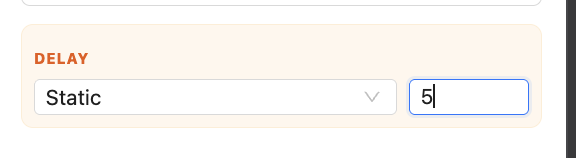
If you don't want the call placed immediately, choose one of the two delay types.
3.1 Static Delay
Select Static to introduce a fixed delay of a few minutes before the call is placed.
3.2 Dynamic Delay
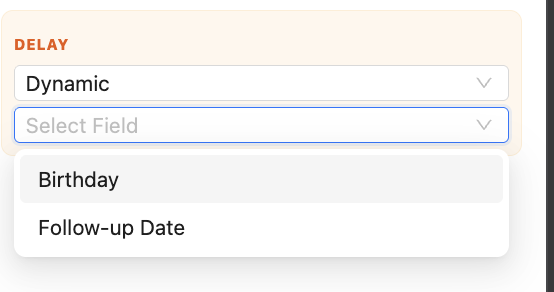
Select Dynamic to place the call only once a specific date is reached — for example, calling a lead exactly on their birthday or a stored follow-up date.
The Select Field dropdown only lists your contact's custom fields that are of type Date — so the field you want to use must already exist as a Date custom field on the contact.
4. Output Points
The Phone Call node has six output points, one for each possible call outcome. Connect each one to whatever should happen next for that outcome.
| Outcome | Meaning |
|---|---|
| Success | The call was picked up by your lead and they also talked during the call. |
| Picked but Unanswered | The lead picked up the call but disconnected without saying anything. |
| Missed Call | The lead did not pick up. Use this output to trigger another call after a delay. |
| Call Cut | The lead picked up and then cut the call. |
| Voicemail | The call was diverted to voicemail. Treat this similarly to Call Cut. |
| Failed | Kipps' system failed to dial the call — this usually means the number is incorrect or you don't have sufficient credits. |
Recommended Retry Behavior
- Missed Call — safe to retry after a delay.
- Call Cut / Voicemail — to avoid spamming the lead, we recommend not calling again. If you do retry, limit it to one more attempt after a delay of 1 hour to 1 day. After two retries with no success, switch to a WhatsApp Template message instead of continuing to call.
Inbound Calls
Leads who miss or cut a call will sometimes call you back later. Keep the inbound trunk on your number enabled so you can receive these callbacks. You can handle inbound calls with a completely separate flow using the Incoming Call trigger node.
Next Steps
Continue building your flow by connecting each output to a Logic & Data node for further branching, a delayed retry, a WhatsApp Template node, or a Write Back node to record the outcome of the call.
Related Articles