Contacts & Custom Fields
Understand how contacts are structured in Kipps.ai and how custom fields let you store and reuse extra data across campaigns, workflows, and AI agents.
Every lead in Kipps.ai is stored as a contact. Contacts hold a set of built-in fields plus any custom fields your organization defines — and these fields are what power personalization across campaigns, workflow nodes, and AI agent conversations.
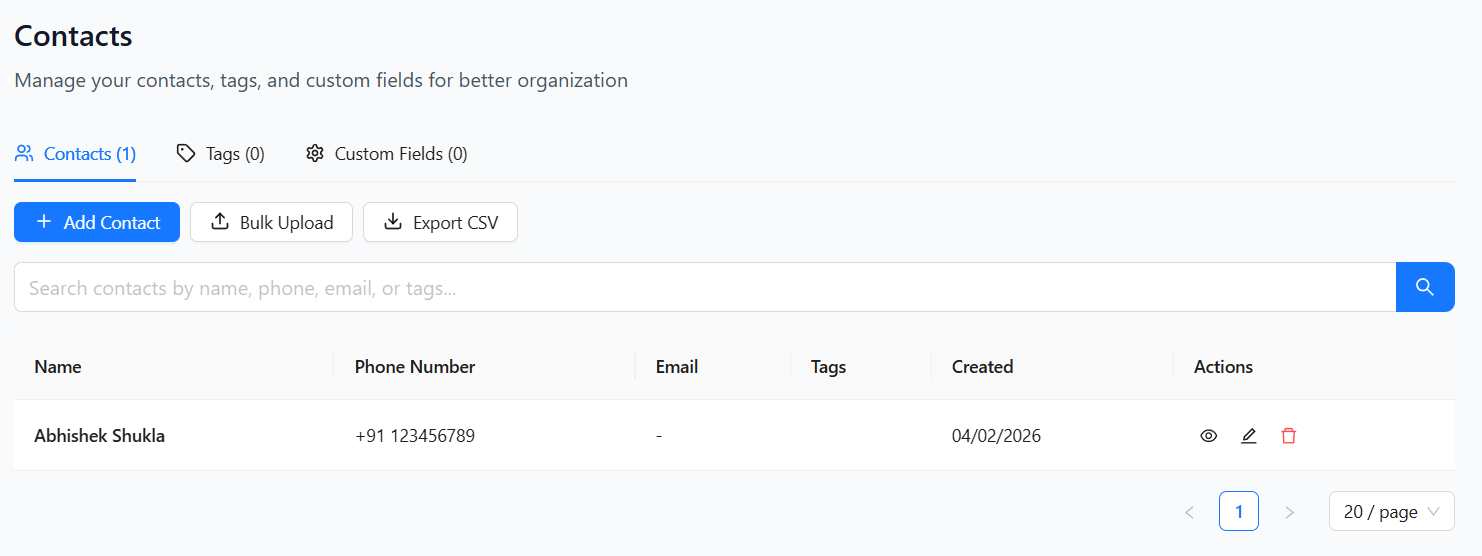
Built-in Contact Fields
Every contact has the following standard fields:
- First Name
- Last Name
- Phone Number — the unique identifier for a contact. If a contact with the same phone number already exists, updates are merged into that record instead of creating a duplicate.
- Tags — used for grouping and filtering contacts.
Custom Fields
Custom fields let you store any additional, business-specific data on a contact — things like Date of Birth, Order ID, Lead Score, City, or a Follow-up Date.
Creating a Custom Field
Go to the Contacts tab and open the Custom Fields section.
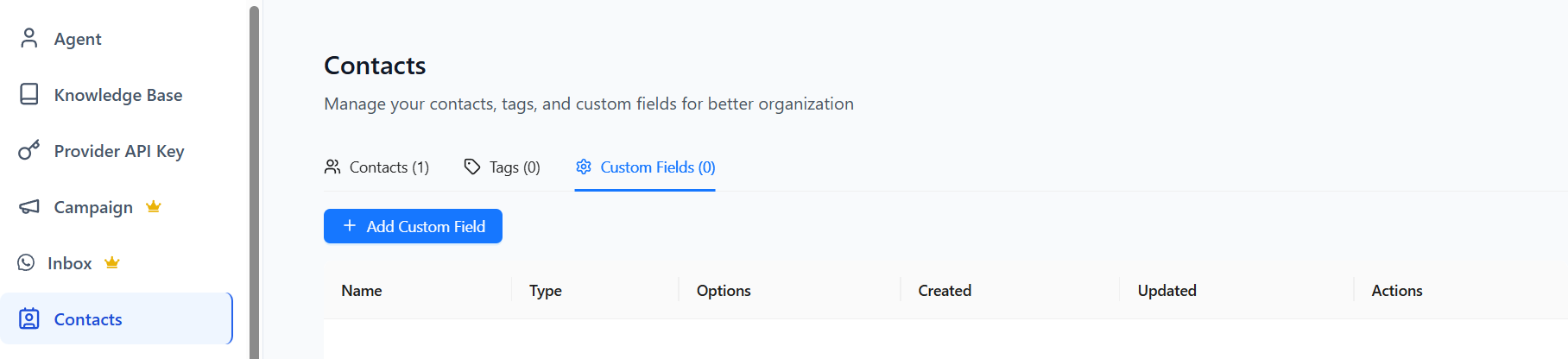
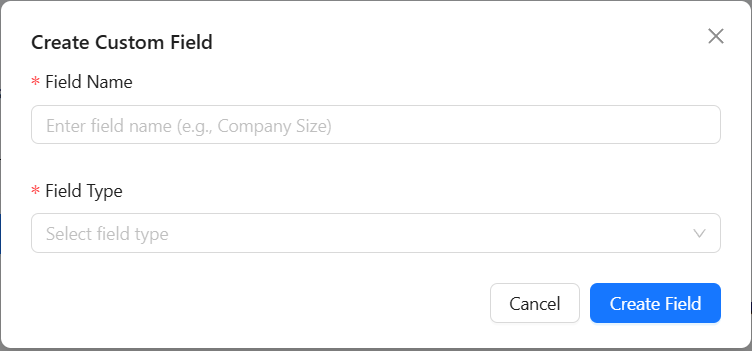
Click Add Custom Field and provide:
- Field Name — e.g.
Company Size,Order ID,Follow-up Date. - Field Type — choose from Text, Number, Date, Boolean (true/false switch), Single Select (predefined option dropdown), or Multi Select (multiple choice tags). The type determines where the field can be used later — for example, only Date-type fields show up when a node or campaign asks you to pick a date field.
Note: Only organization admins can create custom fields. Team members should ask their admin to add a field before it appears anywhere else in the product.
You can create unlimited custom fields based on your business needs.
Where Custom Fields Are Used
Once a custom field exists and contacts have values for it, it becomes available across the product:
- Bulk Upload / CSV mapping — map a spreadsheet column to a custom field. See Contacts Bulk Upload.
- Campaign personalization — reference custom field values in a System Prompt or Initial Message.
- Workflow trigger nodes — the API / Webhook Trigger node can map incoming payload keys to any custom field, creating or updating contacts with that data.
- Workflow action/logic nodes — nodes like the Outbound Phone Call node can reference custom fields directly, for example using a Date-type field to delay a call until a specific date on the contact.
Because so many parts of Kipps.ai — campaigns, workflows, and agents — read from the same contact record, it's worth setting up your custom fields before you start building out campaigns or workflows, so the fields are available wherever you need to map or reference them.
Troubleshooting
A field I need doesn't show up in a mapping or selection dropdown. The field must be created first in Contacts → Custom Fields before it appears anywhere else (CSV mapping, workflow nodes, dynamic delays, etc.). Also check the Field Type — some dropdowns only show fields of a specific type, such as Date fields for a date-based delay.
I don't see the option to create a custom field. Only organization admins can create custom fields. Ask your admin to add the field you need.