Campaign – Voice Campaign Introduction
Learn how to launch AI-powered outbound Voice Campaigns to engage leads, collect responses, and track results in real-time from your dashboard.
Voice Campaigns enable you to automate outbound calls to your audience using AI-powered voice agents. This feature helps you reach, engage, and qualify leads at scale, while tracking performance and outcomes directly from your dashboard.
What is a Voice Campaign?
A Voice Campaign is an automated engagement workflow where your AI VoiceBot places calls to a list of contacts and interacts using a predefined conversational flow. This is ideal for:
- Lead generation and qualification
- Customer feedback collection
- Event reminders and notifications
- Automated surveys and follow-ups
Key Features
- Automated Calling: The system auto-dials each contact and initiates a voice conversation.
- Personalized Interaction: Use dynamic fields and AI logic to tailor responses.
- Lead Capture & Qualification: Collect user inputs and auto-update their lead status.
- Transcript Access: View detailed call transcripts for every interaction.
- Analytics & Metrics: Monitor delivery success, reply rates, and conversion trends.
- CRM/CSV Integration: Upload contacts or sync with your CRM system.
- Downloadable Leads: Export leads and responses for offline analysis.
- Detailed Call View: Inspect each interaction with full transcript and qualification tags.
How to Create a Voice Campaign
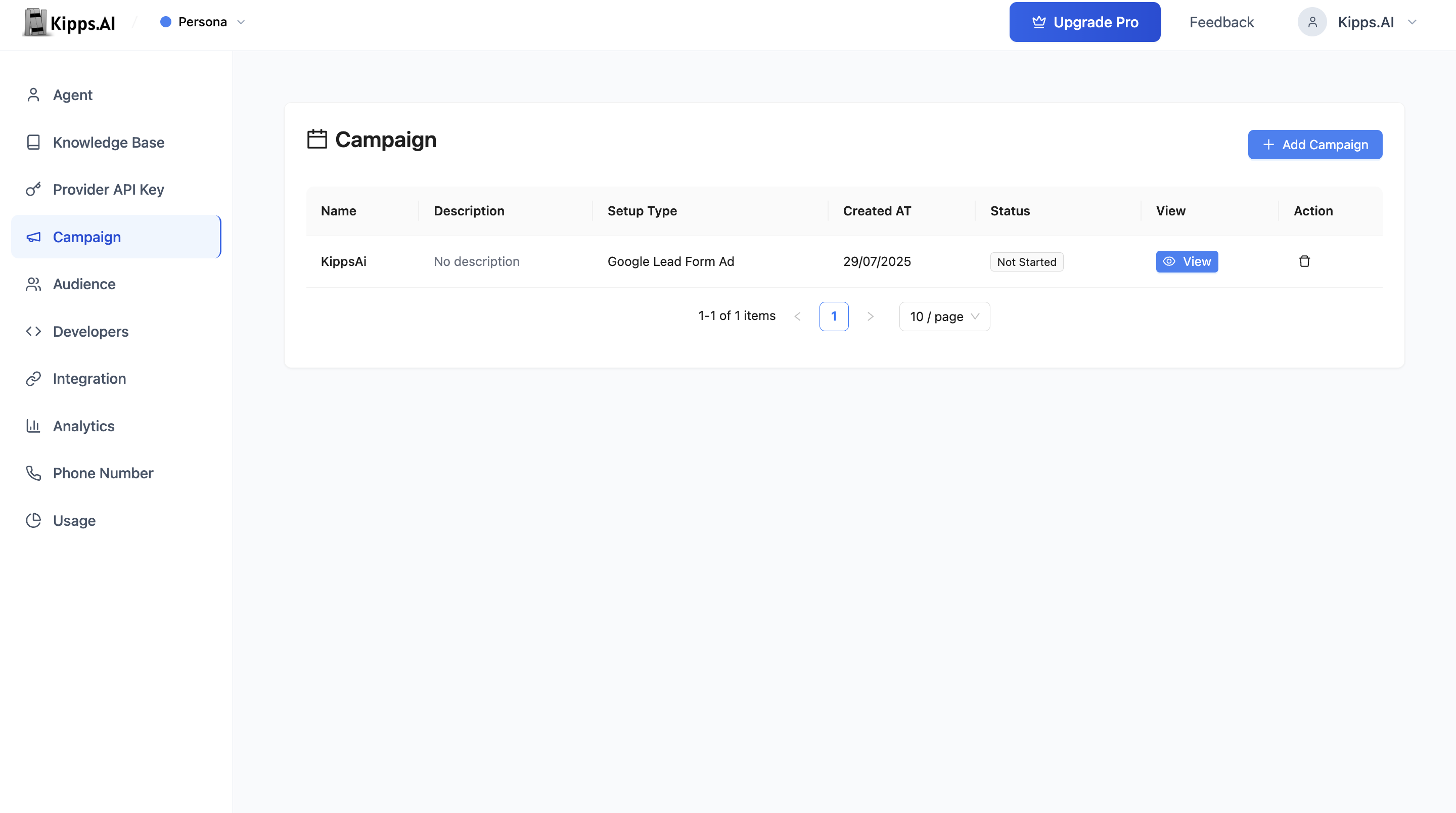
1. Navigate to Campaigns
From the main dashboard, go to the Campaign tab.
2. Add New Campaign
Click the Add Campaign button.
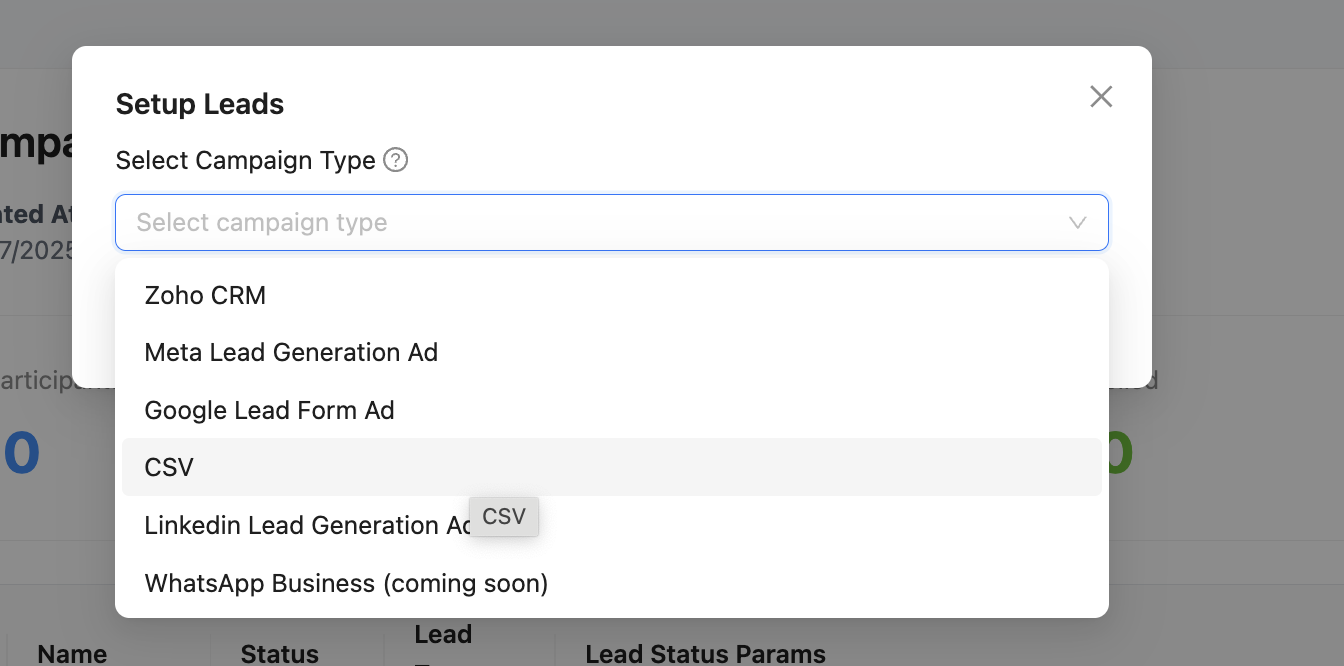
3. Select Campaign Type
Choose Voice as the campaign type.
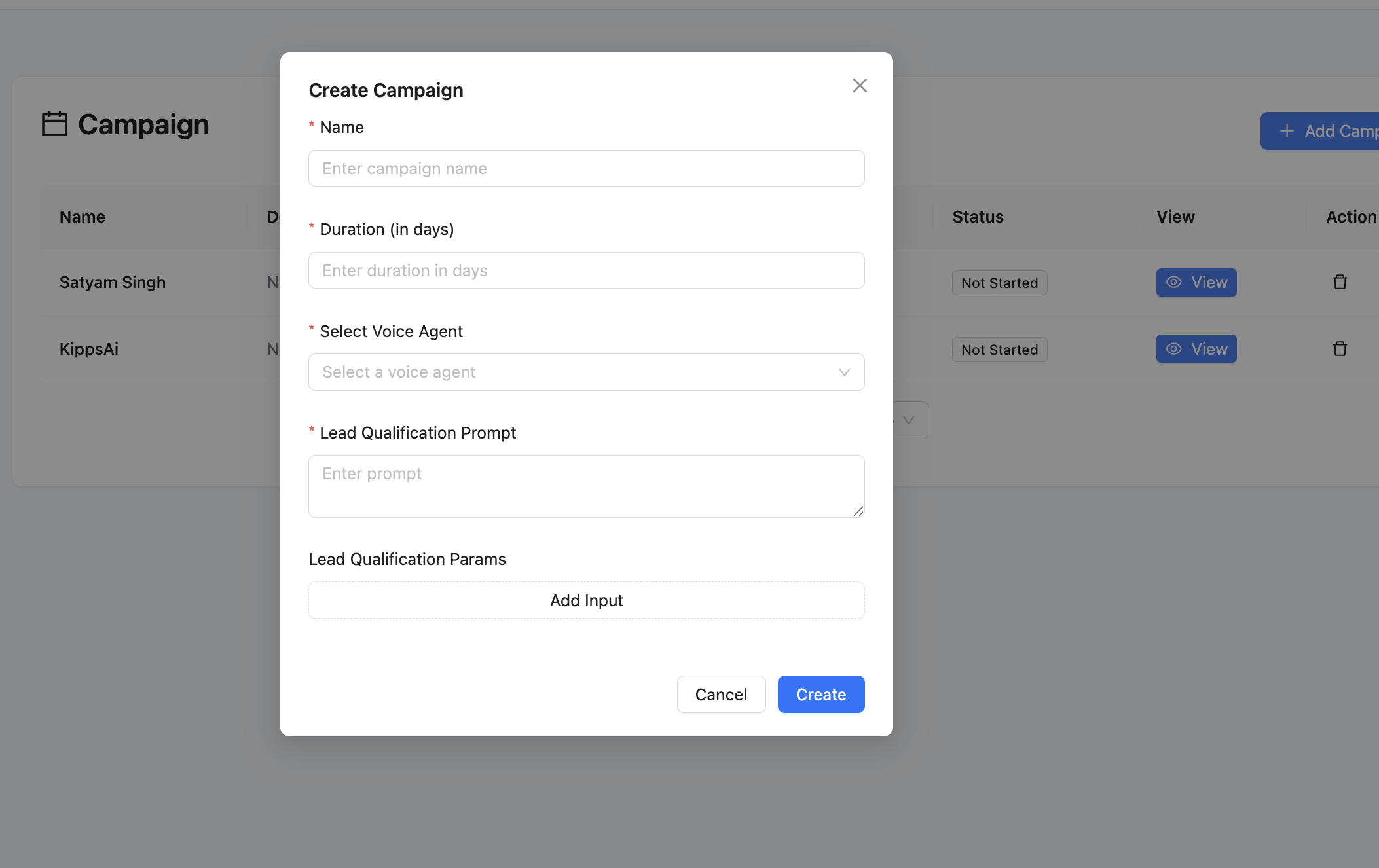
4. Configure Campaign Details
- Enter the campaign name and description.
- Define the duration in days.
5. Select or Upload Audience
- Choose an existing audience list or upload a new CSV.
- Map required fields like Phone Number and Name.
6. Configure VoiceBot
- Select the voice agent that will handle conversations.
- Add the initial greeting, system prompt, and qualification logic.
7. Review and Launch
- Click on View.
- Verify your setup.
- Click Start Campaign to begin outbound calling.
Monitoring and Analytics
Campaign Overview
See an overview of all campaigns, including delivery rate, engagement score, and conversion rate.
Call Outcomes
Track the real-time status of each call:
- Contacted
- Replied
- Failed
You can also download call logs.
Lead Details
Drill into each lead:
- View transcripts
- Check qualification status
- Export lead data as CSV
Performance Trends
Analyze metrics across campaigns:
- Success rate over time
- Lead engagement heatmaps
- Bot performance analytics
Example Workflow
- Create Campaign: Go to Campaigns → Add Campaign → Select Voice.
- Upload Audience: Upload CSV or pick existing audience. Map fields.
- Configure VoiceBot: Set up prompts and lead logic.
- Launch Campaign: Start the calls.
- Track Results: Use dashboard to view call logs, download leads, and analyze trends.
Tip
Click any campaign row to access full analytics including:
- Participant statuses
- Call transcripts
- Lead conversion outcomes
Troubleshooting
The campaign is "On Going" but no calls are being made. Verify the selected Voice Agent has a phone number linked with Outbound SIP Status set to "Enabled." Without an active outbound trunk, the campaign cannot place calls. Also confirm the campaign has participants—if the audience CSV was not mapped correctly, the participant list may be empty.
Many calls show as "Failed" in the campaign analytics.
Failed calls usually indicate unreachable numbers (invalid format, disconnected, or blocked). Ensure all phone numbers in your audience are in E.164 format (+15551234567). Numbers without country codes or with formatting errors will consistently fail.
The voicebot's initial message is correct but leads are not being qualified. Check your Lead Qualification Prompt and Lead Qualification Params. The prompt must clearly instruct the voicebot on what to ask and how to interpret responses. Vague prompts lead to inconsistent qualification outcomes. Review sample call transcripts to identify where the qualification breaks down.
The campaign ran but lead export shows no data. Leads are only recorded when the voicebot successfully completes the qualification flow (collects the required params). If most calls were short or failed, there may be no completed qualification data to export.
Frequently Asked Questions
What is the difference between a Voice Campaign and a Voice Agent? A Voice Agent is the AI-powered assistant you configure with knowledge, instructions, and functions. A Voice Campaign is a one-time or recurring program that uses a Voice Agent to make outbound calls to a specific list of contacts. Campaigns require a Voice Agent to be set up first.
Can I pause a campaign once it has started? Yes. From the campaign list, you can pause an active campaign at any time. Paused campaigns stop making new calls but retain the status of all contacts already reached. Resume the campaign to continue calling the remaining contacts.
How many contacts can I include in a single campaign? Contact limits depend on your Kipps.AI subscription plan and your telephony provider's call capacity. Contact support to understand the maximum participants per campaign for your account.
Can I schedule a campaign to start at a specific time? Currently, campaigns start immediately when you click "Start Campaign." To send calls at a specific time of day (e.g., business hours only), consider launching the campaign manually at the appropriate time or contact support about scheduling options.
What happens to contacts the voicebot couldn't reach? Contacts that could not be reached (busy signal, no answer, failed) remain in the campaign as "Not Contacted." You can export these and retry them in a follow-up campaign, or Kipps.AI may make additional attempts depending on your campaign's retry configuration.
Related Articles