Introduction to Workflow Campaigns
Learn what a Workflow Campaign is, how it differs from a Standard campaign, and how nodes combine to build multi-step outreach flows in Kipps.ai.
A Workflow Campaign lets you build multi-step outreach as a visual flow instead of a single call-or-message blast. You chain together triggers, calls, messages, branching logic, and data write-backs on a canvas, so a lead can be routed through a different path depending on how they respond.
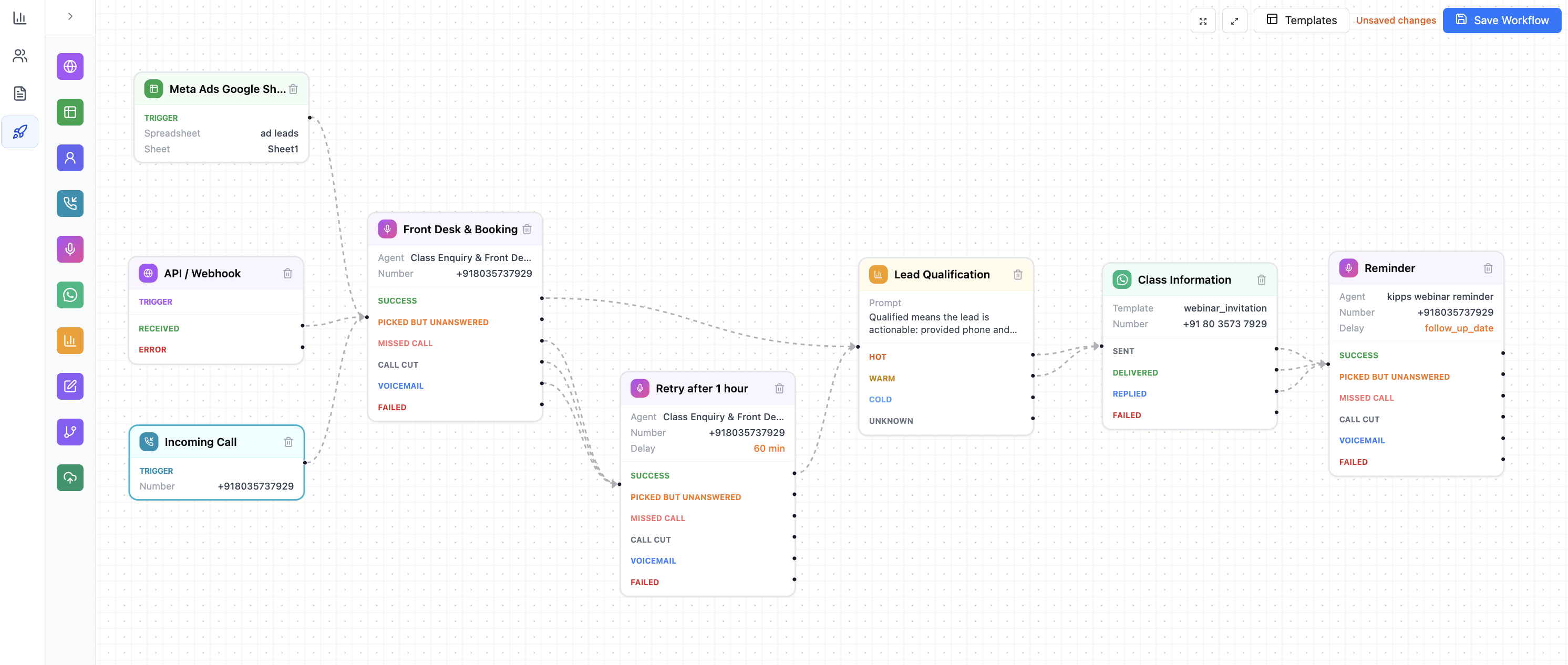
The example above combines three triggers (a Google Sheet of Meta/Google Ads leads, an API / Webhook, and an Incoming Call) into a single flow: a Front Desk & Booking call, a Retry after 1 hour for missed or unanswered calls, branching by Lead Qualification, and finally a WhatsApp Class Information message followed by a Reminder call — each step wired off the specific outcomes of the one before it.
Standard vs. Workflow Campaigns
When you create a campaign, Kipps.ai asks you to choose a setup type:
- Standard Setup — pick an agent and a message template, then reach your audience with a single call or message per lead. Best for simple, one-shot outreach.
- Workflow Setup — build a flow with multiple steps on a canvas, chaining calls, messages, and branching logic together. Best when you need retries, fallbacks, or different actions depending on how a lead responds.
Use a Workflow Campaign whenever a single call or message isn't enough — for example, calling a lead, retrying if they miss it, and falling back to a WhatsApp message if calls don't work.
How a Workflow Is Built
A workflow is made of nodes connected together on a canvas. Each node type lives in a group in the left sidebar:
- Triggers — start the workflow, e.g. an API / Webhook call from your website or CRM, a Google Sheet, a Contact matching a tag, or an Incoming Call.
- Outbound — actions that reach the lead, such as the Phone Call node or a WhatsApp Template message.
- Notify Team — internal notifications (coming soon).
- Logic & Data — branching, conditions, and data transformations, used to route leads down different paths.
- Write Back — write results from the workflow back to your data sources.
Every action node exposes multiple output points for its possible outcomes (for example, a Phone Call node has separate outputs for Success, Missed Call, Voicemail, and more), so you can wire a different next step for each outcome instead of treating every result the same way.
You don't have to start from a blank canvas — the builder also offers Templates, ready-made flows for common use cases. A template gives you the structure and connections, but you'll still need to open each node and configure it with your own Voice Agents, phone numbers, and WhatsApp templates before running it. See Setup for details.
Frequently Asked Questions
1. Can a Workflow be triggered externally the moment a lead comes in, or does it only run on a schedule / from inside the dashboard?
Yes, it can be triggered externally, the instant a lead arrives.
- The API / Webhook Trigger node gives each workflow its own dedicated URL.
- Call that URL from your website form, a CRM, Meta, Google, or any other source the moment a lead comes in.
- It is not limited to a schedule or to actions taken inside the dashboard.
- Other trigger types exist too — Google Sheet, Contact match, and Incoming Call — for sources where a webhook isn't the right fit.
2. Does triggering a Workflow let us pass in a phone number and start a call immediately?
Yes, though it's expressed as two connected nodes rather than one action.
- The webhook payload includes the lead's
phonenumber (required) plus any other fields. - Kipps creates or updates a contact from that payload.
- Connect the trigger's Received output to a Phone Call node to call that contact.
- With the Phone Call node's Delay set to None, the call goes out immediately once the trigger fires.
- Net effect: webhook in → call goes out right away, same as a single "start call" action — but because it's two connected nodes, you can also add retries, delays, or a WhatsApp fallback around it if needed.
3. Is there a REST API for this, or is Workflow only configurable through the dashboard UI?
Building is UI-only; triggering is REST.
- Building the flow — adding nodes, wiring outputs, setting agents/numbers/delays — is done through the dashboard's visual canvas. There is no REST API for constructing the flow itself.
- Triggering the flow — the API / Webhook Trigger node exposes a
POSTJSON endpoint. - Requests are secured with a Developer API Key sent as an
Authorization: Api-Key <key>header, so your own systems can call into a workflow programmatically.
4. Is there any additional cost associated with Workflow, or is it included in our current plan?
- Workflow Campaigns use the same underlying voice/WhatsApp usage as Standard campaigns — calls and messages are billed the same way regardless of setup type.
- Availability of the Workflow builder and any plan-specific limits can vary by subscription tier.
- Check your current plan under Usage, or contact Kipps.AI support to confirm what's included for your account.
5. What happens if the lead is already a contact when a trigger fires?
- Contacts are matched by phone number.
- If no contact with that phone number exists, a new one is created from the trigger's payload.
- If a contact with that phone number already exists, its other fields (name, email, custom fields, etc.) are updated instead of creating a duplicate.
6. Can a single workflow use more than one trigger node?
- Yes. A workflow can have several trigger nodes feeding into the same downstream flow — for example, a Google Sheet of ad leads, an API / Webhook, and an Incoming Call trigger can all lead into the same Front Desk & Booking call, as shown in the example workflow above.
- This is useful when leads for the same campaign can arrive from more than one source but should be handled the same way from that point on.
7. Do I have to connect every output point on a node?
- No, only the outcomes you want to act on. Any output point you leave unconnected simply ends there — the workflow takes no further action for that outcome.
- Because of this, it's worth deliberately connecting outcomes that matter, such as Failed or Missed Call on a Phone Call node, rather than leaving them dangling and losing that lead silently.
8. If I start from a Template, can I still customize it, or am I locked into its structure?
- You're not locked in. A template only provides a starting structure and node connections.
- You can add, remove, or rewire nodes just like a workflow built from scratch.
- You will still need to open each node and set your own Voice Agents, phone numbers, and WhatsApp templates before running it — see Setup.
Where to Go Next
- Setup — create a campaign and switch it to Workflow mode.
- Nodes — detailed guides for each node type.
- Contacts & Custom Fields — nodes read and write contact data heavily, so it helps to understand custom fields before you build a flow.