Create Campaign for Zoho Audience
Learn how to create a campaign using synced leads from your Zoho CRM, with full voicebot automation, tracking, and reporting.
This guide explains how to create a campaign using your Zoho CRM leads as the audience. Integrating Zoho allows you to automatically sync leads and run campaigns without manual CSV uploads.
1. Integrate Zoho CRM
- Navigate to the Integrations page from the main dashboard.
- Click the Integrate button on the Zoho card.
- Follow the on-screen instructions to authorize your Zoho account:
- Enter your Zoho Client ID, Client Secret, Email, and select your Data Center.
- Copy and use the provided Redirect URI in your Zoho app configuration.
- Complete the authentication flow to connect your Zoho CRM.
2. Start Creating a Campaign
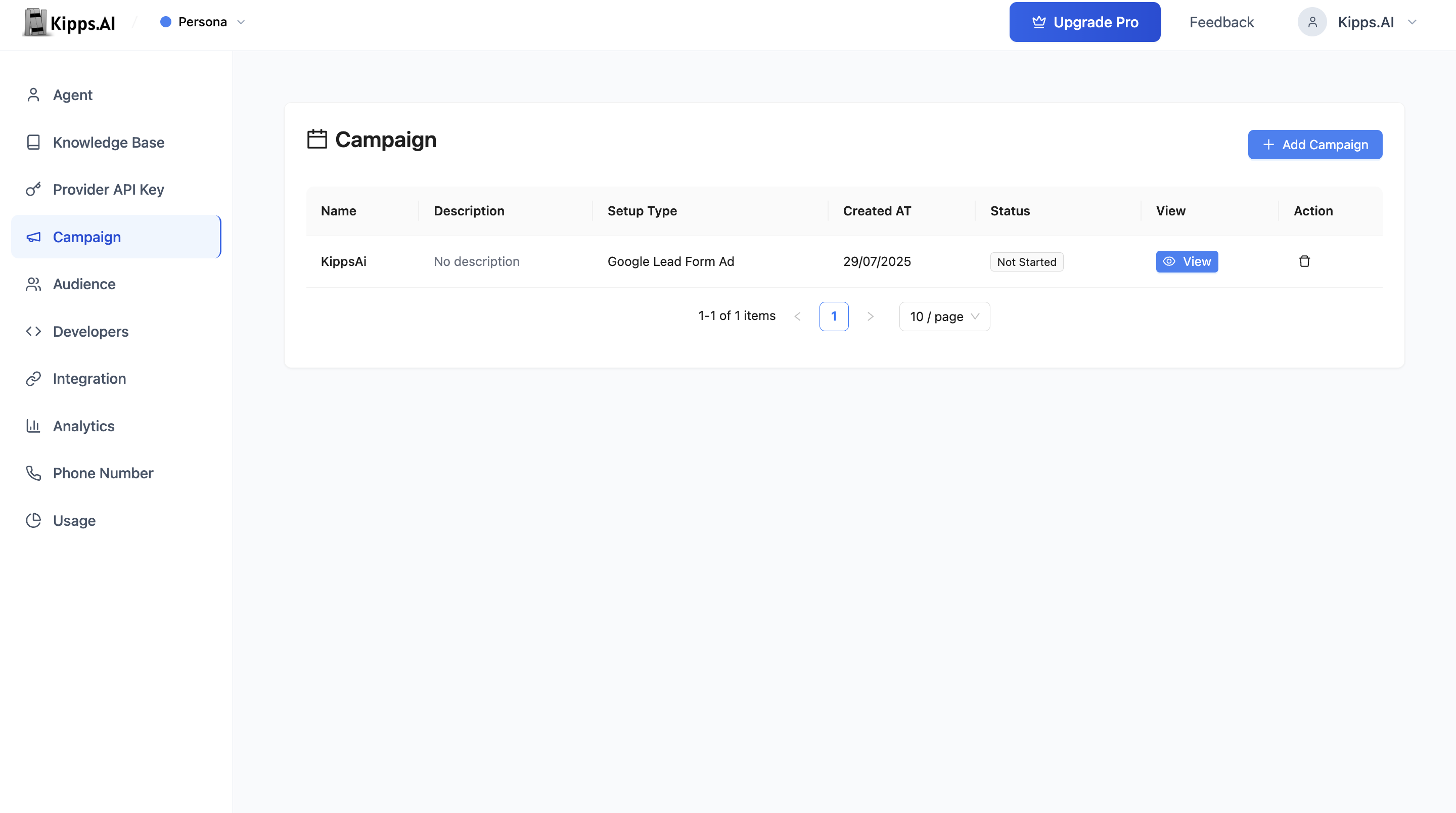
- Go to the Campaign tab.
- Click Add Campaign or + Create Campaign.
3. Fill Campaign Details
- Campaign Name: Enter a descriptive name for your campaign.
- Description: Add details about the campaign’s purpose.
- Duration: Set how many days the campaign should run.
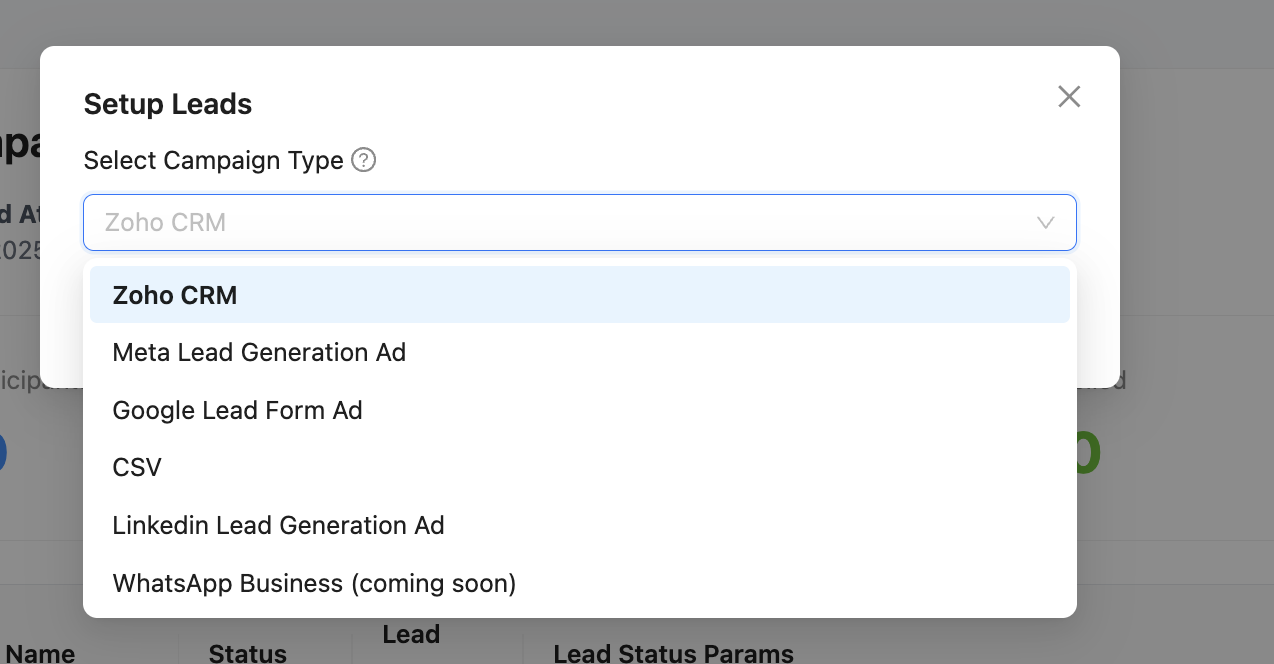
4. Select Setup Type as Zoho
- In the Setup Type or Audience Source field, select Zoho CRM from the dropdown.
- This tells the system to use your Zoho leads as the campaign audience.
5. Configure Campaign Settings
- Select Voice Agent: Choose the AI voicebot that will make the calls (for voice campaigns).
- Initial Message: Set the opening message the bot will deliver.
- System Prompt (optional): Provide instructions for the bot’s behavior.
- Lead Qualification Prompt: Define how the bot should qualify leads.
- Lead Qualification Params: Add any custom fields you want to collect or qualify (e.g., "Interested", "Budget").
6. Review and Launch
- Review all settings.
- Click Create to save the campaign.
- Once setup is complete, start the campaign from the campaign list.
Features
- Automatic Lead Sync: Your Zoho leads are automatically fetched and used as the campaign audience.
- No Manual Uploads: No need to upload CSVs; your CRM data stays in sync.
- AI Voicebot Integration: Use advanced voice agents for automated, natural conversations.
- Custom Prompts: Personalize the initial message and qualification logic.
- Lead Qualification: Automatically tag and qualify leads based on responses.
- Analytics: Track delivery, response, and conversion rates in real time.
- Downloadable Reports: Export leads and campaign results as CSV.
- Status Tracking: Monitor campaign progress (Not Started, On Going, Completed).
Monitoring and Managing Campaigns
View Campaign Status and Analytics:
- See detailed statistics: total participants, contacted, replied, failed, and conversion rates.
Download Lead Data and Call Transcripts:
- Export results for further analysis.
Drill Down into Each Lead:
- View call status, responses, and qualification details.
Tip:
You can update your Zoho integration at any time from the Integrations page to refresh your CRM connection.
Troubleshooting
New leads added to Zoho CRM are not triggering the campaign. Verify that a Workflow Rule has been set up in Zoho CRM with the webhook URL from Kipps.AI as the action. The rule must be active and configured to fire on "Lead Created" (or your desired trigger). Also check the Zoho automation logs to confirm the rule is executing.
The campaign shows Zoho CRM as the source but the participant count is 0. This happens when the webhook has not yet fired (no new leads have triggered it since the campaign started). The Zoho integration only enrolls leads in real time via the webhook—it does not backfill existing Zoho leads. Use the CSV audience source to enroll existing leads.
Zoho authorization fails with a redirect_uri_mismatch error. Confirm the Redirect URI displayed on the Kipps.AI Integrations page is exactly pasted into your Zoho API app's "Authorized Redirect URIs" field. Then save in the Zoho developer console and retry authorization in Kipps.AI.
Frequently Asked Questions
Can I use Zoho CRM as an audience source for both voice and WhatsApp campaigns? Yes. Once the Zoho CRM integration is authorized, you can select it as the audience source for both voice campaigns and WhatsApp campaigns independently.
Does the integration sync existing Zoho leads or only new ones? The Zoho integration uses webhooks and only captures new leads as they are created in Zoho (when the webhook fires). To enroll existing leads, export them from Zoho as a CSV and use the CSV audience source for that campaign run.
How often does the Zoho OAuth token expire? Zoho OAuth tokens can expire depending on your Zoho app configuration. If campaigns stop receiving leads unexpectedly, re-authorize the integration from the Kipps.AI Integrations page to refresh the token.
Can multiple Zoho accounts be connected at the same time? Only one Zoho CRM account can be authorized per Kipps.AI account at a time. To switch accounts, disconnect the current integration and reconnect with the new Zoho credentials.
What Zoho CRM modules are supported? The integration primarily supports the Leads module. Contact your Kipps.AI account representative if you need to trigger campaigns based on Zoho Contacts or Deals modules.
Related Articles