Create Voice Campaign Using Google Sheet Audience
Learn how to create an AI Voice Campaign using contacts imported from Google Sheets, with column mapping, voicebot setup, and automated call execution.
Google Sheet sourcing lets you pull leads directly from your spreadsheet without manually uploading CSV files.
Simply connect the sheet, map the phone column, configure your AI voice agent, and launch your campaign.
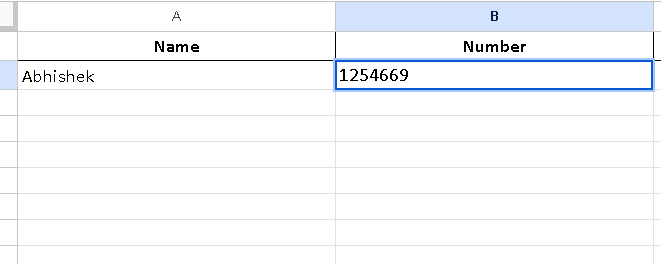
1. Open the Campaigns Page
- Go to the Campaigns tab from your dashboard.
- Click Add Campaign to start creating a new voice campaign.
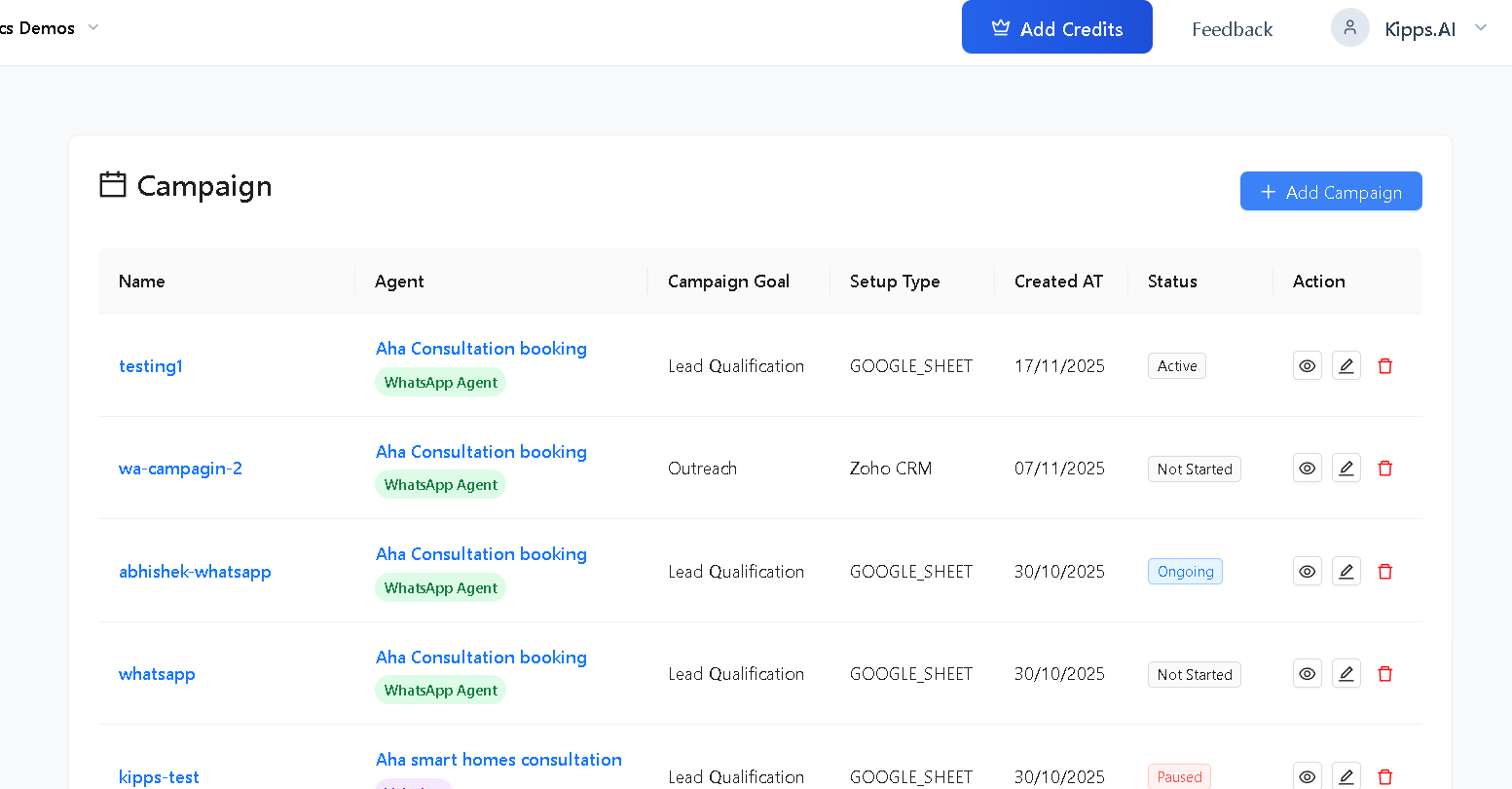
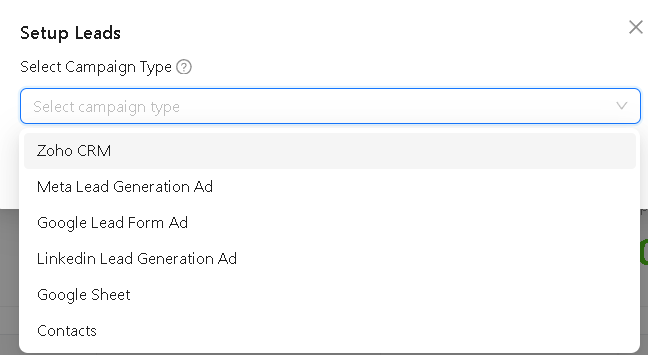
2. Select Google Sheet as the Audience Source
In the Setup Leads popup:
- Open the Select Campaign Type dropdown
- Choose Google Sheet
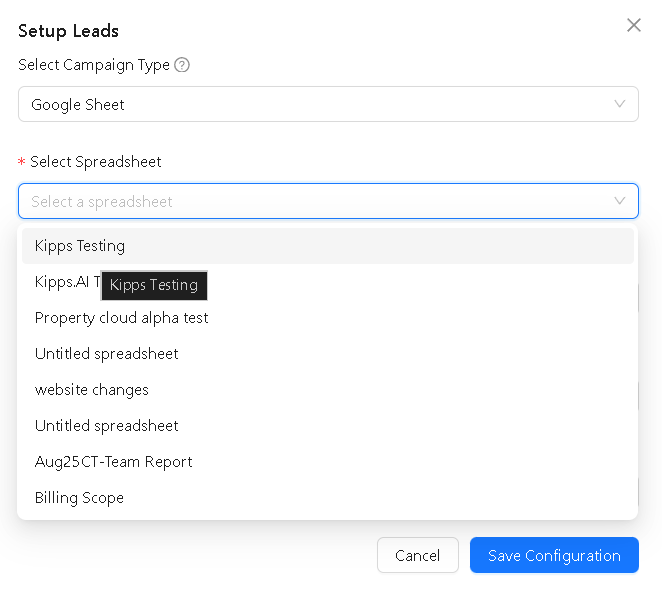
3. Select Spreadsheet
Under Select Spreadsheet:
- Choose the Google Sheet that contains your leads
- The dropdown lists all sheets from your connected Google account
4. Select Sheet (Worksheet)
Choose the worksheet/tab inside the spreadsheet:
Examples:
- Sheet1
- Leads
- Contacts
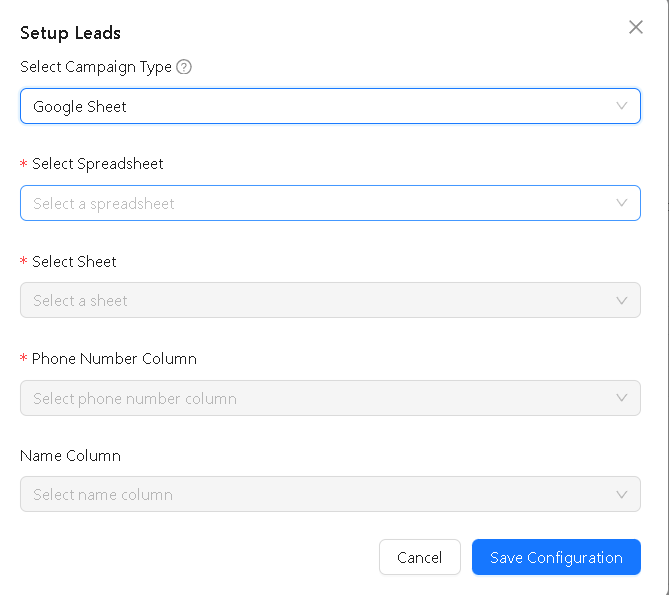
5. Map Columns (Required)
You must map:
- Phone Number Column → Required
- Name Column → Optional, used for voice personalization
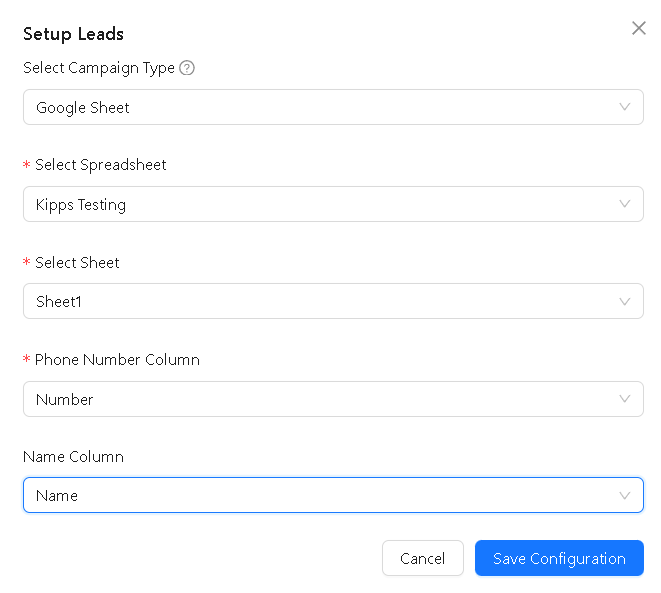
Example mapping:
- Spreadsheet: Kipps Testing
- Sheet: Sheet1
- Phone Column: Number
- Name Column: Name
Click Next.
6. Configure Your Voice Agent
Unlike WhatsApp campaigns, Voice Campaigns do not require templates.
Here you configure:
✔ Select Voice Agent
Choose which AI VoiceBot will make the outbound calls.
✔ Initial Greeting
The first line the bot speaks.
✔ System Prompt
Define how the bot should behave, what to ask, how to respond, and what data to extract.
✔ Lead Qualification Prompt (if applicable)
Used for Lead Qualification campaigns.
✔ Lead Qualification Params
Define fields the bot must capture, such as:
- user name
- time preference
- interest level
- budget
- callback preference
Each param contains:
- Key
- Description
This tells the AI exactly what to extract from the conversation.
(No screenshot required here since your UI uses a standard VoiceBot prompt input.)
7. Save & Launch
After configuration:
- Click Create
- The campaign appears in your list
- You can Start, Pause, or Resume it anytime
Monitoring Your Voice Campaign
Your dashboard displays:
- Total Participants
- Contacted
- Delivered (call connected)
- Replied (bot captured response)
- Failed
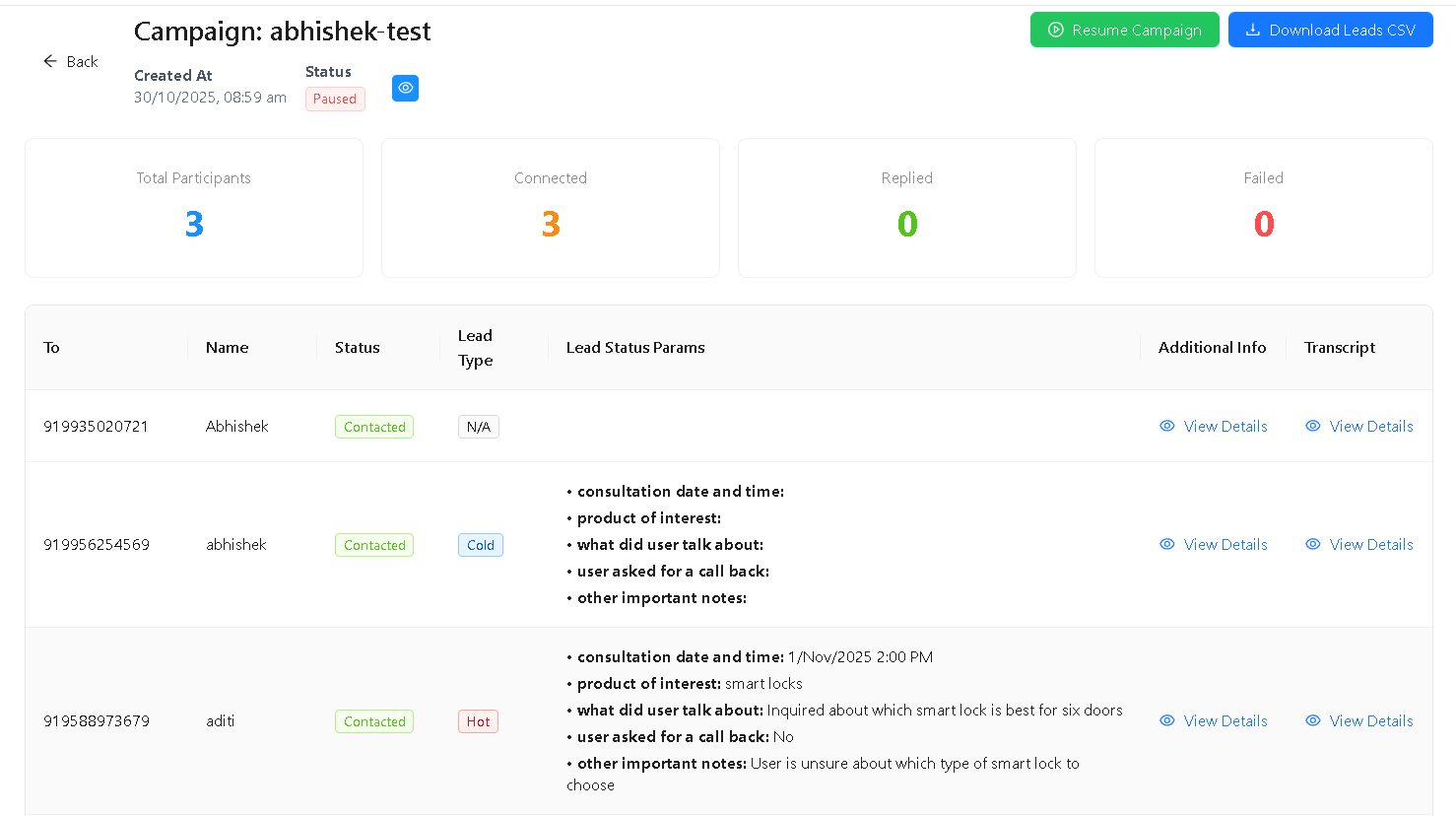
You can also:
- Download lead CSV results
- Review conversation outcomes
- Track qualification tags
Features
- Live Google Sheet Sync — Always updated data
- No CSV Upload Needed
- AI VoiceBot Calling — Natural human-like conversations
- Custom Prompts & Flows
- Lead Qualification Extraction
- Campaign Analytics & Reports
Tips
- Make sure the phone number column contains valid numbers
- Keep your sheet clean from empty rows
- Update the sheet anytime; your campaign pulls fresh data automatically
Troubleshooting
The Google Sheet dropdown does not show my spreadsheet. Ensure your Google account is connected to Kipps.AI and that the account has access to the spreadsheet. If you recently created the spreadsheet, refresh the connection and try again. Sheets shared with your account (not owned by it) may also appear — confirm you selected the correct one.
Phone numbers in the sheet are being skipped or marked failed.
Check that the phone column contains numbers in E.164 international format (+CountryCodeNumber, e.g., +919876543210). Numbers without a country code or with formatting characters (dashes, spaces, parentheses) may be rejected. Clean the phone column before launching the campaign.
The campaign was created but no calls are being made. Verify the campaign status is set to active (click Start if it is in draft). Also confirm the voice agent is fully configured with Speech Settings and that the phone number assigned to the agent is active and able to make outbound calls.
Column mapping shows the wrong data — names are appearing in the phone field. Re-check the column mapping step and ensure the Phone Number Column is mapped to the correct column header from your sheet. If column headers are not in the first row of your sheet, the mapping may pick up data rows instead. Ensure row 1 contains headers.
Frequently Asked Questions
Does the campaign pull data from the Google Sheet in real time during the campaign? Yes. The campaign reads from the Google Sheet when it runs. If you update the sheet (add rows, fix phone numbers) before or during the campaign, the updated data is used. However, contacts already processed in the current run are not re-called.
Can I use the same Google Sheet for multiple campaigns? Yes. The same spreadsheet can be used as the audience source for multiple campaigns simultaneously, including both voice and WhatsApp campaigns. Each campaign reads the sheet independently.
Do I need to reconnect Google Sheets for every new campaign? No. Once your Google account is connected to Kipps.AI, all sheets accessible to that account are available in the dropdown for any campaign you create. You only need to reconnect if the Google authorization is revoked.
What is the maximum number of contacts supported in a Google Sheet campaign? The contact limit per campaign depends on your Kipps.AI subscription plan. For very large sheets, split the contacts across multiple campaigns or use the CSV audience source for bulk uploads with a defined limit per batch.
Can I add lead qualification parameters specific to each row in the sheet? Lead qualification parameters are defined at the campaign level and apply to all contacts equally. To use row-specific data (like a contact's interest level or product), use Dynamic Parameters by mapping custom columns from your sheet to contact fields in your Contacts database.
Related Articles