Voice Campaign – Using Contacts as Audience Source
Learn how to create a Voice Campaign in Kipps.AI using selected contacts instead of Google Sheets, CRM, or Ad Leads. This guide covers contact filtering, agent selection, and campaign execution.
Overview
A Contacts-Based Voice Campaign lets you select specific contacts from your Kipps.AI contact list and run a fully automated outbound calling campaign using a Voice Agent.
This is useful when:
- Your contacts are already saved in Kipps.AI
- You want full control over who is contacted
- You don’t want to use Google Sheets, Zoho, or ads-based integrations
The system calls each selected contact using your chosen Voice Agent and tracks responses, retries, failures, and conversation transcripts automatically.
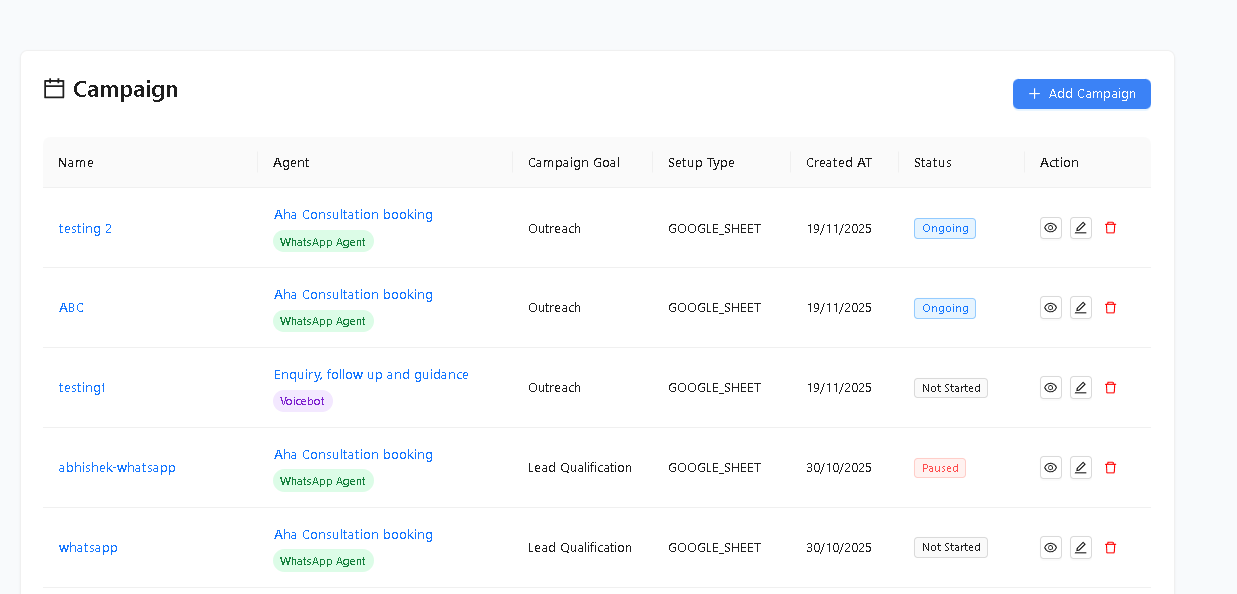
Step 1: Navigate to Campaigns
Go to the Campaigns tab from the dashboard.
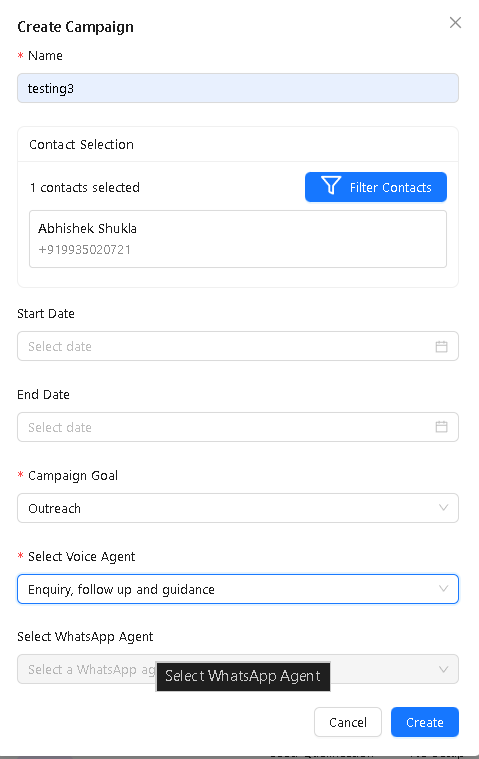
Step 2: Create a New Campaign
Click Add Campaign in the top-right corner.
Step 3: Filter & Select Contacts
Click Filter Contacts to open the selection panel.
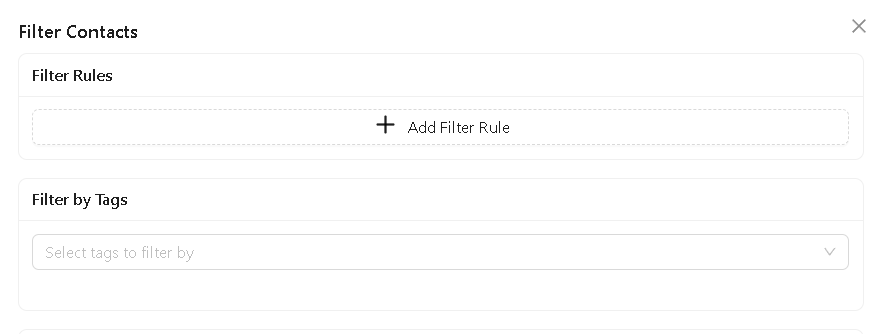
Filtering & Selection
- Add Filter Rules if needed
- Or directly select individual contacts
- Selected contacts appear in the Preview list
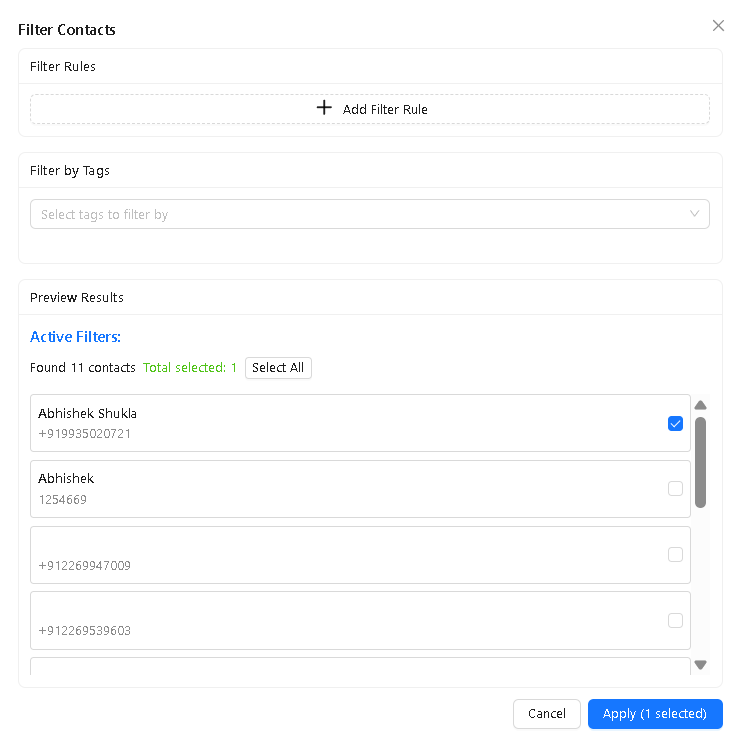
Click Apply when done.
Step 4: Configure Campaign Details
Fill in the form:
- Campaign Name
- Campaign Goal → Select Outreach
- Select Voice Agent → Choose the calling agent
- No template selection is required for voice campaigns
- WhatsApp Agent is optional (only for follow-up)
Click Create.
Step 5: Choose Source Type = Contacts
When the Setup modal appears, choose:
Campaign Type → Contacts
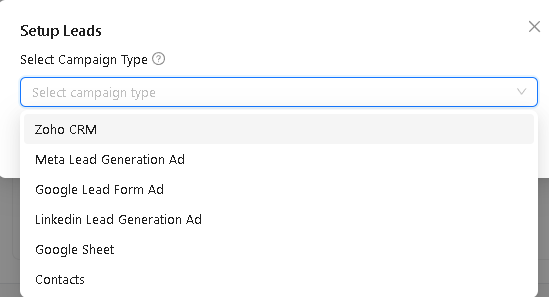
Click Save Configuration.
Step 6: Campaign Dashboard & Call Status
Once created, the campaign dashboard shows:
- Total Participants
- Connected
- Replied
- Failed
- Conversation transcripts
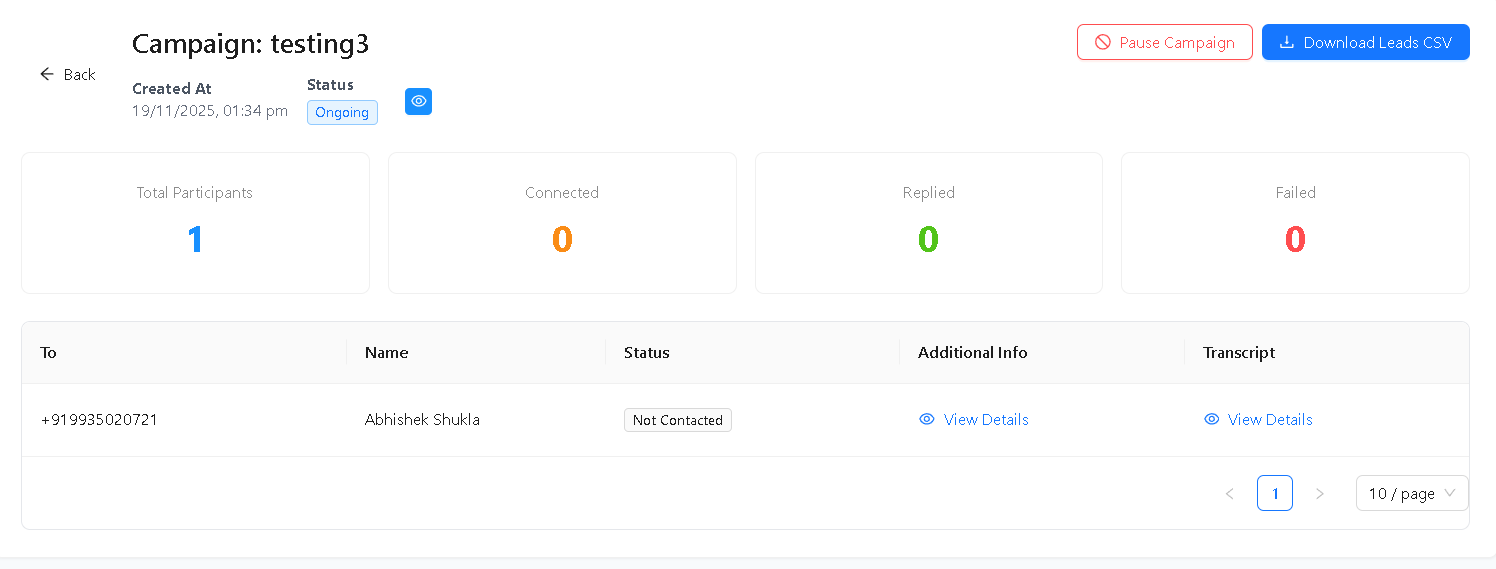
Each row shows:
- Phone number
- Name
- Status (Connected, Not Contacted, Failed)
- Transcript (if available)
- Additional info
How It Works Internally
- System queues calls for all selected contacts
- Voice Agent calls them one by one
- Conversation is fully automated using your Agent’s prompt
- System records:
- Call connected or not
- Duration
- Extracted details
- Transcript
Notes
- Contacts without valid phone numbers are skipped
- Call retries depend on your Voice Agent settings
- No WhatsApp message is required for voice campaigns
- Contacts can belong to any tag or custom field
- Only voice-enabled agents appear in the dropdown
Summary
Using Contacts as your audience source is the simplest way to start a Voice Campaign when your lead list is already inside Kipps.AI.
Just select contacts, pick a Voice Agent, configure the goal, and launch.
Troubleshooting
No contacts appear when I open the Filter Contacts panel. Contacts must be added to Kipps.AI before you can select them. Go to the Contacts section and add contacts manually or via CSV bulk upload. Then return to the campaign and try the filter panel again.
Some contacts show as "Not Contacted" after the campaign runs. Contacts without valid phone numbers are automatically skipped. Review the campaign's participant list for contacts with blank or malformed phone numbers and correct them in the Contacts section.
The Voice Agent dropdown is empty when creating the campaign. Only Voice Agents with an active phone number and outbound SIP enabled appear in the dropdown. Set up at least one Voice Agent with a working outbound SIP trunk before creating the campaign.
Frequently Asked Questions
Can I use filter rules to select contacts based on custom fields? Yes. The Filter Contacts panel supports rules based on any contact field, including custom fields (e.g., "Interested = Yes", "City = Mumbai"). This lets you target highly specific segments without manually selecting contacts one by one.
Can I add more contacts to a running campaign? New contacts can be added to the Contacts section at any time, but adding them after a campaign has started does not automatically include them in the active campaign. Create a new campaign for contacts added after the launch.
What happens if a contact's phone is busy or unanswered? Contacts that are not reached are marked as "Failed" or "Not Contacted." Retry behavior depends on your campaign and agent configuration. Contact support for details on retry settings.
Can I run the same campaign again for contacts who were not reached? Yes. Filter the participant list for contacts with "Not Contacted" or "Failed" status, save this as a new audience or contact group, and create a follow-up campaign targeting only those contacts.
Is there a limit on how many contacts I can select per campaign? The limit depends on your Kipps.AI subscription plan. Contact support to confirm the maximum participants per campaign for your account.
Related Articles