Outreach Campaign – Voice Outreach Calling
Learn how to create a Voice Outreach Campaign in Kipps.AI to call selected contacts using your AI Voice Agent with CRM, Google Sheets, Lead Ads, or direct contacts.
Overview
A Voice Outreach Campaign allows your AI Voice Agent to automatically call selected contacts and deliver a personalized scripted conversation.
You can choose your audience from Zoho CRM, Google Sheets, Lead Ads, or from your existing Contacts and track complete call analytics.
Step 1: Navigate to Campaigns
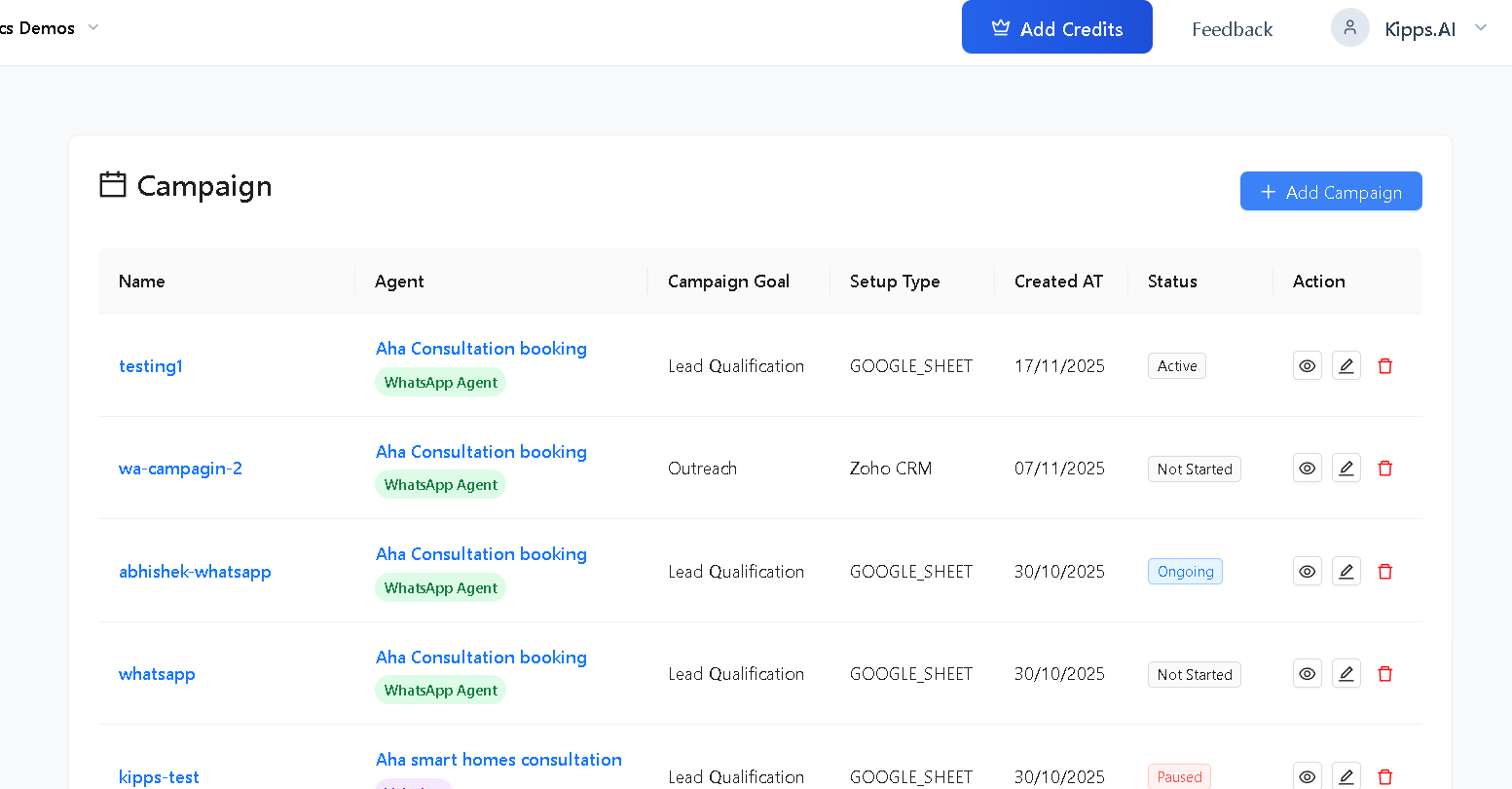
Go to the Campaigns section from the sidebar.
Step 2: Create a New Campaign
Click Add Campaign in the top-right corner.
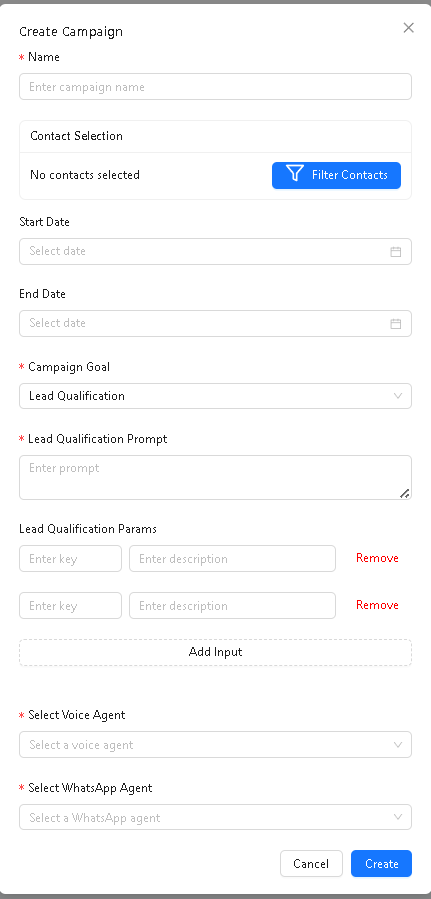
This opens the Voice Campaign creation form.
Step 3: Fill Basic Campaign Details
Enter the core campaign details.
Required Fields
- Name – Enter the campaign name
- Campaign Goal – Select Outreach
- Select Voice Agent – Choose the AI Voicebot that will make the calls
Optional Fields
- Start Date
- End Date
- Contact Selection – Select contacts using the Filter Contacts button
Step 4: Create the Campaign
Click Create after filling the form.
Your campaign will be added to the campaigns list.
Step 5: Open Setup
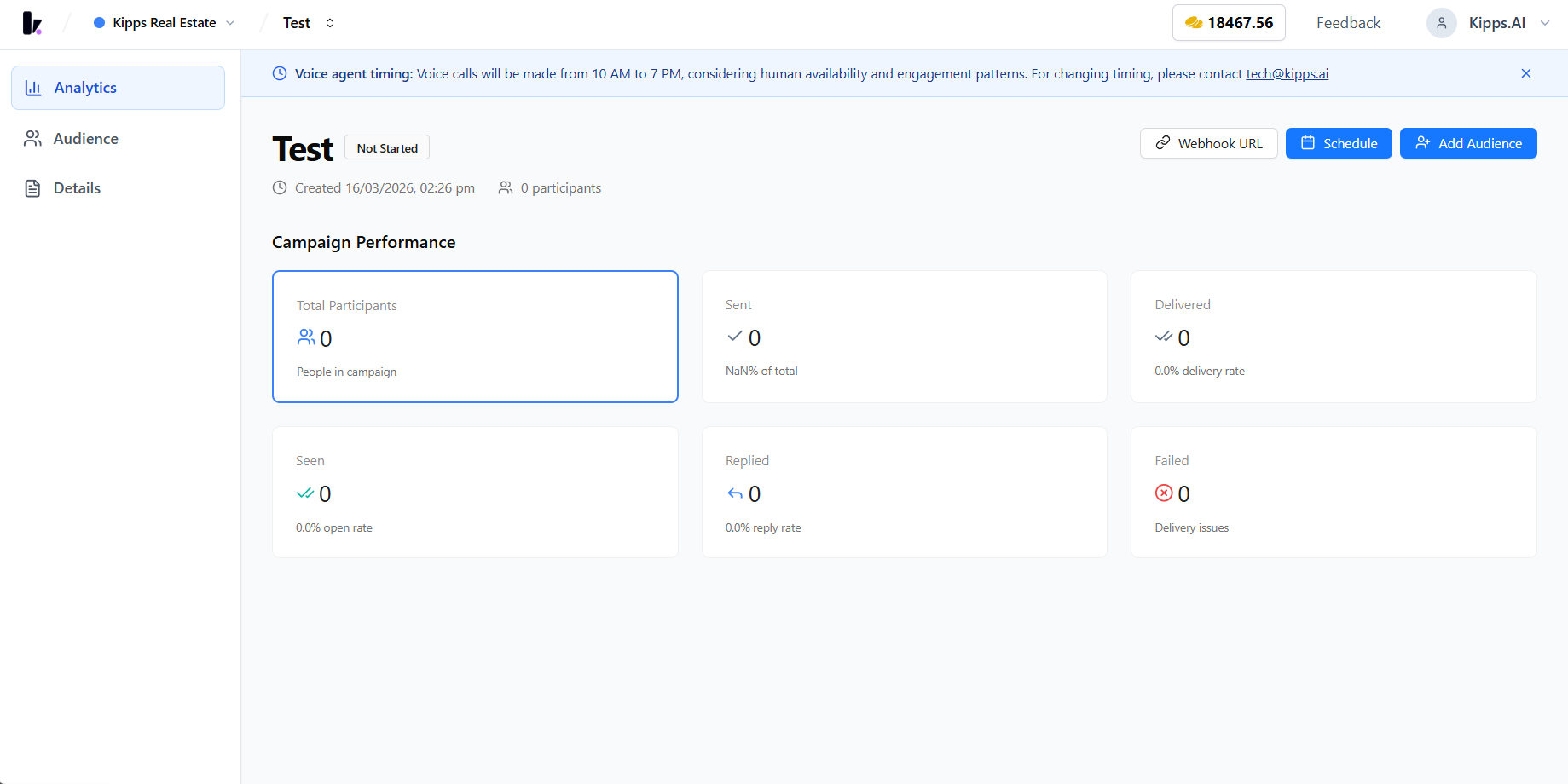
Once the campaign is created, click Setup to configure the audience source.
Step 6: Select Audience Source
In Setup Leads – Step 1, choose where your contacts should come from.
Available sources:
- Zoho CRM
- Meta Lead Generation Ad
- Google Lead Form Ad
- LinkedIn Lead Generation Ad
- Google Sheet
- Contacts
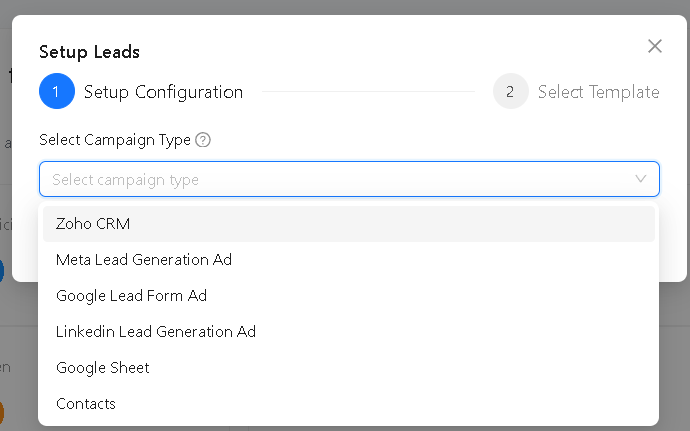
Select your preferred source and continue.
Step 7: Save Audience Configuration
Voice Campaigns do not use templates, so Step 2 only requires confirming your audience source.
Click Save Configuration to continue.
Step 8: Launch the Campaign
After setup:
- Confirm the selected Voice Agent
- Validate the Audience Source
- Review Start/End date
- Start the Outreach Campaign
Your AI Voice Agent will begin calling all selected contacts automatically.
Step 9: Monitor Campaign Performance
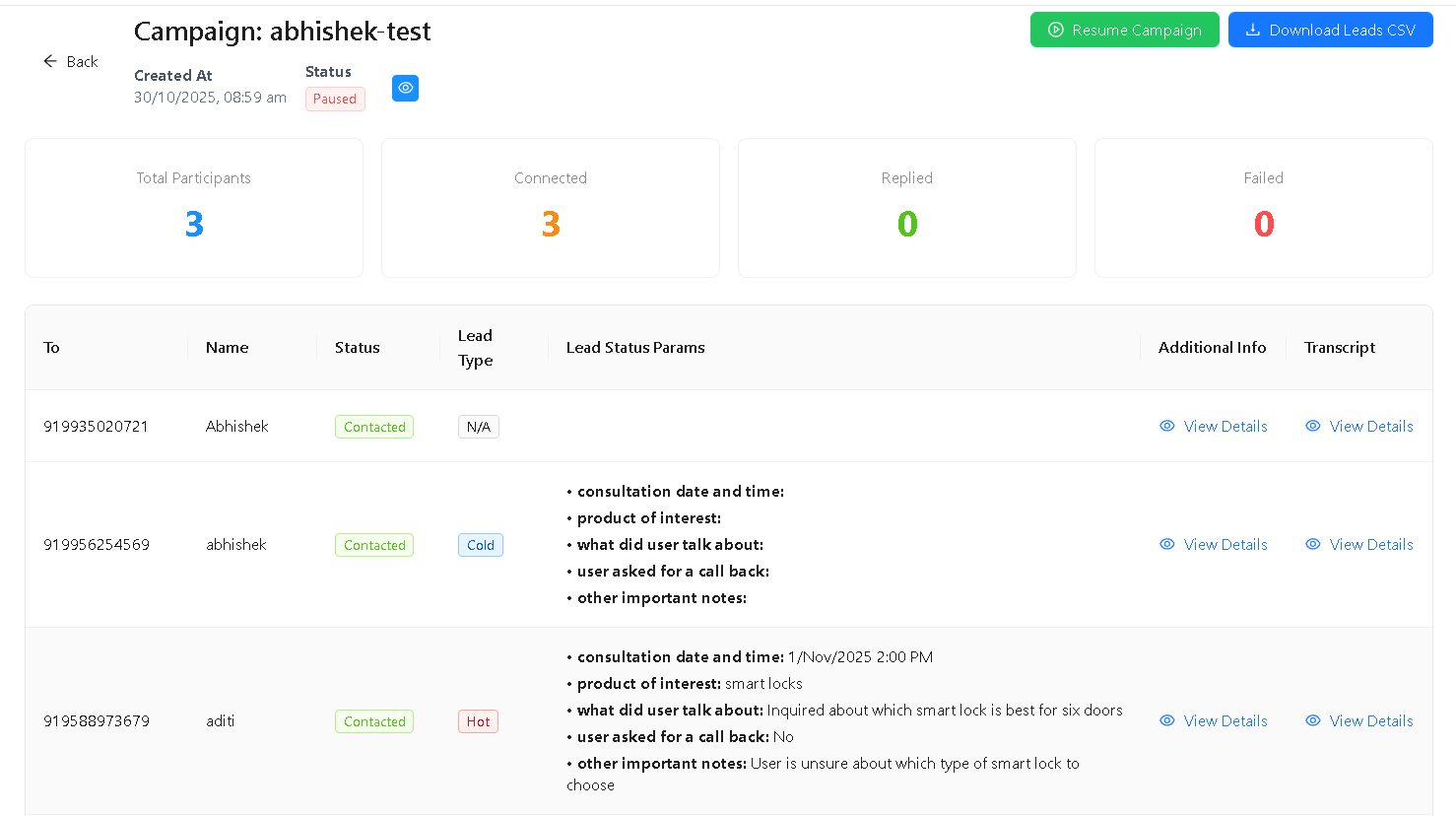
Use the Voice Campaign dashboard to track:
- Total Participants
- Connected
- Replied
- Failed
Each contact entry will include:
- Phone number
- Name
- Call status
- Transcript (if applicable)
- Additional info
Notes
- Voice Campaigns do not use WhatsApp templates.
- Ensure the Voice Agent is properly configured before launching.
- Start/End dates control when calls begin.
- Use Filter Contacts or Audience Source for precise targeting.
- If a contact does not answer, the system marks the call as Failed or Not Contacted depending on the attempt.
Troubleshooting
The campaign started but no calls are being placed. Verify the selected Voice Agent has an active phone number with Outbound SIP enabled. Without a working outbound SIP trunk, the campaign cannot place calls. Also confirm the audience has valid contacts with phone numbers in E.164 format.
Many contacts show as "Failed".
Failed calls typically indicate unreachable numbers—phones that are off, blocked, or formatted incorrectly. Review the contact list for formatting issues. Numbers must include the full country code (e.g., +15551234567).
The campaign ended but some contacts were never called. If the campaign's End Date arrived before all contacts were reached, those contacts are marked as uncalled. Extend the campaign duration or create a follow-up campaign targeting the uncalled contacts.
Frequently Asked Questions
Can I edit the Voice Agent or its configuration while a campaign is running? Editing an agent's instructions or knowledge base while a campaign runs will affect calls placed after the save. Calls already in progress will not be affected. Test any changes in a staging environment before updating a live campaign agent.
How many times will the system attempt to call an unreachable contact? Retry behavior depends on your campaign settings. By default, contacts that are not connected may receive a limited number of retry attempts. Contact support for details on configuring retry logic for your account.
Can I add more contacts to a running campaign? New contacts can be added to the underlying audience source, but contact your account manager about how mid-campaign additions are handled for your plan.
What is the difference between "Connected" and "Replied" in the analytics? "Connected" means the call was answered by the contact. "Replied" means the contact spoke during the call (the agent received voice input). A call can be connected without a meaningful reply if the contact immediately hung up or said nothing.
Can I download the call transcripts for all contacts in bulk? Yes. Use the "Download lead data" option from the campaign dashboard to export all call data, including transcripts, as a CSV file.
Related Articles