Functions – CSV Function
The Functions – CSV Function documentation covers how to use CSV files to enhance your AI Chat Agent's data capabilities. This guide explains how to configure a CSV Function, its benefits, and best practices for using structured data within AI Chat Agent responses.
Overview
Functions allow your AI Chat Agent to interact with external data sources. The CSV Function lets you upload a CSV file that your AI Chat Agent can reference when responding to user queries. This is ideal for use cases like product lookups, price lists, service directories, or report generation.
Why Use the CSV Function?
Using the CSV Function, your AI Chat Agent can:
- Leverage Structured Data – Provide accurate, consistent answers based on well-organized tabular data.
- Support FAQs and Lookups – Respond to questions like “What’s the price of product X?” using the CSV’s values.
- Automate Data Queries – Enable users to retrieve information without manual support.
- Minimize Errors – CSV data eliminates reliance on hardcoded content in your AI Chat Agent instructions.
- Simplify Data Maintenance – Easily update AI Chat Agent behavior by replacing the CSV without modifying code.
How It Works
The CSV Function processes data in a structured spreadsheet format. When a user query matches a known pattern, the AI Chat Agent searches the CSV to return relevant values based on column headers and row content.
For example: If your CSV contains product names and prices, your AI Chat Agent can search for the requested product and return its price instantly.
How to Configure a CSV Function
Step 1: Navigate to the Functions Page
Go to your AI Chat Agent's settings and click on Functions from the sidebar.
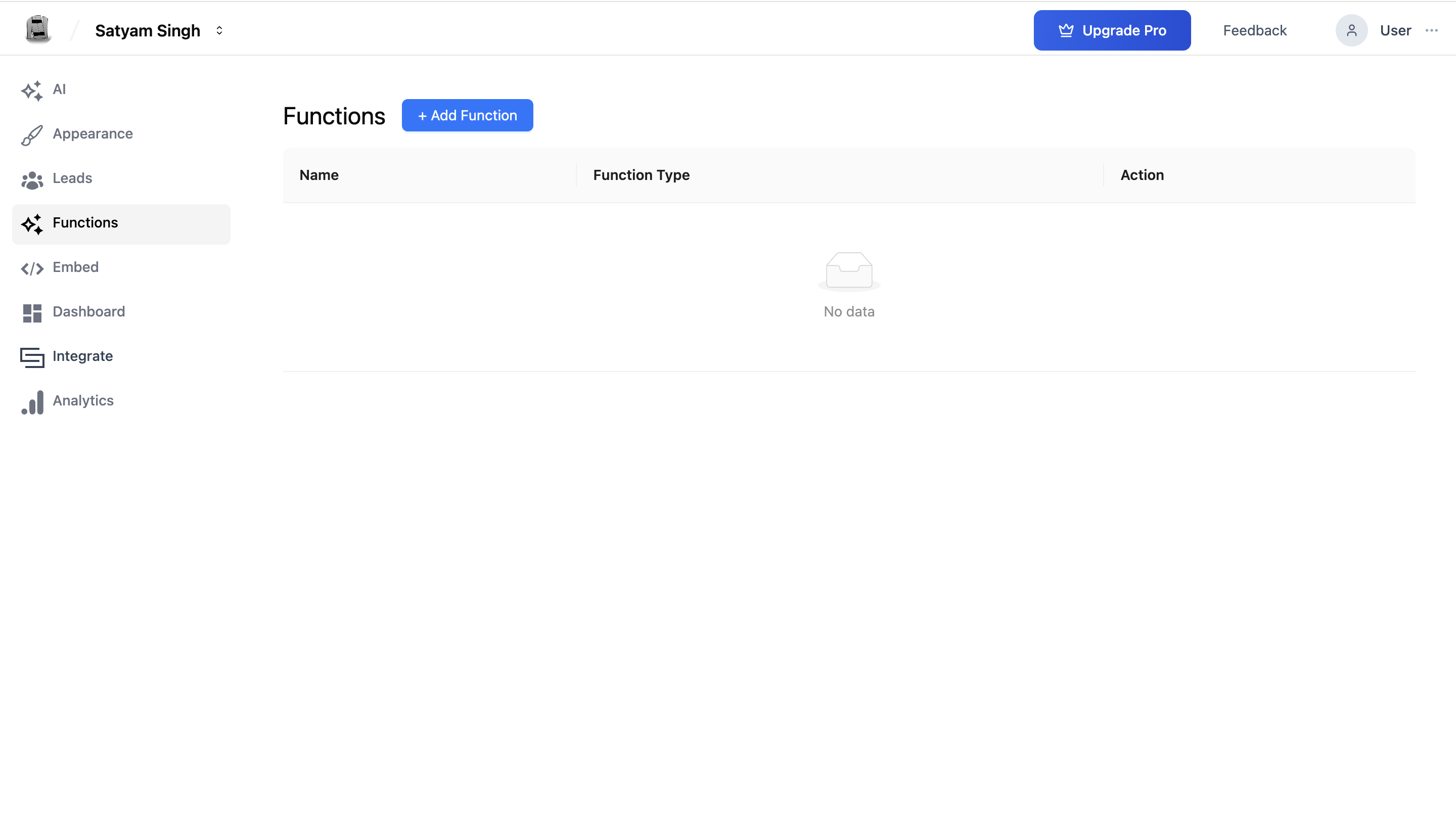
Step 2: Add a New CSV Function
Click the "+ Add Function" button. From the dropdown, select "CSV Function".

Step 3: Upload and Define the Function
- Function Name: Provide a clear name (e.g.,
Product LookuporService Info). - Description: Briefly describe what this function retrieves or returns.
- Upload File: Click to upload a CSV or drag-and-drop your file into the uploader.

Step 4: Save the Function
Click Submit to complete the function setup.
CSV Function Example Use Case
Suppose you have a CSV file with this data:
| Product Name | Price | In Stock |
|---|---|---|
| Deluxe Widget | $99 | Yes |
| Economy Widget | $49 | No |
If a user asks: “What’s the price of the Deluxe Widget?” your AI Chat Agent will:
- Search the
Product Namecolumn for "Deluxe Widget" - Find the associated row
- Return the
Pricevalue: $99
Best Practices
- Format Matters: Ensure the CSV includes a header row (column names).
- Data Cleanliness: Avoid empty rows and double-check for typos.
- File Size Awareness: Large files may affect performance – try to keep them concise.
- Privacy Compliance: Avoid uploading sensitive or personal data unless required.
Managing Your Functions
- Edit: Use the pencil icon to modify the name, description, or upload a new file.
- Delete: Use the trash icon to remove the function. You’ll be asked to confirm.

Summary
The CSV Function is a flexible way to connect your AI Chat Agent with structured, dynamic data. It enables rapid information retrieval, reduces manual support effort, and provides consistent, reliable answers. Whether you’re managing a product catalog, course list, or pricing table, the CSV Function gives your AI Chat Agent a strong data backbone with minimal setup.
Troubleshooting
The agent doesn’t use the CSV data even when asked a direct question about a product. The function description controls when the agent decides to use the CSV. Update it to be more explicit: "Use this function when the user asks about product pricing, availability, or specifications. Look up the answer in the product CSV." Vague descriptions cause the agent to skip the function.
The function is triggered but returns incorrect or empty results. Verify the CSV has a clean header row with column names that clearly describe the data. Avoid merged cells, blank rows, or special characters in headers. Re-upload the corrected file and re-test.
The CSV file upload fails.
Ensure the file is in standard .csv format (UTF-8 encoded). Files exported from Excel may include BOM characters or use a different delimiter—save as CSV UTF-8 from Excel before uploading.
Frequently Asked Questions
How large can a CSV file be? Keep CSV files concise—under a few hundred rows and fewer than 20 columns for best performance. Very large files may slow down retrieval and reduce accuracy. Split large datasets into topic-specific CSV files if needed.
Can I update the CSV without deleting and re-adding the function? Yes. Click the Edit (pencil) icon on the function and upload the new CSV file. The updated data will be used immediately after saving.
What delimiters does the CSV function support?
The standard comma (,) delimiter is recommended. If your data contains commas (e.g., addresses or descriptions), use a semicolon delimiter and ensure your CSV is formatted consistently.
Can a CSV function be shared across multiple agents? No. Each CSV function is configured per agent. If you want multiple agents to use the same data, add a CSV function to each agent and upload the same file to each.
Does the CSV function replace the knowledge base, or do they work together? They work together. The knowledge base handles open-ended, conversational queries. The CSV function is better for structured lookups where the user needs a specific value from a table. The agent uses both based on which is more appropriate for the query.
Related Articles