Integrations - WhatsApp Coexistence
Run the WhatsApp Business App and the WhatsApp Cloud API on the same number at once. Connect Kipps.AI to your existing WhatsApp Business App using Coexistence — keep your chats, contacts, and team workflow while adding automation, AI, and campaigns.
Kipps.AI supports two ways to connect WhatsApp:
- Standard Cloud API setup — register a fresh (or unlinked) number directly on the WhatsApp Business Platform.
- Coexistence (this guide) — connect a number that is already live in the WhatsApp Business App, without moving off the app or losing history.
Use Coexistence if your team already runs day-to-day chats in the WhatsApp Business App and you want to add automation on the same number.
What is WhatsApp Coexistence?
Coexistence lets one phone number stay live in two places at once — your WhatsApp Business App and the WhatsApp Cloud API (via Kipps.AI).
You keep using the app the way your team already does, and Kipps.AI adds AI replies, a shared team inbox, broadcasts, and CRM automation on top — no new number, no lost chat history, no customer-facing disruption.
Coexistence vs. Standard Setup
| Standard Cloud API | Coexistence | |
|---|---|---|
| Phone number | New / unlinked number | Your existing Business App number |
| Chat history | Starts fresh | Synced from the app |
| WhatsApp Business App | Stops working on that number | Keeps working alongside the API |
| Best for | New WhatsApp presence | Teams already active on the app |
Prerequisites
Before you start, make sure you have:
- A Facebook account (for identity verification)
- A Meta Business Portfolio
- An active WhatsApp Business App account on the number you want to connect
- The phone with that number available (you'll scan a QR code from it)
- Admin access to the relevant Meta Business and WhatsApp accounts
- A stable internet connection
Note: Coexistence is not available in every country and requires an active WhatsApp Business App number. It does not work with the consumer WhatsApp app or personal numbers.
Video Walkthrough
The two videos below walk through the full Coexistence connection, including the QR-code step:
Step 1: Start the Integration
- Log in to your Kipps.AI Dashboard and go to Integration → WhatsApp Business.
- Click “Login with Facebook” to open Meta's guided onboarding.
- Sign in with your Facebook credentials.
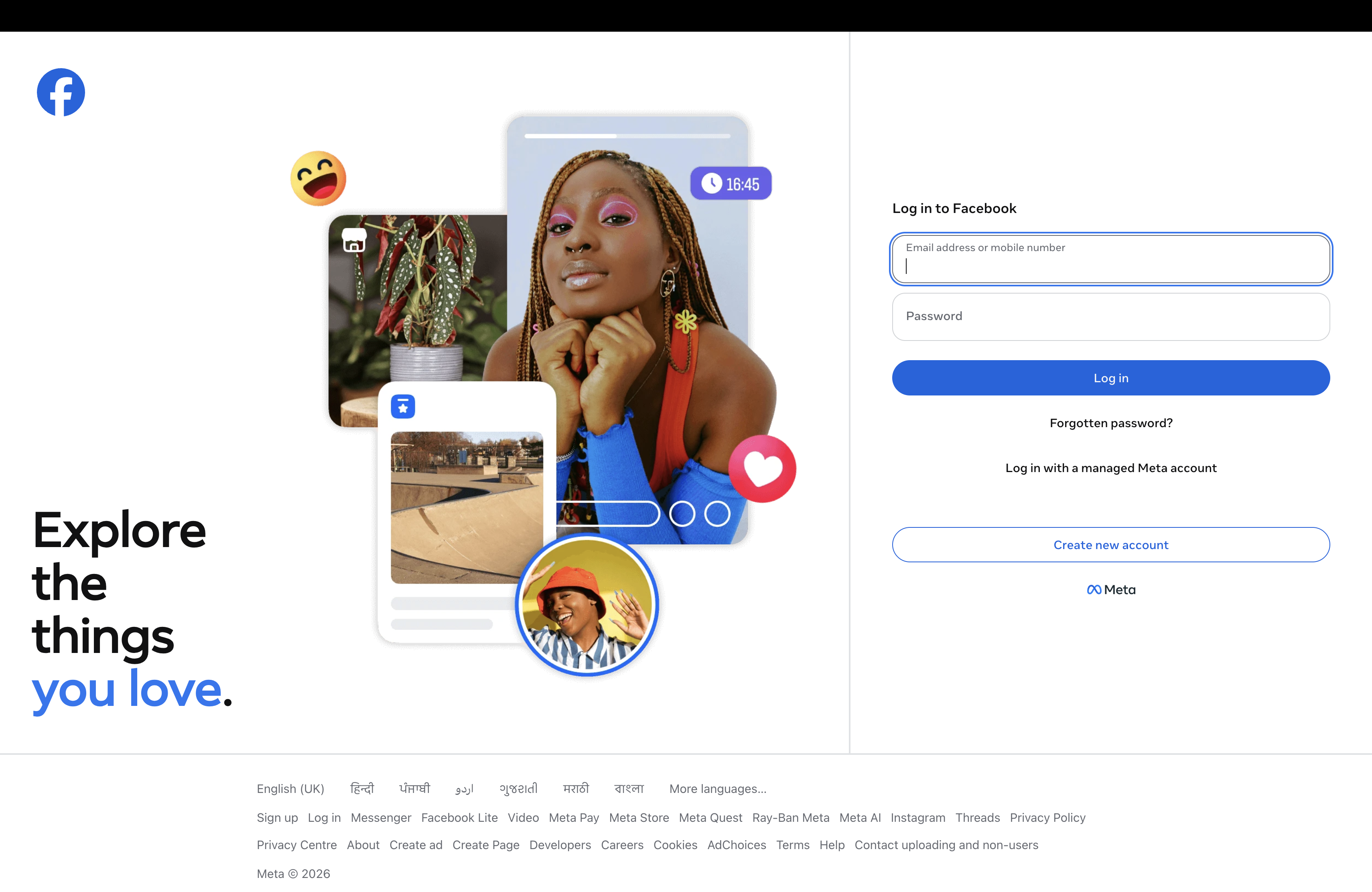
Step 2: Continue Onboarding with Kipps.AI
Meta's Login for Business window opens and explains that you're connecting your account to Derived Mind Technologies Private Limited — the authorized Meta Business Solution Provider working with Kipps.AI.
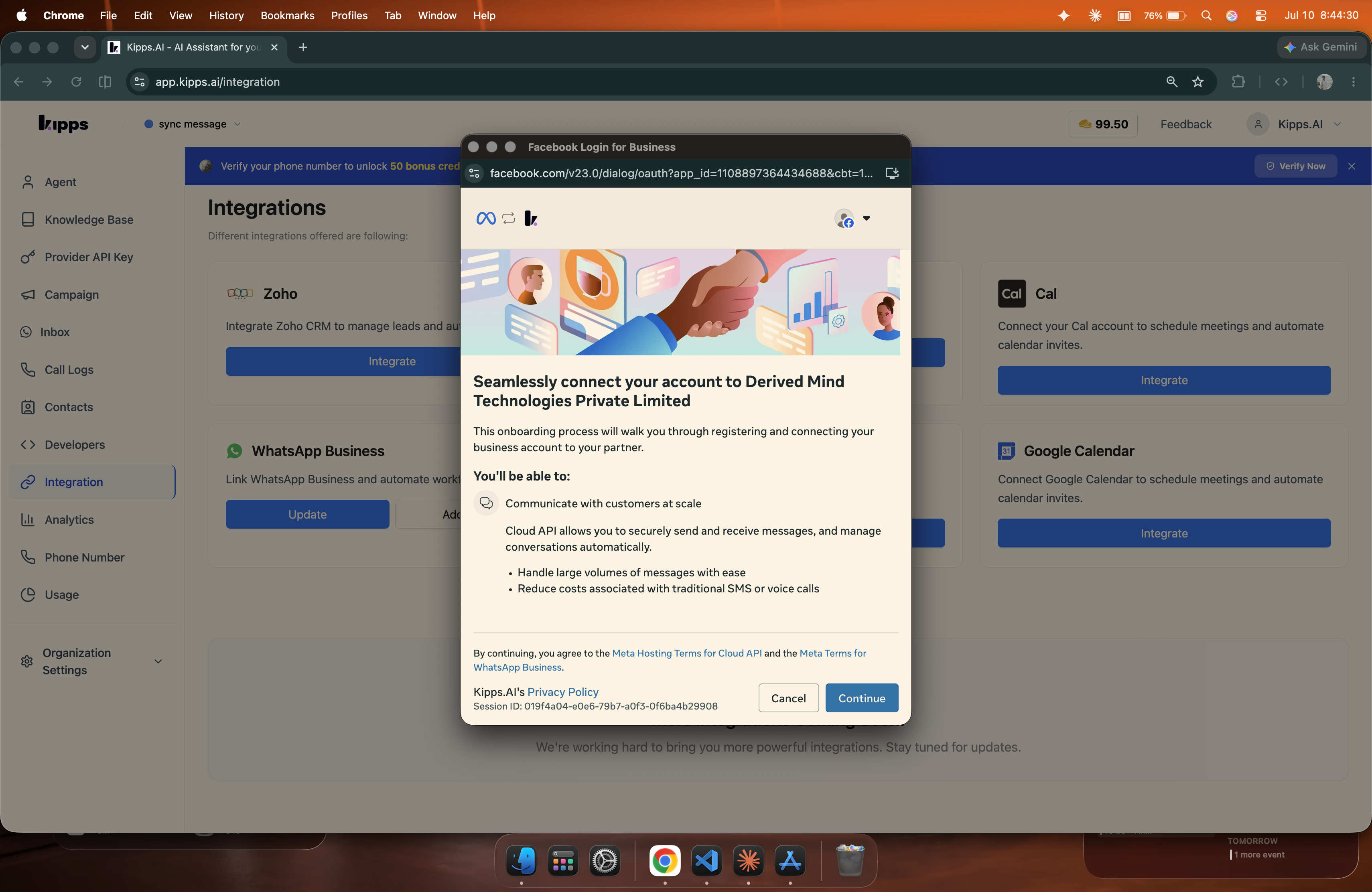
Click Continue to proceed.
Step 3: Choose “Connect a WhatsApp Business App”
On the “Select the business assets to share with Kipps.AI” screen:
- Pick (or create) your Business portfolio.
- Under WhatsApp Business account, open the dropdown and choose “Connect a WhatsApp Business App.”
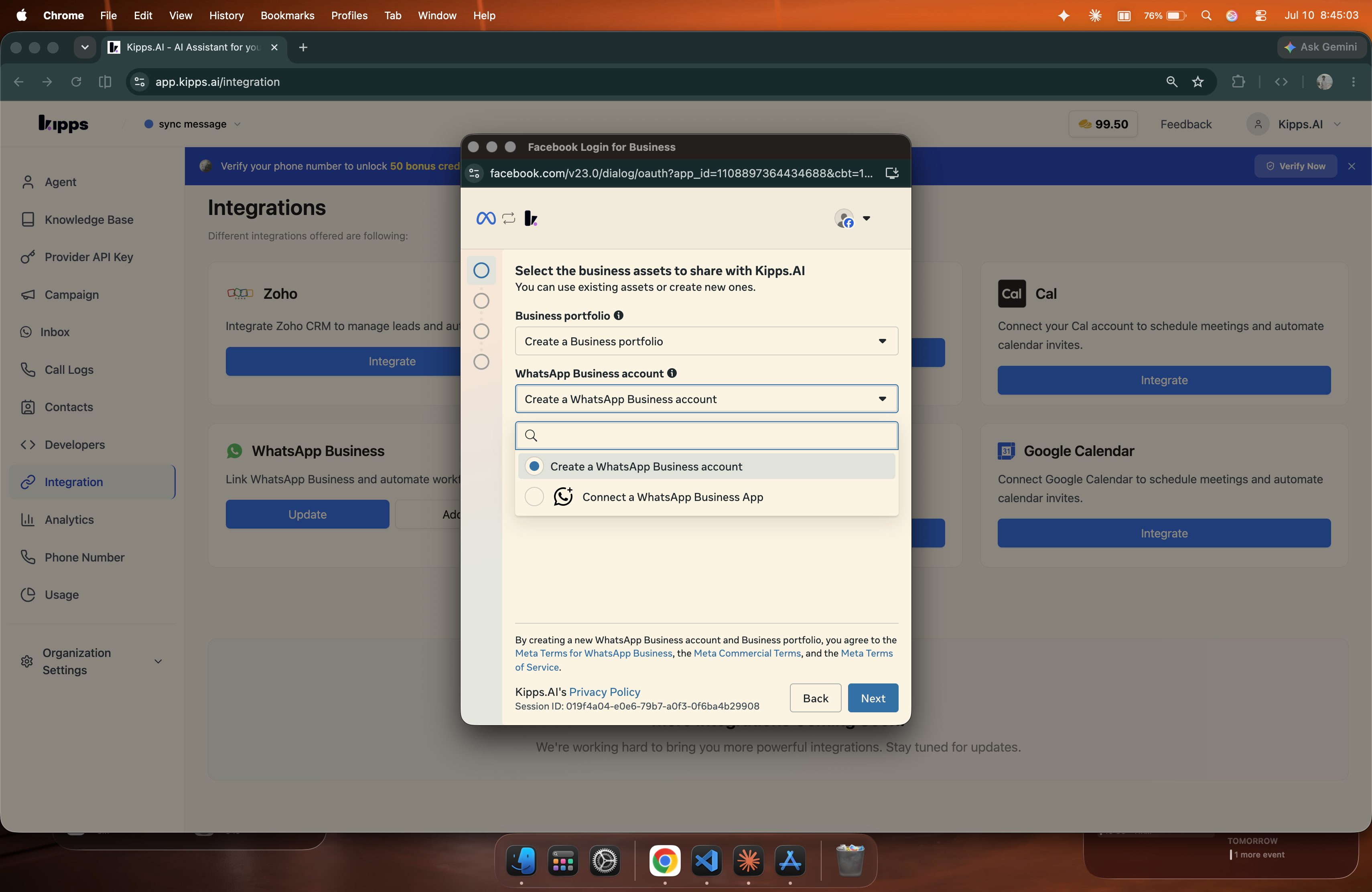
This option is what enables Coexistence — instead of creating a brand-new account, you link the number already running in your Business App.
Click Next.
Step 4: Enter Your WhatsApp Business Number
Select your country and enter the phone number currently active in your WhatsApp Business App.
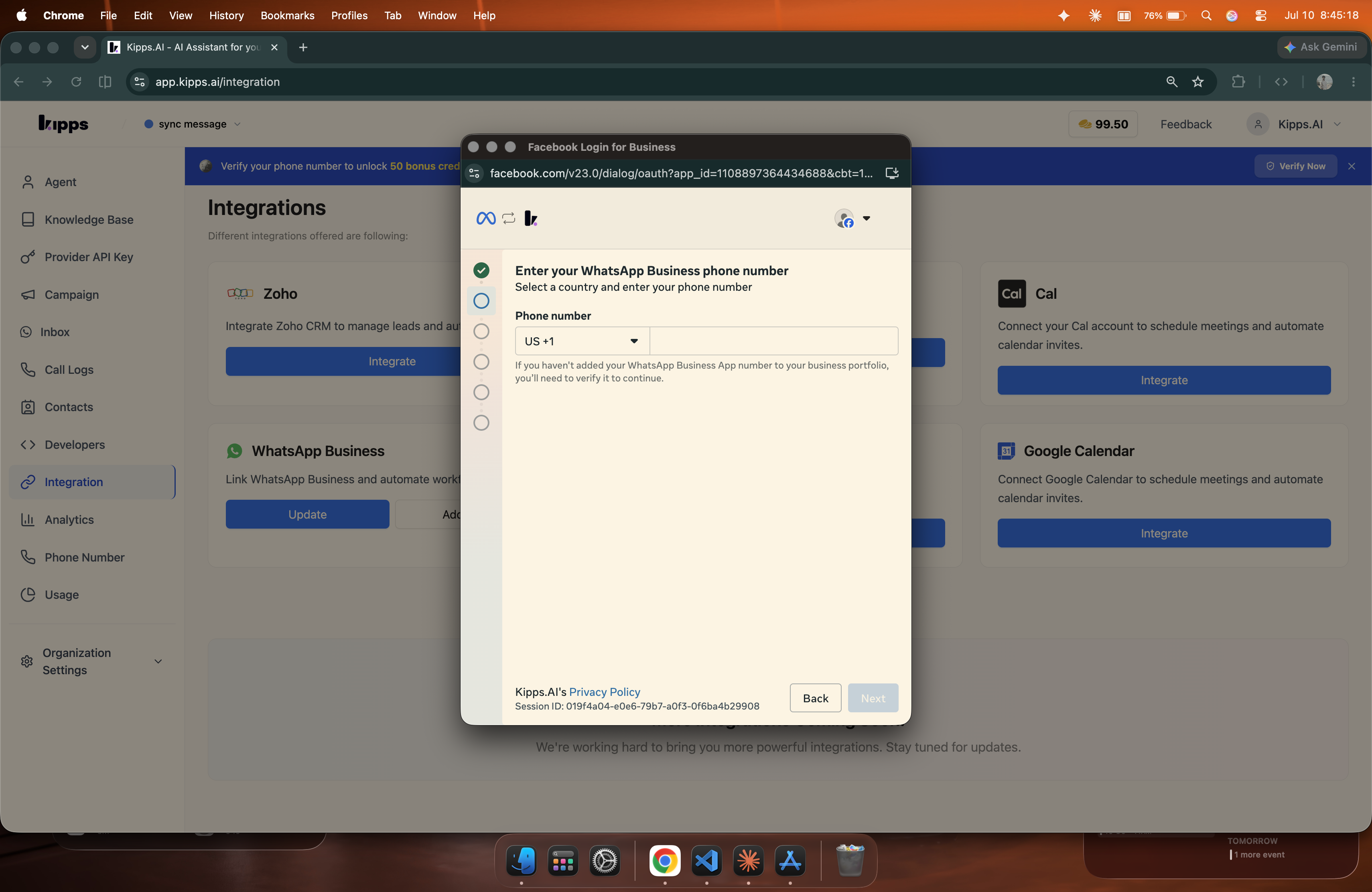
If this number isn't in your business portfolio yet, you'll be asked to verify it before continuing.
Step 5: Review Sharing and Privacy
Meta shows what connecting your existing WhatsApp Business App means:
- You keep full access to your WhatsApp Business app and can keep using it.
- Account info, contacts, chats, and chat history may be shared with the provider.
- Individual chats will now be managed using a secure service from Meta, and your customers are notified of this privacy change.
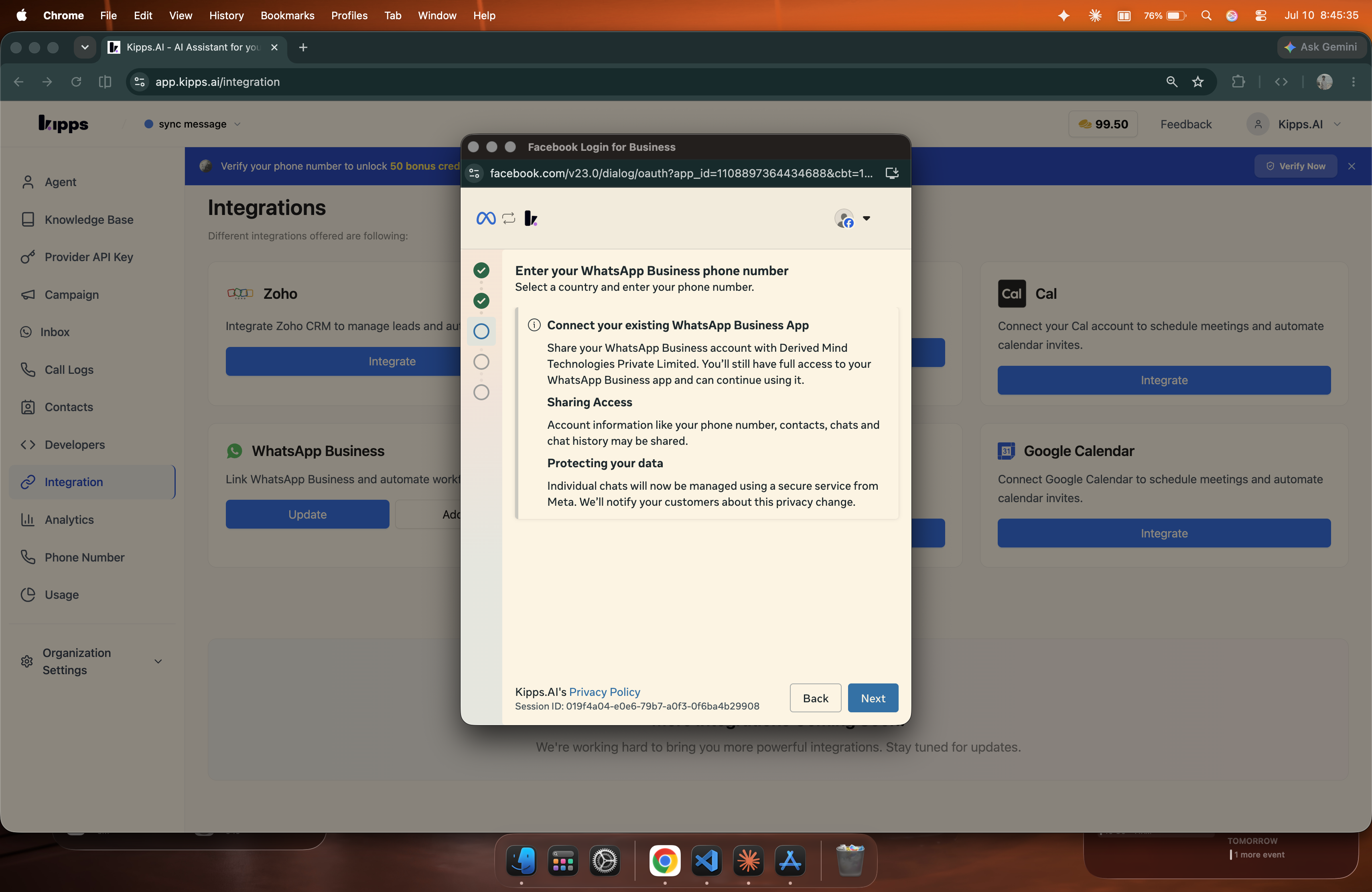
Click Next to continue.
Step 6: Scan the QR Code from Your Business App
Meta displays a QR code to import your contacts and the last 6 months of chat history.
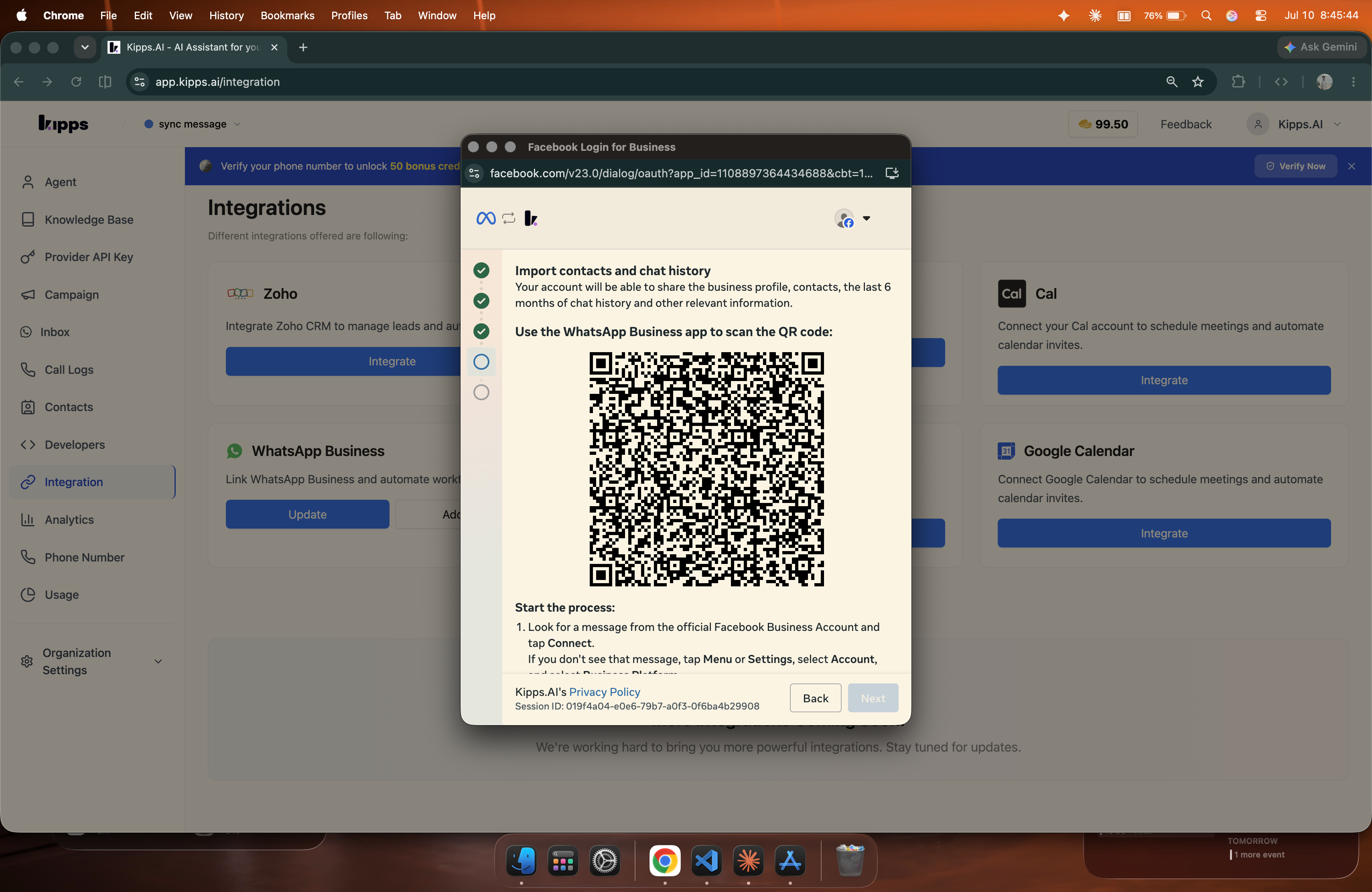
On the phone running that number, open the WhatsApp Business App and either:
- Tap Connect on the message from the official Facebook Business Account, or
- Go to Menu / Settings → Account → Business Platform and scan the QR code shown above.
Step 7: Confirm the Connection on Your Phone
In the WhatsApp Business App, tap “Connect to the Business Platform” and approve the connection. You'll see a “You're connected to Derived Mind Technologies Private Limited” confirmation, and a secure-service notice appears in your chats.
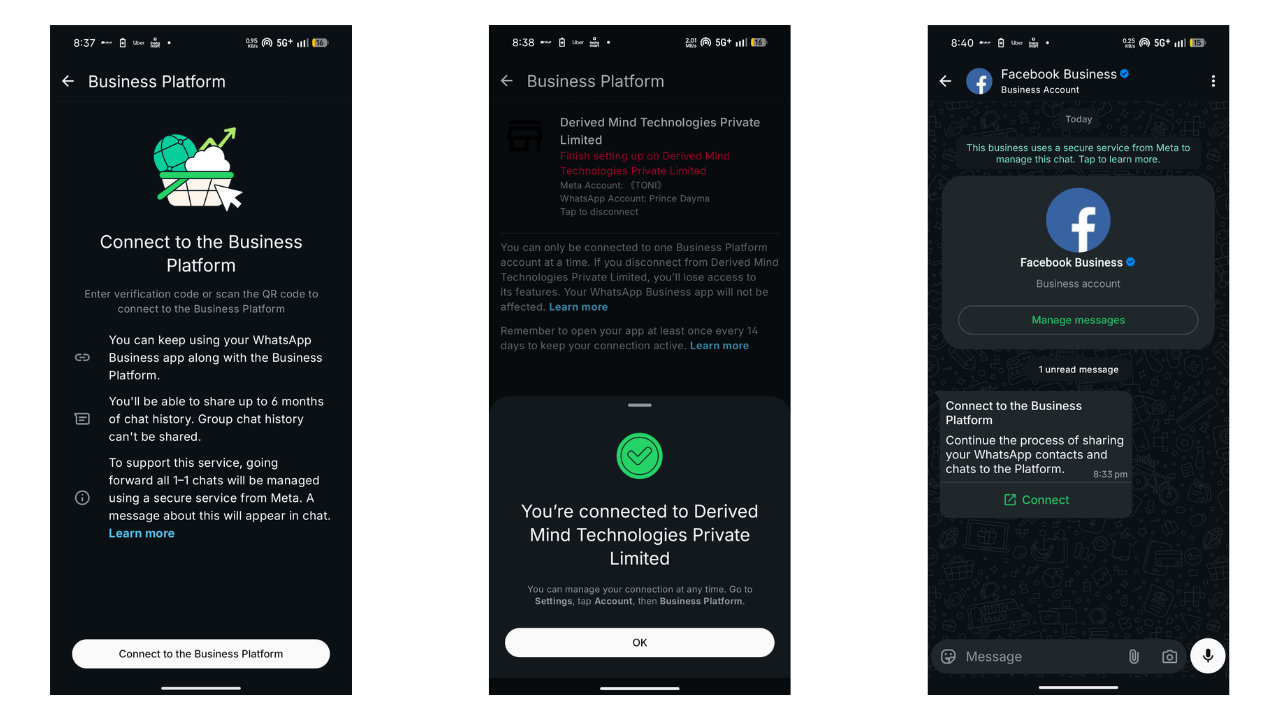
Keep opening the WhatsApp Business App at least once every 14 days to keep the connection active. Group chat history can't be shared.
Step 8: Verify Both Channels
- Send a test message from Kipps.AI (Integration → WhatsApp → Settings) and confirm delivery.
- Confirm the WhatsApp Business App still works on the same number.
- Check that recent chats and contacts have synced into your Kipps.AI inbox.
If both channels respond on the same number, Coexistence is working.
Benefits
- Keep your existing app, number, team workflow, and chat history
- Add AI chatbots and automation on the same number
- Shared team inbox across the app and Kipps.AI
- Run broadcast campaigns and connect your CRM
- Access analytics and reporting
- Zero disruption for your customers
Limitations
- Disappearing messages and view-once media don't sync into API chats
- Group chats and calls remain app-only (not available via the API)
- Coexistence is not available in all countries
- Requires an active WhatsApp Business App number
Troubleshooting
| Issue | Possible Cause | Solution |
|---|---|---|
| QR code won't scan | Wrong app or outdated version | Use the WhatsApp Business App (not personal WhatsApp) and update it |
| Chats not syncing | Permission not granted | Re-run linking and approve chat history & contacts sharing |
| Coexistence option missing | Country not supported / number not on Business App | Confirm eligibility and that the number is active on the Business App |
Support
Need help during setup?
- Visit the Help Center in your Kipps.AI Dashboard, or
- Contact support@kipps.ai for personalized assistance.
© 2025 Kipps.AI — All Rights Reserved
Related Articles