Lead Qualification Campaign – WhatsApp Lead Qualification Automation
Learn how to create a WhatsApp Lead Qualification Campaign in Kipps.AI that sends a WhatsApp template and uses AI to extract lead details such as name, age, requirements, or intent using qualification prompts and custom parameters.
Overview
A Lead Qualification Campaign allows you to send a WhatsApp message to your contacts and automatically extract important information from their replies using an AI-powered prompt and custom qualification parameters.
This guide walks you through the entire process — from creating the campaign to setting up parameters and monitoring extracted values.
Step 1: Navigate to Campaigns
Go to the Campaigns section on the Kipps dashboard.
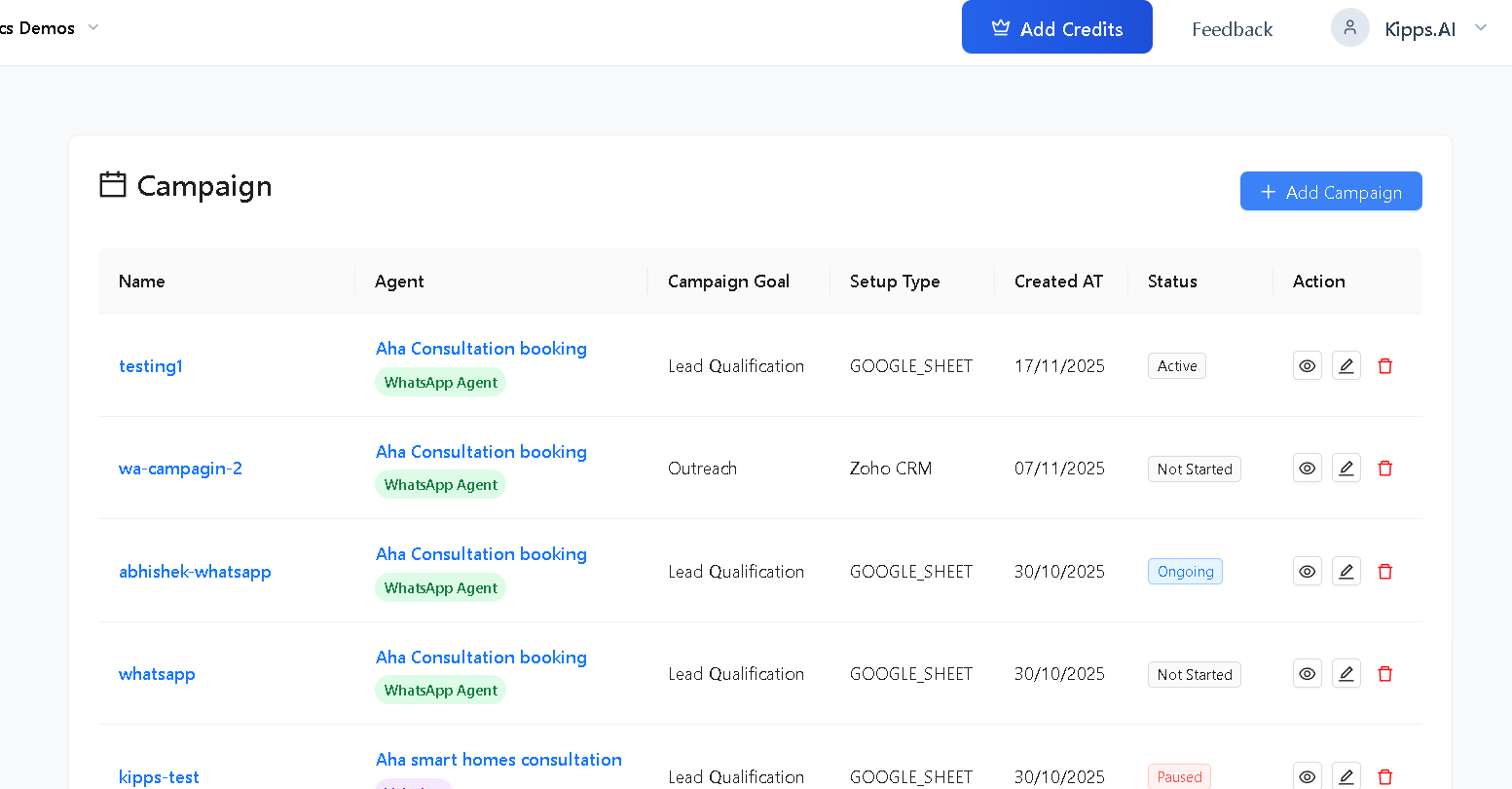
Step 2: Add a New Campaign
Click on Add Campaign in the top-right corner.
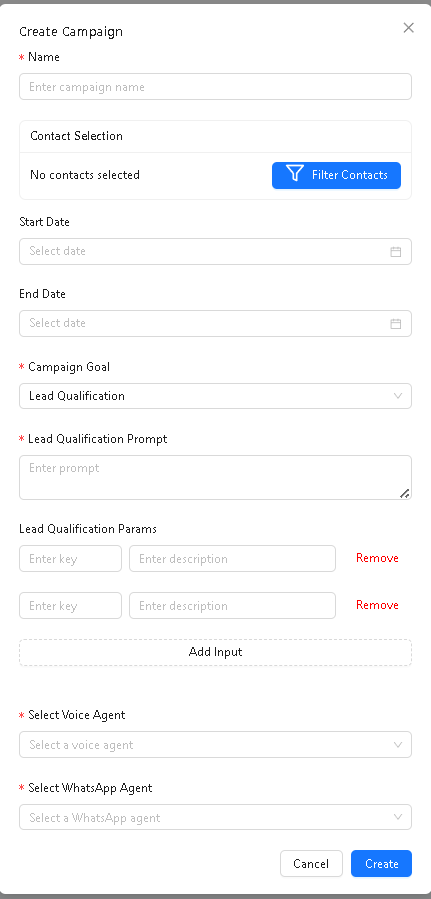
Step 3: Configure Campaign Details
Fill Basic Details
- Enter the Campaign Name.
- (Optional) Select Start Date.
- (Optional) Select End Date.
- Select Campaign Goal → choose Lead Qualification.
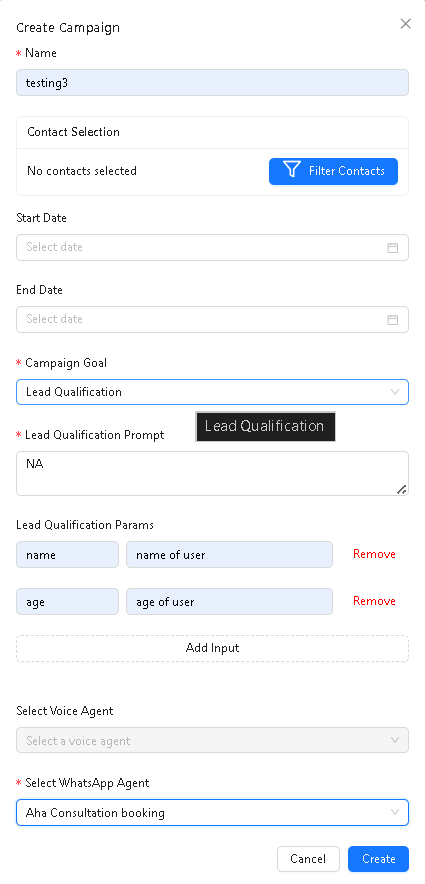
Step 4: Add Lead Qualification Prompt
The Lead Qualification Prompt tells the AI:
- what information to extract from the user’s reply
- how to interpret the conversation
- what attributes matter for your qualification process
Enter a clear prompt describing what data you want extracted.
Example:
“Extract the user's age and name. If age or name is missing, return blank.”
This field is required.
Step 5: Add Lead Qualification Parameters
Qualification parameters define what exactly the AI should extract.
Add Inputs
- Click Add Input.
- Enter the Key (e.g., name, age, requirement).
- Enter a Description that explains what to extract.
- Add as many parameters as needed — no limit.
- Click Remove to delete any parameter.
AI will extract values for these keys when users reply.
Step 6: Select WhatsApp Agent
Choose the WhatsApp Agent that will send your qualification message.
This is required before the campaign can be created.
Step 7: Select WhatsApp Template
After configuring the setup, you will choose the WhatsApp template used for qualification.
- Click Setup (or proceed to Step 2 if shown).
- Select a WhatsApp Template from the dropdown list.
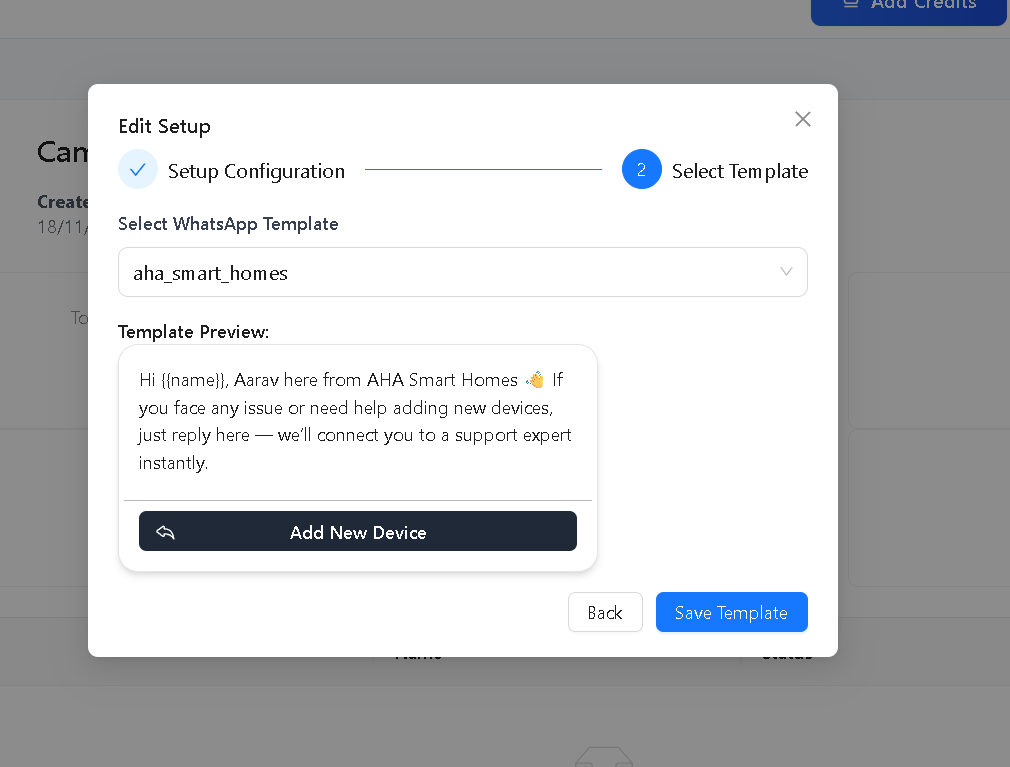
Preview Template
A preview of the selected template will appear.
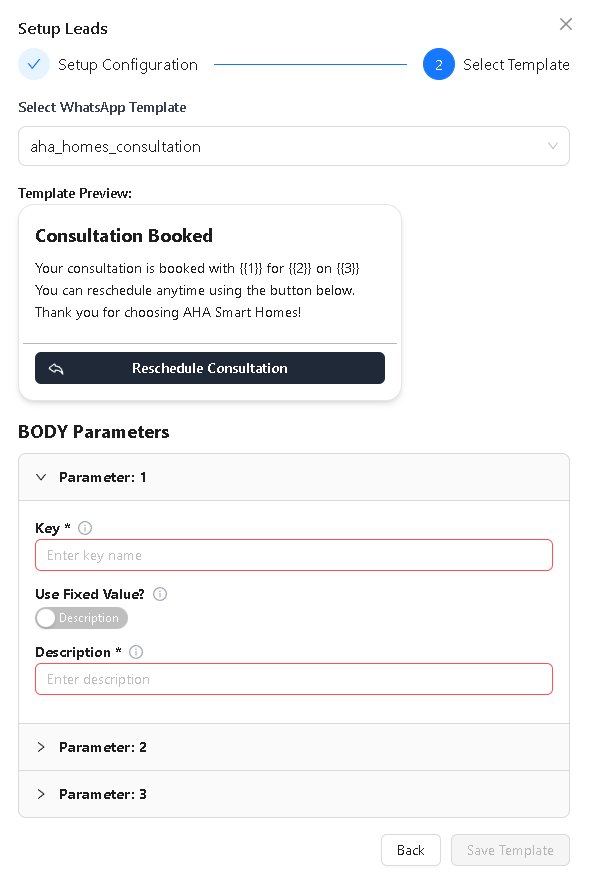
Only approved WhatsApp templates can be used.
Step 8: Finalize and Create Campaign
- Review all details.
- Click Create.
Your Lead Qualification Campaign is now active or scheduled depending on the dates selected.
Step 9: How Qualification Works
Once the campaign sends the WhatsApp template:
1. User Replies
The contact replies to the message.
2. AI Extracts Data
AI extracts values for the parameters you created, based on:
- Your Lead Qualification Prompt
- Your parameter keys
- Your descriptions
3. Retry Logic
If extraction fails:
- AI retries once
- If it fails again → value remains blank
4. Data Storage
Extracted values are saved into the Lead Fields and shown inside:
- Campaign dashboard
- Lead Status Params column
- Contact details
- Analytics & filters
5. No Additional Messages Sent
The system does not send follow-up questions.
AI only analyzes replies and extracts values.
Step 10: Monitor Campaign Performance
After creation, click on the campaign name to see analytics.
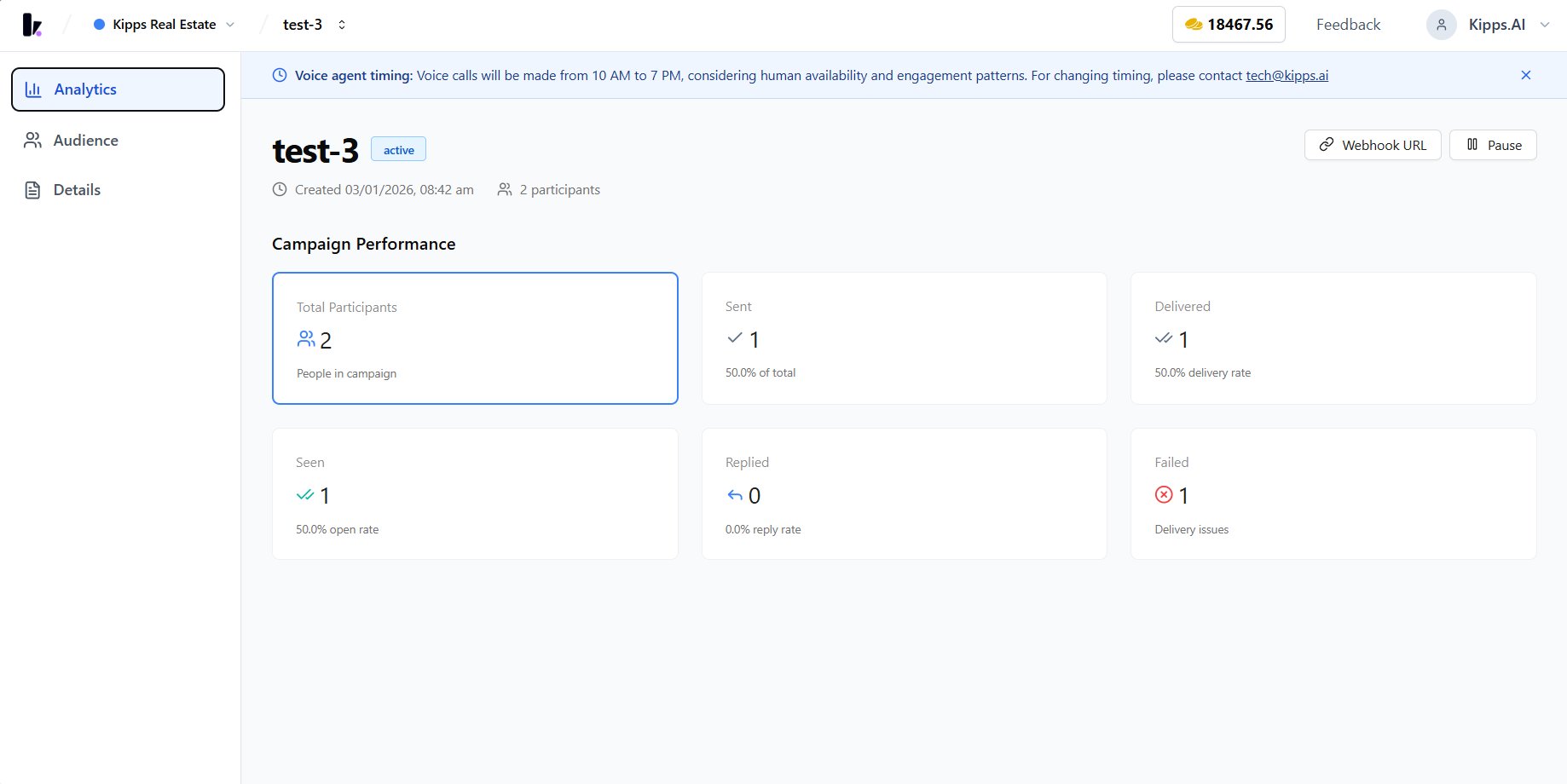
Dashboard Metrics Include:
- Total Participants
- Contacted
- Delivered
- Seen
- Replied
- Failed
Lead Status Table
For each contact you can see:
- Phone number
- Name
- Status
- Lead Type
- Extracted Lead Status Params
- Additional Info
Use Download Leads CSV to export results.
Example
Suppose your parameters are:
- name → “name of user”
- age → “age of user”
and your prompt is:
“Extract the user’s name and age from their reply.”
If a contact replies:
“Hi, I’m Rahul and I’m 28.”
AI extracts:
- name: Rahul
- age: 28
These values appear in:
- Lead Status Params
- Contact profile
- Filters & analytics
Notes
- Lead Qualification Prompt is required.
- All parameter Keys and Descriptions must be filled before saving.
- WhatsApp Agent must be connected before creating the campaign.
- Start Date cannot be in the past.
- Template must be WhatsApp-approved.
- Unlimited parameters can be added.
Troubleshooting
The campaign is running but no lead data is being extracted from replies. The Lead Qualification Prompt must explicitly instruct the AI to extract specific parameters from user replies. Vague prompts like "qualify the lead" will not produce structured data. Use precise language: "Extract the user's name, budget (in INR), and timeline from their reply." Also verify the parameter Keys match exactly what the prompt references.
Contacts replied but are shown as "Not Qualified" in the dashboard. "Not Qualified" typically means the AI could not extract the required parameter values from the reply — the contact either gave incomplete information or replied in an unexpected format. Review the conversation transcript to see what was extracted and refine your qualification prompt accordingly.
The WhatsApp template was sent but users are not replying. Review the template message content — a compelling call-to-action in the template body increases reply rates. Ensure the template clearly asks users a question or requests a response. Generic informational templates without a question prompt low reply rates.
Frequently Asked Questions
What is the difference between a Lead Campaign and an Outreach Campaign in WhatsApp? An Outreach Campaign sends a one-way WhatsApp template message to your audience. A Lead Campaign goes further — after sending the initial template, the connected WhatsApp Agent engages in a two-way conversation to extract specific lead data (name, budget, requirements) from replies using AI.
Can I add more lead parameters after the campaign has started? Campaign configuration including parameters is locked once the campaign starts. To add or modify parameters, pause the campaign (if possible) and create a new campaign with the updated parameter set for the remaining audience.
How many parameters can I define for lead qualification? You can add unlimited parameters to a Lead Campaign. However, asking too many questions in a single conversation reduces completion rates. Focus on the 3–5 most critical data points for your sales qualification process.
Can the extracted lead data be automatically synced to a CRM? Lead data captured through the campaign appears in Kipps.AI's lead dashboard and can be exported as CSV. For automatic CRM sync, configure the Zoho or HubSpot integration and map the campaign's lead parameters to your CRM fields.
What happens if a user replies outside the 24-hour session window? WhatsApp requires an approved template to initiate or re-open a conversation after the 24-hour session window expires. If a user replies to the original template message after 24 hours, a new session opens and the AI agent can continue the qualification conversation within the new session window.
Related Articles