Outreach Campaign – WhatsApp Outreach Messaging
Learn how to create a WhatsApp Outreach Campaign in Kipps.AI to send personalized WhatsApp templates to selected contacts using CRM, Google Sheets, Lead Ads, or direct contacts.
Overview
A WhatsApp Outreach campaign lets you broadcast an approved WhatsApp template to a chosen audience.
You can bring that audience from sources like Zoho CRM, Lead Ads, Google Sheet, or Contacts, personalize the message using template placeholders, and track full delivery analytics.
Before You Start (Checklist)
- WhatsApp agent connected: the WhatsApp agent must have a selected WhatsApp number.
- Approved WhatsApp template: only approved templates appear for selection.
- Audience source ready: decide where your audience will come from (Google Sheet / Zoho / Lead Ads / Contacts).
- Message strategy (recommended): decide what you want to achieve (book a call, re-engage, offer, reminder) before choosing the template.
- Sheet/CRM data quality (recommended): ensure every contact has a valid phone number and the fields you plan to use for personalization.
Naming convention (recommended)
Use a name that’s easy to track in analytics later:
Outreach-<Segment>-<Source>(example:Outreach-DemoRequests-GoogleSheet)- Add a date if you run the same campaign repeatedly (example:
Outreach-Q2-18Mar)
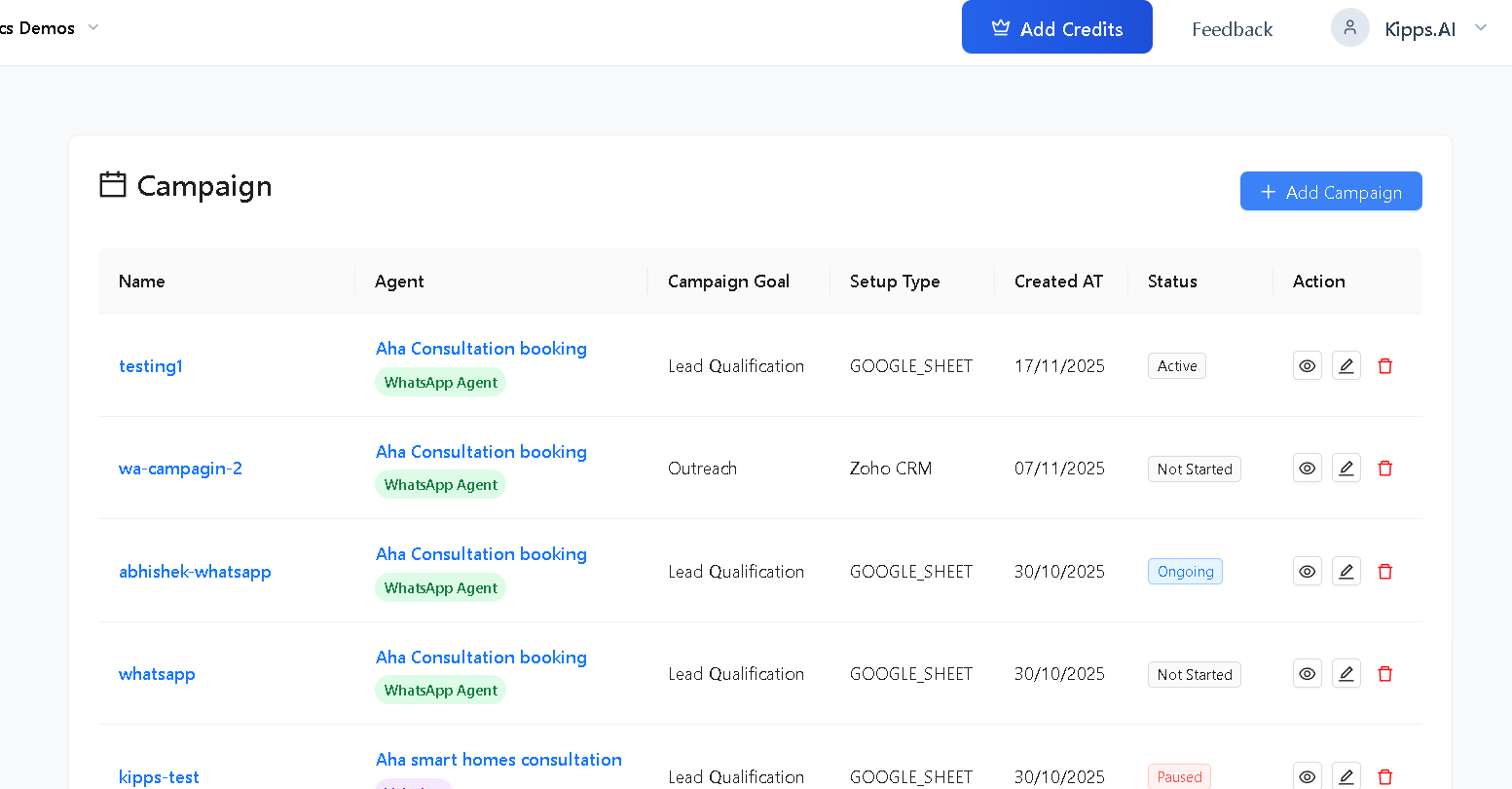
Step 1: Navigate to Campaigns
Go to the Campaigns section from the sidebar.
Step 2: Create a New Campaign
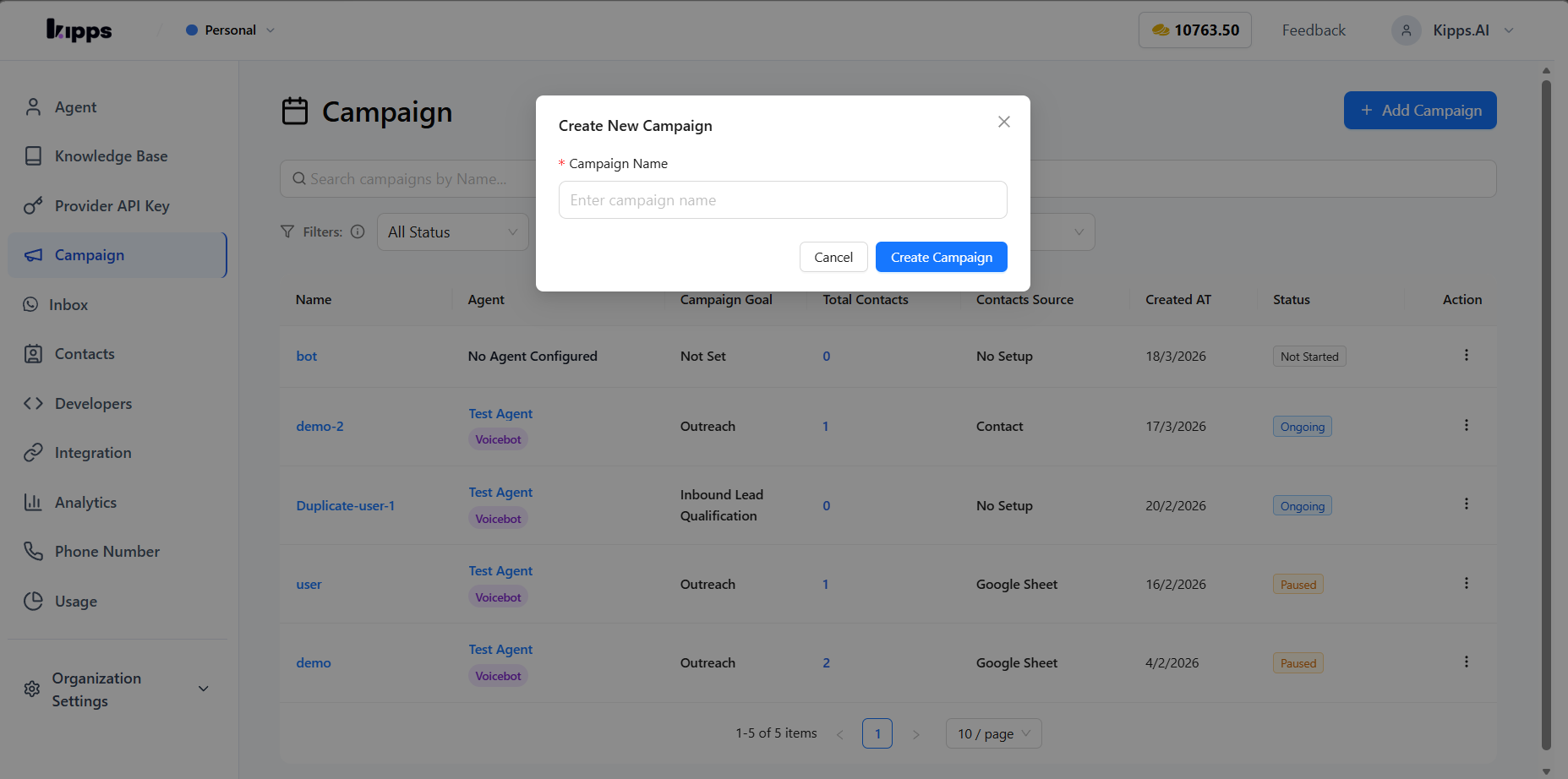
- Click Add Campaign on the campaigns list page.
- Enter a Campaign Name in the modal.
- Create the campaign.
After creation, you’ll be taken to the campaign page where you can complete setup.
Step 3: Setup Campaign (Outreach)
On the new campaign page:
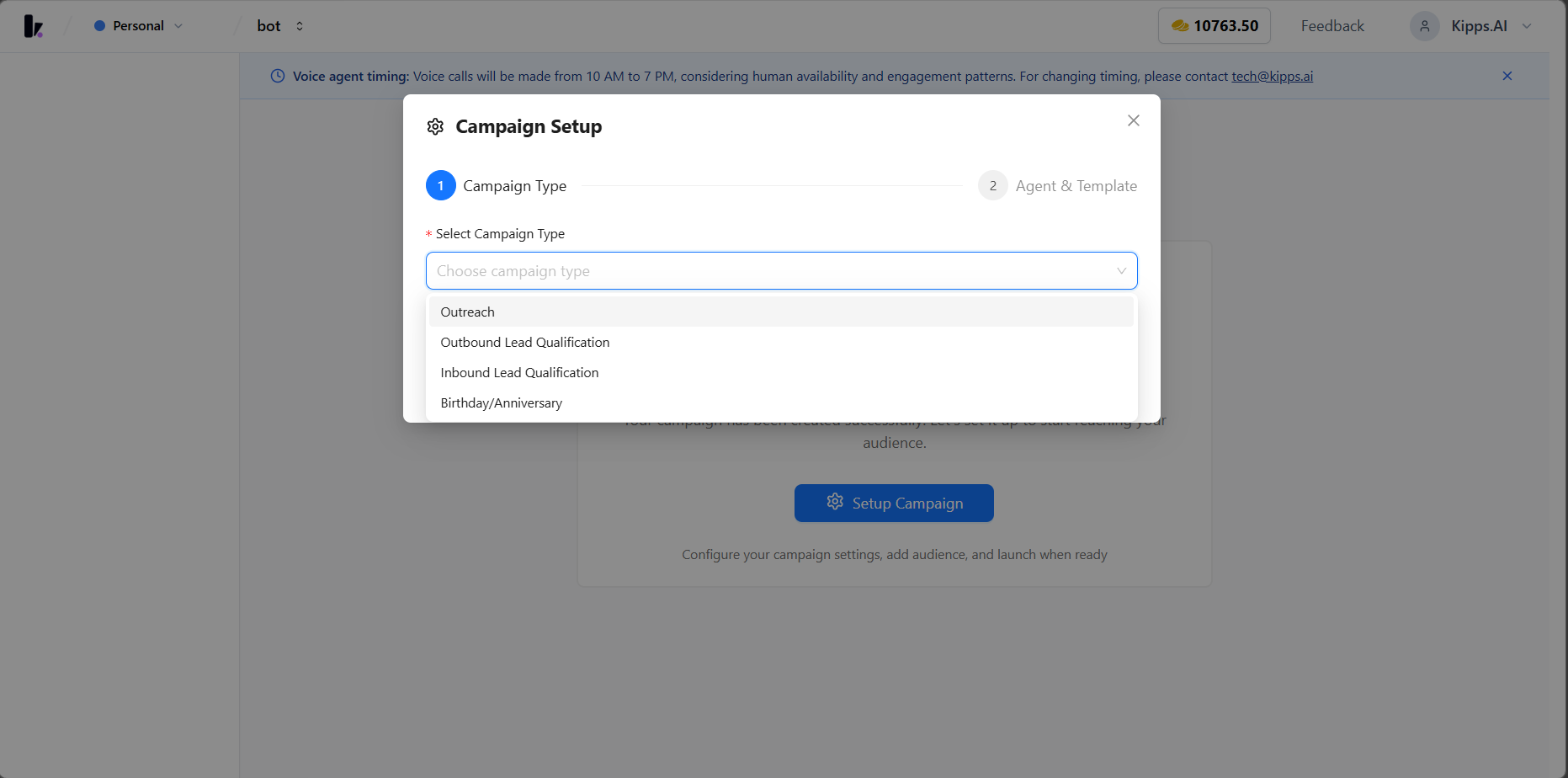
- Click Setup Campaign.
- In the setup wizard, select Outreach as the campaign type.
- Click Next.
Step 3.1: Select WhatsApp Agent
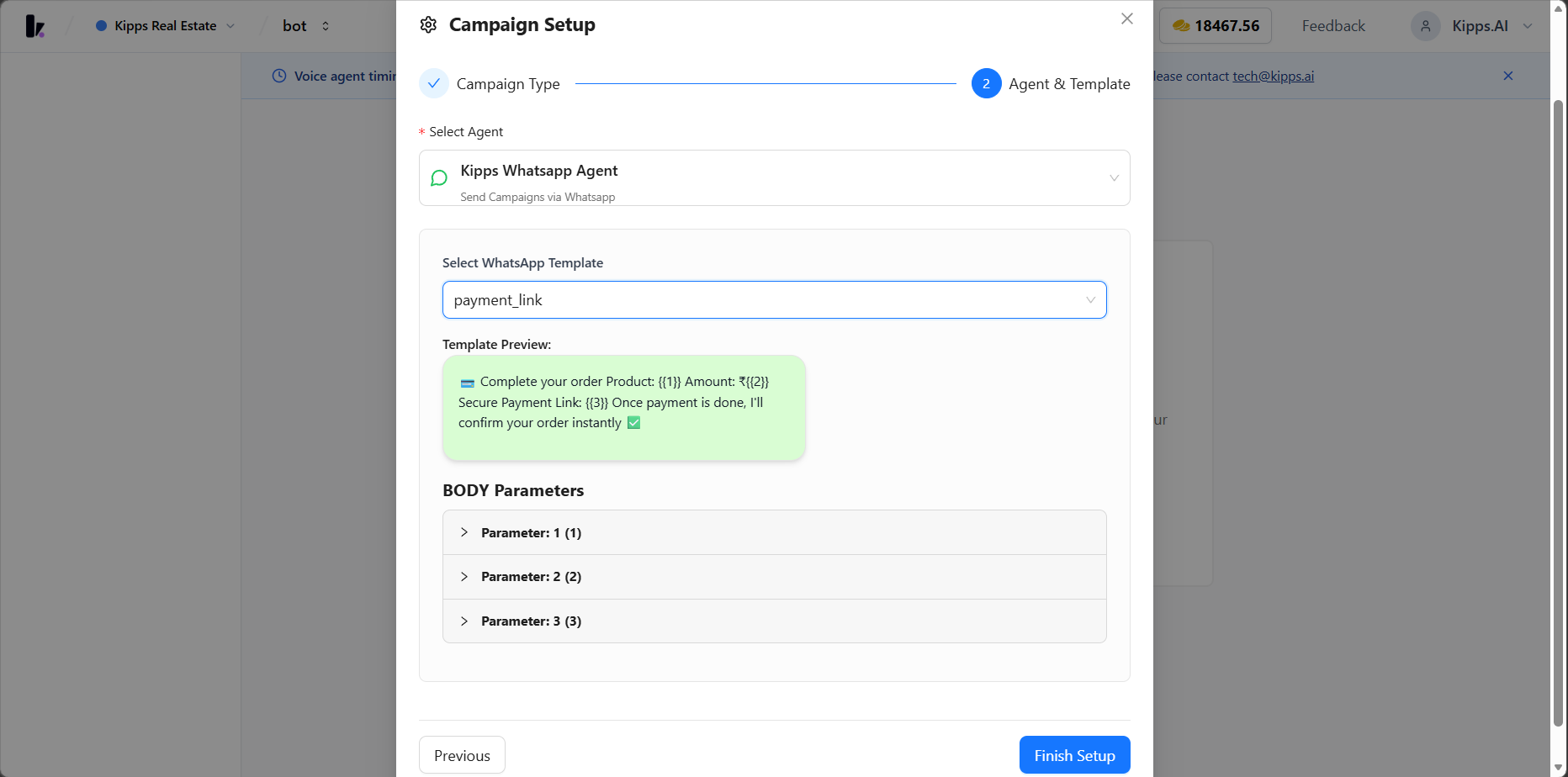
- Under Select Agent, choose the WhatsApp agent that will send messages.
- If you don’t see your agent, verify it has an active WhatsApp number selected.
Step 3.2: Select WhatsApp Template
- Choose the template you want to send.
- Only templates approved by WhatsApp will appear.
- If you can’t find a template, confirm it is approved and available for the selected WhatsApp number.
Template selection tips
- Use templates with clear CTAs (example: “Reply 1 to book a demo”).
- Prefer shorter copy for better delivery + engagement.
- If you plan to personalize, make sure the template includes placeholders you can actually populate from your audience source.
Step 3.3: Configure Template Parameters
If your template contains placeholders like {{1}}, {{2}}, etc., configure each placeholder:
- Fixed value: same value for every recipient (useful for static offers or links).
- Dynamic value: use values that will come from the audience (for example, from Google Sheet columns or CRM fields).
If any required parameters are missing, Finish Setup will not complete.
Example: parameter planning (quick)
If your template body is:
Hi {{1}}, are you available for a quick call about {{2}}?
Then you should plan:
{{1}}→ Name (from Google Sheetnamecolumn or CRM contact name){{2}}→ Interest/Topic (from Google Sheetinterestcolumn or a fixed value likeKipps AI)
Click Finish Setup when done.
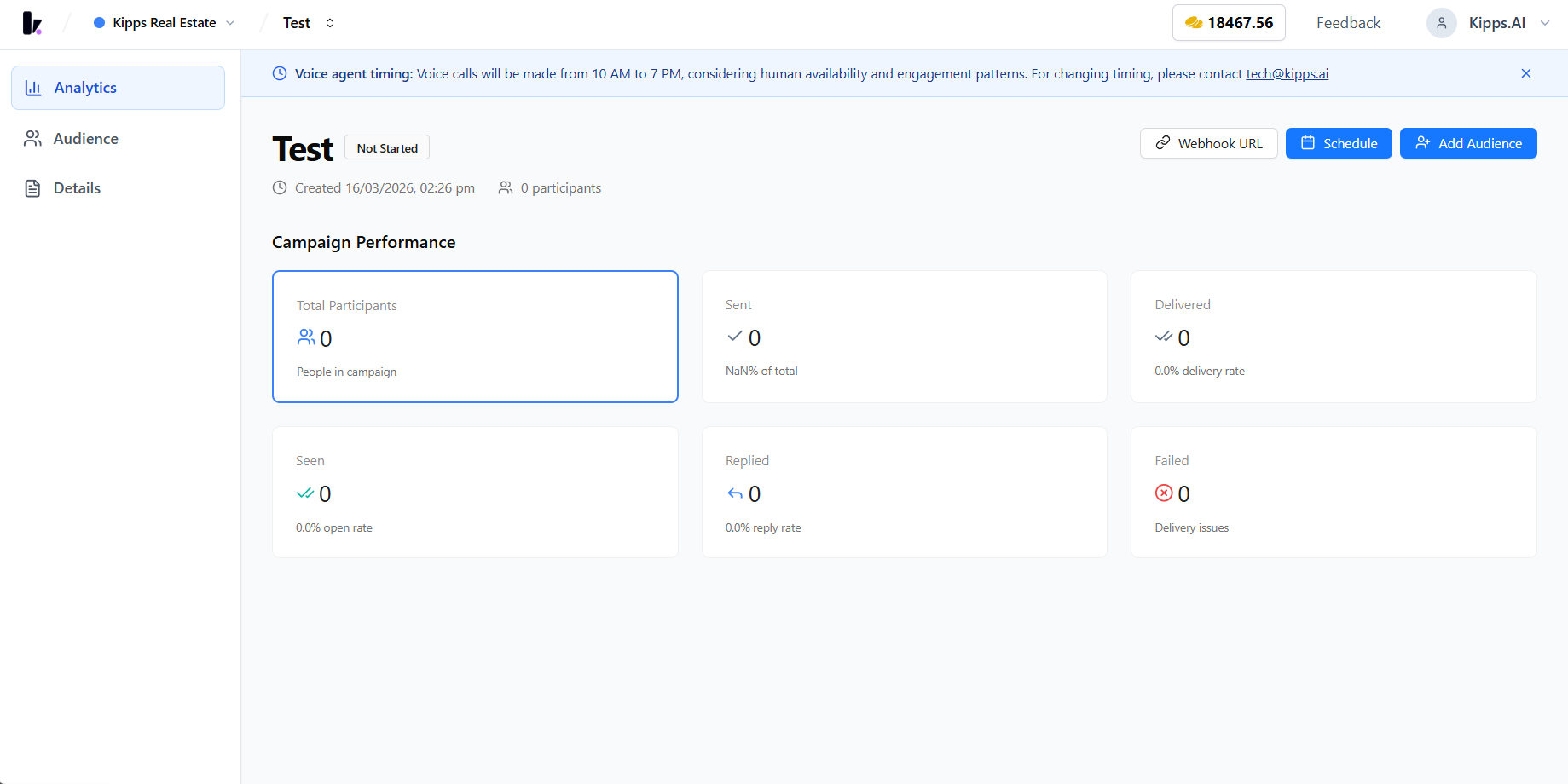
Step 4: Add Audience (Choose the Source)
Once setup is finished:
- Click Add Audience.
- In Select Audience Source, pick where your contacts will come from.
Supported sources include:
- Zoho CRM
- Meta Lead Generation Ad
- Google Lead Form Ad
- LinkedIn Lead Generation Ad
- Google Sheet
- Contacts
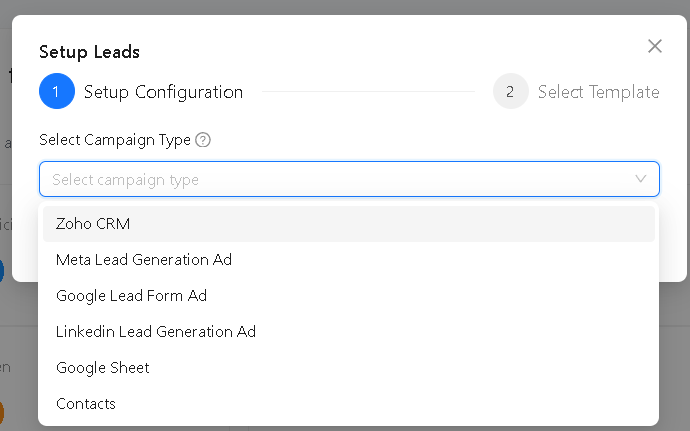
After selecting a source, complete its configuration and click Save Configuration.
Audience source guidance (what to use when)
- Google Sheet: best for quick lists, event follow-ups, manual segmentation, and ad-hoc outreach.
- Zoho CRM: best for CRM-driven campaigns where fields and segmentation already exist.
- Lead Ads (Meta/Google/LinkedIn): best for inbound leads; you’ll typically configure webhooks/connection details.
- Contacts: best when you already have contacts inside Kipps and want to filter/target them.
Data quality checklist (high impact)
- Remove empty rows / empty phone numbers
- Avoid duplicate phone numbers (or deduplicate before upload)
- Keep phone numbers consistent (E.164 recommended)
- Ensure any fields used for placeholders are present for most rows
Step 5: Schedule (Start Now or Later)
When you’re ready to run the campaign:
- Click Schedule.
- Choose one of the options:
- Start immediately to begin sending right away
- Schedule for later by selecting a start date (and optional end date/timezone)
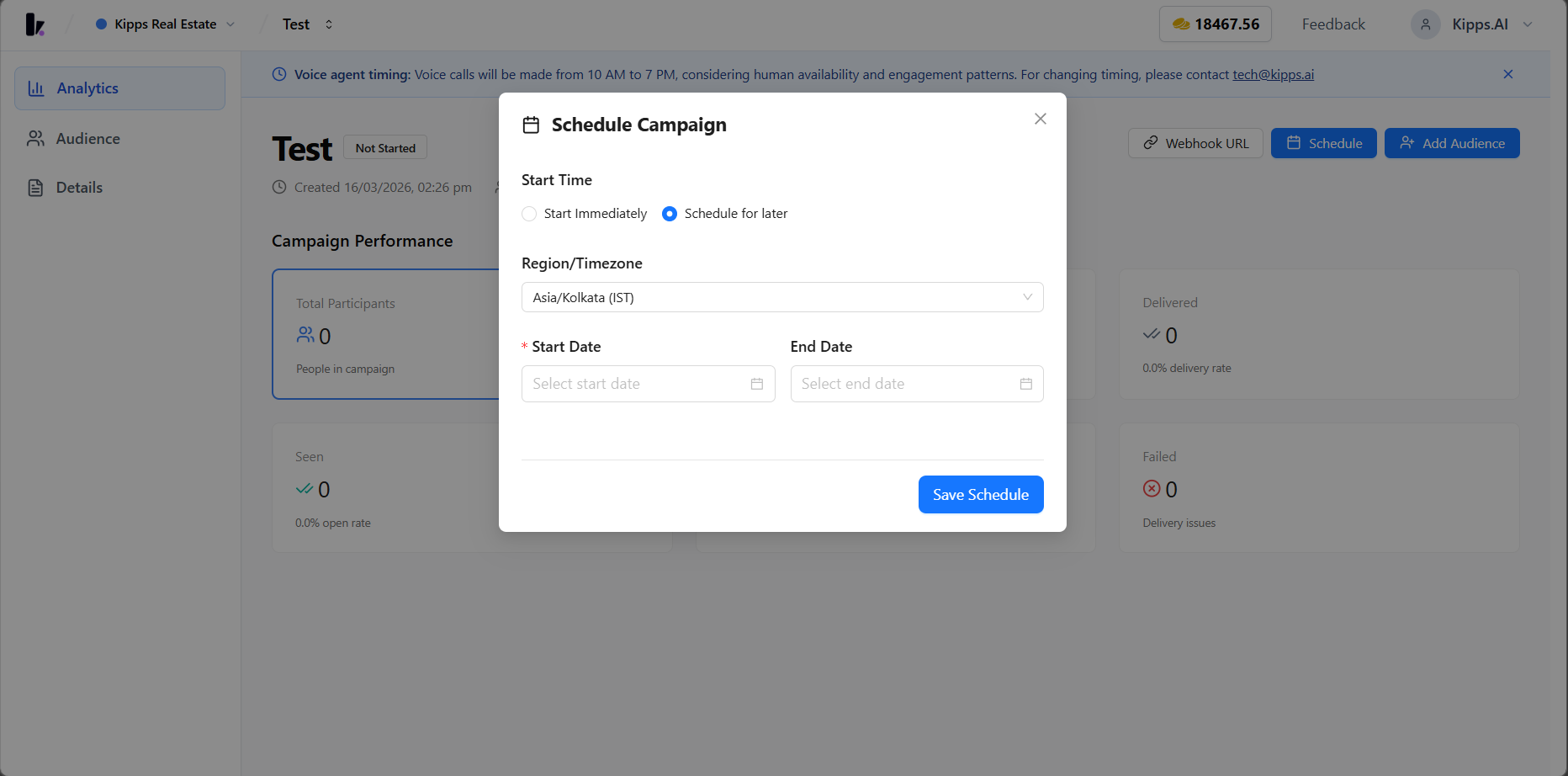
After a campaign starts, the primary control changes to Pause/Resume.
Scheduling tips
- If you have an audience in multiple regions, schedule using the correct timezone.
- If you’re testing a new template, start with a small audience and schedule a short window.
- If the campaign is already scheduled for a future time, opening Schedule will typically show the existing dates.
Step 6: Monitor Performance
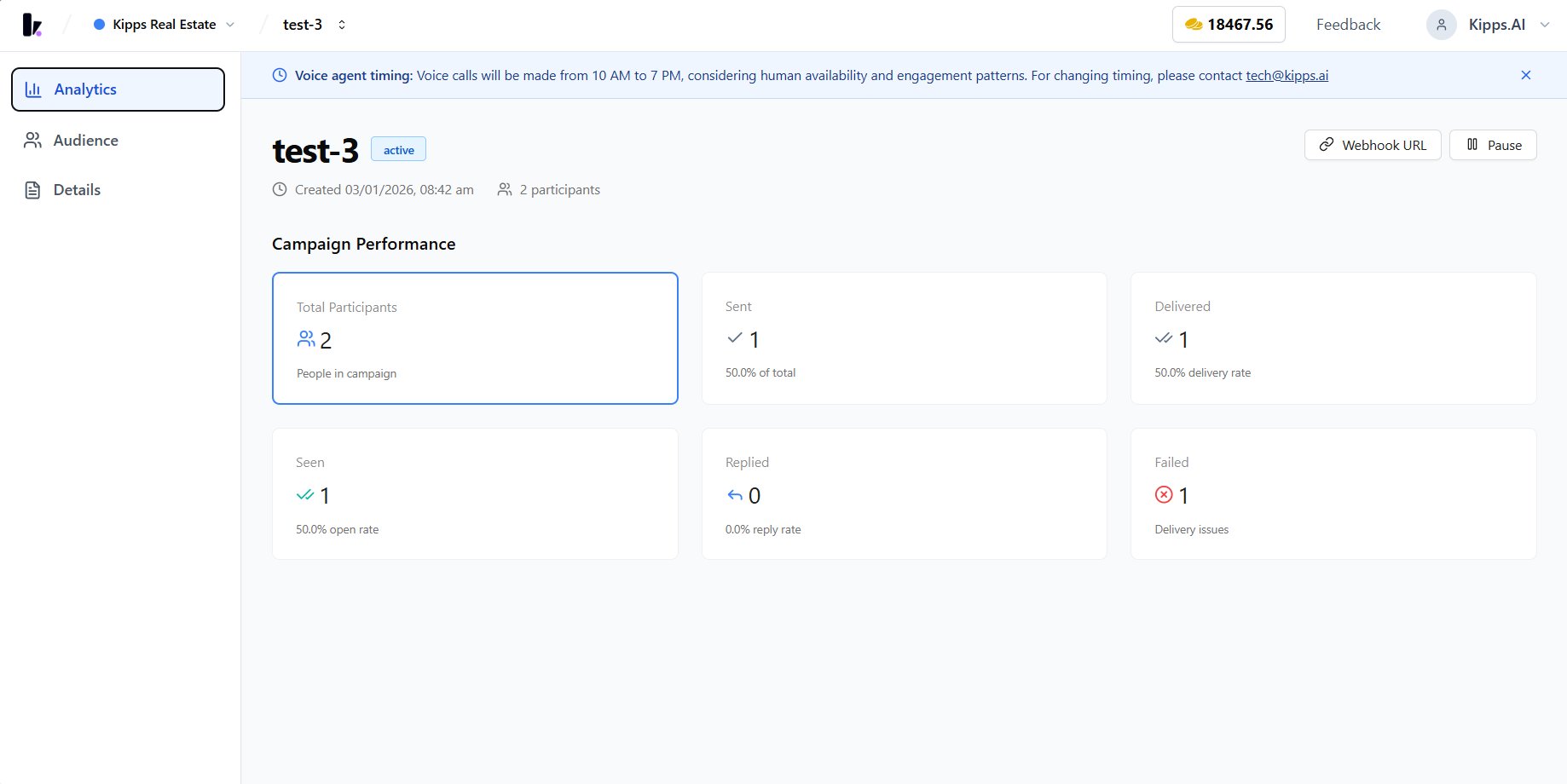
Use the campaign dashboard to track delivery and engagement.
Typical metrics include:
- Total Participants
- Sent / Contacted
- Delivered
- Seen / Read
- Replied
- Failed
You can export results using Download Leads CSV.
Common Issues & Fixes
I can’t finish setup (Finish Setup fails)
- Make sure a WhatsApp agent is selected.
- Make sure a template is selected.
- Make sure all required placeholders (
{{1}},{{2}}, etc.) are configured.
Audience is added but messages are not sending
- Confirm the campaign is scheduled (or started immediately).
- Check if the campaign is Paused.
- Verify your audience source configuration is saved (Google Sheet mapping / CRM connection / webhook).
Delivery failures are high
- Validate phone formats and remove invalid numbers.
- Reduce heavy personalization if your audience data is incomplete.
- Ensure the selected template is correct for the selected sending number.
Notes & Best Practices
- Only WhatsApp-approved templates can be used.
- WhatsApp Agent must be fully connected before sending.
- Phone numbers should be valid (use consistent formatting; E.164 recommended).
- Keep template parameters aligned with placeholders (each placeholder must be configured).
- Prefer scheduling if you want to run during business hours in the correct timezone.
Frequently Asked Questions
Can I use the same WhatsApp template for multiple outreach campaigns? Yes. Any approved template in your Meta Business Manager can be reused across multiple campaigns. The same template can be selected when setting up different campaigns, each with a different audience source.
What happens if a contact's phone number is invalid in the campaign audience? Invalid phone numbers are flagged as failed deliveries and counted in the campaign's Failure metric. They are skipped without consuming messaging capacity for a successful delivery. Review the failed contacts list after the campaign to identify and correct invalid numbers.
Can I send media (images, PDFs, videos) in a WhatsApp Outreach campaign? Yes, if your approved template includes a media header component (image, video, or document). The media must be included in the template's header, which is submitted for Meta approval. Plain text templates without a header component cannot include media.
How do I track whether recipients replied to the campaign message? The campaign dashboard tracks Replied contacts — those who sent a message back after receiving your campaign template. You can view reply conversations in the WhatsApp Inbox for follow-up by your team or AI agent.
Can I pause a running campaign and resume it later without losing progress? Yes. Pausing a campaign stops new messages from being sent. When you resume, the campaign continues from where it left off — contacts who already received the message will not receive it again. The campaign status updates to show remaining contacts.
Related Articles