Manage organization members
Invite team members, change roles, track invitations, remove members, and manage your organizations from Account settings.
An organization is the shared workspace that holds your agents, contacts, campaigns, and credits. Use the Members page to add people to it and control what they can do. To compare what each role can do, see Team roles and permissions.
Open the Members page
In the sidebar, expand Organization Settings and select Members. You need the view_member permission, which the Admin and Manager roles have.
The page has two panels.
- Team Members lists active members with their role and join date. Use the search box to find a person by name or email, and the role filter to show one role.
- Invitation Status lists the invitations you sent, with the invited role, who sent it, and the date.
Invite a member
- On the Members page, select Invite Member.
- Enter the person's email address in Email Address.
- In Role, choose Manager, Staff, or Viewer. The default is Staff.
- Select Send Invite.
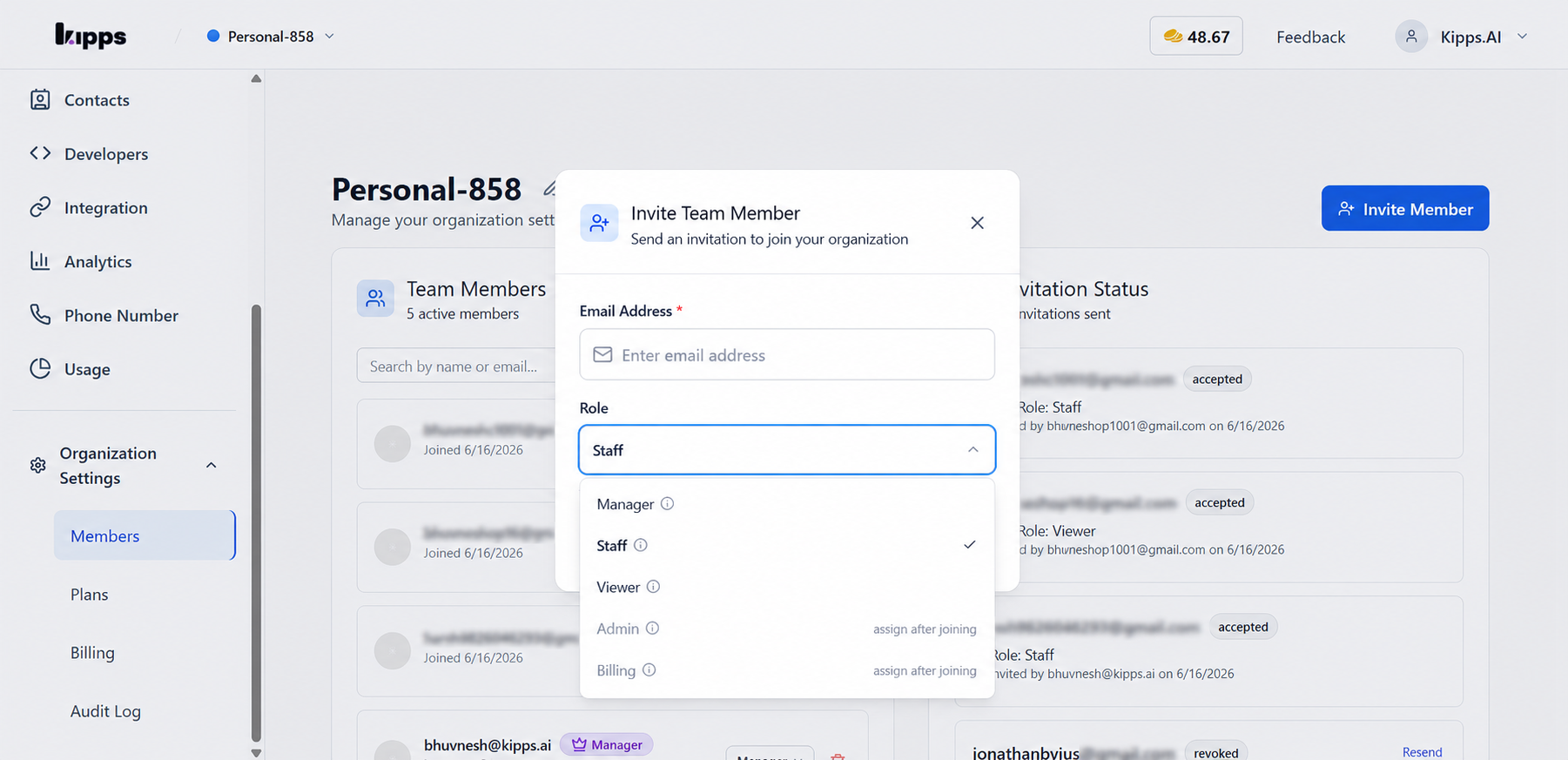
Admin and Billing are unavailable when you invite someone. Assign them after the person joins.
Kipps.AI emails the invitation. The invitation is valid for 7 days. The person accepts it from the email, or from Pending Invitations in their Account settings.
Track and manage invitations
The Invitation Status panel shows each invitation with a status.
| Status | Meaning | Actions |
|---|---|---|
| pending | Sent and waiting for a reply. The expiry date is shown. | Resend, Cancel |
| accepted | The person joined. | None |
| rejected | The person declined. | Resend |
| revoked | You cancelled the invitation. | Resend |
Resend sends a new email and extends the expiry by 7 days. Cancel revokes a pending invitation. You need the invite_member permission for these actions.
Change a member's role
Only Admins can change roles.
- In Team Members, open the role menu next to the person.
- Choose the new role.
- Review the permissions the person gains and loses, then select Confirm change.
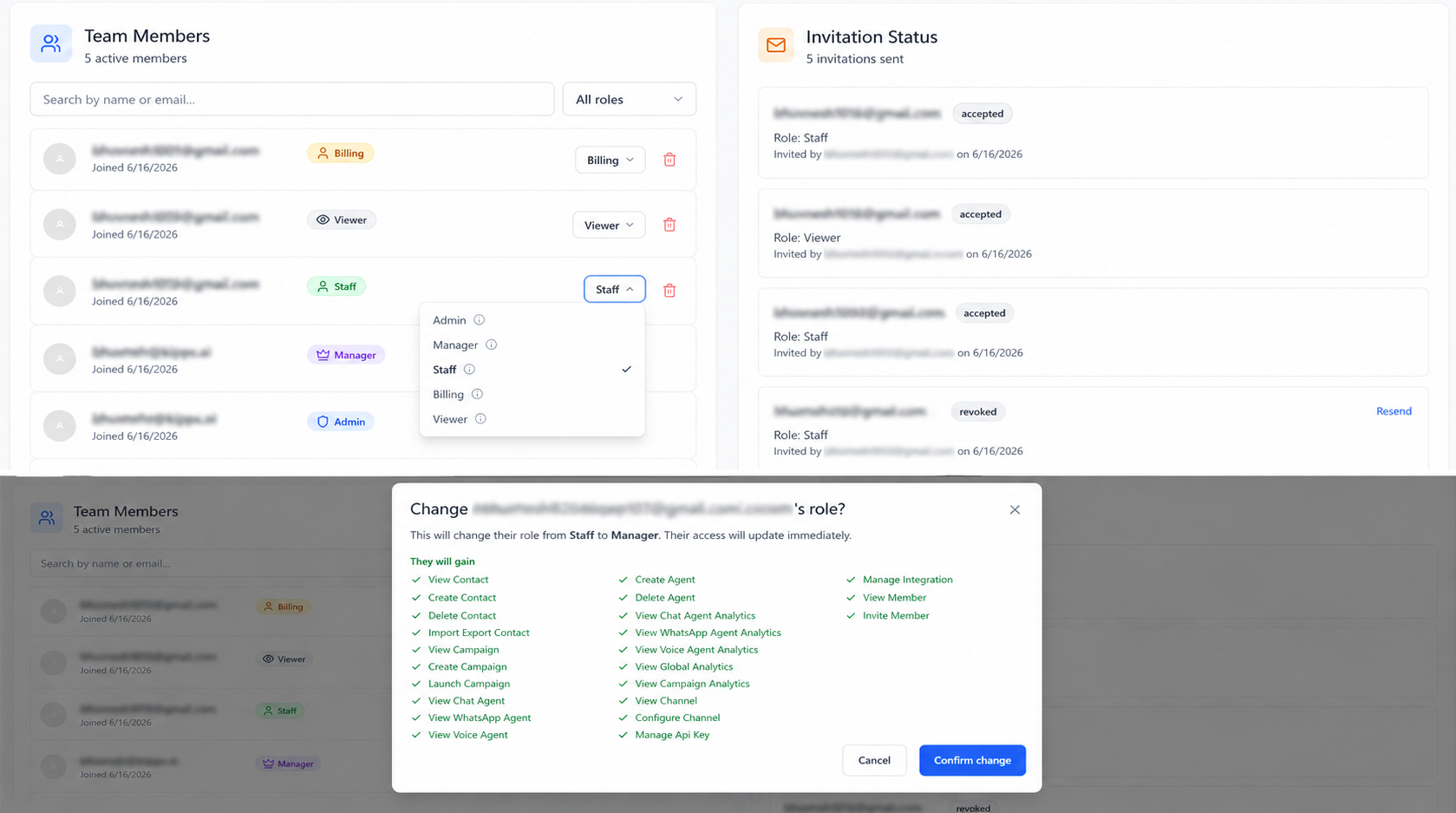
The new role takes effect immediately. You cannot change your own role if you are the only Admin.
Remove a member
Only Admins can remove members.
- In Team Members, select the trash icon next to the person.
- Confirm Remove Team Member.
The person loses access to the organization immediately. You cannot remove the only Admin or the organization owner.
Account settings
Account settings cover your own account and every organization you belong to. To open it, select your name at the top right of the dashboard, then select Account Settings. It has two tabs.
Organisation tab
- Your Organizations lists each organization with your role and member count. Select Manage to open its members page. Select Exit to leave an organization. You lose access until someone invites you again. The organization owner cannot exit.
- Select Create New Organization, enter an Organization Name, and create it to start a separate workspace.
- Pending Invitations lists invitations sent to your email. Select Accept to join, or Decline to reject the invitation.
Personal Details tab
This tab shows your account email. The email cannot be changed.
Troubleshooting
The invited person did not get an email. Check the spam folder. Then select Resend on the invitation.
The invitation expired. Select Resend to issue a new 7-day invitation.
I cannot change a role or remove a member. Only Admins can do this. If the member is the only Admin, assign another Admin first.
I invited the wrong role. Change the role after the person joins.
Frequently asked questions
Can I invite someone as an Admin? Not directly. Invite them as Manager, then change the role to Admin after they join.
Can one person belong to several organizations? Yes. A person can accept invitations to several organizations and switch between them. Credits, agents, and contacts stay separate for each organization.
Where can I see who changed a role? In the audit log, filter by Members.
Related Articles