Input nodes
Reference for the Ask & Collect nodes in the WhatsApp Flow builder, which ask a question, wait for the customer, and save the answer.
Input nodes ask the customer a question and wait for the answer. You find them under ASK & COLLECT in the left panel of the Flow Builder.
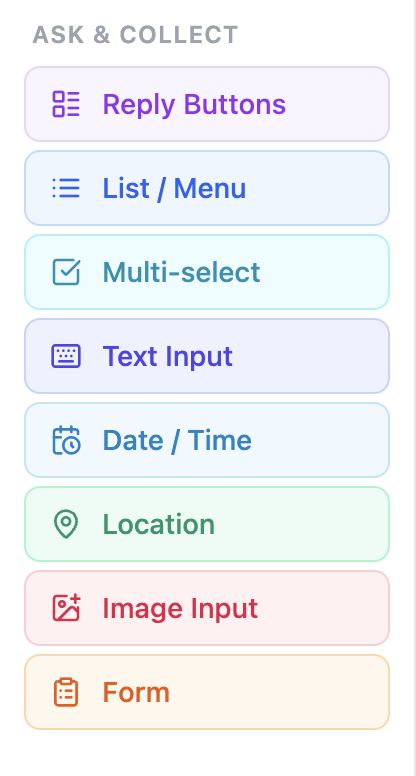
| Node | What the customer does | Where the answer goes |
|---|---|---|
| Reply Buttons | Taps one of up to 3 buttons | The branch of the tapped button |
| List / Menu | Picks one of up to 10 list items | The branch of the picked item |
| Multi-select | Replies with option numbers | A variable |
| Text Input | Types a free-text answer | A variable |
| Date / Time | Types a date, a time, or both | A variable |
| Location | Shares a WhatsApp location | Four variables |
| Image Input | Sends a photo | Two variables |
| Form | Answers several questions in turn | One variable per field |
The Template and WhatsApp Flow nodes, which can also wait for an answer, are covered in Message nodes.
How input nodes work
When the flow reaches an input node, it sends the question and pauses. When the customer answers, the flow saves the answer and moves to the next connected node.
Variable names
Wherever a node asks you to Save answer to variable, enter a name with letters, numbers, and underscores only. Other characters are removed. Use the saved value in later messages as {{variable_name}}, or test it in a Condition node.
Auto-continue if no reply
Most input nodes have an Auto-continue if no reply field. Enter a number of minutes, or leave it blank to wait indefinitely.
- On Reply Buttons and List / Menu, a Timeout connector appears on the node. Connect it to the step the flow should take when the time runs out.
- On the other input nodes, the flow continues down the node's normal connection when the time runs out, as if the customer had answered.
Reply Buttons
Sends a message with up to three tappable buttons. Each button has its own connector on the right of the node, so each choice can lead to a different path.
| Setting | What to enter | Limit |
|---|---|---|
| Body text | The question above the buttons. | 1,024 characters |
| Reply buttons | The button labels. Select Add button for more. | 3 buttons, 20 characters each |
| Auto-continue if no reply | Minutes to wait before the Timeout path runs. | 1 minute or more |
If the customer types text instead of tapping a button, the flow sends the buttons again. If Continue from previous taps is on, tapping a button from an earlier message also works. See Continue from previous taps.
Use Reply Buttons for two or three clear choices, such as Book a visit, Prices, and Talk to us. For more choices, use List / Menu.
List / Menu
Sends a message with a Select button that opens a list. Each item has its own connector, so each choice can lead to a different path.
| Setting | What to enter | Limit |
|---|---|---|
| Body text | The message above the list. | 1,024 characters |
| List items | The item labels. Select Add option for more. | 10 items, 24 characters each |
| Auto-continue if no reply | Minutes to wait before the Timeout path runs. | 1 minute or more |
If the customer types text instead of picking an item, the flow sends the list again.
Multi-select
Lets the customer choose several options at once. Kipps.AI sends a numbered text list and asks the customer to reply with the numbers separated by commas, for example 1,3.
| Setting | What to enter |
|---|---|
| Body text | The message above the options. |
| Selectable options | The options, in order. Select Add option for more. |
| Save selections to variable | The variable name. The default is selected_options. |
| Auto-continue if no reply | Minutes to wait before the flow continues. |
The chosen options are saved as one comma-separated list, for example Pizza, Salad. If the reply contains no valid number, the flow sends the options again.
Text Input
Sends a prompt and waits for a typed answer.
| Setting | What to enter |
|---|---|
| Prompt | The question. The default is "Please type your answer:". |
| Save answer to variable | The variable name. The default is answer. |
| Validate with regex (optional) | A pattern the reply must match, for example ^[0-9]{10}$. |
| Auto-continue if no reply | Minutes to wait before the flow continues. |
If you enter a pattern, the node shows two connectors, Valid and Invalid. Connect each one to its next step, for example to ask the question again on Invalid. The reply is saved in the variable either way. If you wire only one of the two, the flow uses the normal connection for the other. Without a pattern, any reply is accepted.
If the customer sends something other than text, such as an image, the flow repeats the prompt.
Date / Time
Asks for a date, a time, or both, and saves the answer in a fixed format.
| Setting | What to enter |
|---|---|
| What to collect | Date, Time, or Date & Time. |
| Prompt | The question, for example "When works for you?". Kipps.AI adds an example, such as "e.g. 25 Dec 2025". |
| Save answer to variable | The variable name. The default is datetime. |
| Auto-continue if no reply | Minutes to wait before the flow continues. |
The customer can type the value in a natural way, for example 25 Dec 2025 5:30 PM. Kipps.AI converts it before saving.
| Mode | Saved format | Example |
|---|---|---|
| Date | YYYY-MM-DD | 2025-12-25 |
| Time | HH:MM, 24-hour | 17:30 |
| Date & Time | YYYY-MM-DD HH:MM | 2025-12-25 17:30 |
If Kipps.AI cannot read the reply, it asks again with an example. Use the saved value in a Condition node. Dates in this format compare correctly, and you can use TODAY, TODAY+1, or TODAY-3 as the value to compare with.
Location
Asks the customer to share their WhatsApp location.
| Setting | What to enter |
|---|---|
| Prompt | The request. The default is "Please share your location." |
| Variable prefix | The start of the variable names. The default is location. |
| Auto-continue if no reply | Minutes to wait before the flow continues. |
With the prefix location, Kipps.AI saves four variables: location_lat, location_lng, location_name, and location_address. If the customer sends anything other than a location, the flow repeats the prompt.
Image Input
Asks the customer to send a photo.
| Setting | What to enter |
|---|---|
| Prompt | The request. The default is "Please send an image." |
| Variable prefix | The start of the variable names. The default is image. |
| Auto-continue if no reply | Minutes to wait before the flow continues. |
With the prefix image, Kipps.AI stores the image and saves its link in image_url and any caption in image_caption. If the customer sends anything other than an image, the flow repeats the prompt.
Form
Collects several answers one at a time in the chat. Each field has its own question and checks.
For each field, select Add field and set:
| Setting | What to enter |
|---|---|
| Field label | A name for the field, for example "New delivery date". |
| Type | Text, Date, Number, Email, or Phone. |
| Prompt | What the flow asks the customer. |
| Save answer to variable | The variable name for this field. If empty, Kipps.AI uses field_ followed by the field's position, starting at 0. |
| Required | On by default. Optional fields accept the reply skip. |
| Custom error message | The message shown when a reply fails the checks. If empty, a default message is used. |
Each type has its own check:
| Type | Checks |
|---|---|
| Text | Min length and Max length |
| Date | A valid date, with Must be a future date as an option |
| Number | A valid number, with Min and Max |
| A valid email address | |
| Phone | At least 7 digits |
If a reply fails a check, the flow sends the error message and asks the same question again. After the last field, the flow continues to the next connected node.
Example: collect a booking
- Text Message: "Let's book your visit."
- Text Input: ask for the name and save it in
name. - Date / Time: ask for the preferred date and save it in
visit_date. - Reply Buttons: "Confirm booking?" with Yes and No.
- On Yes, a Text Message confirms: "Thanks
{{name}}, see you on{{visit_date}}."
Common mistakes
- No connection after an input node. The flow stops after the answer. Connect it to the next step or to End Chat.
- Reusing a variable name. A later answer overwrites an earlier one with the same name.
- Labels over the limit. Button labels are limited to 20 characters and list labels to 24. The builder warns you before you save.