Logic and action nodes
Reference for the Logic & Flow nodes in the WhatsApp Flow builder, including conditions, delays, API calls, AI and human handoff, tagging, and ending a chat.
Logic and action nodes work behind the scenes. They branch the flow, wait, call other systems, hand the chat to an AI agent or a person, tag contacts, and end the chat. You find them under LOGIC & FLOW in the left panel of the Flow Builder.
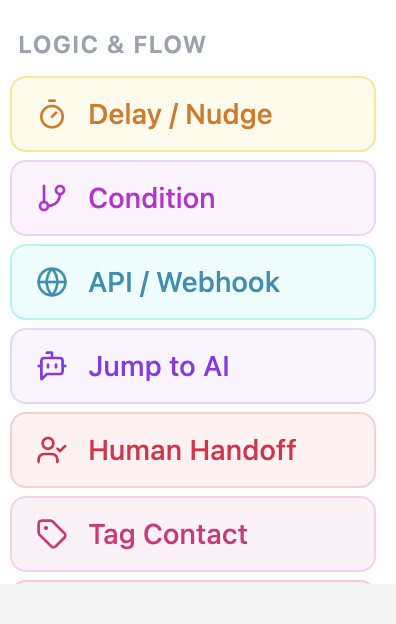
| Node | What it does |
|---|---|
| Condition | Branches on the value of a variable |
| Delay / Nudge | Waits for a reply, then branches on whether one arrived |
| API / Webhook | Calls an external endpoint and saves values from the response |
| Jump to AI | Hands the chat to a WhatsApp AI Agent |
| Human Handoff | Hands the chat to a team member |
| Tag Contact | Adds tags to the customer's contact |
| End Chat | Optionally says goodbye and closes the conversation |
The Template and WhatsApp Flow nodes are covered in Message nodes.
Condition
Compares a variable with a value and follows one of two connectors, True or False.
| Setting | What to enter |
|---|---|
| If variable | The variable name. Suggestions from earlier nodes appear as you type. |
| Operator | How to compare. See the table below. |
| Value | The value to compare with. It can include {{variable}}. Not needed for is empty and is not empty. |
| Operator | True when |
|---|---|
| equals, not equals | The variable matches, or does not match, the value exactly. |
| contains, not contains | The value is inside, or not inside, the variable. Case is ignored. |
| starts with, ends with | The variable starts or ends with the value. Case is ignored. |
| greater than, less than | Compared as numbers when both are numbers, otherwise as text. |
| greater than or equal, less than or equal | Same as above, including the value. |
| is empty, is not empty | The variable has no value, or has one. |
For dates, use the format YYYY-MM-DD, which compares in the correct order. In the Value field you can also type TODAY, TODAY+1, or TODAY-3 for today's date plus or minus a number of days.
Connect both True and False. If the connector for the result has nothing attached, the flow stops there.
Delay / Nudge
Pauses the flow for a set time and branches on whether the customer writes back. It sends no message itself.
| Setting | What to enter |
|---|---|
| Wait for a reply for | Minutes to wait, from 1 to 1440. The default is 5. |
The node has two connectors:
- User replied: runs when the customer sends any message before the time ends.
- No reply: runs when the time ends with no message. Connect it to a reminder message, or to End Chat to close the conversation.
Place the node after a message that does not wait for an answer, for example a Text Message that asks "Anything else?". Do not place it right after a node that already waits for input, such as Text Input or Reply Buttons. Those nodes use the customer's next message as their own answer, so the delay would likely time out.
The timer is checked about once a minute, so the No reply path can run up to a minute late.
API / Webhook
Calls an external HTTP endpoint, waits for the response, and saves values for later nodes.
| Setting | What to enter |
|---|---|
| Endpoint URL | The address to call. It can include {{variable}}. |
| Method | GET, POST, PUT, PATCH, or DELETE. |
| Query params | Key and value pairs added to the URL. Values can use {{variable}}. |
| Headers | Header name and value pairs, for example an Authorization header. If you add none, Content-Type: application/json is sent. |
| Body params | Shown for every method except GET. Each row has a key and either a Static value or a Variable. |
| Save response to variables | Map a response field, such as data.order_id, to a variable name. Use dots to reach fields inside objects. |
| Success message | Optional text sent after a successful call. It can use the mapped variables. |
| Error message | Optional text sent if the call fails. If empty, the flow continues without a message. |
Other things to know:
- The call times out after 10 seconds.
- A call fails on a network error or an error status such as 404 or 500.
- The node has a single connector. The flow continues down it whether the call succeeded or failed. To branch on the result, save a response field and test it in a Condition node.
- Values from the response are saved as text.
Example: look up an order, then answer.
- Text Input saves the order number in
order_id. - API / Webhook calls
https://api.example.com/orders?id={{order_id}}and mapsstatustoorder_status. - Text Message says "Your order is
{{order_status}}."
Jump to AI
Hands the conversation to a WhatsApp AI Agent. The AI agent replies with its own instructions and Knowledge Base, in the same conversation.
| Setting | What to enter |
|---|---|
| Transition message | Optional text sent before the handoff, for example "Let me bring in our AI assistant." It can use variables. |
| AI Agent | Select the AI agent from your organization. |
After this node, the AI agent answers the customer's messages. Use it for open questions that the flow cannot cover. If no AI agent is available, the node shows "No AI agents found in this organisation".
An AI agent can also send a conversation back into a flow with the Jump to Flow function. See Built-in functions.
Human Handoff
Ends the flow and hands the conversation to a person. Kipps.AI turns on manual reply mode, so the bot stops responding. The team replies from the Inbox.
| Setting | What to enter |
|---|---|
| Hand-off message | Text sent before the handoff. The default is "Connecting you to a human agent…". It can use variables. |
| Assign to | Optional. Select a team member, shown with their role. The conversation is assigned to that person. |
If you leave Assign to empty, the conversation switches to manual mode without an assignee.
Tag Contact
Adds tags to the customer's contact and continues. Existing tags are kept. If the customer is not in Contacts yet, Kipps.AI creates the contact from their WhatsApp number.
To add tags, type a name in the tag box and press Enter, or select the add button. Examples are Hot, Urgent, and VIP. Tag names that are already on the node are skipped.
Use tags to segment contacts for campaigns or to filter the Inbox. For example, tag a customer Hot after they choose the premium plan.
End Chat
Closes the conversation. Use it at the end of every path.
| Setting | What to enter |
|---|---|
| Farewell message | Optional text sent before the chat closes, for example "Thanks for chatting! Have a great day." It can use variables. |
The conversation is marked Resolved, and the variables collected so far are kept for the customer's next conversation. When the customer writes again, the flow starts from Conversation Start.
Limits
- A flow runs at most 50 steps in a row without waiting for the customer. A loop with no waiting node stops after that.
- Message text is limited to 4,096 characters. Button and list labels have their own limits. See Input nodes.
Next steps
Related Articles