Create Campaign for LinkedIn Lead Generation Ads
Learn how to set up campaigns using LinkedIn Lead Gen Ads to automatically capture and engage leads using AI voicebot workflows.
This guide explains how to create a campaign using LinkedIn Lead Generation Ads as your audience source. Integrating LinkedIn Ads allows you to automatically capture leads from your LinkedIn forms and engage them through your campaign workflows.
1. Integrate LinkedIn Lead Generation Ad
- Go to the Integrations page from the main dashboard.
- Click the LinkedIn Lead Generation Ad option or card.
- Fill in the required LinkedIn configuration:
- Page Access Token: Generated from LinkedIn with the required permissions.
- Verify Token: A custom string for webhook verification.
- (Optional) App ID and App Secret for advanced configurations.
- Page ID: Your LinkedIn page ID.
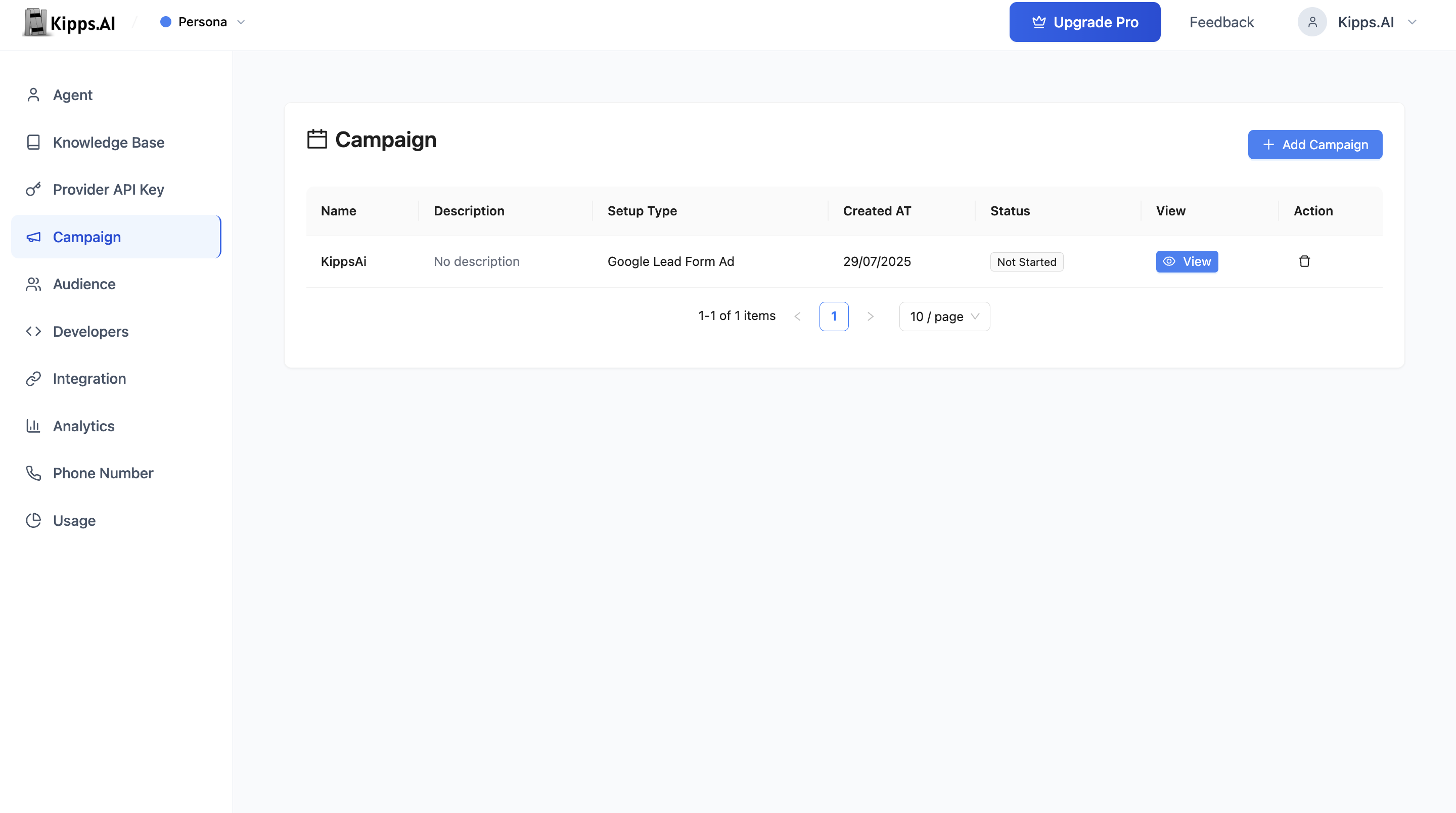
- After setup, you will receive a Webhook Callback URL.
- Copy this Webhook URL and add it to your LinkedIn Lead Gen Form Asset as the webhook destination.
- (Optional) Set up field mapping for phone number and name if prompted.
2. Start Creating a Campaign
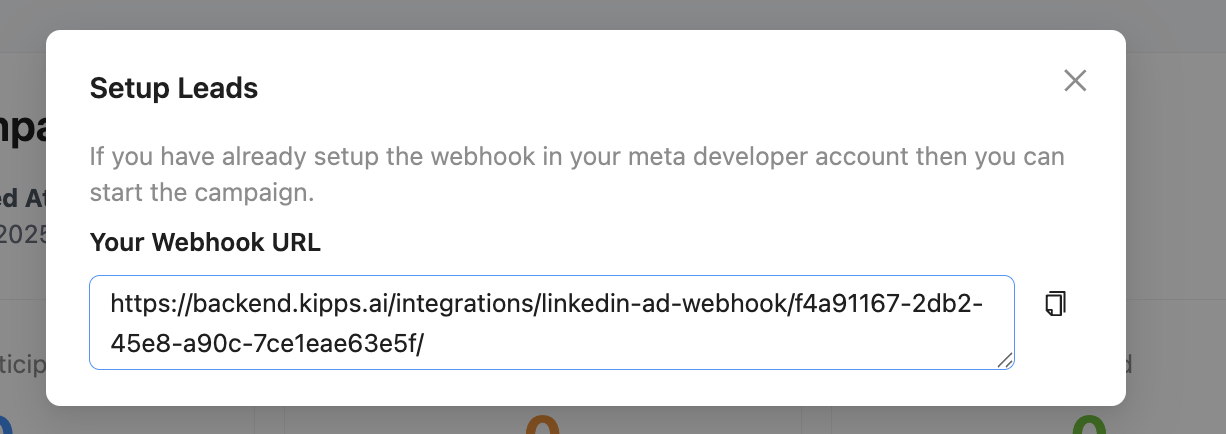
- Go to the Campaign tab.
- Click Add Campaign or + Create Campaign.
3. Fill Campaign Details
- Campaign Name: Enter a descriptive name.
- Description: Add details about the campaign’s purpose.
- Duration: Set how many days the campaign should run.
4. Select Setup Type as LinkedIn Lead Generation Ad
- In the Setup Type or Audience Source field, select LinkedIn Lead Generation Ad from the dropdown.
- This tells the system to use your LinkedIn ad leads as the campaign audience.
5. Configure Campaign Settings
- Select Voice Agent: Choose the AI voicebot that will make the calls (for voice campaigns).
- Initial Message: Set the opening message the bot will deliver.
- System Prompt (Optional): Provide instructions for the bot’s behavior.
- Lead Qualification Prompt: Define how the bot should qualify leads.
- Lead Qualification Params: Add any custom fields you want to collect or qualify (e.g.,
"Interested","Budget").
6. Review and Launch
- Review all settings.
- Click Create to save the campaign.
- Once setup is complete, start the campaign from the campaign list.
Features
- Automatic Lead Capture: Leads from your LinkedIn ads are automatically fetched and used as the campaign audience.
- Webhook Integration: Real-time syncing of new leads via LinkedIn’s webhook.
- No Manual Uploads: No need to upload CSVs; your ad data stays in sync.
- AI Voicebot Integration: Use advanced voice agents for automated, natural conversations.
- Custom Prompts: Personalize the initial message and qualification logic.
- Lead Qualification: Automatically tag and qualify leads based on responses.
- Analytics: Track delivery, response, and conversion rates in real time.
- Downloadable Reports: Export leads and campaign results as CSV.
- Status Tracking: Monitor campaign progress (
Not Started,On Going,Completed).
Monitoring and Managing Campaigns
View Campaign Status and Analytics
- See detailed statistics: total participants, contacted, replied, failed, and conversion rates.
Download Lead Data and Call Transcripts
- Export results for further analysis.
Drill Down into Each Lead
- View call status, responses, and qualification details.
Tip:
You can revisit the LinkedIn Lead Generation Ad integration at any time to update your webhook or credentials, or to troubleshoot lead syncing.
Troubleshooting
LinkedIn leads are submitting forms but are not receiving WhatsApp messages. Check the LinkedIn webhook delivery logs to confirm the webhook is firing on new submissions. Also verify the WhatsApp number linked to the campaign is active, the integration is authorized in Meta Business Manager, and you are using a Meta-approved message template.
The LinkedIn integration is authorized but leads are not being added to the campaign. Confirm the LinkedIn Lead Gen Form is attached to an actively serving sponsored campaign. Forms in draft or attached to paused campaigns do not send live webhook events.
WhatsApp messages are showing as sent but LinkedIn leads report not receiving them. LinkedIn lead forms capture phone numbers in the format users enter them. Verify the phone numbers are in E.164 format and registered WhatsApp accounts. Non-WhatsApp numbers will silently fail.
Frequently Asked Questions
Why would I use LinkedIn leads for a WhatsApp campaign specifically? LinkedIn captures high-quality B2B leads who are often decision-makers. Following up via WhatsApp immediately after a LinkedIn form submission—while intent is highest—can significantly improve conversion rates compared to email follow-ups that may be read hours or days later.
Do WhatsApp messages to LinkedIn leads require Meta-approved templates? Yes. LinkedIn leads have not initiated a WhatsApp conversation with your business, so all outbound messages fall outside the 24-hour session window. Meta-approved templates are required.
What lead data from LinkedIn is available for personalizing WhatsApp messages?
LinkedIn passes the fields from the lead gen form—typically first name, last name, email address, phone number, company name, and job title. Use these to personalize your WhatsApp template (e.g., "Hi {{first_name}}, thanks for your interest in our {{product}} solution.").
Can I use the same LinkedIn integration for both WhatsApp and Voice campaigns? Yes. Once configured, the LinkedIn integration can be selected as the audience source for any campaign type—WhatsApp or Voice—without reconfiguring the webhook.
How do I ensure LinkedIn leads have opted in to receive WhatsApp messages? Add a consent checkbox to your LinkedIn Lead Gen Form asking users to agree to receive WhatsApp communications. This is required under WhatsApp Business Policy and GDPR in applicable regions. Keep records of consent for compliance purposes.
Related Articles