VoiceAgent – Cal.com Integration
Learn how to connect your VoiceAgent with Cal.com to enable automated scheduling and appointment booking through conversation.
Integration: Cal.com
The Cal.com integration connects your VoiceAgent directly to your calendar, empowering it to schedule meetings, book appointments, and manage your availability automatically. When a user asks to schedule a call, your agent can check your Cal.com schedule for open slots, offer them to the user, and book the meeting, all within the live conversation.
This turns your VoiceAgent into a powerful scheduling assistant, available 24/7 to fill your calendar with qualified leads and important meetings.
Why Integrate with Cal.com?
- Automated Scheduling: Eliminate the back-and-forth of finding a meeting time. The agent handles the entire process.
- Lead Qualification: The agent can talk to a potential customer, and if they are a good fit, immediately book a discovery call with your sales team.
- Improved User Experience: Offer a seamless and impressive way for users to book time with you, without needing to visit a website or wait for an email reply.
- 24/7 Availability: Your agent can book meetings for you even when you're asleep, ensuring you never miss an opportunity.
How to Set Up the Cal.com Integration
Part 1: Connect Your Cal.com Account
-
Navigate to the Integrations Page:
- From the main platform dashboard, click on "Integrations" in the primary navigation menu.
-
Find the Cal.com Integration:
- On the Integrations page, you will see cards for various services. Locate the Cal.com card.
- Click the "Integrate" button on the Cal.com card. This will take you to the Cal.com integration management page.
-
Add a New Cal.com Account:
- On the Cal.com page, click the "+ Add Cal" button. A modal window will appear.
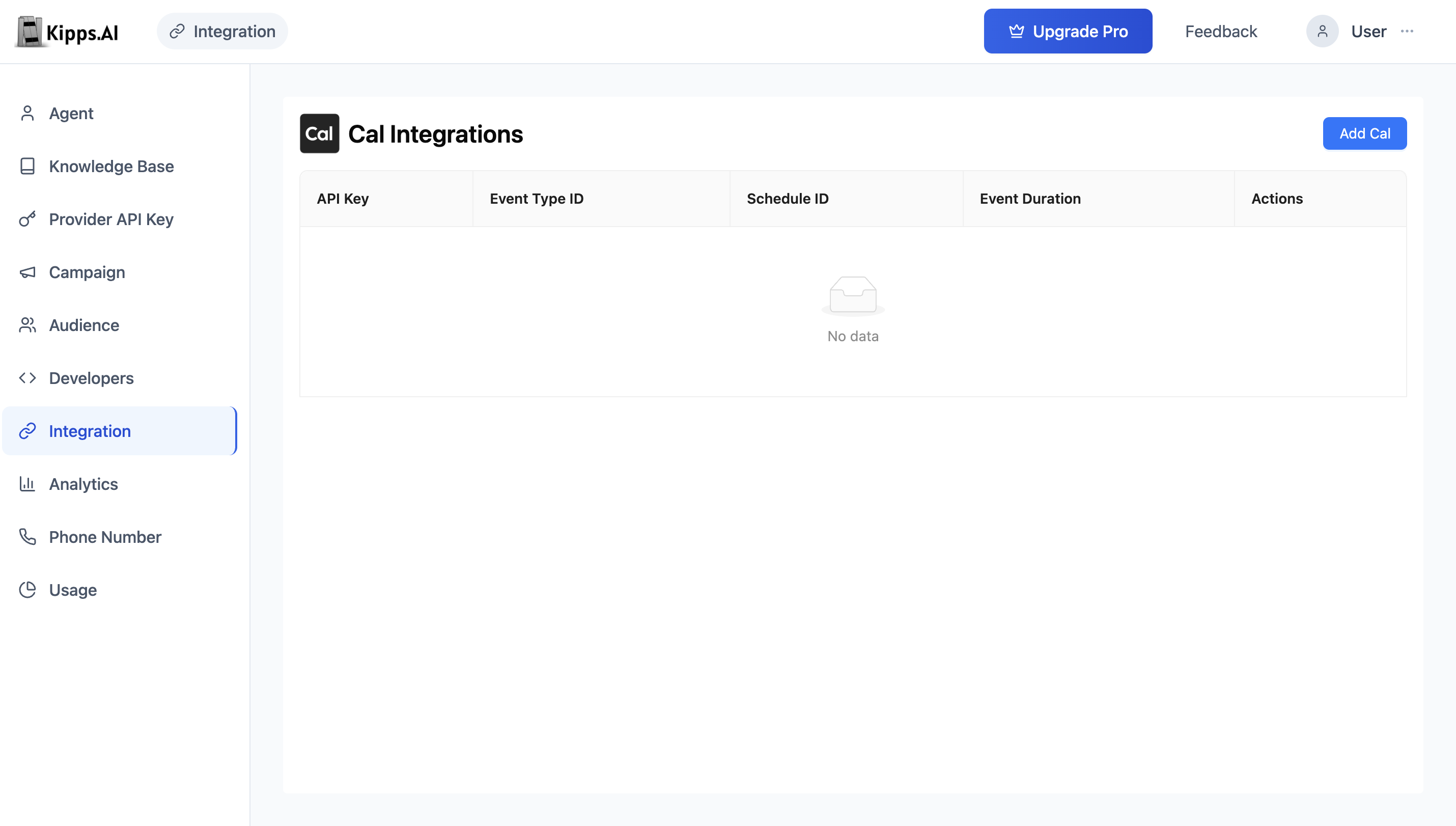
- On the Cal.com page, click the "+ Add Cal" button. A modal window will appear.
-
Enter Your API Key:
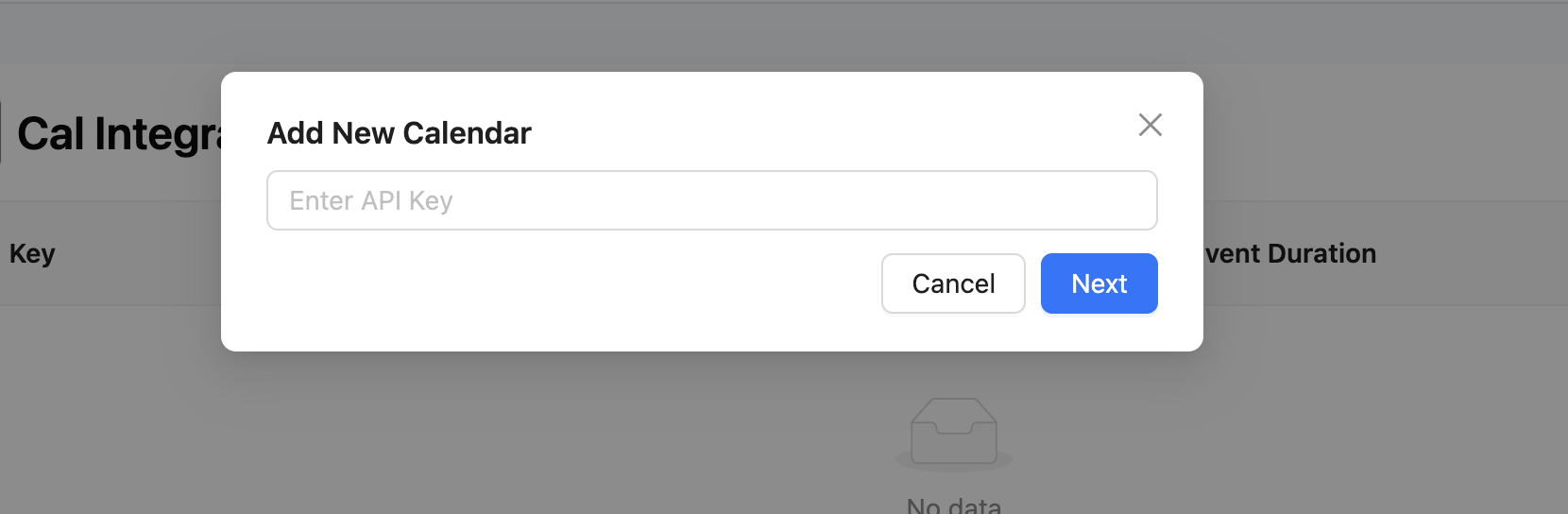
- The modal will first ask for your Cal.com API Key. You can generate this key from your Cal.com account settings (under Developer → API Keys).
- Paste your API key into the field and click "Next".
-
Select Event Type and Schedule:
- The system will use your API key to connect to your Cal.com account and fetch your available Event Types (e.g., "30-Minute Demo Call") and Schedules (e.g., "Working Hours").
- From the dropdown menus, select the specific Event Type and Schedule you want this integration to use.
- Click "Add" to save the integration.
Part 2: Link the Integration to Your VoiceAgent
-
Navigate to Your VoiceAgent's Dashboard:
- Go to the main dashboard for the VoiceAgent you want to enable for scheduling.
-
Find the Cal.com Settings:
- Locate the section for Cal.com integration. This may be under a "Functions" or "Integrations" tab.
-
Select the Integration:
- You will see a dropdown menu listing all the Cal.com accounts you've connected. Select the one you just created.
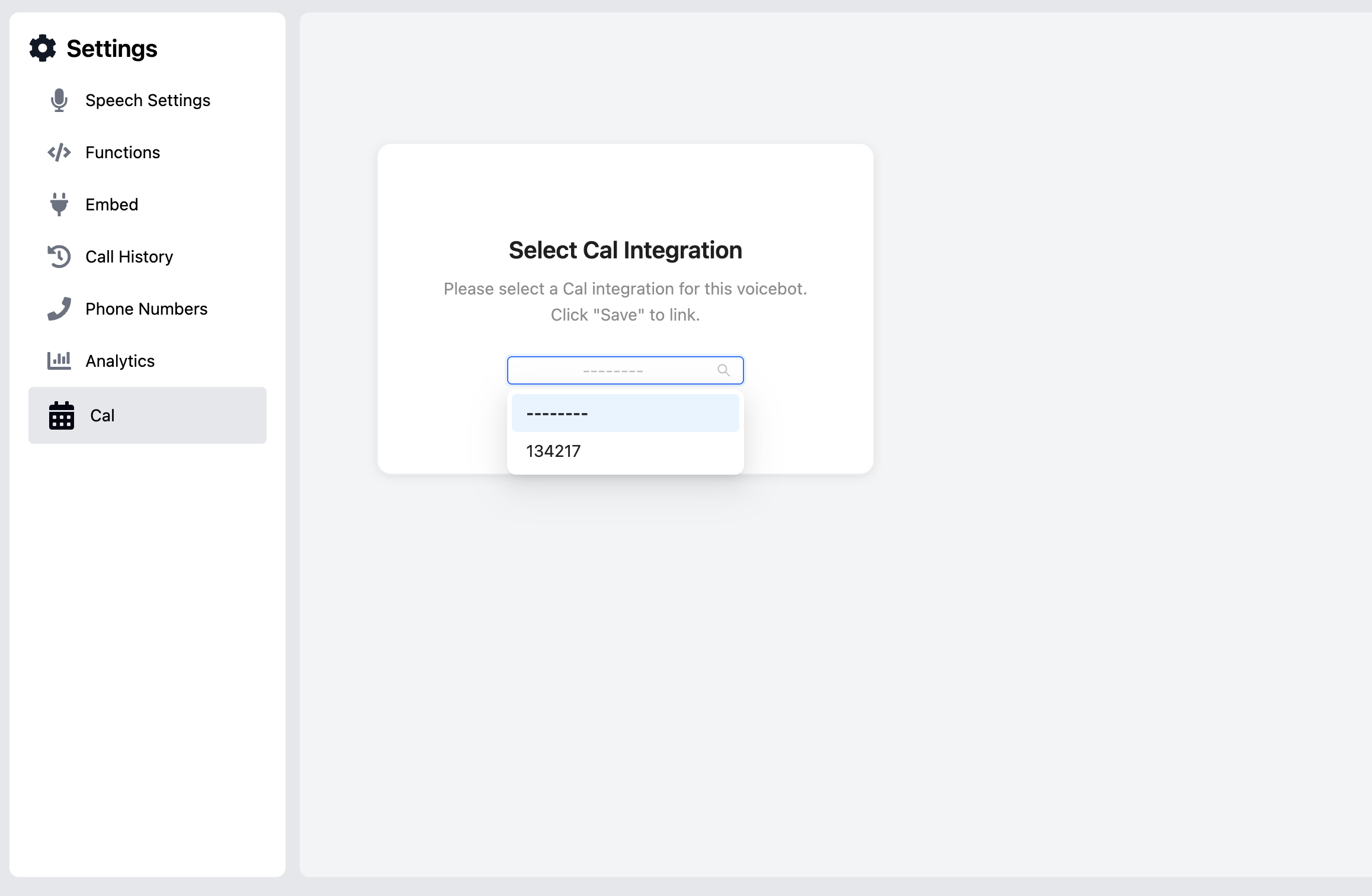
- You will see a dropdown menu listing all the Cal.com accounts you've connected. Select the one you just created.
-
Save:
- Click the "Save" button.
Your VoiceAgent is now fully equipped to schedule meetings. When a user asks to book a time, the agent will automatically use the linked Cal.com event type and schedule to find available slots.
Managing Your Cal.com Integrations
On the main Cal.com integration page (accessible from the "Integrations" menu), you can see a list of all the accounts you have connected.
- View Details: The list shows the Event Type and Schedule associated with each integration.
- Delete: You can remove a Cal.com integration by clicking the Delete icon (a trash can). This will disconnect the account from the platform and prevent any linked AI Voice Agents from using it for scheduling. This action cannot be undone.
Troubleshooting
The VoiceAgent says "no available slots" when users try to book. Verify the Schedule selected during setup is still active in Cal.com and has future working hours configured. Log into Cal.com and check whether the schedule is paused or set to a date range that has already passed.
The agent tries to book but the meeting does not appear in Cal.com. Confirm that the Cal.com API key entered in Kipps.AI is still valid. API keys can expire or be revoked from Cal.com's Developer settings. Delete the integration, re-add it with a fresh key, and re-assign it to the VoiceAgent.
I connected Cal.com but it does not appear in the VoiceAgent's integration dropdown. The dropdown only shows integrations saved under Integrations > Cal.com. If you added the key elsewhere, navigate to the Integrations section and add it there. Then return to the VoiceAgent settings and refresh the page.
Meetings are being booked at incorrect times. This usually indicates a timezone mismatch. Verify that the Schedule in Cal.com is set to the correct timezone, and that your Cal.com account timezone setting matches your actual location.
Frequently Asked Questions
Can the VoiceAgent check multiple calendars or event types during one call? A single VoiceAgent can only use one Cal.com integration at a time. If you need to book different event types depending on caller intent, consider setting up separate VoiceAgents, each linked to a different Cal.com integration.
Does the integration work for both inbound and outbound calls? Yes. Whether a user calls in or your VoiceAgent is making an outbound call, it can initiate the scheduling flow using Cal.com as long as the integration is configured.
What happens to already-booked meetings if I delete the Cal.com integration? Deleting the integration in Kipps.AI does not cancel any previously booked Cal.com appointments. Those remain in your Cal.com calendar. Deleting only stops the VoiceAgent from booking new meetings via that connection.
Can the same Cal.com integration be shared between a VoiceAgent and a Chat Agent? Yes. You connect the Cal.com account once in the Integrations section and can assign it to as many agents—voice or chat—as needed.
Is there a way to send a confirmation message to the caller after a meeting is booked? Cal.com sends its own email confirmation to the attendee after a successful booking. For SMS or WhatsApp follow-ups, you can configure a post-call workflow using Kipps.AI's campaign features.
Related Articles