VoiceAgent – Call History
Learn how to review and analyze past conversations with your VoiceAgent using call recordings, transcripts, and function logs.
Call History: Reviewing Every Conversation
The Call History page is your complete, detailed log of every voice interaction your agent has handled. It serves as a powerful tool for quality assurance, debugging, and understanding how users are interacting with your VoiceAgent. Here, you can listen to call recordings, review full conversation transcripts, and see exactly which functions your agent used.
Why Use the Call History?
- Performance Review: Listen to calls to assess the agent's tone, accuracy, and overall performance.
- Troubleshooting: When a conversation doesn't go as planned, the transcript and function call logs provide a step-by-step record to identify the issue.
- Data Analysis: Understand common user questions and pain points by reviewing multiple conversations.
- Compliance and Record-Keeping: Maintain a complete record of interactions for compliance or training purposes.
How to Access the Call History
- From your VoiceAgent's main dashboard, click on "Call History" in the navigation menu.
- This will take you to the main log page, which displays a table of all recent calls.
Understanding the Call Log Table
The main feature of this page is a table that lists every call, with the most recent ones at the top. Each row represents a single call and is organized into several columns:
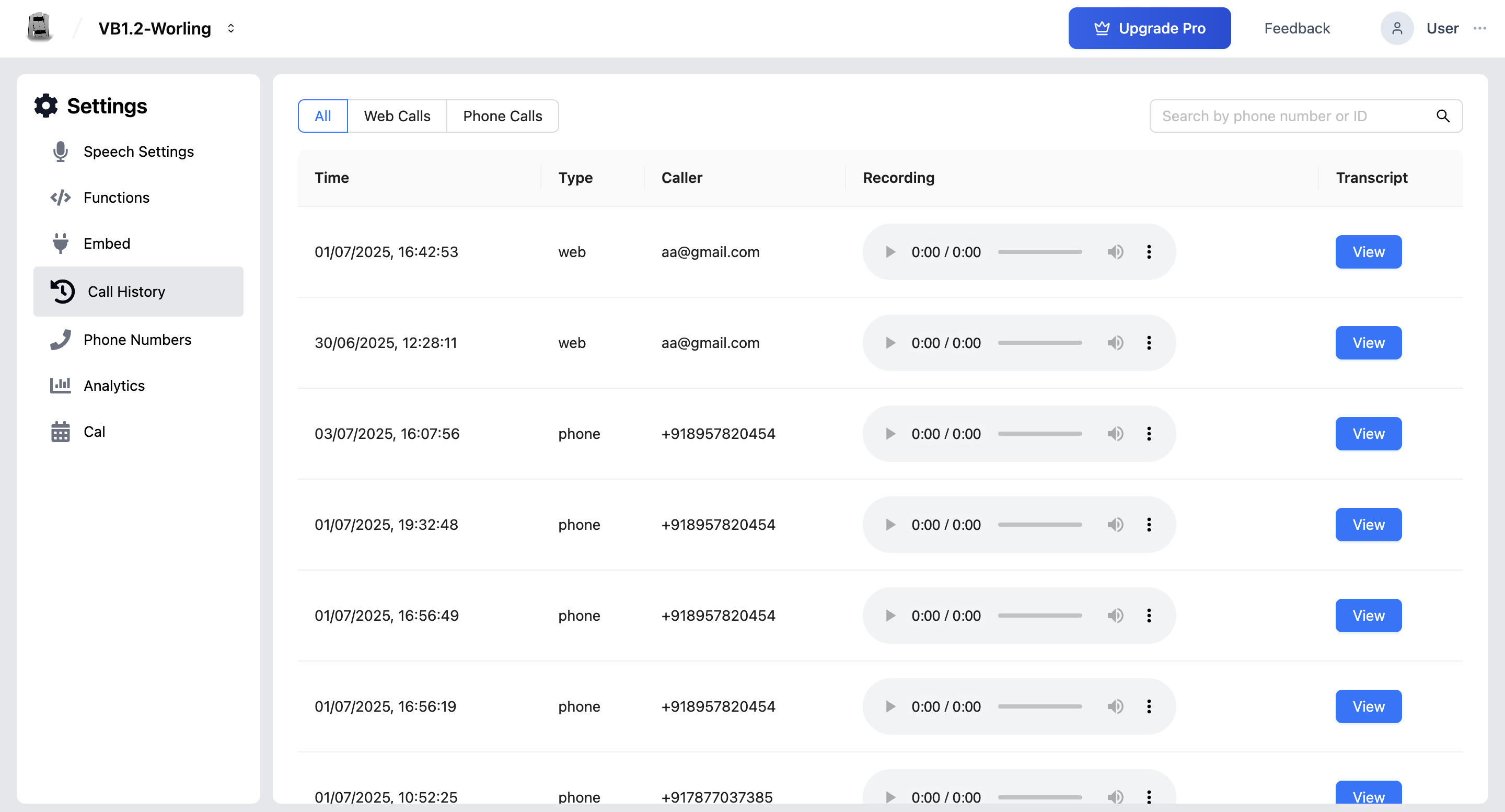
- Time: The exact date and time the call was initiated.
- Type: The origin of the call. This will be either "Web" for calls made from a website embed or "Phone" for calls made to or from a telephone number.
- Caller: Identifies who initiated the call. For "Phone" calls, this will be the user's phone number. For "Web" calls, this will be the
caller_idthat was passed in the embed code (e.g., a username or session ID). - Recording: A built-in audio player that lets you listen to the full recording of the call.
- Function Calls: A button to view a detailed log of any special actions (like API calls or call transfers) the agent performed during the conversation.
- Transcript: A button to view the full, word-for-word transcript of the conversation.
Filtering and Searching Your Call History
To help you find specific calls quickly, the Call History page includes powerful filtering and searching tools located above the table.
- Filter by Type: Use the radio buttons to filter the list to show "All" calls, only "Web Calls", or only "Phone Calls".
- Search: Use the search bar to find calls by a specific phone number or Caller ID. The table will update in real-time as you type.
Viewing Call Details
Viewing the Transcript
- In the "Transcript" column for any call, click the "View" button.
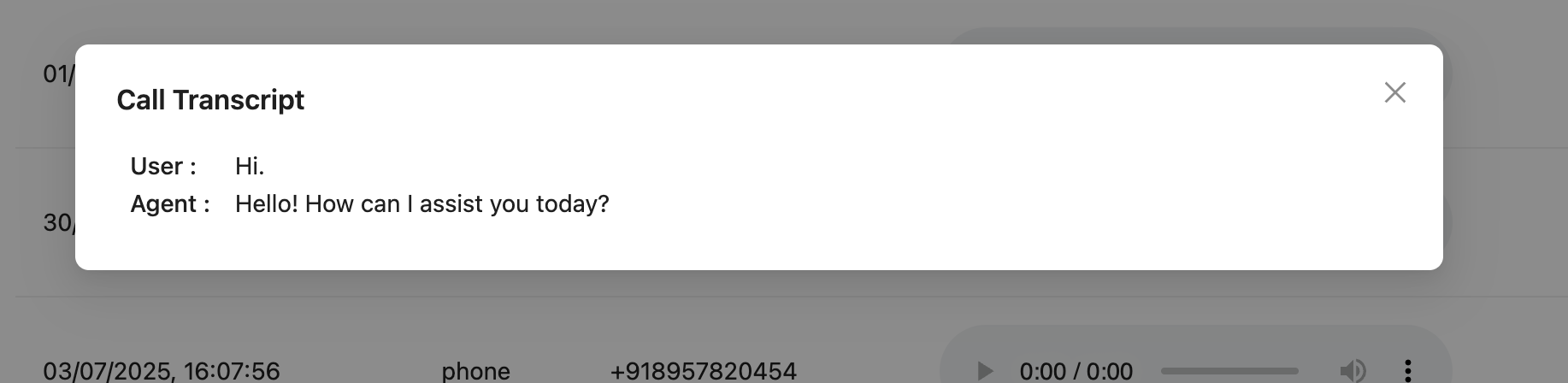
- A modal window will pop up, displaying the entire conversation.
- The transcript is clearly formatted with "User:" and "Agent:" labels, allowing you to easily follow the dialogue turn by turn.
By using these tools, you gain complete visibility into every aspect of your VoiceAgent's interactions, empowering you to continuously refine and improve its performance.
Best Practices for Using Call History
- Review calls weekly: Set aside time each week to listen to a sample of calls—both successful and short ones. This surfaces patterns you wouldn't notice by reading transcripts alone.
- Filter by Type before searching: Narrowing to "Phone Calls" or "Web Calls" first makes keyword searches much faster on large datasets.
- Use the Transcript for debugging: When a caller reported a bad experience, open the transcript and look for where the agent gave an unexpected or incorrect answer—then update your agent's instructions accordingly.
- Cross-reference with Analytics: High drop-off rates in Analytics often correspond to calls where the user hung up before the agent finished speaking. The Call History recording lets you hear exactly what was said at that point.
Troubleshooting
I cannot see a recent call in the log. Call records may take 1–2 minutes to appear after a call ends. Refresh the page and check the filter—ensure "All" is selected, not "Web Calls" or "Phone Calls" only.
The recording player shows no audio. Recordings are only generated when the call lasts longer than 5 seconds. Very short calls (hang-ups, connection failures) may not produce a recording. Check whether the call appears in the log with a non-zero duration.
The Transcript shows "N/A" or is blank. This occurs when the STT (Speech-to-Text) service could not transcribe the audio—often due to background noise, a very weak connection, or an unsupported language. Verify your STT provider settings in Speech-Settings.
I can see a call in the log but the Function Calls column is empty. This means the agent did not trigger any functions during that conversation. This is expected if the user's request was handled entirely via the knowledge base or scripted responses.
Frequently Asked Questions
How long are call recordings stored? Call recordings and transcripts are retained based on your plan's data retention policy. Contact support to confirm the exact retention period for your account.
Can I download or export recordings? Recordings are currently available for playback within the dashboard. Export functionality may vary by plan—contact support for bulk export options.
Can I share a specific call transcript with a team member? Currently, call transcripts can be viewed by anyone with dashboard access. There is no per-call share link, but teammates with the appropriate role can view the same record.
Does the Caller ID for Web calls contain personally identifiable information?
The Caller ID for web calls is the caller_id value passed in your embed code. You control what value is sent—it could be an anonymized session ID or a user identifier from your own system.
Is there a way to flag or annotate calls for follow-up? Call annotation is not yet available natively. You can copy the call's timestamp and phone number into an external tool (e.g., a CRM or project tracker) to track it manually.
Related Articles